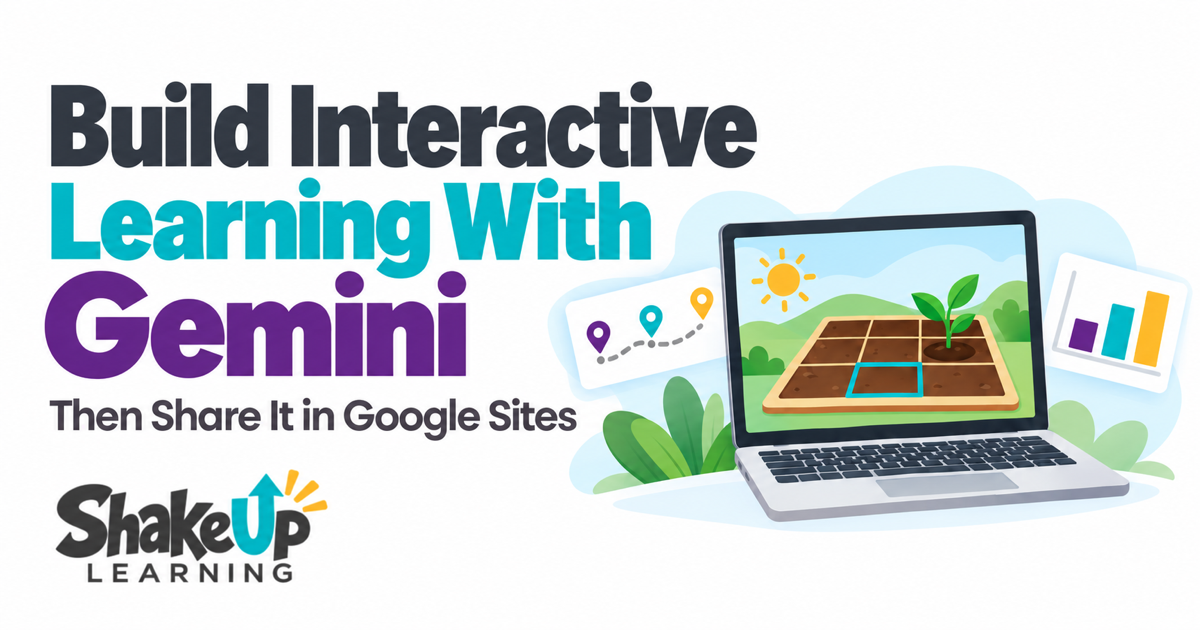
Did you know you can create interactive simulations and learning games with Gemini? And now you can even publish them in Google Sites! Create an activity built around what you’re teaching, with the vocabulary, challenge, and support your students need.Students could move objects to test an idea, make a choice in a game, or change a setting and see the results.They do something on the screen, and the activity responds.
Gemini is Google’s AI assistant, and it’s built into many of your favorite Google tools, like Google Classroom.You tell Gemini what you want students to do, and it can help build an interactive website, game, simulation…whatever you want! Google just released an update that lets you publish your new activity using Google Sites.You can add directions and lesson materials before publishing a page for students to open.
Publishing Gemini activities in Google Sites lets you put a custom activity and its directions in one place.(You’ll still need to check the content, try the controls, and confirm that your school’s settings let students access it.) Let’s look at some classroom possibilities, then walk through how to build and share one.*Related: Top 20+ AI Tools for Teachers Give Students Something to Investigate Think about a concept your students need to see in action.
What could they move, change, build, or compare to understand it better? A diagram of a rectangle gives students one example.A rectangle they can stretch lets them investigate what happens to its area and perimeter.A printed historical map shows one moment.
A map with a timeline lets students explore changes across years and connect those changes to sources.The value is in what students do with the experience.Ask them to predict, test, and explain, then use their observations to start a discussion.
Here are four classroom ideas you could develop with Gemini.They are starting points to build and check, rather than ready-made templates.Elementary Math: Design a Garden Have students resize a rectangular garden on a grid while the area and perimeter update.
Give them a challenge: Can you make two gardens with the same perimeter but different areas? A 4-by-6 garden and a 2-by-8 garden both have a perimeter of 20 units, but their areas are different.Students can try several designs, compare them, and explain why stretching the shape changes the planting space.The changing picture gives them something concrete to reason about.
Middle School Science: Investigate Environmental Conditions Use data from a class experiment or another teacher-approved source to build an environmental plant investigation.Students change the light and water settings, then compare the recorded growth for those conditions.Ask students to predict which combination produced the most growth, examine the results, and explain what the data support.
They could also identify combinations that were not tested.Keep the experience tied to the actual data.Don’t let a convincing animation substitute for a scientifically accurate model.
Middle and High School History: Explore a Changing Map Give students a timeline slider connected to a map of trade routes or transportation networks.As they move through the years, the map updates, with links to the primary sources behind it.Students might investigate how a new route connected communities or how transportation changed access to markets.
They can compare dates and locations, then return to the sources to support their explanation.The map helps them notice patterns; the evidence helps them decide what those patterns mean.High School Economics: Run a Virtual Store Let students adjust prices, costs, and inventory while revenue, expenses, and profit update on a simple store dashboard.
Have them compare three plans and recommend one.If the model includes demand, make its assumptions visible and check them before students use it.A price change should not produce an unexplained or invented sales result.
Students can test decisions and discuss tradeoffs instead of completing one isolated calculation.How to Start Building in Gemini Canvas Canvas is the part of Gemini where you can create and revise an app while testing it.Google supports games, simulations, and other interactive app prototypes.
See Google’s Canvas overview.Start with one small experience: Open Gemini with your school-approved account and select Canvas.Describe the learning goal and what students should be able to change or explore.
Supply the content, data, sources, or formulas the activity should use.Try the result, ask for specific changes, and check it again.Give Gemini enough direction to build the right thing.
For a garden activity, explain that the grid, area, and perimeter should change together.For a historical map, supply the dates and sources instead of asking it to invent the history.You can keep refining the app through conversation.
Google’s Canvas guide explains the creation and editing controls.Check a few results you already know.Does the garden calculate correctly? Does the map show the right route for the right year? Do the controls work with a keyboard as well as a mouse? Keep a noninteractive alternative available.
A Festive Example: Help Santa Fix His Sleigh! For a festive example, Fix Santa’s Sleigh connects review questions to a visible goal.Each correct answer earns a repair, and the sleigh becomes ready for takeoff as students progress.It’s a simpler use of visible change than the investigations above, but it shows how an activity can respond to what students do.
The first version ran in Gemini.The illustrated prototype shown here combines generated artwork with code customized locally outside Gemini.Its revised Gemini integration, updated Sites export, and student access have not been verified; it is an illustrative example, not a ready-to-use classroom resource.
Illustrative local prototype: correct answers repair Santa’s damaged sleigh.Select an image to view it at full size.How to Publish Gemini Activities in Google Sites Once you have something useful, students need a place to use it.
This is where Google’s new update comes in.Google announced a direct Gemini-to-Sites export on October 19.It places an interactive app into a new, private Google Sites draft, so you can add directions and other lesson materials around it before publishing.
See Google’s announcement.Step 1: Export to Google Sites Open your interactive app in Gemini and choose Export > Google Sites.Continue in the new Sites draft.
This direct-export workflow does not require manually copying code.It creates a new site; it does not automatically publish it or add the app to an existing class website.See Google’s export instructions.
Step 2: Add the Learning Goal and Directions Add a textbox, or use a new page in Google Sites to give students the full directions and learning goal.For the garden example, the page could ask students to create two designs with equal perimeters, record their areas, and explain which design gives them more planting space.You can also continue to add more resources, a slide deck lesson, or anything else you want to your Google Site.
Step 3: Choose Your Audience and Publish Use Preview to check the layout.Under Share, review access to the published site and choose your school-approved audience.School accounts may have different sharing options.
When the page is ready, select Publish, enter its web address, and complete publication.Share the published address, not the editing link.See Google’s publishing and sharing guide.
*Related: AI Tools in Google Classroom You Don’t Want to Miss! Check Your School Account Settings Google lists the export option for Workspace customers, Workspace Individual subscribers, and personal accounts with Gemini access.The announcement does not name a separate paid AI upgrade as a requirement.Sites must be enabled, and the creator must be allowed to create and edit sites.
See Google’s availability and administrator notes.Gemini features and limits vary by account and license.Check with your school administrator if an option is missing.
See Education account guidance and Age-based feature availability.Test Gemini Activities in Google Sites With a Student Account Before assigning Gemini activities in Google Sites, open the published link with an approved representative student account on the device and network students use.Check that students can open the activity, use every control, read the text, and access supporting materials.
Try the smaller-screen layout and any touch or keyboard controls they will need.A successful teacher preview doesn’t guarantee student access.Don’t promise that an activity works without signing in or without Gemini access unless you have checked those conditions.
If the site opens but the activity is blank, stop and check the permissions and school restrictions before assigning it.After making changes, check the published version again rather than assuming it updated automatically.Start With One Concept Students Need to See Choose one lesson where students would benefit from a change and watch what happens.
Build a small version, check the content and behavior, and give students a question worth investigating.Sharing Gemini activities in Google Sites puts the experience and its directions together in one place.The most useful part is what comes next: students showing you what they tried, what changed, and what they figured out.
For more classroom ideas, explore these AI tools for teachers.Keep Learning With ALL ACCESS Want support as you turn new tools into practical classroom ideas? The ALL ACCESS Teacher Membership brings together on-demand training, cheat sheets, guides, templates, and a community of educators.The membership includes the Google Gemini in Google Classroom Master Class, along with other AI and Google training you can explore at your own pace.
Use it to build your skills, then choose the ideas that fit your students and school’s approved tools.Explore ALL ACCESS Membership Shake Up Learning 2025.Unauthorized use and/or duplication of this material without express and written permission from this blog’s author and/or owner is strictly prohibited.
Excerpts and links may be used, provided that full and clear credit is given to Kasey Bell and Shake Up Learning with appropriate and specific direction to the original content on ShakeUpLearning.com.See: Copyright Policy.
Read More