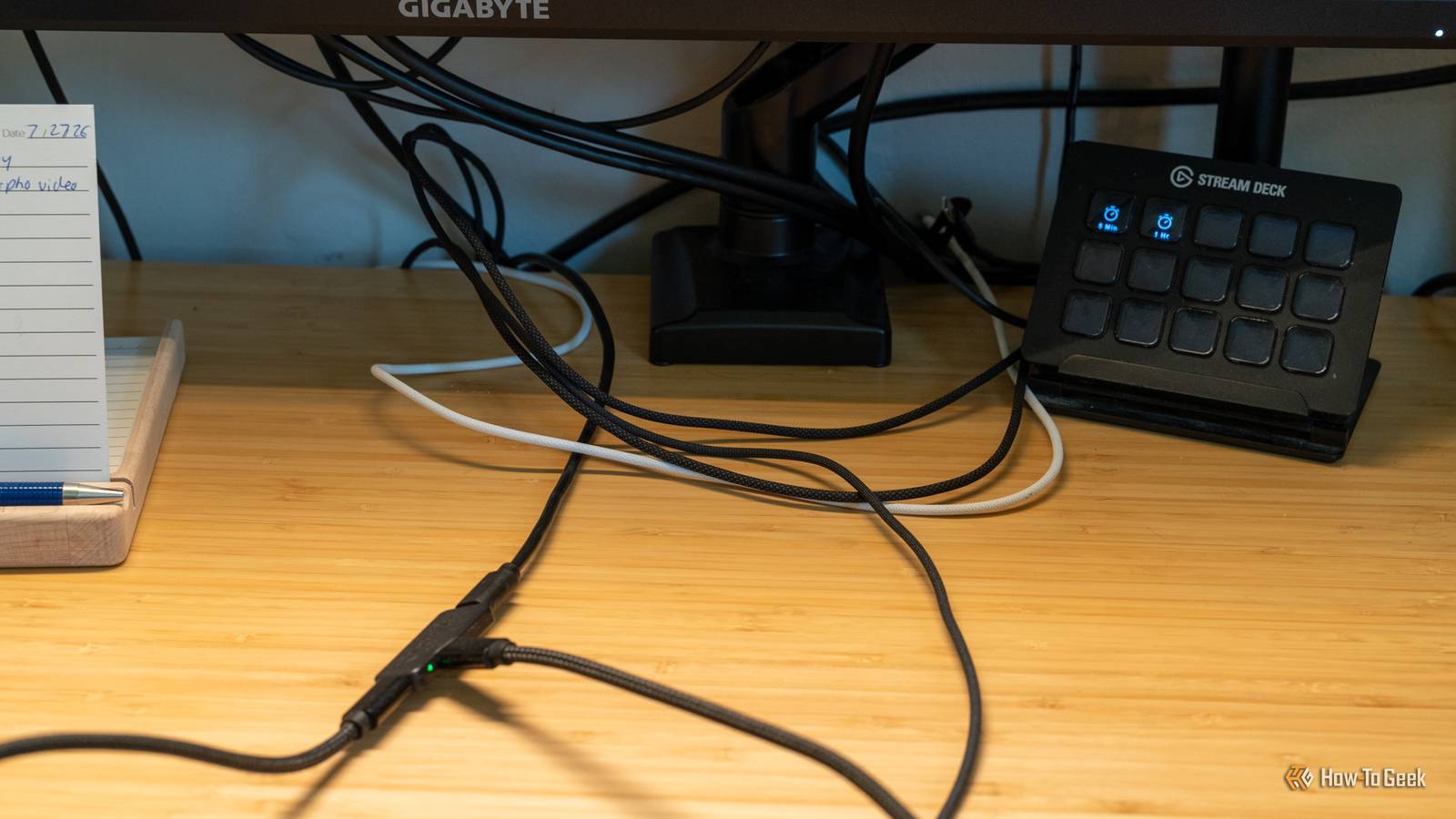
My desk used to run on a tangle of adapters: a laptop charger, a video cable, a USB hub, and a dongle for everything else.A monitor with a proper USB-C port cleared most of that away.Here’s how it works, and when a dock still makes more sense.
Add How-To Geek on Google Add as Preferred Source Follow on Google Discover How the USB-C port on my monitor works One cable carrying video, power, and data Close The USB-C port on a modern monitor does three jobs at once, which is why it can replace so many cables.The first is video.Most of these monitors use DisplayPort Alternate Mode, a standard that lets a USB-C cable carry a native DisplayPort signal.
The laptop isn’t compressing or converting anything.It sends the image down the cable as if it were plugged into a regular DisplayPort input.The second job is power.
Through USB Power Delivery, the monitor can charge the laptop over the same cable.Ratings vary by model, usually from about 65W to 90W and sometimes higher.That’s enough to keep most ultrabooks charging under load, and it’s why the laptop’s own charger can stay in the bag.
If a laptop needs more than the monitor provides, it will still work, but it may charge slowly or drain during heavy tasks.It's also good for smartphones and pretty much anything you need to charge unless it draws an insane amount of power.The third job is data.
The monitor has a small USB hub built in, and the USB-C link works as its upstream connection.Anything plugged into the monitor’s USB-A ports, like a keyboard, a mouse, or a webcam, shows up on the laptop as if it were connected directly.Some monitors also add an Ethernet jack or a KVM switch that lets one set of peripherals move between two computers.
There’s a tradeoff worth knowing about.A USB-C cable has a limited number of high-speed lanes.When a monitor runs 4K at high refresh rates, it often uses all of them for video, and the hub drops to USB 2.0 speeds.
That’s fine for a keyboard and mouse, but noticeable when copying large files to an external drive.Some monitors let you choose between more bandwidth for video or for data in their settings menu.The laptop matters too.
Not every USB-C port supports video output or charging, so check the spec sheet before assuming a single cable will do everything.Related USB-C is a success, even if it's still battling these 3 major flaws You own too many USB-C cables, don't you? Posts By Andrew Heinzman How it compares against a regular dock Docks win on ports, monitors win on simplicity A dock and a USB-C monitor solve the same problem from different directions.Both turn one cable from the laptop into a full desk setup, but a dock is a separate box that sits between the computer and everything else, while a USB-C monitor builds part of that box into the display itself.
The clearest advantage a dock has is port count.A good Thunderbolt or USB4 dock can offer several USB ports, an SD card reader, Ethernet, audio, and two or more video outputs.Monitors with USB-C hubs tend to be more modest, often a few USB-A ports and maybe Ethernet.
If you rely on lots of wired accessories, a dock simply has more room for them.Bandwidth is the other big gap.Thunderbolt 4 and USB4 docks work with a 40Gbps connection, and Thunderbolt 5 raises that further.
That’s enough to drive multiple high-resolution displays while keeping fast data transfer for external drives.A monitor using DisplayPort Alt Mode has to share far fewer lanes, which is where the USB 2.0 limitation described earlier comes from.Power can go either way.
Many docks deliver 90W to 100W, and some go higher.Monitors usually land somewhere in the same range, though cheaper models may offer only 65W.Neither option is automatically better here, so the spec sheet matters more than the product category.
Where the monitor wins is simplicity.There’s no extra box, no separate power brick for the dock, and one less device that can overheat, lose firmware updates, or fail.The cable runs straight from the laptop to the screen, and the desk stays noticeably cleaner.
It’s also cheaper overall if you were buying a new monitor anyway, since a capable Thunderbolt dock can cost as much as a mid-range display.Compatibility tends to be less fussy too, because DisplayPort Alt Mode is widely supported across Windows laptops, Macs, and even some Android phones with desktop modes.Related USB-C is a mess: Why your next laptop must have Thunderbolt The hidden logo that tells you if a laptop is actually good.
Posts 7 By Ismar Hrnjicevic Which one is the better option? It depends on how many screens you run For a setup built around one laptop and one external display (or just a desktop computer), the USB-C monitor is the better choice.It handles video, charging, and basic peripherals over a single cable, and it does so without adding another device to the desk.If your accessories amount to a keyboard, a mouse, a webcam, and maybe a wired network connection, a monitor with a decent built-in hub covers everything you need.
The slower USB speeds that can come with high-resolution video won’t matter much for those devices.The calculation changes once you need more than one external screen.Some USB-C monitors support daisy chaining through DisplayPort MST, which lets a second display connect to the first.
That works on many Windows laptops, but macOS doesn’t support MST for extended displays over standard USB-C, so Mac users will get mirrored screens instead.Base Apple silicon laptops also cap how many external displays they can drive at all.A Thunderbolt dock with multiple video outputs is a more reliable way to run two or three monitors, especially on Windows machines with Thunderbolt ports.
A dock also makes more sense if you move large files regularly, work with fast external SSDs, or need a long list of ports like SD card readers and multiple Ethernet or audio connections.The extra bandwidth of Thunderbolt or USB4 is a real advantage in those workflows, not just a spec sheet number.There’s also a middle path.
Many people pair a USB-C monitor with a small, inexpensive hub for the few extra ports the monitor lacks.That keeps most of the cable savings while filling the gaps.If you’re buying a new monitor anyway, prioritizing one with USB-C, at least 65W of charging, and a built-in hub is the easiest upgrade you can make to a laptop desk.
If your monitors are already set and you want more connectivity, a dock is the better investment.One cable is enough for most desks A USB-C monitor carries video, power, and data over a single cable, making it the simplest way to tidy a one-laptop, one-screen desk.Docks still make more sense for multi-monitor setups, heavy file transfers, or long lists of wired accessories.
Read More