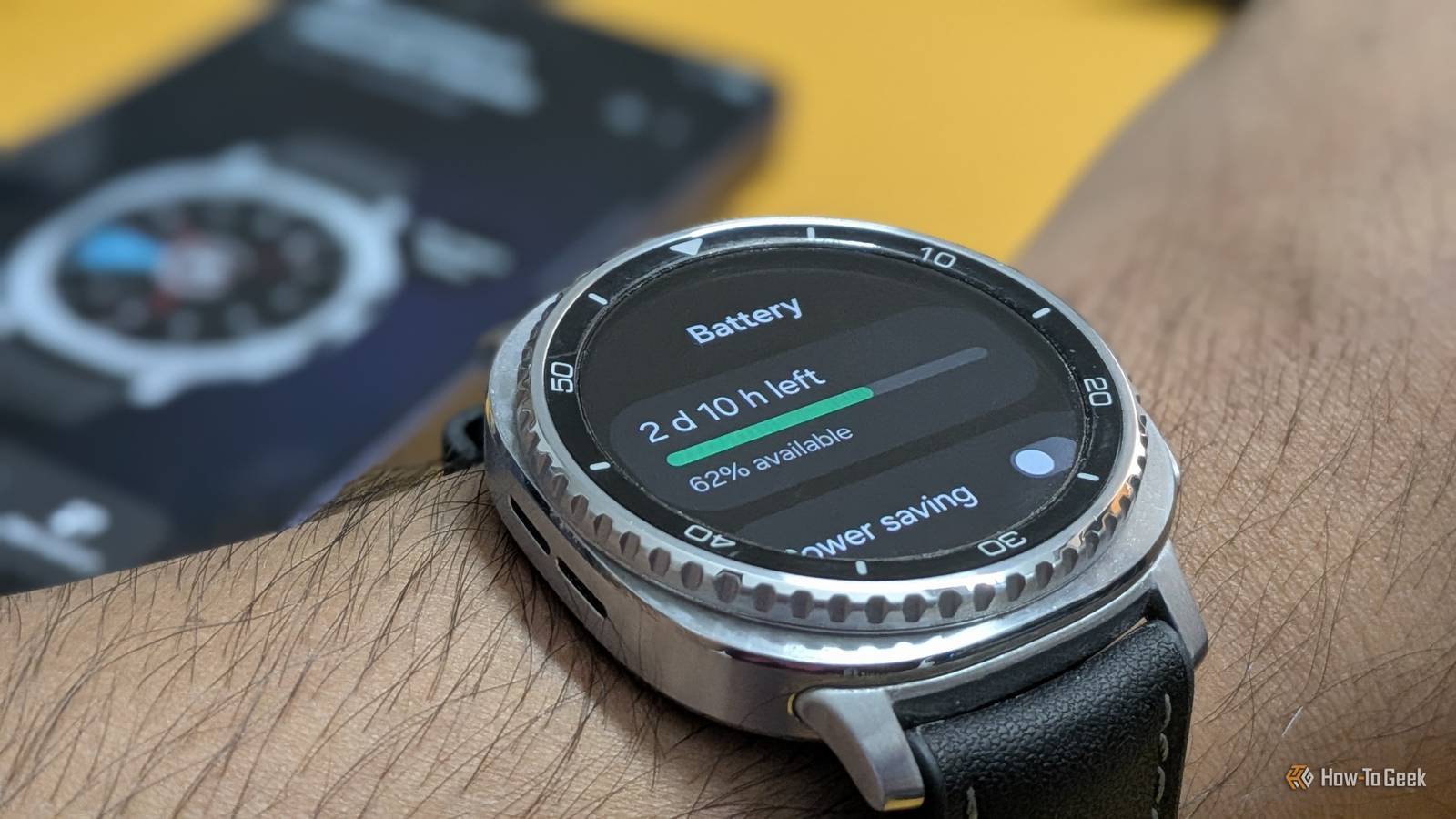
My Galaxy Watch typically has lasted a little over a day, which I always considered good enough—until I went on a trip.It completely changed my routine.I forgot to charge my watch before leaving, and by the middle of the day, I was walking around with a useless device strapped to my wrist.
Meanwhile, my partner's Pixel Watch 4 lasts nearly three to four days on a single charge.Since both watches run Wear OS under the hood, I wanted to see whether there were any optimizations I could make to improve my Galaxy Watch's battery life.After some careful tweaking, I managed to increase my watch's battery life from the usual 30–36 hours to around 70 hours.
Here's a quick overview of everything I changed.Samsung Galaxy Watch8 Classic Brand Samsung Operating System Wear OS $500 at Samsung $453 at Amazon Expand Collapse While I tested this on my Galaxy Watch 8 Classic, the tweaks should apply to other Galaxy Watch models as well.Limit constant health monitoring Most of that data isn't worth the battery it costs Close One of the biggest reasons my smartwatch was draining so quickly was that I had all of its health sensors set to run continuously.
It was constantly monitoring my heart rate, stress, and blood oxygen levels.Samsung even warns that keeping every sensor running all the time will reduce battery life, and disabling those features had the biggest impact in my testing.Granted, I'm giving up access to some health data by doing this.
But then again, constant tracking wasn't providing me with particularly useful insights.Continuously monitoring your heart rate and stress levels can be worthwhile if you've adopted a new routine, are working toward a specific health goal, or are trying to spot trends.But if you're not using that data to guide any decisions, passively collecting it every day won't add much value.
Furthermore, if you relying on health data for a medical reason, I wouldn't rely on a consumer smartwatch in place of medical-grade equipment.As such, the first feature I recommend disabling is continuous health monitoring.The features are still there, and you can check each metric manually whenever you want—just don't leave continuous monitoring enabled, especially if you're struggling to make your watch last through the day.
Related Your Galaxy Watch is wasting battery on health tracking features you don't even use Use it or lose it (your battery life).Posts 3 By Joe Fedewa Stick to dark watch faces The brightest features often have the highest cost Since the Galaxy Watch uses an AMOLED display, black pixels are effectively turned off and consume little to no power.That means your choice of watch face has a direct impact on battery life.
Bright, colorful watch faces illuminate more of the display, while darker ones with minimal design elements use less power.I'd also recommend sticking with Samsung's first-party watch faces whenever possible.Some third-party watch faces look fantastic, especially those with elaborate animations, but those effects come at a battery cost.
If you check your watch's battery usage page, you'll often find that poorly optimized watch faces are among the biggest battery consumers.Besides reducing battery life, they can also make the watch feel less responsive, particularly on older models like the Galaxy Watch 4 and Galaxy Watch 5.Enable Always-on Display (yes, you heard that right) As counterintuitive as it sounds, enabling Always-on Display (AOD)—especially on Galaxy Watches—can help improve battery life.
While conventional wisdom will say having a screen constantly showing an image will eat battery life, you also need to consider that waking up the screen eats processing power.Apparently, Samsung has configured a way where enabling AOD eats less battery compared to having it disabled and solely relying on Raise Wrist to Wake.Here's an insightful article from our mobile editor explaining how the process works.
Related Here's why using the Always-on Display on a Galaxy Watch actually saves battery Galaxy Watches have a battery trick everyone gets backwards.Posts 17 By Joe Fedewa Optimize your sleep tracking settings A good night’s sleep shouldn’t cause daytime battery anxiety Close Sleep tracking is honestly one of the main reasons I wanted a smartwatch.I wanted to know how quickly I fall asleep and how often I wake up during the night.
On top of that, having my watch vibrate to wake me in the morning has proven far more effective than the alarms on my phone, which I always had a tendency to sleep through.However, the Galaxy Watch tracks far more than just how long you sleep.By default, in addition to estimating your sleep duration, it continuously monitors your blood oxygen levels and measures your skin temperature.
There's also an option to enable snore detection, although it's turned off by default.As I mentioned earlier, the more sensors your watch keeps running, the more battery it consumes.Personally, I don't snore, nor do I have sleep apnea, so I don't need to know whether my blood oxygen levels dipped overnight.
Skin temperature tracking falls into the same category.It can be interesting to enable these features for a week or so just to see the data, but for most people without sleep-related issues, leaving them enabled all the time provides little benefit.Related I turned my old Android phone into a sleep companion—and it’s better than my smartwatch My smartwatch may have better sleep-tracking features, but my phone delivers a better overall experience.
Posts 2 By Dibakar Ghosh Use Wi-Fi, Bluetooth, and GPS only when necessary A little manual control goes a long way Close I used to keep Wi-Fi, Bluetooth, and GPS enabled on my watch 24/7, but during this battery audit, I asked myself the same question I did for the health sensors: "Do I actually need them?" If your watch is connected to your phone over Bluetooth, it's already syncing everything it needs, so keeping Wi-Fi enabled often isn't necessary.This is especially true when you're away from home.I don't know anyone who regularly connects their smartwatch to a Starbucks Wi-Fi network—or any public Wi-Fi, for that matter.
The very fact that Wi-Fi is enabled means it’s searching for networks to connect to, which is consuming some amount of battery.As a result, my rule of thumb is simple: I turn off Wi-Fi before leaving home and only turn it back on if I actually need internet access directly on my watch.The same idea applies to Bluetooth.
If you're heading out for a walk or a run without your phone, there's little reason to leave Bluetooth enabled which forces your watch to repeatedly looks for a device that isn't there.With GPS it’s the opposite.It's invaluable for outdoor workouts like running or cycling, but when I'm at home or in the office, I leave it turned off.
Now, I realize manually toggling Wi-Fi, Bluetooth, and GPS sounds like adding unnecessary friction.But after doing it every day, I can honestly say it isn't nearly as inconvenient as it sounds.Just swipe down from the top of the watch, tap the appropriate toggles, and you're done.
It's slightly less convenient than leaving everything enabled, but it's one of the easiest ways to squeeze a little extra battery life out of your watch.Fix the Bluetooth connection loop Close While we're on the topic of Bluetooth, some users run into a "connection loop" where their watch and phone repeatedly disconnect and reconnect.Every time that happens, the watch has to search for the phone and re-establish the connection, and that constant back-and-forth can drain the battery.
In many cases, the culprit isn't the watch itself but your phone's battery optimization.If the Galaxy Wearable app (or its watch plugin) is put to sleep in the background, it can interrupt the Bluetooth connection.To prevent that, go to Settings > Apps > Galaxy Wearable > Battery on your phone and set it to Unrestricted.
You should also make sure the app has all the permissions it needs.This can help eliminate the connection loop and reduce the battery drain caused by repeatedly searching for and reconnecting to your phone.Disable unnecessary notifications The more it buzzes, the less it lasts Every notification wakes the screen, plays a sound, and activates the vibration motor—all of which consume battery.
However, completely disabling them also doesn’t make sense because quick and easy access to your notifications is often the main reason people buy smartwatches.As such, the fix is somewhere in the middle—to limit watch notifications to only what you actually need.For me, that means no social media and no email on my wrist.
I keep alarms and timers, health reminders, my notes app, my calendar, and Slack.Even Slack is configured to notify me only when someone mentions me by name.Your list will look different, but the idea is the same: be intentional and enable only the notifications that genuinely matter.
Related Smartwatches became too distracting—here's what you should switch to instead Smartwatches have reached a plateau, and the next wave of wearables is focused on health tracking without the distractions of screens.Posts 3 By Nate Pangaro Reduce vibration intensity Close While we're on the topic of notifications, it's worth mentioning that every vibration uses a little battery.Both the intensity and the duration affect power consumption.
The easiest win is setting the vibration duration to Short.As for intensity, I'd recommend Light, but if you find yourself missing notifications, switch to Strong instead.There's no point in squeezing out a little extra battery life if it makes your watch less useful.
Deliberate use is the best way to lengthen battery life Samsung's Galaxy Watches are among the most capable Android smartwatches available, so it's easy to see the appeal of leaving every feature enabled.But if you're constantly using features when you don't actually need them, they may not be available when you do—because your watch has already run out of battery.The benefits also extend beyond a single charge cycle.
Lithium-ion batteries gradually wear out with each charge cycle, so reducing how often you need to recharge your watch can help preserve its long-term battery health.By being more deliberate about which features you leave enabled, you're not just getting longer battery life today—you're also helping preserve your watch's battery health over the long term.
Read More