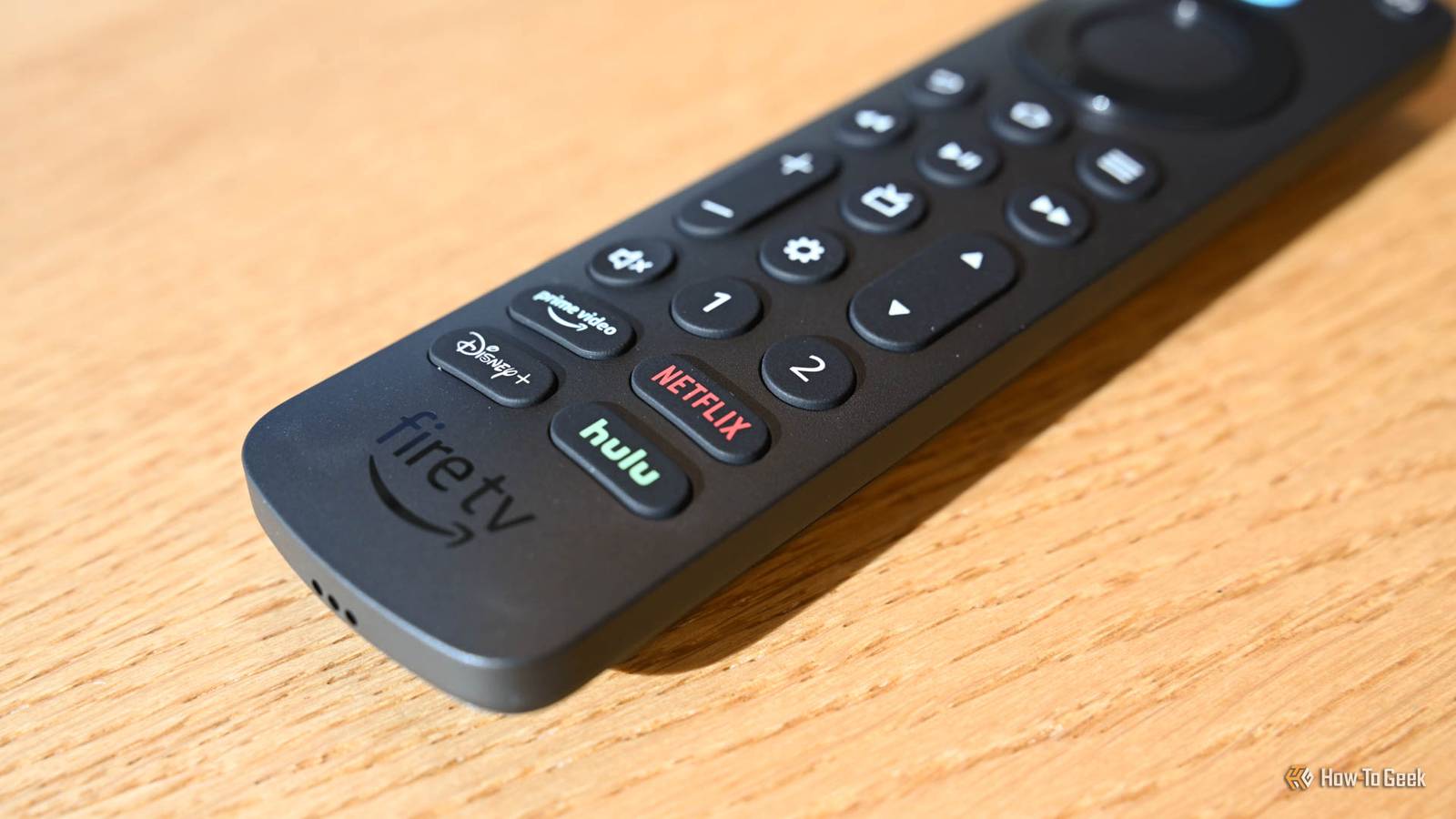
Fire TV remotes are pretty good.They're stripped back and easy to use, and they put all the most common features right at your fingertips.But the lack of extra buttons makes the remote look quite limited.
In fact, a series of long presses and button combos unlocks a host of shortcuts that many people never discover.Here are the best of them.Quickly access the quick settings The options you use all the time When you're watching something, and you find you need to adjust a particular setting — maybe you've got Wi-Fi problems, for example — you don't need to exit the movie or even the app that you're watching.
You can jump straight to that option via the Quick Access screen.This shows a range of options including Profile, Apps, Sleep, Mirroring, and Settings, and it pops up on top of whatever you're currently doing.To access the screen, simply hold down the home button for a couple of seconds, and it will appear.
Restart your Fire TV No more digging in menus You can also restart Fire TV or a Fire Stick without needing to delve into the menus.To do it, hold down Select and Play for about five seconds.You'll see a message on screen saying that the device is going to restart.
You don't get the option to confirm or back out.It happens automatically.Fire TV Stick 4K $24.99 $50 Save $25.01 Operating System FireOS A step up from the Fire Stick TV Lite is the Fire Stick TV 4K.
It offers a Dolby Vision upgrade and TV controls on the Alexa remote.$24.99 at Amazon Expand Collapse See all the available display resolutions Cycle through all your options Close A Fire Stick will normally detect the correct resolution for your TV, but it doesn't always work out like that.Sometimes you might start playing a 4K video and get a message saying it's unsupported, or you might find that your content is not as crisp as you'd expect.
In these cases, you need to adjust the display resolution.To do that, hold the Up and Rewind buttons for about five seconds.The device will then start cycling through all the supported display resolutions in turn.
When you find the one that you want to use, just click Select to apply it.If you try this shortcut and don't want to change resolution, wait for it to finish showing all the options.It'll then return to the Fire TV home screen.
Access the screen magnifier and other accessibility options VoiceView and Text Banner are also there Close Fire TV supports a number of accessibility options, and Amazon gives each one its own shortcut to make it more, well, accessible.The first is the Screen Magnifier option that lets you zoom into parts of the screen.Access it by holding the back and fast-forward buttons for a few seconds.
The next is the Text Banner option, which takes all the text on the screen and places it into a single, narrow, high-contrast box in a fixed position.To access it, hold Rewind and Fast Forward for a couple of seconds.The final option is VoiceView, which speaks on-screen text out loud.
To use this, hold the Back and Menu buttons for a couple of seconds.Pair and re-pair your remote For when your remote stops responding If your Fire TV remote loses its connection for whatever reason, you need to re-pair it again.You do this the same way that you paired it in the first place, but you might no longer get on-screen instructions to show you how to do it.
The answer is simple: hold the Home button down for around ten seconds until you get confirmation.If there are any problems, turn off, unplug, then restart your Fire TV and try again.Reset your remote The solution to most problems Whenever you've got a problem with your Fire TV remote, like the buttons not responding or constant loss of connection, the easiest way to fix it is to reset it.
Once you've done that, you can re-pair the remote, and hopefully it'll be working as expected once more.To reset the remote, hold down the Left, Menu, and Back buttons for around 10 to 15 seconds.Launch the developer options But not on the Vega OS devices If you've got the developer tools menu enabled on your Fire TV device, you can access it quickly using a shortcut.
Hold the Select and Down buttons for about five seconds, then release them and immediately press the Menu button.This should launch the developer options screen.However, this shortcut is a little tricky to master, so you might need a few goes to get it to work.
It also doesn't work on the newer Fire TV devices, which don't have developer options at all.Factory reset your Fire TV The ultimate fix for any issue Finally, the last resort for fixing any kind of problem is a factory reset.In Fire TV, you can do this using a keyboard shortcut.
Hold Back and Right for at least 10 seconds to trigger the reset process.Get to know your Fire TV remote These Fire TV remote shortcuts are so well hidden that it's unlikely you'd ever stumble upon them by accident.Yet they make the remote a lot easier to use.
They can put some common features that you use all the time right there instead of requiring you to dig through the menus.You don't need to memorize them all, but learning the one or two that you use all the time will make for a valuable usability enhancement.
Read More