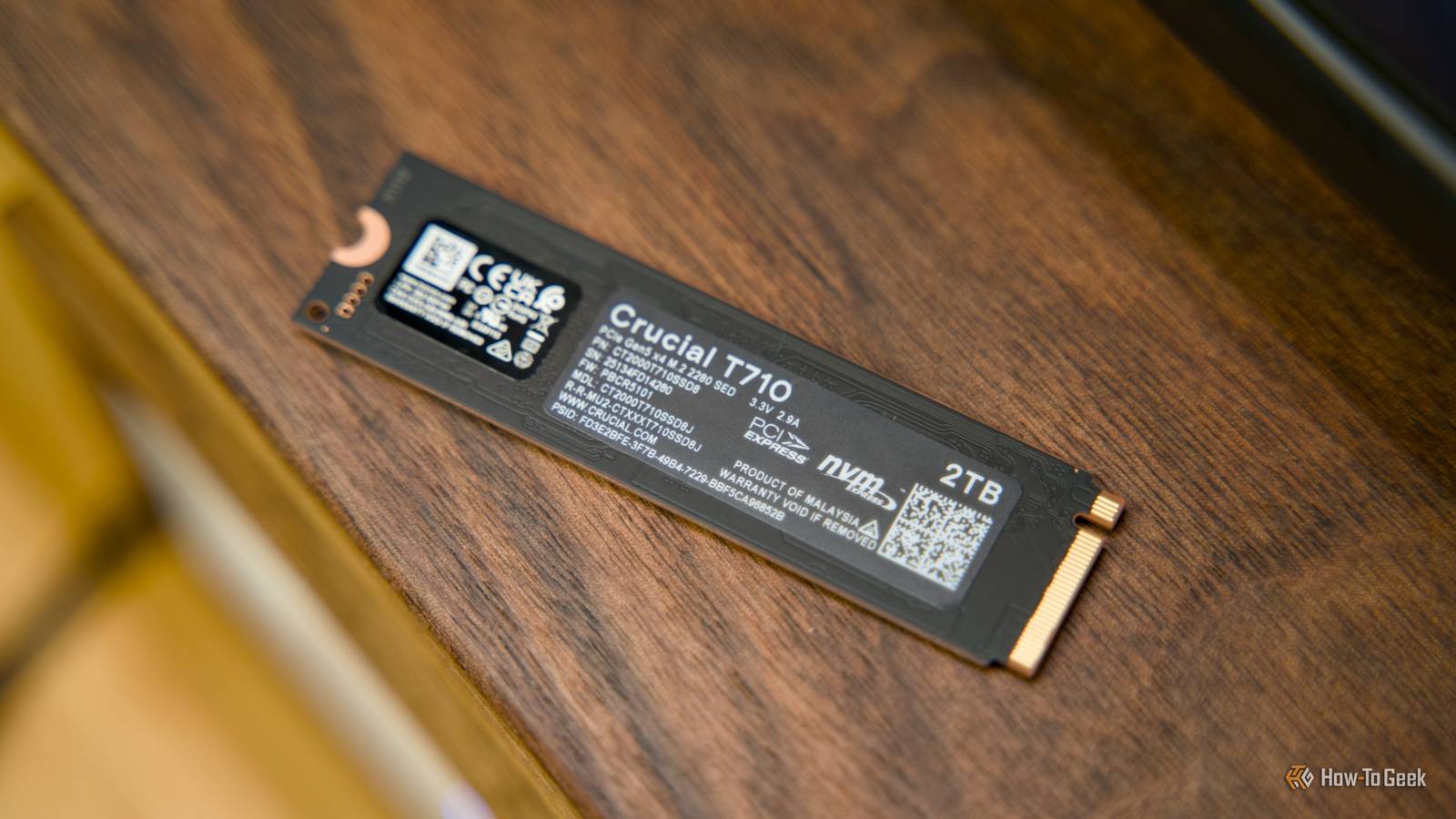
Windows has a lot of random settings that most of us never dig our way to.For some of them, that's actually a good thing, and one of them is "Turn off write-cache buffer flushing." While it looks like a harmless speed tweak, it can make you lose your files.Here's how it works, and why it can be dangerous.
What this setting actually changes Before playing with it, learn what it does.The "Turn off Windows write-cache buffer flushing on the device" setting sounds, let's say, ambiguous.For many users who don't spend hours digging into Windows, it's not quite obvious what it does exactly, and even if it's easy enough to figure out, it's not easy to guess the benefits and the downsides.
First of all, let's break down where to even find this setting.In Windows 11, the path is as follows: Win + X > Device Manager > Disk drives > Right-click your drive > Properties > Policies.In there, you'll find "Turn off Windows write-cache buffer flushing on the device," followed by a disclaimer from Microsoft.
So, what does this setting do? It changes how aggressively Windows forces cached writes to be committed to durable storage when apps ask for it.The TL;DR version is that this setting decides whether Windows actually forces your drive to really save cached data, or it just assumes it's saved and moves right along.Normally, when an app requests a flush, Windows will push data out of its own cache, then tell the drive to flush its internal cache, too.
That means that saved data is actually safely committed.When you tick this mysterious setting box, you're telling Windows to skip that entire step.That gives Windows the opportunity to call it a day even if some data is still sitting in volatile cache.
Volatile cache is not the best for your data to stay in for too long, but turning on this setting can improve some write-heavy workloads.Forced flushes create pauses, and skipping them can boost the performance of your SSD.On the other hand, they also widen the window where an unexpected shutdown can turn into a disaster.
The reason why you have to worry about a sudden power loss It's not like your PC ever enjoys them, but this setting makes them worse.The bottom line of using (or avoiding) this setting is that you're essentially swapping certainty and data security for better performance.A fine choice at times, but usually, putting your data at extra risk is just not worth it.
We already deal with various other things that can lead to corrupted data; dealing with even more doesn't sound fun.Enabling flushing means that Windows will try its best to commit the data, moving it out of the cache and onto non-volatile storage.But when you disable it, it all comes down to the drive's own behavior and whatever power is available at that moment.
That's a gamble, and one that's usually not worth taking.Most consumer drives use some form of volatile caching for performance, but if that data disappears mid-write, your PC can just stand there and shrug.And power cuts can happen to anyone, so there's no telling when or if you'll run into this problem.
Similarly, if your PC freezes, your data could be in trouble, too.Some of the consequences include missing changes, corrupted files, or even issues with the entire filesystem.It's a risky setting, that's for sure.
But is it ever worth using? When the trade-off actually makes sense Does it ever? If you're on a normal home PC, the answer to whether you should ever tick the box next to "Turn off write-cache buffer flushing" is honestly almost never.Data integrity is pretty much never worth sabotaging for the sake of better transfer speeds.Still, one scenario where it can make sense is if you're using hardware with some serious power-loss protection, paired with a stable power setup.
But that usually means enterprise-grade SSDs or workstations connected to a UPS, and most of us don't have that sort of hardware at home.Another scenario is if you just don't care about data loss, in which case, you're much braver than I am.If you're hammering a scratch disk for temporary files or running a benchmark, I get it.
But otherwise, you're just risking your files.Safer ways to improve storage speeds Outside of spending more money, that is.Short of spending a fortune on one of the fastest SSDs, there are a few things you can do to improve transfer speeds without putting your entire filesystem at risk.
Subscribe to our newsletter for Windows storage safety tips Want straightforward advice? Subscribe to the newsletter to get practical, easy-to-follow guidance on Windows settings like write-cache buffer flushing, safer storage choices, and how to reduce data risk.Subscribe By subscribing, you agree to receive newsletter and marketing emails, and accept our Terms of Use and Privacy Policy.You can unsubscribe anytime.
On internal drives, make sure you're not overloading your SSD or killing it by filling it up to full or otherwise mistreating it.SSDs slow down when they're nearly full, they can throttle when hot, and they can feel randomly sluggish when something is constantly scanning or indexing what you’re writing.External drives depend on a lot of different stars aligning to deliver the perfect performance.
You need the right port, drive, enclosure (where applicable), and cable for transfer rates to be as good as they can be.Review your entire setup and see if there are improvements to be made.Turning off write-cache buffer flushing is usually a bad idea, so it's best to steer clear unless you really know what you're doing.
Personally, I care too much about my files, so I'm keeping it on (which, confusingly, means not ticking the box next to the setting—just a PSA).
Read More