Samsung has a reputation for packing its Galaxy phones with a deluge of features, arguably more than any other Android phone maker, and many of them don't get the spotlight they deserve.As a result, a lot of people overlook a good chunk of their Samsung phone's features just because they aren't talked about, which is a shame because some of them can be super useful in a variety of situations.Here are five One UI features that most owners end up ignoring, but if you own a Galaxy phone, you really shouldn't.
Samsung Modes and Routines Automate your phone just the way you like This isn't some obscure feature nobody's heard of, but plenty of Samsung owners either ignore it or only use a small portion of what it can do.Spending a few days getting to know it can have a massive payoff, because Modes and Routines let you build a huge range of automations that handle the things you'd normally do by hand.That saves you time, and you no longer have to remember to do those things yourself.
For instance, you can enjoy a distraction-free phone that only alerts you when specific contacts call or message you, or have it launch apps and turn modes on or off based on your location or the time of day.That way, your phone can open Spotify as soon as you leave home or show work-related notifications only while you're working, and that's just scratching the surface.Close If you haven't used it yet, do give it a chance; you'll likely thank me for nudging you to check it out.
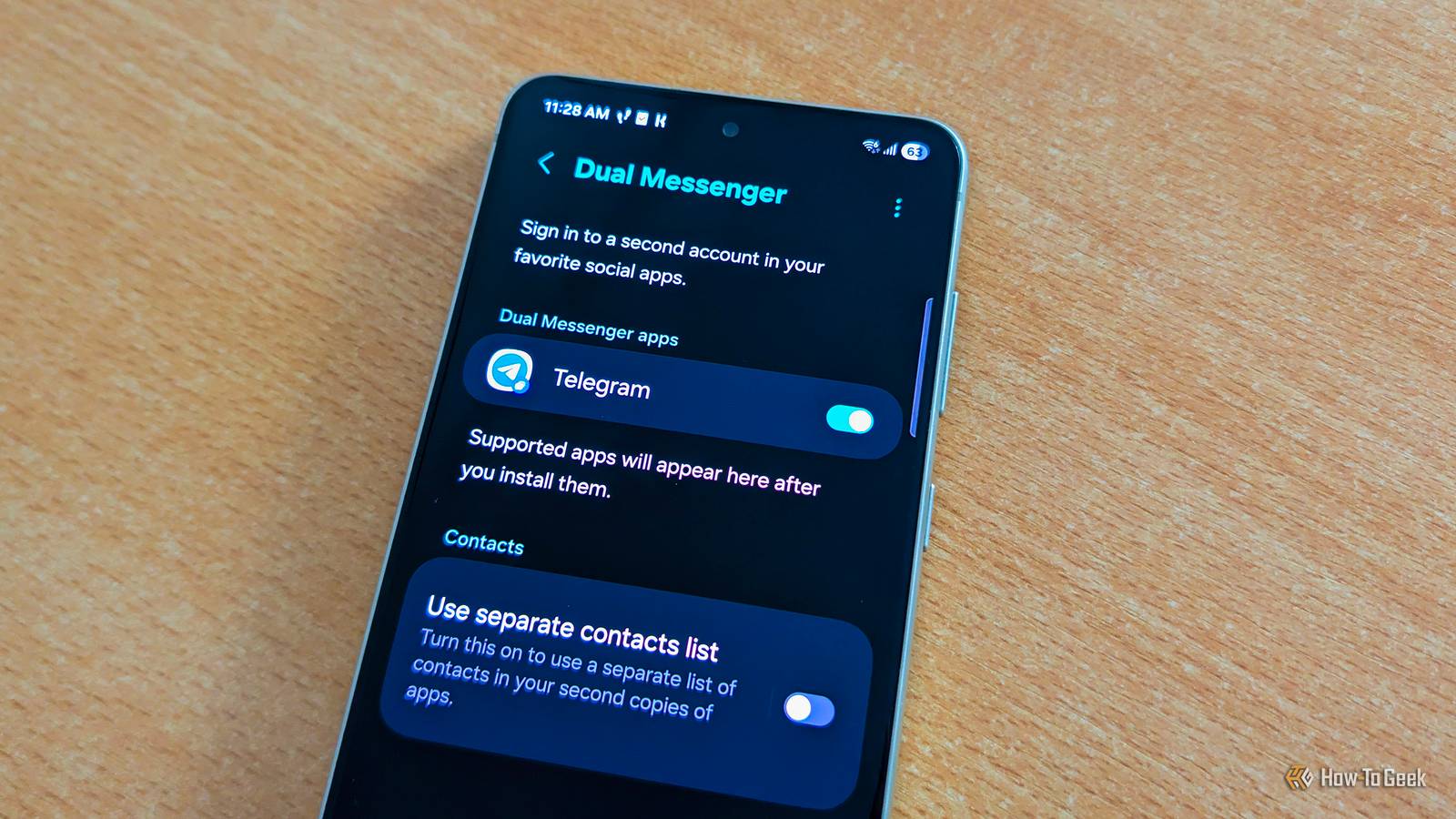
You can find it by opening Settings and going to Modes and Routines > Routines.Dual Messenger Use two chat apps side by side, with different contact lists Close If you've ever wanted to use two different accounts in the same chat app, you've got to try Dual Messenger, which lets you install a second copy of a supported messaging app on your phone.It runs alongside the main copy, so you can use the two simultaneously.
You can even use the second copy with its own contact list.To enable it, open Settings, go to Advanced Features, and select Dual Messenger.Then turn on the toggle next to the app you want to copy, tap Install, and go through the setup process.
Once it's installed, you'll find it in the app drawer, clearly marked with a blue badge.If you decide to put it on the home screen, it will keep the same badge, so you'll be able to easily tell it apart from the primary version of the app.Separate app sounds Listen to music on your buds while YouTube plays on your phone's speakers Close Now here's one exotic One UI feature that's kind of situational but can be a godsend for people who do need it.
Separate app sound allows you to listen to two audio sources simultaneously on the same phone through different audio outputs.For example, you can connect wireless buds to your Galaxy, start listening to music on Spotify, and then hand the phone to another person so they can watch YouTube with the sound playing through the phone's speakers.As I said, this is very situational, but it can be indispensable at the right time and place.
You can find Separate app sound by opening Settings, selecting Sounds and vibration, and then tapping Separate app sound near the bottom of the menu.Turn it on, select the app and the audio output it will use (you can add any app you like if it's not already on the list), and you're off to the races.Just remember that you'll have to manually enable the feature every time you want to use it.
Secure Folder A phone within your phone, hidden inside your Galaxy Plenty of Galaxy owners never touch Secure Folder; if you're one of them, here's why you should.Secure Folder is so much more than a private folder for your apps and sensitive data.It's a separate, sandboxed place where you can install apps, use them with different accounts, and keep your private stuff, but you can also use it to create an isolated ecosystem that lives independently of your main phone and only activates once you open Secure Folder.
After it locks, all the apps inside it are stopped by default, so they can't run in the background or eat up your battery, but you can allow them to work in the background if you so desire.So instead of using it just to hide things, you can turn Secure Folder into a work-only space you use during work hours, reserve it for apps you need only in specific situations, or create a weekend-only collection of apps you don't want bothering you during the workweek.The possibilities are vast, since Secure Folder can play a wide variety of roles.
Close To enable the feature, open Settings, then go to Security and privacy > More security settings > Secure Folder.Once you activate it, One UI will let you sign in with a separate Google or Samsung account that only works in Secure Folder, and if you do, you'll be able to use the copies of the Play Store and Galaxy Store inside it.This lets you install any app inside the folder.
Even if you don't want to sign in with a separate account, you can still add copies of the apps you already have on your phone to Secure Folder, which is a handy option to have.Audio Eraser An AI feature that's actually useful Close Audio Eraser is a One UI feature you can use with videos and voice recordings you've captured on your phone, but also with videos you're watching in other apps.It's a useful AI-based feature that analyzes a recording and then lets you fine-tune voices and background noise, boosting the former and dampening the latter, which can be handy for videos or audio recordings where voices are drowned out by noise.
There are a few ways to use Audio Eraser.For videos you recorded, open the video in Gallery, tap the AI button, and then edit voices and noise by tapping their icons and adjusting the slider until you're satisfied with the results.For recordings made with Samsung's Voice Recorder app, open any recording inside the app and tap the Audio Eraser icon to clean up any background noise.
When a video is playing in an app like YouTube, Netflix, or TikTok, you can swipe down to open the Quick Settings panel, tap the Audio Eraser button, enable it, and adjust its strength.Just be aware that you won't be able to activate the Voice focus toggle until you max out the strength.Exploring features on your Samsung Galaxy can change the way you use your phone Since Samsung Galaxy phones come with a metric ton of features, many owners spend years without even being aware of ones they'd massively benefit from.
For instance, I didn't know about widget stacking for quite some time after getting my Galaxy S21 FE, but once I found out about it, it became one of my favorite One UI features, and one I really miss on my Pixel phone.So feel free to explore your phone and look inside every nook and cranny, and I can guarantee you'll find a feature or two that will become a staple on your Galaxy.
Read More