For a single unit conversion, Google wins on convenience.But if I have a bunch of measurements to convert, I don't want a scrap of paper covered in random numbers, or to keep copying values out of a spreadsheet and back again.Excel's CONVERT function lets me keep the measurements, units, and results together, while reusing the same formula for as many conversions as I need.
CONVERT turns repetitive conversions into a spreadsheet task Keep measurements and results together The setup I use is deliberately simple.I give each measurement its own row, record the unit it currently uses, input the unit I want, and let Excel calculate the result.Now I have the original measurement and its converted value together, with enough information to see exactly what each number means.
If I need to change a conversion, I can change the units instead of starting over elsewhere.This works just as well for a handful of unrelated measurements as it does for a larger dataset.If I've imported distances in miles and need them in kilometers, for example, I can add a conversion column and keep the results alongside the original data.
CONVERT needs only three arguments A tiny formula goes a long way Close The CONVERT syntax is easy to follow and remember: =CONVERT(number,from_unit,to_unit) The first argument is the number I want to convert, the second is the unit it's currently in, and the third is the unit I want the result in.In its simplest form, I could write: =CONVERT(36,"in","cm") This returns 91.44, because 36 inches is 91.44 centimeters.Likewise: =CONVERT(5,"mi","km") Excel calculates 8.04672.
The number of decimal places Excel displays can depend on the column width and the cell's number format.A narrow column may show fewer decimal places, while changing the number format lets you control how many decimal places are displayed.CONVERT also handles conversions where a simple multiplication isn't enough.
For example, converting Fahrenheit to Celsius involves both a change in scale and an offset, but I don't need to account for either manually: =CONVERT(68,"F","C") returns 20.In other words, I don't need to know the underlying conversion formula.I just give CONVERT the number and the two unit codes, and Excel handles the calculation.
The only thing that takes a little getting used to is that CONVERT uses unit codes rather than full unit names.So I need in rather than "inches," cm rather than "centimeters," and mi rather than "miles." Microsoft provides a list of all the codes CONVERT accepts, so I can look up an unfamiliar code when I need it, then enter it directly into the From and To columns of my table.An Excel table makes CONVERT reusable Change the units, not the formula Close Hard-coding the number, from_unit, and to_unit arguments works just fine.
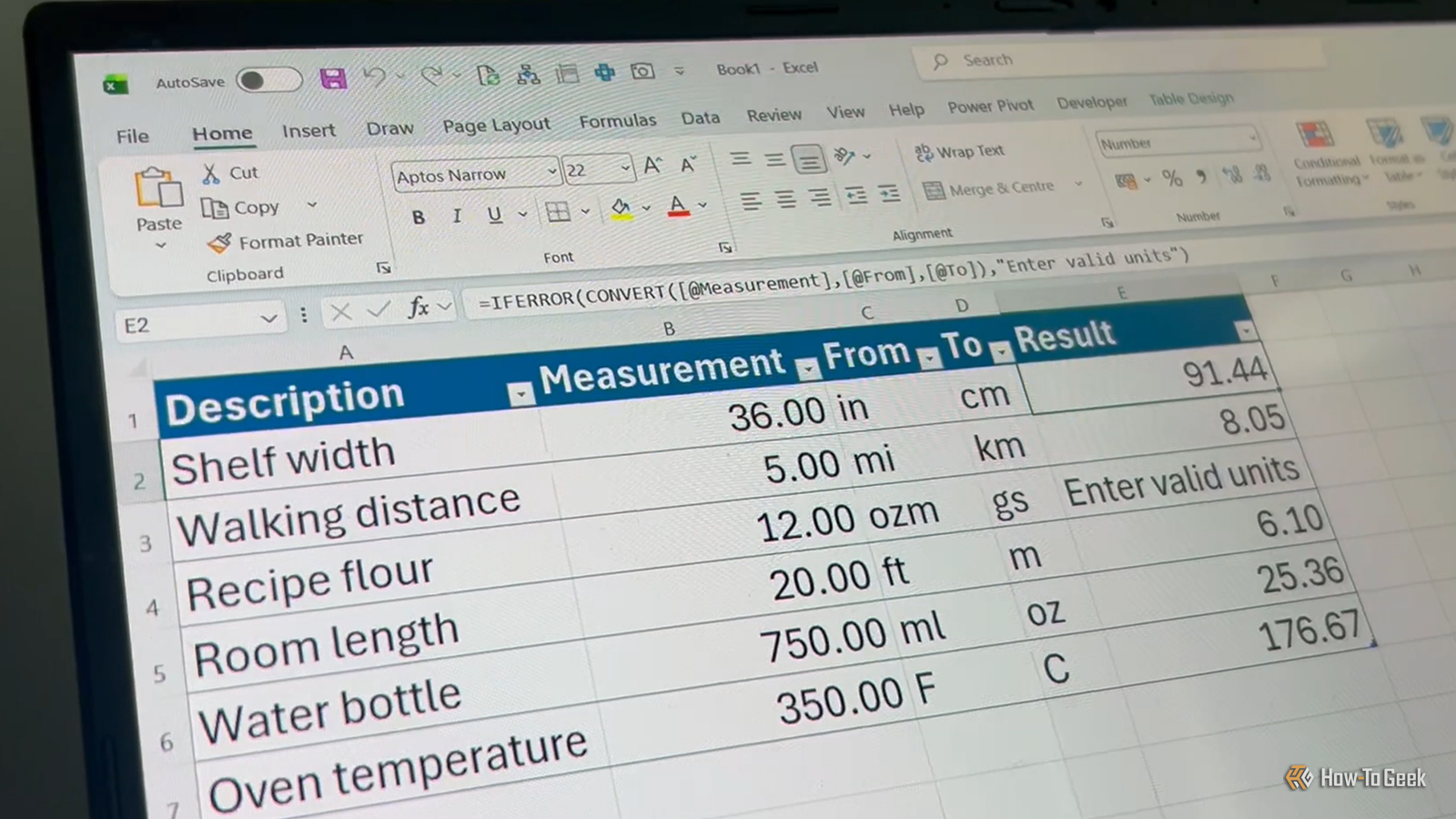
But when I put the measurements and unit codes in their own columns, I can make the range an Excel table and use the same formula for every row, even when the units change: =CONVERT([@Measurement],[@From],[@To]) For readability and consistency, format the Result column to show two decimal places, so the converted values don't end up with a long string of digits.The structured references tell Excel to use the values from the current row.Because it's an Excel table, the formula also fills down automatically when I add another measurement.
I could leave the formula there, but I prefer to add a simple error message using IFERROR: =IFERROR(CONVERT([@Measurement],[@From],[@To]),"Enter valid units") Now a typo or incompatible pair of units produces a useful message instead of an Excel error.For example, if I accidentally type mii instead of mi, or try to convert mi to C, the result displays "Enter valid units." The really useful part is that I can change the units without touching the formula.If I change mi to km and km to mi, Excel converts the measurement in the opposite direction.
If I change in to ft and cm to m, the same formula handles that conversion too.I can also add as many rows as I need, so I can handle multiple measurements at once.And because the conversions stay in the table, I have a record of what I've converted and the results I got, rather than a collection of measurements scribbled on scraps of paper.
Things to note with the CONVERT function Get more from CONVERT One useful feature is that CONVERT supports prefixes, such as kilo-, centi-, milli-, and micro-, for metric units, as well as binary prefixes for information units.In the screenshot above, the k in kPa tells Excel that the measurement is in kilopascals, while the k in km/h similarly indicates kilometers per hour.The M and k in Mbit and kbit indicate different multiples of the bit.
This means I can convert between different multiples of a unit without creating a separate formula for each one.There are also a couple of function rules worth remembering.First, unit codes are case-sensitive.
For example, Celsius uses C, while c refers to a thermodynamic calorie.Second, if you hard-code the unit codes into the formula, you need to put them in double quotes.When you're referencing cells or structured references, though, you don't need quotes.
Don't overlook the small but useful functions CONVERT is one of those overlooked Excel functions that can be surprisingly useful in everyday situations.Functions like XLOOKUP and PIVOTBY tend to get much more attention, but I keep finding that some of Excel's less talked-about functions solve the small problems that crop up in real spreadsheets.
Read More