Windows 11 is rife with features enabled by default that you'd be better off disabling.While some degrade the experience of using the most popular desktop operating system in the world, and others take up precious resources and can have a negative effect on performance, there are a few that simply have no place in Windows anymore and that no one should have enabled in this day and age.Fast Startup An outdated Windows feature that does more harm than good Close One of the first features I disable on a fresh Windows 11 installation is Fast Startup, which can only cause problems on modern PCs, and everyone should disable it.
Now, the reason Microsoft included it with Windows 8 made a lot of sense in the early 2010s, when many of us still used HDDs as boot drives.Having a feature such as Fast Startup that could noticeably improve boot times was a genuine boon for many Windows users back in the day.But the modern world, in which even low-end Windows PCs come with SSDs, has no place for Fast Startup, which doesn't noticeably improve boot times while being known to cause issues.
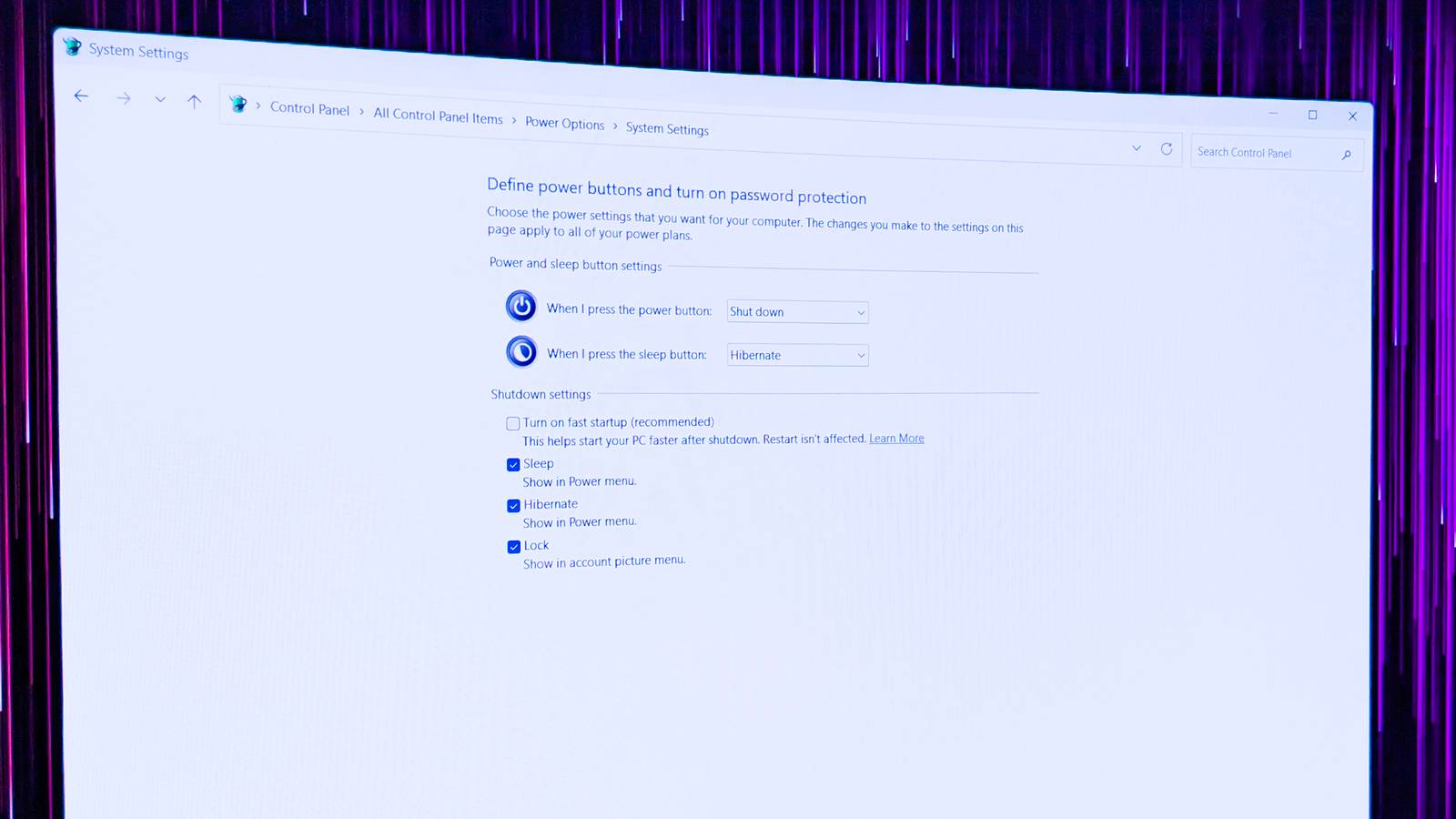
Since it functions similarly to hibernation, saving the kernel and driver state to your boot drive when you shut down your PC and then loading it when you turn the machine back on, it can cause some Windows updates to fail to apply, driver-related issues to persist, and certain bugs to remain after you turn off your PC and then turn it back on.With Fast Startup enabled, the only way to perform a full reboot of your system is to restart it, which goes against the old adage that turning the machine "off and on again" should solve most issues.For these reasons, I always disable Fast Startup, which is fairly straightforward.
All you have to do is open the Control Panel, go to Power Options, click Choose what the power buttons do, and then click Change settings that are currently unavailable.Finally, ucheck the Fast Startup box.Related Why I wish I had disabled Windows fast startup sooner Windows Fast Startup is a default setting on your Windows computer that might be causing you some problems you aren't even aware of.
Posts 5 By Timothy Jacob Hudson Online results in Windows Search Even Microsoft admits no one wants Bing results in Windows Search Microsoft's experiment with including online results in Windows Search is officially a failure.No one likes it, it not only makes Windows Search queries infested with a bunch of online results you don't need, but also makes them slower, and as far as I'm concerned, it's woefully outdated.Even Microsoft has admitted defeat and is bringing a way to disable Bing results in Windows Search, along with Microsoft Store suggestions, directly to Windows Settings.
But until the Windows 11 September update, which includes the change, hits the general public (I can't wait for it to land on my PC), you have to use PowerShell to disable this particular feature.Luckily, this one's quite simple to pull off.Just open PowerShell, paste the following command, and hit Enter: reg add HKCU\Software\Microsoft\Windows\CurrentVersion\Search /v BingSearchEnabled /t REG_DWORD /d 0 /f All that's left is to restart Windows Explorer for the change to take effect, and that's it! Windows Search will now fetch only local results, and it should be faster as well.
Tips and suggestions notifications Microsoft should remove these themselves, but until they do, we have to disable them manually Close The tips and suggestions notifications were outdated the moment Microsoft made them part of Windows.Millions of people had been perfectly fine using Windows without them for decades, so their inclusion made no sense from the get-go, which is why everyone should disable them the first chance they get.You should also disable those nagging reminders about finishing setting up Windows, which are mostly not-so-subtle nudges to make Edge your default browser, start using OneDrive, and subscribe to Microsoft 365, none of which have any place in a paid piece of software like Windows 11.
To do this, open Settings, go to System > Notifications, and locate Additional settings.Expand it and check off both the Get tips and suggestions when using Windows and Suggest ways to get the most out of Windows and finish setting up this device boxes.Ads and recommendations Ads in a paid operating system are so out of fashion Similarly to the annoying pitches for subscribing to Microsoft's services disguised as reminders to finish your Windows setup, all those ads disguised as recommendations popping up left and right in Windows are antiquated, and everyone will be better off disabling them.
The process is simple, but it includes enough steps that it warrants its own guide, which we did write a while ago.I recommend following said guide to a T to fully get rid of Windows 11 ads and recommendations, which simply have no place on an operating system you pay for.These aren't the only Windows features I disable on a fresh install Considering the amount of Windows bloat, these features aren't the only ones I disable on a fresh Windows install.
I also get rid of OneDrive and Copilot, disable optional telemetry, and uninstall all those bloatware apps Microsoft bundles with Windows.
Read More