SSD health can be a confusing metric, and many people refer to entirely different things when discussing it.But did you know that your NVMe SSD has a real error log sitting inside the controller, and it's a lot more informative than the vague warnings your operating system might occasionally surprise you with? If you learn how to pull up and read this log, you'll be able to tell the difference between a harmless hiccup and an impending drive failure.NVMe SSDs have real error logs, and no, it's not the same thing as SMART This might help you figure out what's wrong with your drive SSDs are fantastic, but there's a lot that can go wrong with them.
They don't like being left alone for ages, unplugged.They can randomly vanish and send you on a wild goose chase.And they can also fail at 100% health.
While all of those things are true, another thing is, too: SSDs keep meticulous error logs that can be useful when you have to diagnose a failing drive, or even if you just want something to tell you that it's fine right now.The problem is that your operating system is unlikely to just randomly show you this log.You'll need to go digging for it, and then learn to make sense of it.
OS-level warnings are often just symptoms.Timeouts, resets, generic "disk has a problem" alerts, and so on.The controller's error log keeps track of many of these, and you can sometimes see what actually happened beyond the vague nature of Windows alerts.
This isn't the same thing as SMART, though.SMART health trackers are mostly counters and wear indicators.I love them and use them religiously, but they're only one small part of proper SSD upkeep and maintenance.
The NVMe error log is one step closer to a record of recent failures and events, which can give it a more comprehensive view into your SSD's state.Finding it is not that hard Just needs a bit of digging So, where do you find this mythical NVMe error log? There are a couple of ways.On Windows, the most straightforward route is Smartmontools.
It's a free, open-source, widely used set of drive diagnostic tools that can read SSD/NVMe health data and logs.It's available on Windows, Linux, and macOS.It's the missing link between you and the NVMe controller.
Windows can tell you a drive is fine and still never show you the controller's own error log, so you use smartctl (part of Smartmontools) specifically when you want to pull that hidden NVMe log and see what the drive itself has been recording.First step: install the tool.Next, open PowerShell as Administrator (in Windows), run the command: smartctl --scan-open This finds the correct device name (on Windows, it usually looks like \\.\PHYSICALDRIVE1 or \\.\nvme0).
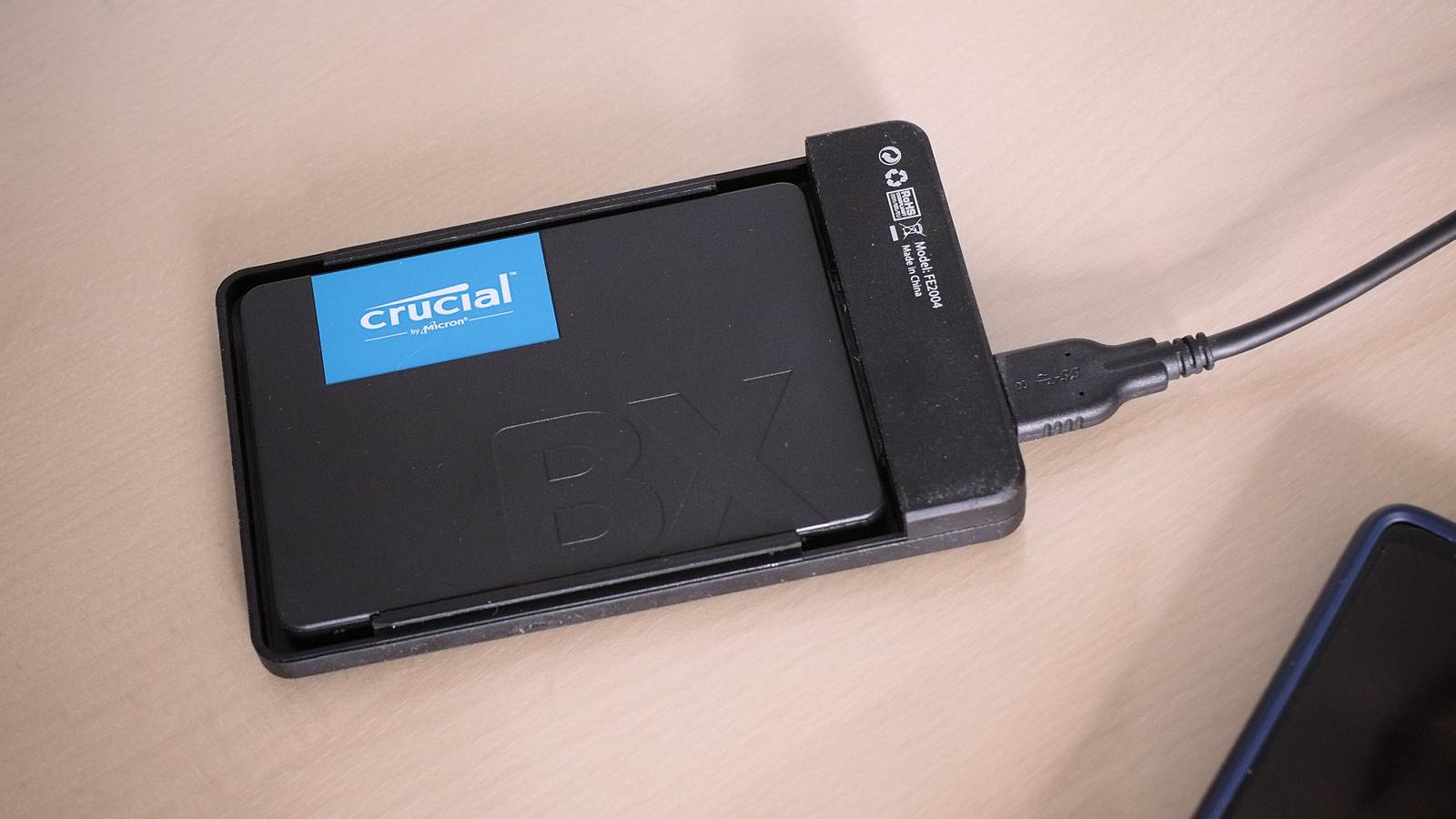
Next, run: smartctl -l error \\.\PHYSICALDRIVE1 This prints the NVMe Error Information log (remember to replace with the name from the scan).And lastly, for a wider context, run: smartctl -a \\.\PHYSICALDRIVE1 This will include NVMe health counters alongside it, which can help decide between a one-off error and a bigger pattern.One practical note: if your NVMe drive is behind a USB enclosure or certain RAID layers, smartctl may not be able to pass NVMe admin commands through.
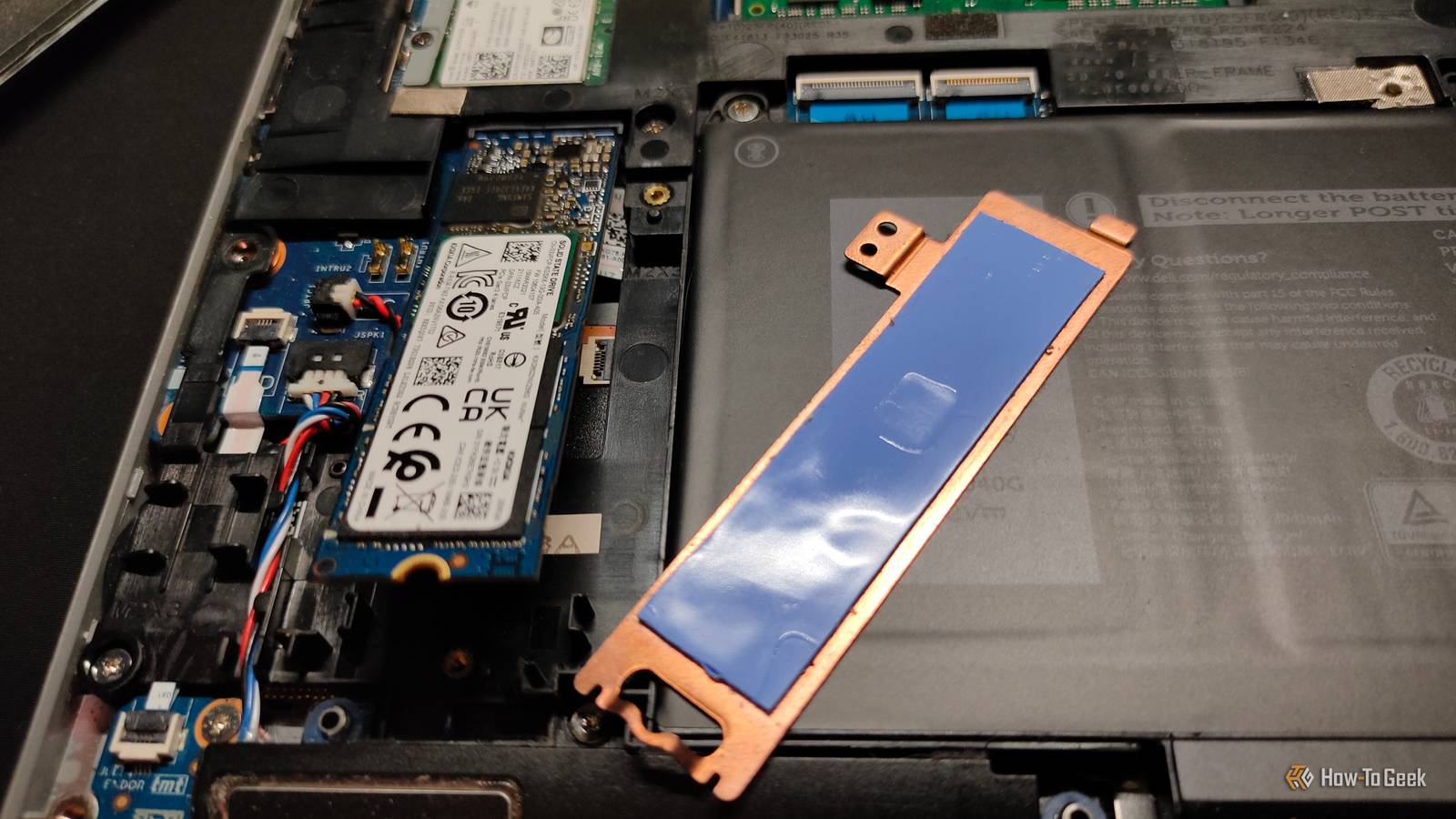
In that case, the log is still there; you just need the drive on a direct M.2 slot (or use a stack that supports NVMe passthrough) to read it.How to read an NVMe error entry without guessing Everything is structured, and potentially important When you access the NVMe Error Information log, you'll usually see the same handful of fields repeated across entries: ErrCount, SQId, CmdId, Status, PELoc, LBA, and NSID.Figuring that stuff out can feel tedious, so let's break it down a bit.
Start with Status, because it tells you exactly the kind of error the controller thinks it logged.The other columns will give you insight as to whether it was tied to a real I/O command or just background noise.ErrCount is something of a breadcrumb trail.
It's a unique, incrementing identifier for every logged event, and your system should retain it across power cycles, so a jump in ErrCount simply means that new entries were created.No news there.Meanwhile, SQId and CmdId tell you whether the error maps to a specific command queue/ID.
If they're set to "not applicable," that could be something generic or asynchronous, not pointing to a specific file write that failed.Next, turn to PELoc (Parameter Error Location).This is another breadcrumb instead of a full-on diagnosis.
If the Status reads like a command or parameter problem, PELoc is basically the controller pointing at the byte and bit where it disliked what it was sent.Finally, LBA and NSID.For many error types (especially host-side or admin command issues), the LBA field will simply be zero because the error wasn't tied to a specific data block.
If you need to know which exact block failed, look for answers in the Device Self-Test Log and its failing LBA data, then correlate that with your health counters like Media and Data Integrity errors.Which warnings do you really need to worry about? Just because there's a warning doesn't mean it's a disaster Finding errors in the error log is not an automatic "enter panic mode" sort of thing.(I only say that because that is usually my reaction, even after a couple of decades of dealing with my own PCs.) Treat it as more of a warning.
With that said, some statuses absolutely should be taken seriously.If you see Media and Data Integrity style statuses, such as Write Fault or Unrecovered Read Error, that's the controller telling you it couldn't commit data to NAND or could not recover data from it.And that's never good news, unfortunately.
On the flip side, a lot of errors that sound scary are just noise from the host side.Drivers and monitoring tools sometimes try optional or unsupported commands.Your SSD may log that as an error even though nothing bad really happened; it was just something unknown or unusual.
Still, better safe than sorry, right? Look for patterns, then act What actually really matters is the pattern, if there is one.Are the same errors popping up every so often? Do they line up with freezes, resets, and other worrying signs? Do your health counters trend upward alongside them? If yes, that could mean it's time to start thinking more seriously about buying a new SSD or at least following the 3-2-1 rule for backups.Data loss can happen, but if you're prepared, it'll be little more than a nuisance.
Samsung 9100 PRO 7 Storage capacity 1TB, 2TB, 4TB, 8TB Hardware Interface M.2 NVMe The Samsung 9100 Pro is one of the best SSDs currently available.It's not cheap, but then most SSDs aren't - at least it's trustworthy for the price, though.$420 at Amazon $420 at Best Buy Expand Collapse
Read More