Home is where the heart is.On Linux, home is where everything personal to you is: your documents, downloads, screenshots, and configuration.In fact, your home is so special, you really ought to be showing it a bit more love.
When you first installed Linux, you might’ve overlooked the option to use a custom disk setup—and nobody would blame you for doing so.But take your time to understand the benefits, and a highly portable, easily upgradable system is yours for the taking.The Linux home folder is a distro-hopper’s personal suitcase If you’re going to uproot yourself and move to a different distro, you might as well take your most important belongings with you.
Think of your home folder ($HOME, ~) as your beloved, weathered old suitcase that’s always packed, ready for you to pick it up and take it with you.For a start, unless you’ve configured your system otherwise, it should contain everything on your desktop, all your downloaded files, screenshots you’ve snapped, and documents you’ve written.By default, all these personal files live somewhere under your home, in folders with appropriate names, like ~/Desktop and ~/Music.
Your home will also, probably, contain any scripts that you may have written and shell configuration like your .bashrc file.It also includes your user-specific configuration files for other software, either directly in $HOME—like .vimrc, for example—or in a subfolder like .config, according to the XDG Base Directory Specification.Your home folder should be strictly separate from the rest of your system.
Fortunately, the Linux philosophy pretty much guarantees this isolation, and whichever distro you use, it should have no problem accessing a home folder that was created by another.This is great news for the distro-hopper: if you set everything up properly, you can easily switch distros without your home going anywhere.The partition basics you’ll need to know In the very simplest case, you’ll have a single drive—either an HDD or an SSD—with everything installed on it.
In the next simplest (but far more flexible) setup, you can have a single drive with two partitions: one for the core Linux system and one for your home directory.Partitions allow different file systems to coexist on the same physical disk.They’re a must if you’re dual-booting, and they’re an excellent way of keeping whatever distro you’re choosing to run this week from interfering with anything in your home directory (although not everyone is a fan!).
You can take this concept a step further with a second physical disk, but partitioning means that you don’t have to.Whatever your setup, you should make sure to understand what it is.I had the luxury of working with a dual-boot system that was fairly new, but I still had to be careful not to hose my Windows installation.
Use a tool like Disk Management (Windows), Disk Utility (macOS), or any of the options available on Linux—such as Disks on Ubuntu, for example.Each of these apps exposes low-level details about your disk(s), their partitions, and the file systems and sizes of each.Each disk and its partitions will have an associated identifier which you should learn to recognize; for me, it was important to know that my hard disk was nvme0n1, my boot manager was nvme0n1p1, my Windows partition was nvme0n1p4, and so on.
Your own setup will be different and will depend on the number of disks and how they’re partitioned, so make sure you keep a record of what’s what if, like me, you find it difficult to remember random-looking sets of characters.It’s a good idea to carefully plan out how you’ll divide drives and partition them before you start.In my case, I needed to free up some extra space, which involved shrinking my Windows partition first.
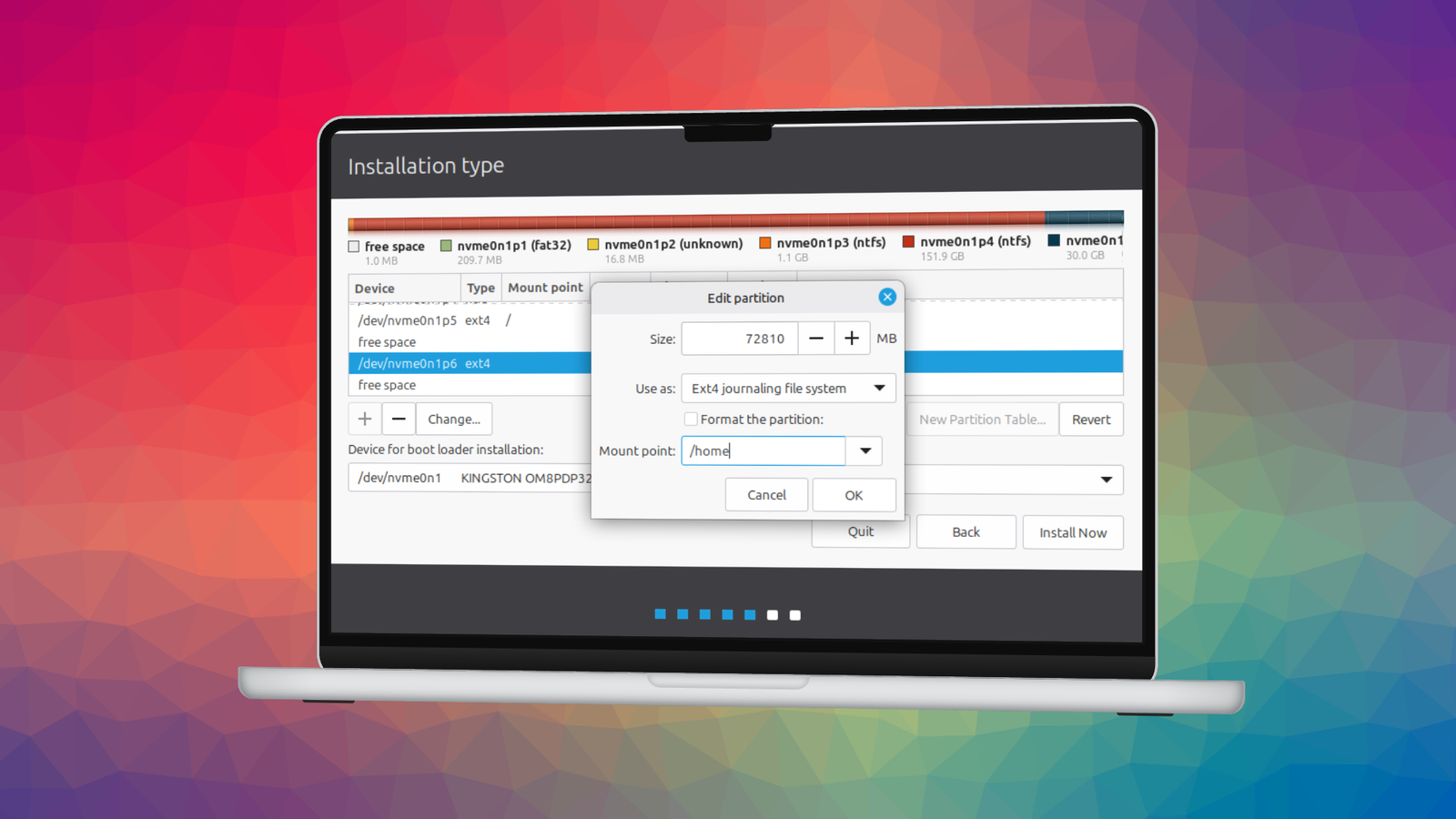
How to set up your home folder on a separate partition If you plan ahead, you can deal with partitioning when you install Linux in the first place.Technically, you can do this at any time, but it’s never going to be any easier than on a fresh system.The key part of the process begins at an installation step called something like "Installation type" (Linux Mint) or "How do you want to install?" (Ubuntu).
You should see options including "Erase disk and install" and "Manual installation" (or "Something else", as Mint calls it).Alongside these, you’ll see other options if you’re dual-booting with Windows or have an existing Linux distro installed.The key part to get right is the mount point.
The root partition (/) will store system files, including your kernel; it basically acts as the default location for your distro.Meanwhile, if you select another disk or partition for your home directory, make sure to set the mount point as /home.This will then cleanly separate the two, letting you switch out the distro later on and keep hold of your home.
I installed Ubuntu using this process, with separate / and /home partitions.I downloaded some files, placed one on my desktop, edited some documents, took screenshots, and edited some config files like .bashrc and .vimrc, to get a basic personalized setup.I then installed Linux Mint, choosing to remove the Ubuntu partition and overwrite it with the new distro.
Crucially, I kept hold of the /home partition—and everything worked perfectly! At this point, I needed to make sure to tell the Mint installer that /home should be mounted on its existing partition, even though nothing was changing about it.Booting up, I found my existing /home directory, transferred between distros as I’d expected.My settings were maintained, aliases still worked the same, and even the file on my desktop was sitting there ready for me, albeit in a totally different position.
Close A solid foundation for future distro-hopping Although you’ll need a bit more work to install apps, among other tasks, using an extra disk or partition for your /home folder relieves many pain points.For ease of mind, and a distro-transition that runs as smoothly as possible, I recommend isolating your home directory on another partition or, preferably, a whole other disk.
Read More