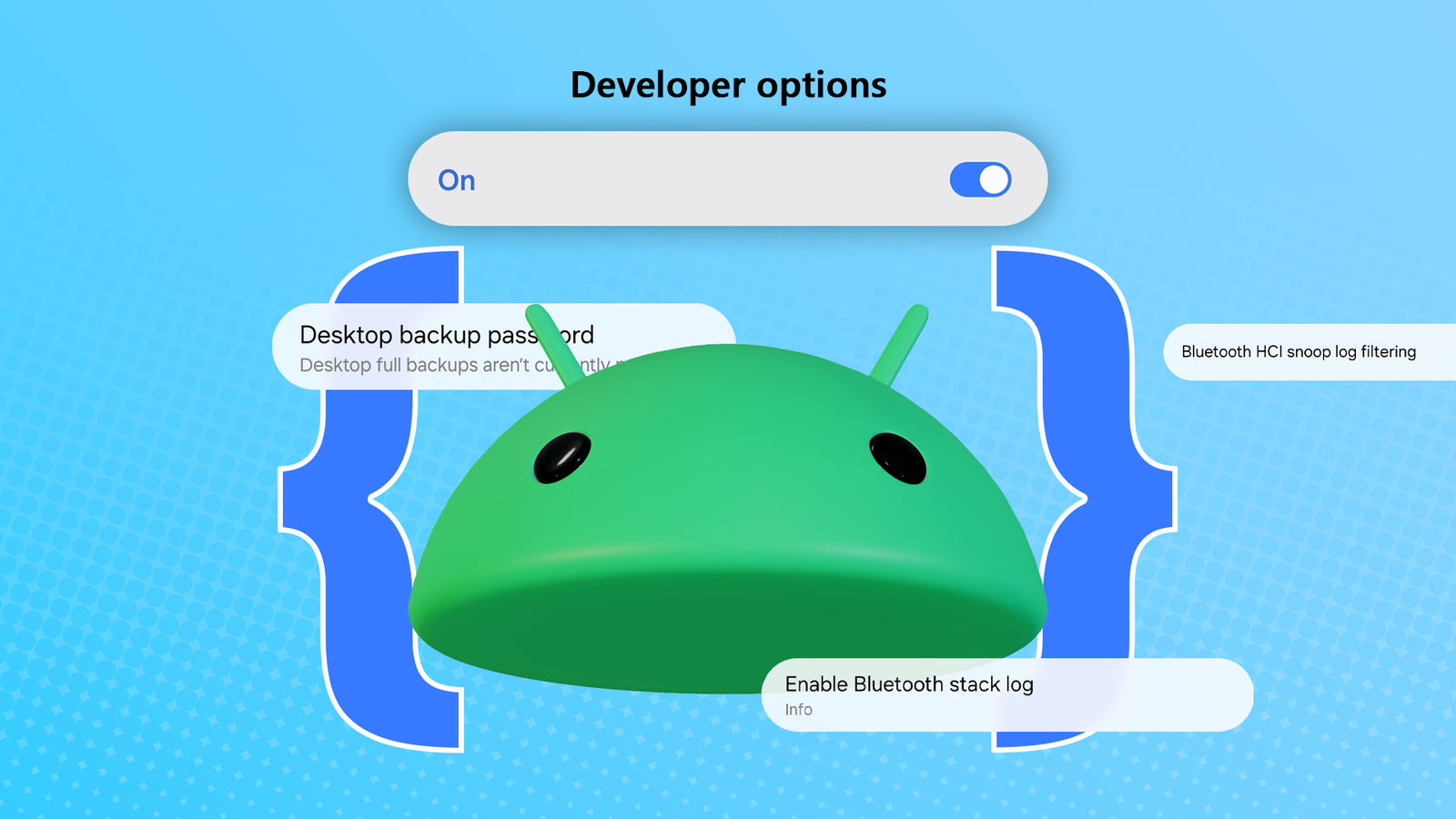
If the first thing you do after buying a new Android phone is head straight into Developer options and drop the animation scale to 0.5x, you're already ahead of most people.It’s one of Android’s worst-kept secrets that instantly makes any phone feel faster and more responsive.But why stop there? Animation speed is only scratching the surface.
Developer options hide a surprising number of useful toggles that can improve battery life, improve smoothness, boost audio quality, and change how your phone behaves in small but meaningful ways.Suspend execution for cached apps to instantly improve battery life A hidden toggle that can cut down unnecessary background activity Suspend execution for cached apps is a feature that puts background apps into a deeper sleep state.They are still kept in RAM, which allows them to load almost instantly when you return to them, but they can’t use CPU resources.
This improves both battery life and performance, particularly on older phones that struggle to keep up with the number of apps installed.It can also help with thermal management, since the CPU has less work to do.Close It’s worth pointing out that many phones have this option enabled by default, as it has more benefits than drawbacks.
For example, if you stopped in the middle of a video in an app and came back a few hours later expecting it to resume, only to find the app back on its home screen, this setting is likely the reason.While suspending execution of cached apps can occasionally interfere with background syncing in some apps or cause minor hiccups, notifications generally still work (in most cases), since they are handled separately from the app’s main process.Related Every Android Developer Option Explained A menu for people who like knowing how things work.
Posts 1 By Faisal Rasool Keep Wi-Fi scan throttling enabled to stop background apps from draining your battery Your apps don't need to constantly search for Wi-Fi behind the scenes Close Your phone doesn’t just scan for Wi-Fi when it’s actively looking for a network to connect to; it’s scanning for Wi-Fi all the time.In fact, this is essential for many location-based services, and it’s less power-intensive than relying solely on the GPS chip.You can think of Wi-Fi scan throttling as a hard limit on how often apps are allowed to scan for nearby Wi-Fi networks.
A background app might request your location every 10 seconds, but with Wi-Fi scan throttling enabled, it is limited to one scan every few minutes or so, depending on the system version and conditions.Wi-Fi scan throttling is enabled by default on most modern Android devices, but it’s still worth checking your settings to make sure it hasn’t been disabled, as it can help reduce unnecessary battery drain.The main times you might want to disable it are when you are troubleshooting Wi-Fi issues around your house or need more frequent location updates.
Force your phone to use its maximum refresh rate at all times Make every swipe, scroll, and animation feel noticeably smoother Close If you’ve got a newer phone, there’s a good chance it has a high refresh rate display.In simple terms, your screen can show more frames (images) per second than a traditional 60Hz display.Many phones now come with 90Hz, 120Hz, and, in the case of my OnePlus 15, even 165Hz displays, which make animations look significantly smoother at the cost of higher battery usage.
If you paid for it, you’ll probably want to use it.OnePlus 15 SoC Qualcomm Snapdragon 8 Elite Gen 5 Display 6.78-inch 2772*1272 (FHD+) The OnePlus 15 features the latest Snapdragon 8 Elite Gen 5 SoC that enables gaming features never before seen on a smartphone.The 165Hz display is perfect for mobile gaming, and when not gaming, it runs at 120Hz, making it ideal for everyday usage.
The triple camera array is pretty great, and the 7,300mAh battery lasts multiple days on a single charge.RAM 12GB/16GB Storage 256GB/512GB Battery 7,300 mAh Operating System OxygenOS 16 Front camera 32MP Rear camera Triple 50MP sensors Colors Infinite Black, Ultra Violet, and Sand Storm Charge speed Up to 80W SUPERVOOC IP Rating IP66, IP68, IP69, IP69K Price $899/$999 Release date November 13, 2025 $1000 at OnePlus Expand Collapse However, the maximum refresh rate is often set to automatic or even limited to 60Hz out of the box.Refresh rates above 120Hz are sometimes disabled altogether.
For example, on some devices, 165Hz is treated as an experimental feature.In those cases, the only way to unlock the full refresh rate may be to dive into Developer options and enable the high refresh rate mode if your phone supports it.Since refresh rate varies significantly depending on your phone’s hardware, you might not see an option like this at all.
However, you may come across something along the lines of Disable default frame rate for games, which acts as a kind of FPS cap override for supported games.In other words, enabling it can allow games to go beyond 60Hz (and 60 FPS where supported), resulting in smoother gameplay.Close Paint every app black by forcing dark mode system-wide Even apps without a native dark theme can join the darkness Close For many of us, dark mode is the default, and it’s the first thing we switch on when we install a new app.
Unfortunately, not all apps support it natively or properly respect your system settings.The good news is that there’s a hidden Developer option called Force Dark mode (or Override force-dark on some phones), which enables dark mode even in apps that don’t officially support it.Since it’s buried in Developer options, you can probably guess that it doesn’t work perfectly all of the time.
However, it works well enough, which is great if you want to avoid bright interfaces and also take advantage of your OLED screen for slightly better battery efficiency.Force 4x MSAA for sharper graphics in mobile games A long-standing developer option that can make supported games look cleaner Close If you’ve got a high-end phone and like to play mobile games, you should know about Force 4x MSAA.Toggling this on can smooth out jagged edges in OpenGL ES 2.0 games by allowing the GPU to take 4 samples per pixel along object edges and then blend them together to create a smoother transition.
This doesn’t work in all games, since many have moved to newer graphics APIs, but it can make a noticeable difference in older OpenGL ES 2.0 titles.If you play older Android games that rely on that engine or run retro titles through emulators, you may see an improvement in image quality.The trade-off, as it so often is, is battery life.
Developer options are packed with cool hidden tweaks that few people know about There are a vast number of things you can change in Developer options, and I’ve only highlighted a few of the lesser-known ones.For instance, there’s a whole suite of hidden Bluetooth audio settings you can tweak to improve audio quality on supported headphones.Another interesting option you might want to check out is Smallest (Minimum) width, which changes how much content is displayed on your screen at any given time.
Give these options a try and have fun tweaking your Android phone! Related Think You’re an Android Pro? These 9 Hidden Features Will Prove You Wrong Don’t be the last to discover these android features.Posts 11 By Aman Kumar
Read More