We all want to make our lives easier when working in Excel, and sometimes that means looking beyond the app itself.Spreadsheet creation has lots in common with programming, so that's where I've stolen one of my most useful habits from.Refactoring is the practice of improving the internal structure of something that already works without changing what it does.
Developers often use it to make code easier to understand, maintain, debug, and modify.Over the past couple of years, I've started applying the same principle to my Excel workbooks, and it's saved me from a lot of work further down the line.Simplifying the logic Working formulas can still be worth changing Close One of the traps I used to fall into all the time in Excel is assuming that a formula is finished because it gave me the right answer.
I've started looking at formulas differently: if one has become difficult to read, understand, or modify, I'll refactor it even when it works perfectly.That might mean replacing a long chain of IF statements with a simpler IFS formula, using LET to make repeated calculations easier to manage, or creating a LAMBDA when I've found myself writing the same complicated logic more than once.If a formula keeps growing as I add more variables, I'll move some of that logic into helper columns instead.
This makes each stage easier to inspect and debug, while also giving me fields I can use in PivotTables, charts, or other calculations.Giving the data a better structure Sometimes the workbook itself needs changing Close As well as simplifying the logic, developers can refactor the structure of a project itself, moving things around so they're easier to work with.I apply the same idea to Excel by looking at where my data, calculations, and reports should live.
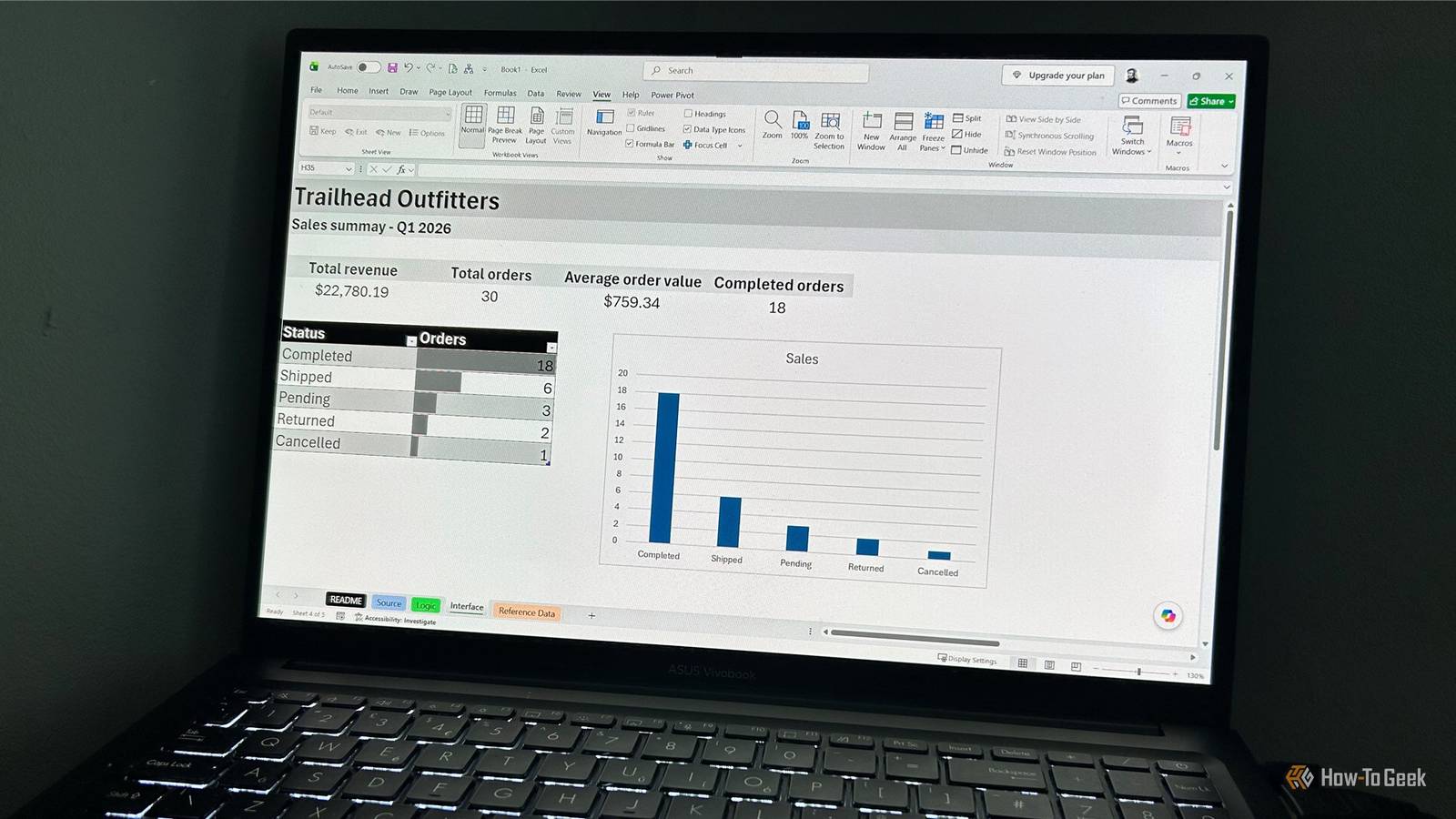
Keeping these three parts of a workbook separate pays off as the file grows, since mixing them together makes it harder to tell which cells contain the underlying information, which ones transform it, and which ones are simply there to present the result.I've started using something I call the three-tab rule.I move the raw data to the Source tab, calculations and transformations to the Logic tab, and the finished report or dashboard to the Interface tab.
That's not to say I don't use other tabs too.For example, I often add a README tab—another method I've unceremoniously swiped from developers—in workbooks I plan to share, as well as a Reference Data tab for information the calculations need to look up.But splitting my data up into those three main tabs is a great starting point when I'm refactoring an old file.
And when I'm working with a dataset that's likely to grow, I move it into an Excel table.This gives the data a defined structure, makes formulas and references easier to manage, and means I don't have to keep adjusting the range every time I add more records.Letting Excel automate the boring stuff Repetition is a sign that something needs tweaking Close I'm a creature of habit, so repeating tasks quickly became part of my routine.
I'd clean the same imported data, rebuild the same summary, extend the same ranges, and apply the same formatting every time I updated a workbook.Once I started thinking about refactoring, I looked for ways to make Excel handle these tasks for me.If I'm repeatedly cleaning imported data, that's a job for Power Query.
If I'm rebuilding the same summary whenever new records arrive, a PivotTable can usually take over.If I'm manually extending a range whenever I add another row, an Excel table can remove that step.The same applies to presentation.
If I keep applying the same formatting based on a particular value or condition, conditional formatting can turn that into a rule that Excel handles automatically.Making workbooks easier to understand and change I want the next edit to be straightforward Close Most of the workbooks I make are for my eyes only, so it's easy to think, "I'll remember that later." In reality, that's hardly ever the case.That's why I now try to treat every spreadsheet as though I'm going to hand it to someone else.
When I'm refactoring an existing workbook, I look for the things that would make the next change more difficult than it needs to be.That affects some of the decisions I make.Hard-coded assumptions are an obvious target: moving one into a dedicated cell means I can change it once instead of hunting through formulas.
Fixed ranges are another: if I know the data is going to grow, I'll replace the range with a table to accommodate it.Even something as simple as a generic table or worksheet name is worth changing if I'm going to have to remember what it means later.I'll also look at dependencies between different parts of the workbook.
If changing one calculation means checking a report, a helper range, and several unrelated formulas, that's a good opportunity to refactor it while I'm already working on the file.Finally, I like to make formulas explain themselves where I can.For particularly complicated calculations, I'll use the N() function to leave a short explanation inside the formula.
It doesn't change the result, but it means I don't have to remember why that piece of logic is there when I come back to the workbook later.Deleting what isn't needed Refactoring can mean taking things away Close This sounds easy, but removing something from a workbook can be harder than it looks.Once I've added a formula, helper column, worksheet, or workaround, it can start to feel like part of the workbook's DNA, even after I don't need it anymore.
So when I revisit an older file, clearing out unnecessary elements is one of the first things I do.I'll check for duplicate data, unused named ranges, redundant formulas, obsolete hidden worksheets, and calculations that no longer feed anything.Once I get started, I'm often surprised by how much junk can build up in a workbook over time.
Each individual addition might have made sense at the time, but after several rounds of changes, there's often a shocking amount that can be stripped away.This is one of the most satisfying phases of refactoring a workbook.Not only does it look better once it's done, but it can also make it feel much lighter and easier to work with.
Excel is more like programming than it looks I've spent years using Excel without thinking much about the developer principles behind it.But once I started treating my spreadsheets like software, refactoring became a natural part of my workflow.After all, many Excel users are already programmers without realizing it, and Excel is effectively a programming environment in its own right.
For me, that makes borrowing habits like refactoring feel pretty natural.
Read More