You may already know about glide/slide typing, where you keep your finger down and swipe over several keys before releasing it, but did you know there are more gestures available aside from swipe typing? Add How-To Geek on Google Add as Preferred Source Follow on Google Discover With or without using the glide feature, you have many additional gestures at your disposal.All options should work on Android, as long as you have Android 7.0 (Nougat) or higher and Gboard version 9.0 or above, although certain Gboard features worked before those releases when it was called Google Keyboard.Some Gboard features may be activated by the manufacturer by default in their custom Android OS, while others may have to be turned on manually.
No matter which Android phone you have, check out these common Gboard gestures you can use on any compatible Android device.No more repetitive backspace to delete several words Backspace by word, not character Close Holding down the 'Delete/Backspace' key isn’t too much of an inconvenience when you need to correct or retype a phrase or sentence, but you can speed up the process by deleting words, not characters.Samsung Keyboard does it when you hold down the 'Delete/Backspace' key, but not in the same way as Gboard.
Samsung Keyboard starts with character deletion first, then switches to word deletion in the same session.Gboard only deletes characters (not words) when you hold down the 'Delete/Backspace' key.But this section isn't about holding the key down.
Some prefer the Samsung Keyboard over Gboard, but in this instance, I think Gboard wins.Gboard offers a glide deletion feature, a safer way to avoid accidentally deleting more than you want.Undo gives you another chance to delete the right section and hope you get it right, but highlighting, word by word, provides more accuracy.
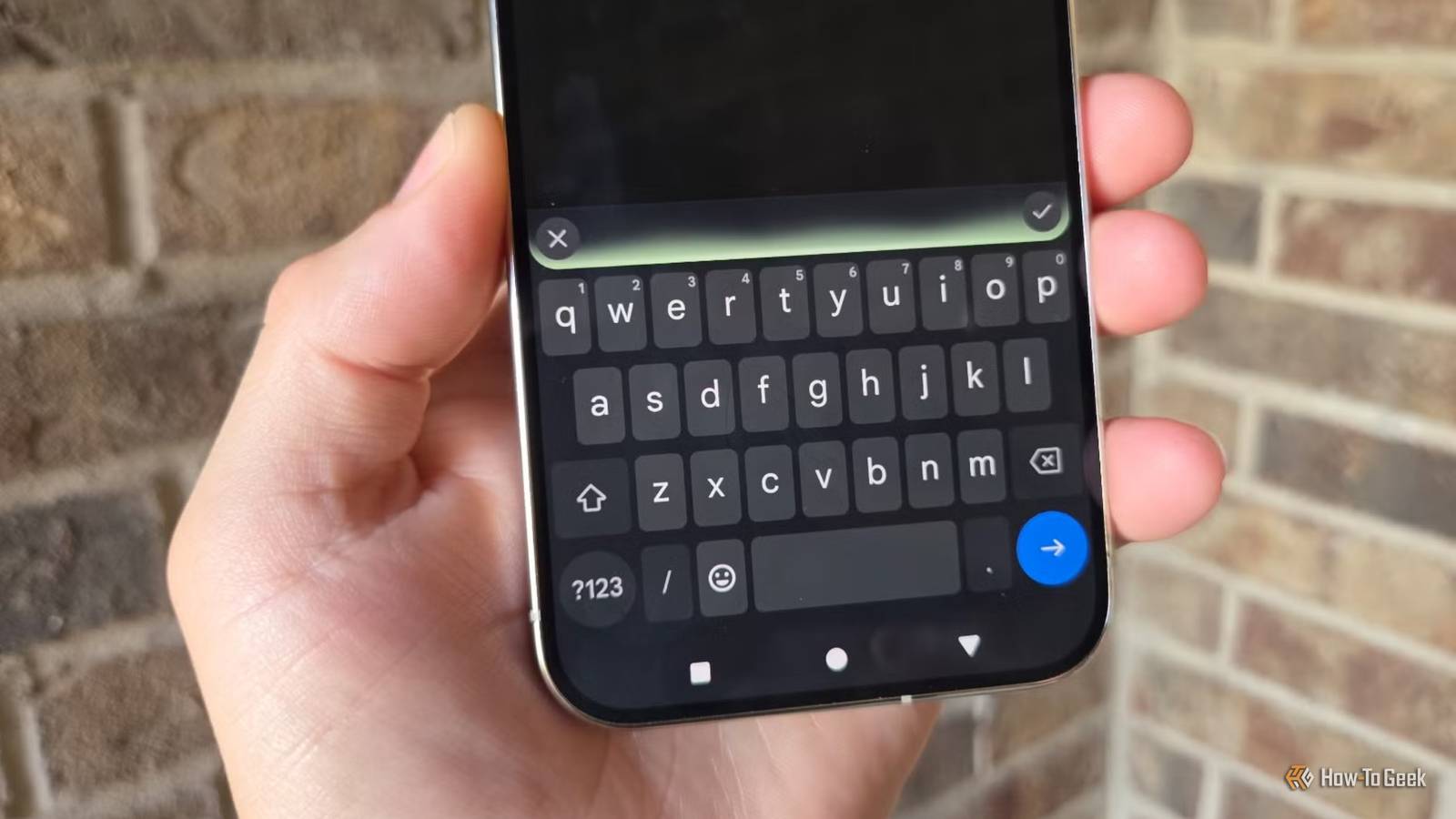
To do this, head to Gboard settings -> Glide typing and turn on ‘Glide delete.’ This works on any Android or Samsung phone using Gboard.As soon as you touch the 'Delete/Backspace' key, immediately slide to the left and watch the magic happen.Gboard will highlight text, word by word, so you don’t have to wait for each character to be deleted.
The further you slide across the keyboard, the more words it highlights.You can swipe right to undo word deletions if you accidentally went too far.When you release your finger from the keyboard, it automatically deletes everything selected.
Use the spacebar as a horizontal trackpad Quickly move around while editing Tapping the keyboard to hit an exact location in a text or message when you need to correct something is a pain, and it often takes several slide attempts afterward to get it right.All you need to do is press and hold the right side of the 'spacebar,' then swipe left to move your cursor backward.You can also swipe in the opposite direction to move forward.
I mention starting on the right side of the spacebar, so you have more room to slide left.But once you’ve activated the cursor movement, you can slide over adjacent keys safely without activating glide functionality.Also, swiping faster jumps farther back or forward.
At least it does for me.Then I move more slowly to get the cursor where I need it.Activate and use secondary and alternate symbols on keys Eliminate extra key taps and get some cool alternate symbols, too Close There are actually two types of symbols: secondary and alternate, and there are two ways to use them.
You can flick the keys or press and hold them to explore the available symbols and characters.This feature only works on keys with secondary characters.Most phones and tablets have secondary characters displayed on the number keys at the top of the keyboard, but there are usually more.
To activate more secondary keys on the primary ones, navigate to Gboard Settings -> Preferences and turn on ‘Touch & hold keys for symbols.’ Now, your ’f’ key will have a ‘-‘ on it, the ‘d’ key will have a ‘$’ on it, and most other keys will have a secondary character displayed with them, too.To reduce key taps, you can use the flick feature to quickly select the secondary character or symbol by swiping down on a key.Sure, you can stick to the default and press the ‘?123’ key to get various characters and symbols, or press and hold the key to view secondary options, but “press-gliding” is a quicker option.
Some keys have only one option, while others have several to choose from.For keys with multiple secondary options, hold the key down, then select the character you need from the pop-up.You must enable ‘Flick keys to enter symbols’ to activate the flicking feature.
Navigate to Gboard Settings -> Preferences and turn the feature on.Be sure to flick down.If flicking doesn't work well for you, adjust the Flick input sensitivity slider in the same settings menu.
Avoid sliding out of the key and onto an adjacent one, or Gboard will switch to swipe instead of flick.For more Gboard help on features and settings, you can visit Google's Gboard help page.Use the floating keyboard feature to improve visibility Move the keyboard, resize it, and more as you need Close This feature is similar to the one-handed Gboard option that positions the keyboard to the left or right when you tap the less-than symbol on the left or the greater-than symbol on the right, except it lets you move the keyboard anywhere on the screen so you can see important areas as needed.
Sure, you may have to shrink it more than it already does in some cases, but the option is there if you need it.To access this cool feature, tap the four-square icon or G icon in the top section of the keyboard, then choose Floating.Now, you can easily glide the keyboard around and resize it by tapping toward the bottom to bring up the resize curves in the corners.
This works on Samsung and other Android phones seamlessly.Access Gboard settings with one key No more multi-press navigating to reach the settings menu Close I'm sure you don't want to leave your app to access the ‘Settings’ menu for Gboard, or tap the icon in Gboard when you can actually get it to appear in that small top row.No worries; there's a quick glide option for that.
All you do is press and hold the comma key and swipe up to quickly bring up Gboard settings.That way, you never have to leave your active screen and can easily resume once you make the changes.It’s that simple.
It's a handy slide feature you'll want to use all the time.Some of you may already know this one, but if you didn't, now you do! Fast capitalization when you need it No need to navigate to the beginning of a word to correct it If you typed or swiped fast and realized 10 words ago that Caps Lock was on, you can easily fix it instead of holding backspace and retyping everything.The same goes if you need a word capitalized, switched to all caps, or changed to all lowercase.
To fix your capitalization issues fast, highlight the word or phrase you need to change, then repeatedly press the Shift key to alternate between various capitalization options.Gboard gestures are plentiful if you play around and explore it more There’s no doubt Gboard has plenty of options, features, and integrations on Android devices, but nothing is as cool as gestures that save time and create interesting messages.Type faster, edit words, phrases, or entire sentences, and discover cool swipes that produce cool characters and symbols.
Glide your keyboard out of the way and shrink it to see more of the screen.Switch all caps to no caps.Delete phrases or words quickly.
Even more swipe features are just a swipe or tap away.It’s all there and waiting to be explored.You may already know about some Gboard features, but others are waiting to be discovered.
Read More