LibreOffice Calc is often dismissed as a spreadsheet that's fine for basic number crunching, but something you'd quickly outgrow as soon as your work gets serious.As someone who's used Excel for decades, I understand that view.Excel is incredibly powerful, and after all this time, I still find myself reaching for it when I need to get something done.
But rather than take that assumption at face value, I put Calc—part of the free, open-source LibreOffice suite—through six tasks I'd normally associate with Excel.I wasn't expecting it to replace Excel, but I was surprised by how far it could go.Work backward from a target with Goal Seek Calc can solve for the number you need Close Goal Seek is one of those Excel tools I use when I know the result I want, but don't know which input will get me there.
It's doing some pretty sophisticated work behind the scenes, so I wanted to see whether Calc could handle it too.I set up a coffee shop model with 5,000 cups sold per month, a $1.80 cost per cup, $7,500 in fixed costs, and a target profit of $10,000.I wanted Calc to work out how much I'd need to charge per cup to hit that target, taking all those costs into account.
I opened Tools > Goal Seek, set Monthly profit (B7) as the formula cell, $10,000 as the target, and Price per cup (B3) as the variable cell.Calc worked backward and returned $5.30.That was a good start.
Calc had handled a job I would usually turn to Excel for, and the process was just as straightforward.Summarize a dataset with pivot tables Calc can turn rows of data into a useful summary Close If Calc couldn't create pivot tables, I'd probably stop testing it there.I use them so often for summarizing large datasets that I wouldn't consider a spreadsheet without them a serious alternative.
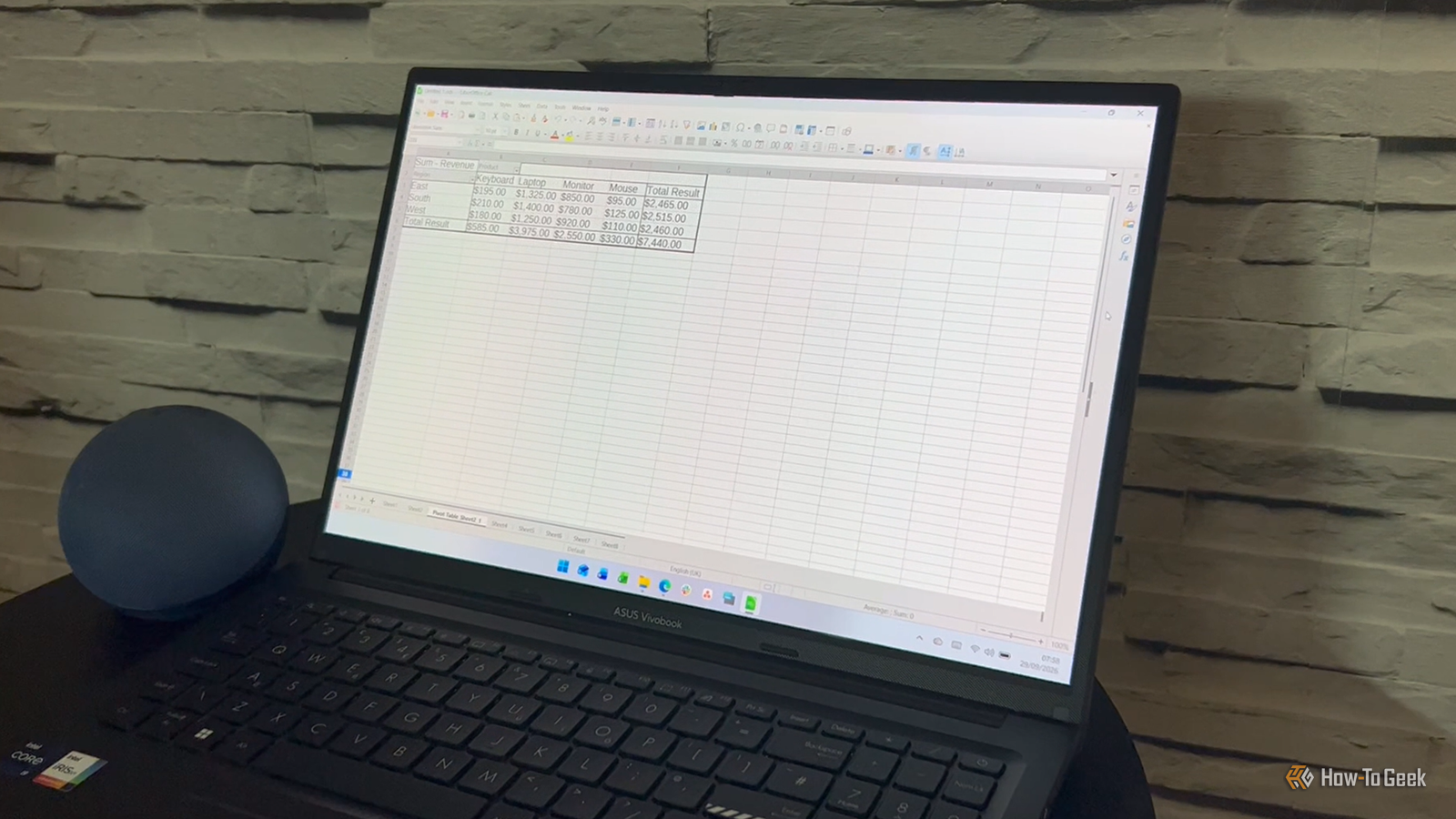
Calc handled this easily.I created a small sales dataset and used Insert > Pivot Table to summarize revenue by salesperson and product, then rearranged the fields to look at the same data by region and product.If you've used Excel's PivotTables, the process feels familiar.
Excel gives you more options for customizing and interacting with them, but Calc did what I needed.Run a proper regression analysis Calc goes well beyond basic charts and formulas Close This was one of the tests that really put the "Calc is only for simple spreadsheets" idea to the test.I created a dataset containing advertising spend and sales, then went to Data > Statistics > Regression.
I selected advertising spend as the X variable and sales as the Y variable, and Calc generated a full regression report on a new sheet.It included R-squared, ANOVA, coefficients, P-values, standard errors, and confidence intervals.In other words, this wasn't a trendline with a number slapped on a chart.
Calc produced a proper statistical analysis.I ran the same data through Excel and got essentially the same results.The only difference was that I had to enable Excel's Analysis ToolPak first.
Use modern lookup and array formulas Calc handles the spreadsheet tricks you already know Close Next, I wanted to strip things back and look at the one thing spreadsheets fundamentally do: formulas.Microsoft has added plenty of shiny new functions to Excel in recent years, making it easier to handle everything from lookups to filtering and sorting.It's understandable that open-source spreadsheet software can lag behind Microsoft here.
But now that the dust has settled, I wondered whether Calc had caught up with some of the functions I now use pretty much every day.I tested XLOOKUP, FILTER, UNIQUE, and SORT.All four worked.
FILTER, UNIQUE, and SORT were particularly interesting because their results spilled into neighboring cells, much like they do in Excel.When I deliberately blocked part of a spill range, Calc threw a spill error too.That's a pretty big deal for me.
These have become everyday spreadsheet tools in my Excel workflow, and Calc handled all four.Automate repetitive work with macros Calc can record and replay macros too Macros are another feature that can make a spreadsheet feel like a small app rather than a collection of cells—something you might assume only Excel can do.Calc supports macros and macro recording, too.
Once I'd enabled the macro recording option under Tools > Options > LibreOffice > Advanced, I could record a simple macro, run it, and have it enter text into a cell automatically.Of course, Excel's VBA ecosystem is much deeper.If your spreadsheet automation depends heavily on VBA, Excel is probably still the software you'd turn to.
But Calc can automate repetitive tasks, giving you another way to work beyond formulas and manual data entry.Clean up text with regular expressions Calc puts regex directly into Find & Replace Close This was probably my favorite test because Calc did something Excel's Find & Replace doesn't.Don't get me wrong: Excel now has regex functions—REGEXEXTRACT, REGEXREPLACE, and REGEXTEST—so it can absolutely handle regular expressions.
It also has Power Query, which is a much better fit for larger or repeatable data-cleaning jobs.But when I started poking around Calc's regex options, I was surprised to find regular expressions built directly into Find & Replace.Take a dataset containing names followed by email addresses.
In Calc, I opened Find & Replace (Ctrl+H), checked Regular expressions, and used: Find: .*<([^>]+)>.* Replace: $1 Calc turned "John Smith <[email protected]>" into "[email protected]." For a quick, one-off cleanup, that's really convenient.I didn't need a helper column or another tool—I could clean up the existing data right where it was.Calc deserves more credit than the "basic spreadsheet" label suggests I don't think the usual "Excel for advanced work, Calc for basic spreadsheets" claim tells the whole story.
Calc handled every test I threw at it, including some surprisingly substantial spreadsheet jobs.And for the regex cleanup, I actually preferred the way Calc handled it.I started this test expecting to find the limits of Calc.
Instead, I found myself repeatedly thinking, "Yep, it can do that too."
Read More