Like many tech writers, I spend a ridiculous amount of time sitting in front of my computer monitor.On any given workday, I typically start before sunrise, and it's not unusual for me to finish just after sunset.I need to do whatever I can to protect my aging eyes, and dark mode has become one of the ways I make the long hours in front of my computer monitors more comfortable.
Add How-To Geek on Google Add as Preferred Source Follow on Google Discover Windows 11's built-in dark mode controls are limited It’s missing one of the most important features Windows 11 does have dark mode settings.You can find them by going to Settings > Personalization > Colors.There are three options: Light, Dark, and Custom.
Custom lets you choose different appearance settings for Windows and your applications.For example, you could have a dark taskbar and Start menu while keeping your applications in light mode, or vice versa.And then there are applications like NoteTab Lite, which, at least in my experience, refuse to cooperate.
My biggest frustration is that Windows 11 doesn't provide a way for me to automatically switch between light and dark modes based on the time of the day.In a perfect world, I'd like Windows to switch to dark mode at sunset and back to light mode at sunrise.Daylight saving time ended this past Sunday, so it's now getting dark an hour earlier by the clock.
That makes the lack of scheduling even more noticeable.Windows 11 already supports scheduling for Night Light, allowing you to set specific hours or have it activate automatically at sunset.Keep in mind, Night Light adjusts the display's color temperature rather than changing the Windows theme, but clearly Microsoft knows how to implement scheduling in this area.
Having to switch between light and dark modes manually twice a day feels unnecessary, especially when Windows provides similar functionality in other places.How to set up PowerToys Light Switch Getting started couldn't be much easier Setting up Light Switch was pretty painless, especially since I already had Microsoft's free PowerToys utility installed.If you don't already have PowerToys installed, you can grab it from the Microsoft Store or download it from Microsoft's GitHub repository.
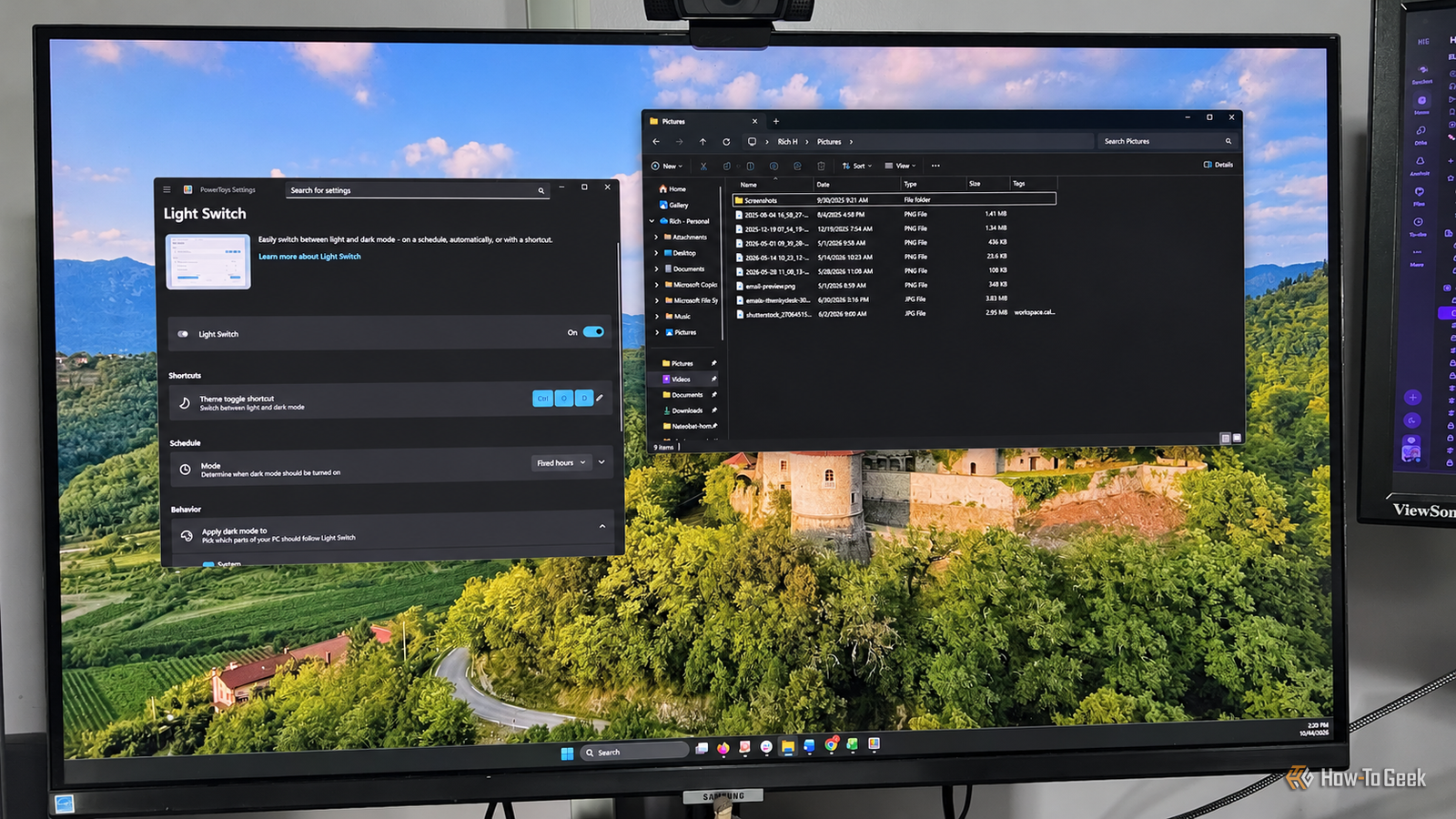
Once you've installed or updated PowerToys to a version that includes Light Switch, open the app and look for Light Switch under system tools in the left sidebar.From there, just flip the toggle to enable it.You don't have to mess around with the Windows registry, install another third-party application, or type commands into a terminal.
Once you've got it enabled, Light Switch gives you a few different ways to control how Windows switches between light and dark modes.The settings are broken into three main sections: Schedule, Behavior, and PowerDisplay.Schedule handles when the theme changes, while Behavior lets you decide whether those changes apply to Windows, supported applications, or both.
You can also set up a keyboard shortcut to switch themes manually.I went with Ctrl + Shift + D.Within a few minutes, I had everything working and was ready to see how the scheduling options functioned.
Schedule dark mode and customize how it works Several ways to automate the switch Close Right off the bat, Light Switch gives you several scheduling options to choose from.They include Off, Fixed hours, Sunset to sunrise, and Follow Night Light.I started with Fixed hours, setting dark mode to turn on at 6 p.m.
and switch back to light mode at 6 a.m.Sunset to sunrise is a little more flexible since it automatically adjusts as the days get longer or shorter.To use this feature, you need to have Location services enabled.
If you're already using Windows' Night Light feature, you can have Light Switch follow the same schedule.I really appreciate this flexibility, since my workday starts in the dark and sometimes ends there as well.If you look under Behavior, you can decide whether Light Switch changes the Windows theme, supported applications, or both.
I left both enabled because I wanted everything to switch together.Throughout my testing, Windows automatically changed themes according to the schedule I had configured.I didn't have to touch anything.
I also like having a customizable keyboard shortcut for those rainy days when my office gets dark earlier than usual.That said, not everything worked as it was supposed to.Related Windows 11 looks and runs better when you disable this feature I was a big fan of Windows Aero, but I recently disabled transparency effects on my Windows PC and I'm not going back.
Posts 8 By Goran Damnjanovic What PowerToys Light Switch still can't do Not every application plays nicely with dark mode Light Switch doesn't solve every problem with Windows 11 dark mode.Some applications simply refuse to cooperate with Windows theme settings, whether you're switching manually or using PowerToys.I ran into this with NoteTab Lite, which, despite my best efforts, kept its light interface even after Light Switch switched Windows and other supported apps to dark mode.
There's also another limitation worth mentioning.Light Switch doesn't give you complete control over every application's appearance.I would have liked the ability to set up individual applications separately, rather than applying the same settings to every app.
That said, Light Switch does what I wanted it to do in the first place: automatically switch Windows between light and dark modes without me having to think about it.A simple fix for a frustrating Windows limitation I'll definitely keep using Light Switch.It's easy to set up, works without issue, and fixes something that has annoyed me about Windows 11 for years.
Interestingly, Microsoft appears to be working on built-in automatic theme switching, with scheduling options discovered in experimental Windows 11 builds.There's no telling when or if that functionality will be released into the wild.Until then, Light Switch is a good alternative, even though it isn't perfect.
Read More