The French author Antoine de Saint-Exupéry said that "perfection is achieved, not when there is nothing more to add, but when there is nothing left to take away.” I wanted to see how close I could get to perfection with a minimal Linux desktop running just the Openbox window manager.Why a window manager? Can I give up my desktop? I've grown up around desktop environments.The first GUI I ever used was on an Apple Macintosh that my dad had unpacked before he was going to take it to work.
I remember playing (a probably pirated copy of) on it.The first computer that actually belonged in my household had Windows 3.1 installed.When I finally got into Unix-like systems years later, my desktop habits seemed to have imprinted on me.
I've never felt entirely comfortable in a bare window manager, but I thought I would try to use one as much as possible.I work almost exclusively on the command-line on Linux, whether in WSL or in a full desktop mode.I only depend on the graphical elements to move windows around or use graphical programs like web browsers.
Why Openbox? I wanted to see how it would do by itself I'd had experience with window managers before.I'd tried them out when I first started getting into Linux.I'd dabbled with other window managers like FluxBox, but for this project, I have to admit that the choice of window manager was largely random.
I would be getting mostly the same experience.Since I was on a tight deadline for this piece, I probably wouldn't delve too much into the intricacies of configuration.I wanted a window manager that was widely supported.
OpenBox seemed to fit the bill.It's available on almost every distro.It's a common default for minimalists desktops like LXDE.
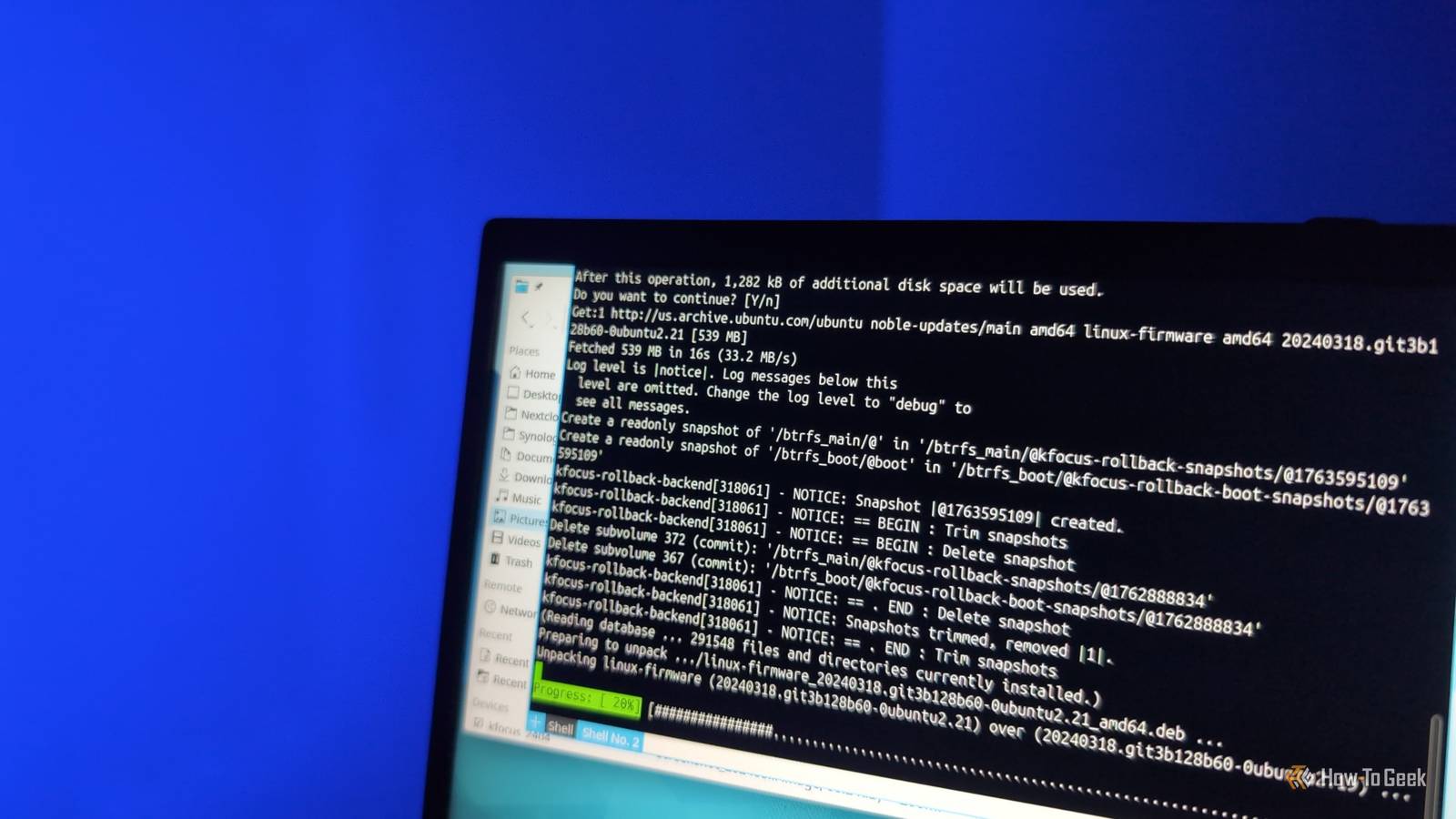
My default desktop is already relatively lightweight, my favorite being Xfce.Installing OpenBox Incredibly APT on Debian Installing OpenBox was simple enough on my Debian system.All I had to do was install it using APT: sudo apt install openbox And after OpenBox was installed, I just had to select it as one of the available sessions from the login screen.
Setting the wallpaper xsetroot to the rescue! As soon as I selected the OpenBox session and logged in, I wondered if something had gone wrong when the screen didn't change.It loaded.It just used the same background as on the Debian login screen.
A right-click confirmed this.This brought up the menu.Openbox is so minimalist that it doesn't include a utility like the Windows Control Panel by default.
On OpenBox and similar traditional window managers, configuration is done through text files.To set the desktop background to something different, I had to use the xsetroot command.This is a utility that sets the "root" window in X11.
This is not the same as the root account in Linux.The root window is simply the bottom window.It's possible to run "rootless," and this is how X11 runs on macOS and in WSL if you have the ability to run graphical Unix/Linux apps installed.
I can set the desktop background from the command line.The right-click menu has a convenient terminal emulator.I wanted to set it using a solid color.
I happened to like a color I found on color-hex, a site that has a number of color hex codes available.The xsetroot command can set colors with hex codes that you might have used to set colors if you code HTML or CSS.xsetroot -solid "#6e7e9c#" This set the root window, but I would have to run this command every time I launched OpenBox.
Fortunately, there is a configuration file I can use to run commands like this.In the home directory, OpenBox reads the .config/openbox/autostart file in the home directory on startup.I could simply copy that command into the file when I edited it with my favorite editor, Vim: vim ~/.config/openbox/autostart I would have to append an & (ampersand) to the command in the file so that the system won't block when reading it: xsetroot -solid "#6e7e9c#" & This runs the command in the background.
Using apps They work the same way as usual on Openbox With my background set up, I could now use OpenBox more comfortably.As I mentioned before, there's a right-click meny where I can run common programs like the web browser.Debian ships with a utility that will update this menu constantly when I install new programs.
Since I think every system need a solitaire game, I installed , a popular collection of solitaire card games written in Python: sudo apt install pysolfc Sure enough, it was immediately available.I could run the other desktop apps installed by default on Debian, including Firefox and LibreOffice.I can also launch apps from the command line, as I mentioned earlier.
To launch FireFox: firefox & The "&" is there yet again to make sure my shell is available.Otherwise, I would have to suspend it with Ctrl + z and then put Firefox in the background with the bg command.What is it like using OpenBox? Refreshingly minimal Since I'm comfortable with the command line, I think I could use something like OpenBox reguarly.
One customization I realized I needed immediately was a panel to manage minimized apps and to get a lock.I used the tint2 panel.Exploring a minimal desktop I do appreciate the speed of a minimal environment, especially in VMs.
I'll want to continue exploring a bare-essentials desktop environment.
Read More