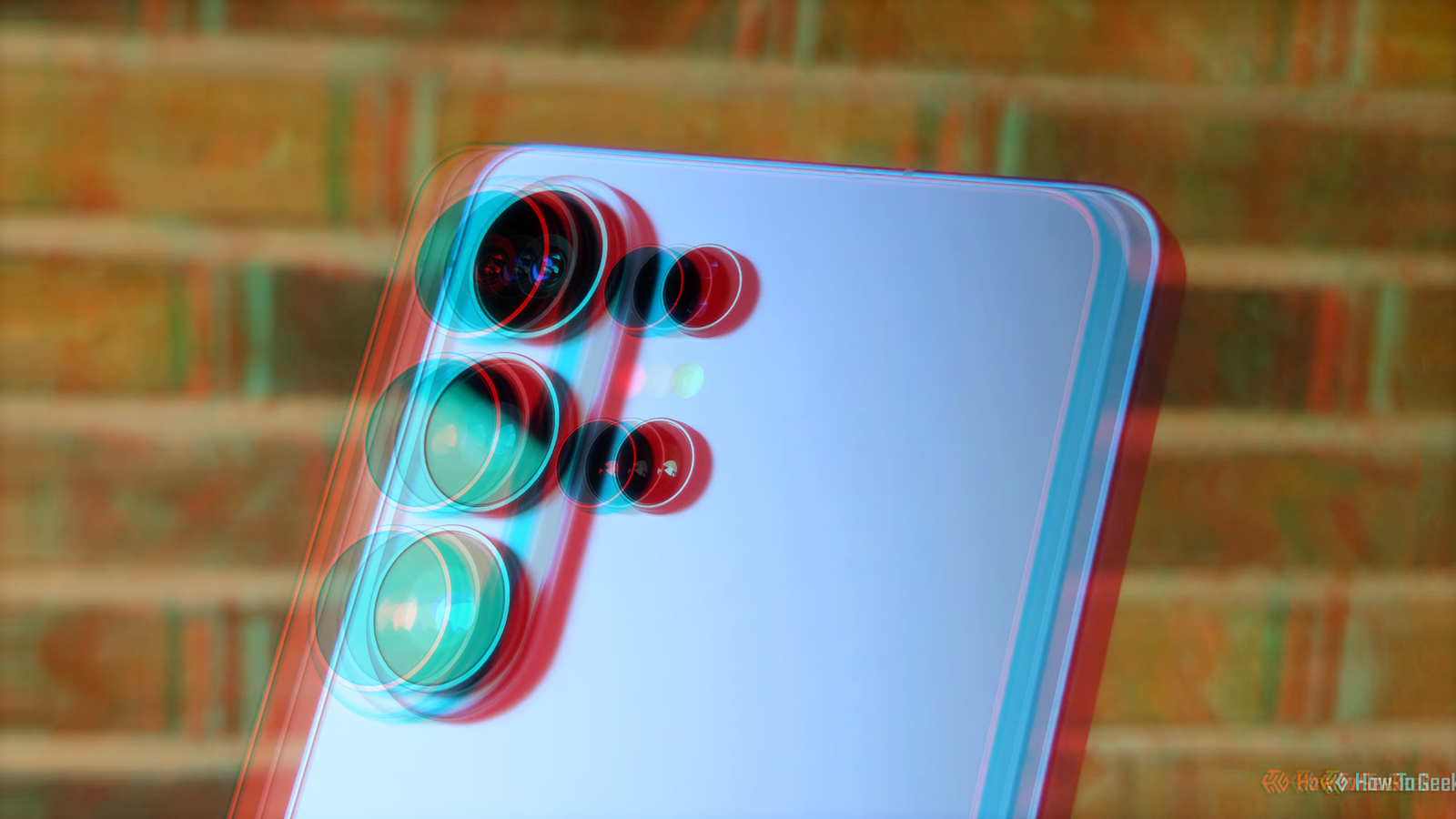
I was looking at the cameras on my Samsung S25 Ultra, as you do, and wondered to myself, "Could you use two of these cameras to take 3D photos or videos?" After all, I can take 3D photos with my old Nintendo 3DS, so maybe someone's made an app for that.Add How-To Geek on Google Add as Preferred Source Follow on Google Discover Well, it turns out the "someone" in question is actually Samsung itself! But the content you can shoot using compatible phones is meant for Samsung's own XR headset.The good news is that you can convert it to work on any 3D video player app, which in my case would be on Meta Quest 3.
Your Galaxy phone may already have a 3D camera mode It's worth a look! It's pretty well hidden away, but if you open the Camera Assistant app, which is part of the excellent Good Lock suite, there's an option to activate spatial photos and videos.Once that toggle is activated, you can return to the standard camera app.Now, at the top of the app, you'll see a little icon that looks like a VR headset.
If you tap on that, the phone starts using two of the cameras on the back, with one cropped to match the other, to record 3D content.There's nothing else you need to do, just shoot photos or video as usual, and it will be stored in a 3D format.The special format needs conversion Some assembly required That format is the tricky part, however.
It's called MV-HEVC (Multiview High Efficiency Video Coding), and if you aren't going to use it directly on a Samsung or Apple Vision Pro headset, you'll have to convert it.That is, unless you're willing to pay the $29.99 for an app called ImmerGallery on the Meta Quest Store.Which, personally, I am not.
For penny-pinchers like myself, it makes more sense to convert these spatial video files into standard SBS (Side-By-Side) 3D video files.Then there are any number of media player apps that will be happy to assault your eyes with whatever you decide to record.The question, of course, is how to do the conversion? FFmpeg is the easiest solution Don't let the terminal scare you The answer is the world's most popular and arguably powerful media conversion tool.
It's designed to be command-line driven.However, there are any number of third-party FFmpeg GUIs to choose from if you don't fancy typing (or, more likely, pasting) commands into a command prompt.We're going to do this using Windows, though FFmpeg also works on Linux and macOS.
The first thing to do is install it from the FFmpeg download page.If you're using the WIndows Package Manager you can install it with this command using the Command Prompt or PowerShell: winget install --id Gyan.FFmpeg -e You'll be asked to agree to some terms and conditions.Type Y and then press Enter to continue.
Once the installation is completed, close the command line app you were using.Then copy the spatial video you took from your Galaxy phone to a folder on your computer.Right-click on any blank spot in the folder under Windows Explorer, and select "Open in Terminal." Then enter the following command: ffmpeg -i "galaxy.mp4" -filter_complex "[0:v:view:0][0:v:view:1]hstack=inputs=2[v]" -map "[v]" -map "0:a?" -c:v libx265 -crf 18 -c:a copy "galaxy_FSBS.mp4" Replace "galaxy.mp4" with the name of the input file, and "galaxy_FSBS.mp4" with your desired name for the new file.
Then press Enter.It may take a few seconds for the process to start and, depending on the length of the video, quite some time to finish.So simply wait until the software tells you it's done.
Close If you have a compatible NVIDIA GPU, you can replace "-c:v libx265 -crf 18" with "-c:v hevc_nvenc -preset p5 -cq 18" (without the quotes) to use its video encoder.For a short video, however, the CPU method is fast enough and works on every system.Once the conversion is done, you should see this if the file is played in a normal desktop video player.
The next thing you need to do is transfer the file to your Quest headset.There are various ways to do this.In my case, I simply copied the file to a USB-C flash drive, and then used the Quest file manager to copy it to the internal media folder.
You are also welcome to just play it off the drive—if you don't mind having a flash drive sticking out the side of your face.You need the right app on your Quest And it's free! Now that you have the output file on your Quest headset, you need an app to play it.There are quite a few SBS 3D video players, but I used the Finally VR Video Player, which is free in the Meta Store.
It's as simple as opening the app and choosing the file from the location you saved it.If all went as planned, you should see your video play back in 3D.The video of my (ironically one-eyed) cat worked perfectly, and I could see it as a 3D scene.
Time to capture some 3D memories Now you can record spatial video as you please, and convert it later when you feel like it.Just remember to back the videos up to a folder on your computer.While the videos looked correct to me, I have read that on some phones the left and right eyes might be swapped, in which case change [0:v:view:0][0:v:view:1] to [0:v:view:1][0:v:view:0].
Read More