I didn’t expect to get this attached to Android Auto, but here we are.I originally treated Android Auto as a convenient way to get directions and play music.Now, I have a small list of features that have become my favorites.
I use them on quick school runs, grocery trips, and longer drives when I have more time to kill.I know which ones I reach for without thinking, and I’ve definitely had those moments where I wonder how I managed without them before.Basically, I forget about my phone while driving.
And that’s the whole point.These four features don’t feel like flashy extras I’ll try once and forget about.Give me a minute, and you’ll see why I’m so attached to them.
Android Auto finally gets me Show up when I need you Close Let me tell you, this feature is my favorite.I don’t have to do anything.I just get in the car, connect my phone, and Android Auto takes it from there.
I used to start Android Auto myself every time I got in the car.It was just part of my routine until I realized I didn’t actually need to do it.If I can skip that extra step, I’m all for it.
Now, it pops up on my car screen automatically, and I can get straight to my navigation, music, or whatever else I need.To enjoy a little magic like this, head straight to Android Auto settings and toggle on “Start Android Auto automatically.” It becomes extremely handy when I’m making several short trips throughout the day.I might leave for the grocery store, come back home, and head out again a little later.
I don’t have to remember whether Android Auto connected the last time or set anything up.If my car wants to do the boring part, I’m not stopping it.My drive starts with music As it should Close Let’s be honest, Maps and music are probably the first apps most of us reach for on the Android Auto screen.
I’m no different.The moment I connect my phone, I want my route ready and my playlist playing.That’s why I like the Start music automatically option.
I don’t prefer doing the same thing again and again a million times a day: opening Spotify and pressing play every time I get in the car.Android Auto can pick up where I left off and start playing automatically.What I really like is that my car doesn’t feel completely silent the second I get in.
Android Auto starts up, and the music starts playing.What else do I want? I keep my driving controls close Less tapping, more driving Close I hate having to jump between screens when I’m already following a route.That’s why I love Quick Controls.
It’s one of those small features that makes a huge difference.Once I turn it on, I can keep useful controls visible while I’m using another app full-screen.I like it this way.
So if I’m checking something in Waze and want to pause a podcast, I don’t have to leave my map just to do it.It may sound like a small thing, but while I’m driving, fewer taps are always welcome.To turn it on, open Android Auto settings and enable “Show quick controls for apps.” Once enabled, the controls appear on the taskbar when you’re using a full-screen app.
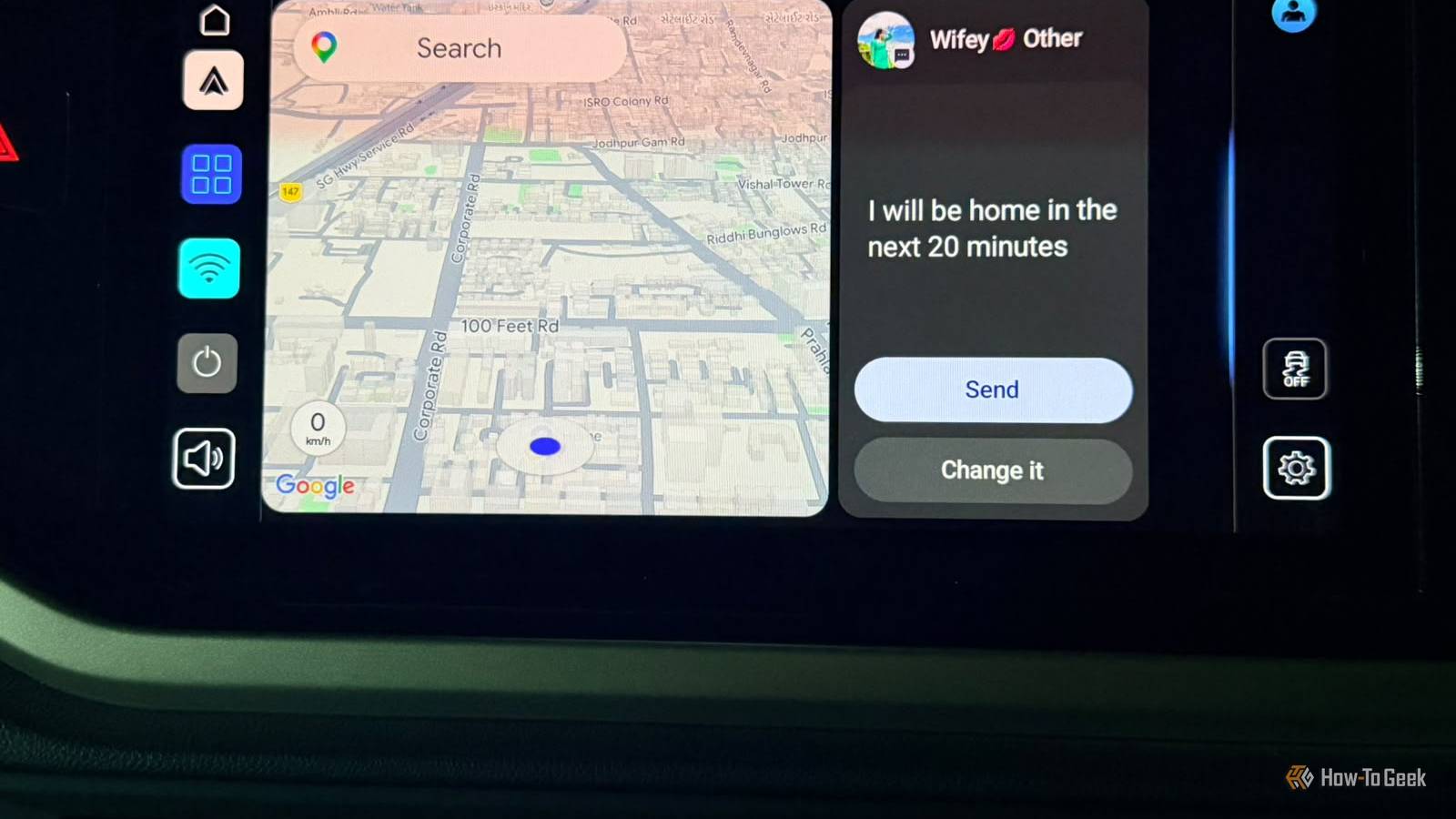
You don’t need to choose individual apps; Android Auto handles that for you.Now, you can enjoy a more effortless drive with everything close at hand.I let Gemini handle the little things Like sending my husband a quick ETA Close Why do things manually when Google has packed so much power into Android Auto? I now use Gemini in Android Auto to handle quite a few things for me.
I mean it.I can ask Gemini to send a message, check the traffic ahead, or find a good coffee spot along my route.Sometimes, it feels like I have a little assistant sitting next to me and not my daughter.
Favorite part? I can casually say, “Hi, Gemini, text my husband, I’ll be home in the next 20 minutes,” and it’s done.No digging through messages or picking up my phone while I’m driving.It saves me a few taps and, more importantly, keeps my phone out of my hands.
I can literally ask Gemini anything and get on with my drive.Honestly, it’s a pretty fun feature to casually show off when someone’s sitting beside me.Now imagine everything else Gemini can handle.
No need to change anything in Android Auto settings.If Gemini is set as your digital assistant, it’ll show up automatically.If not, what are you waiting for? Related 5 times Android Auto says No when your phone says Yes Because Android Auto has trust issues.
Posts By Sanya Shah My car and I have a system Now you know what I mean when I say I’m attached to Android Auto.None of these features is too complicated to set up, but they can make your everyday drives feel a whole lot easier.Try them yourself and see which ones fit into your routine.
You might just find yourself wondering how you ever drove without them.Related These are the 3 Android Auto apps I reach for when my car is parked The apps I use off-road Posts By Sanya Shah
Read More