Your Jellyfin library can look just as good as any streaming platform's library, complete with proper titles, metadata tags, and beautiful album covers.It doesn't matter how messy your offline music files may be (they don't even need to have track names), this tool automates all that work with just one click.Meet MusicBrainz Picard The easy way to tag your music Jellyfin doesn't rely on file names to index the library.
It actually extracts things like track titles, album titles, artist, track number, cover art etc.from embedded tags inside your music files.These embedded tags are all part of a file's metadata.
Normally, you'd have to spend hours manually typing that metadata into files.Then you'd have to find and add cover art too.MusicBrainz Picard is a free tool that automatically does both those things for you.
It can also batch process files, even those without any tags or title information whatsoever (if you ripped it from a CD, for example).Sounds like magic, but it can actually listen to the music file for unique audio signatures.And then it cross-references those audio signatures against the MusicBrainz database.
Using MusicBrainz Picard to auto-tag music The step-by-step process Start by putting all your audio tracks in one folder.As you can see, mine is pretty messy.The files are all missing album covers and they barely have any metadata information.
MusicBrainz Picard supports most audio formats, including FLAC, OGG, WMA, etc.Go ahead and download MusicBrainz Picard for your computer.It is available for macOS, Windows, and Linux.
Once you've installed it on your computer, launch it.On the onboarding steps, just click next until you reach the screen where it asks you if you want to directly overwrite and edit your music files.Check that box and then click next.
Now let's load our music files into the program.Click the folder icon and open the folder you already created.Picard will load it as an unclustered directory.
Click the cluster button at the top of the screen.This step sorts the music files into folders based on the metadata and title information already available.My files barely have any metadata, so Picard just puts them in a single folder.
Zettlab D4 NAS Brand Zettlab CPU RK3588 Memory 16GB LPDDR4x Drive Bays 4x 3.5-inch, 1x M.2 NVMe $700 at Zettlab Expand Collapse Next, select all files with Ctrl or Cmd+A, then click the lookup button.The lookup feature uses the metadata already available to match the music files with the MusicBrainz database.If any matches are found, it will start auto-tagging the files right away.
In my case, it could not find any reasonable matches, but it did wrongly tag one of the files.So I will just clear these results and move on to the next step.For files that are missing any usable metadata, select all your files with control or command+A, and then press the scan button.
It will listen to the actual audio signatures and find matches in its database.In my case, it correctly identified tag 13 of my 15 tracks.It has even found the cover art and automatically embedded it within the files.
For the remaining two tracks, I'll select them individually.Right-click and then select lookup.Processing a track individually usually auto-tags it correctly.
Once again, it has managed to pull the cover art and tags for these two files.You can almost always process stragglers by targeting them individually.Once the batch has been processed, you will see that Picard shows you the original values and the new values for the tags side by side, as well as the cover art.
You can edit any of the tags manually here, if you like.If Picard fails to load album art for any of the tracks, right-click on the CD icon in the bottom corner.Select choose "local file" or "load from URL" to manually update the cover.
In my case, it correctly embedded the cover art for 13 of my 15 tracks.I had to manually update the other two.Saving the tags and loading them inside Jellyfin MusicBrainz overwrites the file metadata The files are ready, just go ahead and click the save button.
MusicBrainz Picard will automatically tag them and rewrite the metadata inside the files.Deals Score deals on audio gear — speakers, DACs & headphones Unlock savings on home audio and streaming accessories — explore discounts on speakers, headphones, DACs, soundbars, and room calibration gear to upgrade your Jellyfin listening experience.Shop deals on cables, storage, and streaming devices to complete your setup.
Deals Explore TV, Audio & Entertainment Deals If you're working with hundreds of files, it's better to process them in smaller batches.That way you can catch any stragglers and add any missing metadata before proceeding.Now let's try loading our processed files inside Jellyfin.
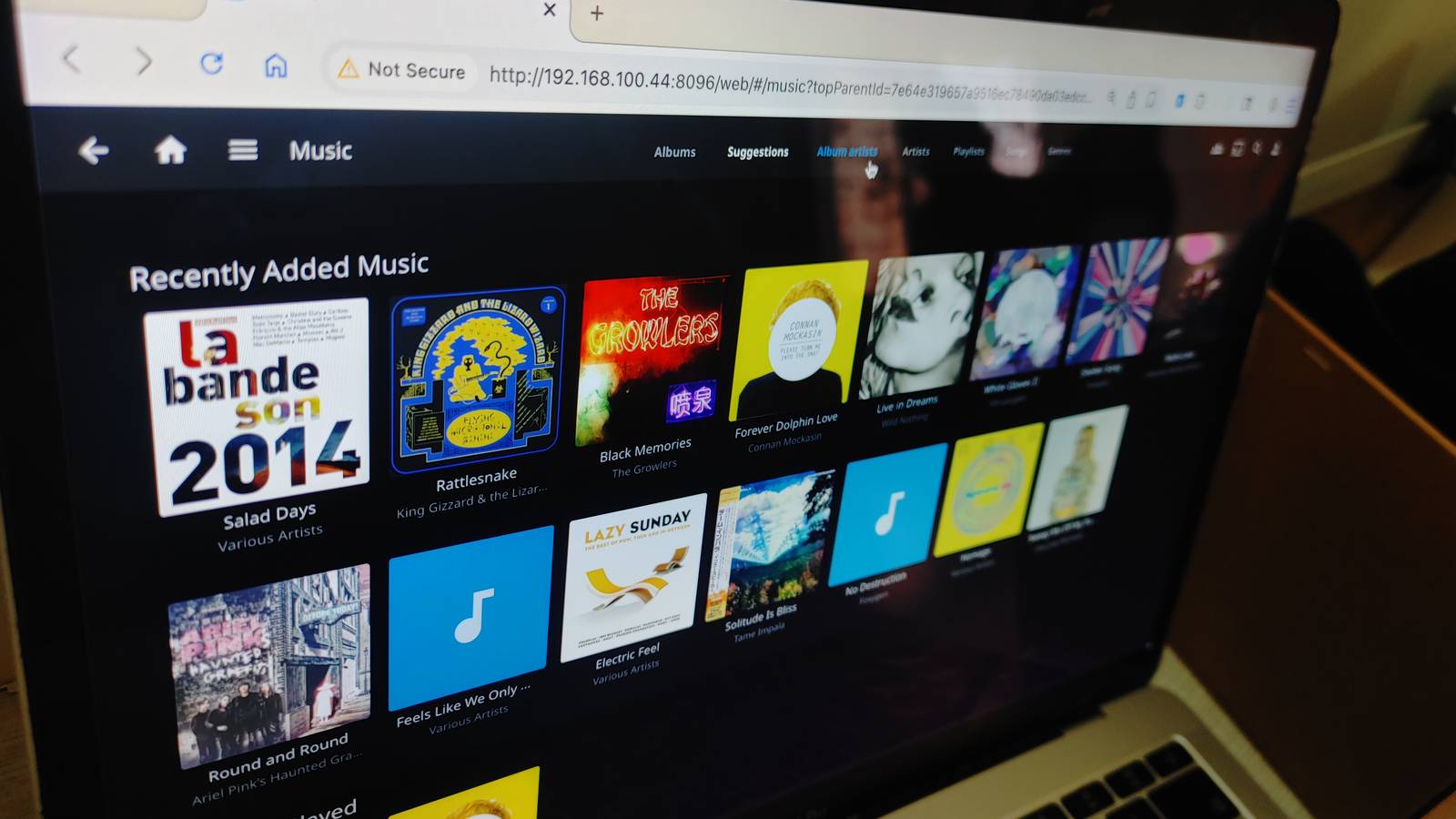
The titles, the artist names, and the cover albums are all showing up as expected.I can filter the collection by albums and artists, too.Clicking an artist's name brings up more information about them from the MusicBrainz database, as well as all their available tracks inside Jellyfin.
We've just scratched the surface MusicBrainz Picard is all you need to clean up your messy Jellyfin music collection and make it look just as nice as any libraries you'll find on major music streaming platforms.Picard has plugin and scripting support too, which means you can do things like create file names out of tags or create folders out of albums with minimal effort.
Read More