Google packs every new Android update with a huge number of useful features, many of which fly under the radar while the spotlight stays on the big stuff.As we move towards the 17th major Android release cycle this year, it’s easier than ever to lose track of just how much has been added over time.Beyond the headline features you’re likely already aware of, there’s a long list of lesser-known features and tools in Android, along with even more enhancements layered in by manufacturers.
A lot of them can genuinely improve everyday use, yet most people aren’t even aware they exist.So here are a few of those obscure features I use all the time—and you might want to start using too.I never worry about dismissing notifications by mistake anymore, thanks to notification history Android keeps a hidden record of notifications you've cleared Let’s be honest, everyone swipes away a notification or two during the day without really thinking about it.
The action has practically become second nature.You swipe down, clear the clutter, and move on—especially when you’ve just woken up from an afternoon nap and haven’t even had a sip of coffee yet.The problem is that a few minutes or hours later, you’re left trying to remember what you actually dismissed.
Sometimes it’s nothing.Other times, it’s not.A follow-up email from your boss lands in your inbox the next day, asking why you missed the quarterly meeting.
A friend gets a little passive-aggressive because you never replied to their invitation to go out.Or, if you’re particularly unlucky like me, you miss a dentist appointment and end up having to beg them to reschedule you.The good news is that Android has a notification history feature that lets you check every single notification you’ve swiped away.
The bad news is that you have to know it exists, because it isn’t readily available in the notification shade; instead, it’s tucked away in your phone’s settings.You can enable and access Notification History by going to Settings > Notifications & Quick Settings > More settings > Notification history.Alternatively, you can just use the search bar and type “Notification history.” Once enabled, you’ll be able to see a log of your recently cleared notifications.
Close When you want to view notifications you’ve dismissed, you can head back to the same menu.If you own a Pixel phone, you can also tap the No notifications text when you pull down the notification shade to open notification history directly.Unfortunately, that shortcut doesn’t work on my OnePlus 15.
OnePlus 15 SoC Qualcomm Snapdragon 8 Elite Gen 5 Display 6.78-inch 2772*1272 (FHD+) The OnePlus 15 features the latest Snapdragon 8 Elite Gen 5 SoC that enables gaming features never before seen on a smartphone.The 165Hz display is perfect for mobile gaming, and when not gaming, it runs at 120Hz, making it ideal for everyday usage.The triple camera array is pretty great, and the 7,300mAh battery lasts multiple days on a single charge.
RAM 12GB/16GB Storage 256GB/512GB Battery 7,300 mAh Operating System OxygenOS 16 Front camera 32MP Rear camera Triple 50MP sensors Colors Infinite Black, Ultra Violet, and Sand Storm Charge speed Up to 80W SUPERVOOC IP Rating IP66, IP68, IP69, IP69K Price $899/$999 Release date November 13, 2025 $1000 at OnePlus Expand Collapse The hidden "Alt-Tab" gesture helps me multitask much faster A quick swipe can take you to your recently used app One of the most common actions I do hundreds of times a day is open and close apps.I’ve found that the fastest way to do it isn’t bringing up the recent apps screen, but simply swiping across the very bottom edge of the screen from left to right.You can also do it in reverse, from right to left, to jump back to the app you used last, and there's no limit to how many swipes you can do.
It’s pretty much the mobile equivalent of the Alt-Tab shortcut on Windows PCs.You do need gesture navigation enabled for this to work, but if you’re using 3-button navigation, don’t worry—there’s an alternative.You can quickly switch between your two most recently opened apps by double-tapping the Recent apps button at the bottom of the screen.
If you tap it rapidly, you can also scroll through recent apps, although it’s not quite as intuitive as swiping with gesture navigation.Of course, you’ll still need to open the app drawer for apps you don’t use often, but for anything you’ve recently had open, this shortcut is easily the fastest way to switch.Related I can't live without this underrated Android gesture A simple solution to a common problem.
Posts By Joe Fedewa Drag and drop lets me move content between apps in seconds Share text and images without using screenshots or copy-paste One of the most common everyday actions I do on my phone is taking a screenshot or copying and pasting text or an image from one app and then sending it as a chat message to someone.Android 14 introduced a feature that significantly improved this, yet I rarely see people use it in the wild: you can drag and drop content between apps.Simply select a piece of text, an image, or a link, then tap and hold for a second and drag it toward the bottom of your screen to share it in the app of your choosing.
Better yet, hold the item with one hand and use your other hand to swipe across the bottom of your screen (the feature I covered earlier) to switch to the app you want to drop it into, then release.You can even drag and drop in multi-window mode.It’s incredibly intuitive once you realize that, just like with a computer mouse, you can drag and drop almost anything anywhere.
Some apps even take it a step further.For instance, my OnePlus 15’s gallery app automatically isolates the specific element in an image I’m holding, allowing me to send cutout images in seconds.It's like magic! Note that support varies heavily depending on the app.
I haven’t been able to get this feature to work in some apps, like Messenger, where tapping and holding text brings up the reactions menu instead.App pinning stops people from wandering through my phone Lock your device to a single app before handing it over App pinning allows you to lock your screen to a single app while blocking access to the rest of the phone.This is perfect when you need to hand someone your phone and don’t want them to snoop around.
If you give your phone to kids so they can watch YouTube or play games, this is the exact feature you never knew you needed.Before you can use app pinning, you need to enable it.Go to Settings > Security & privacy > More security & privacy > App pinning.
Close The wording on your device may vary slightly, so it’s often easier to use the search bar instead.Also, some phones won’t let you use app pinning with gesture navigation, so you may need to switch to 3-button navigation before enabling it.Subscribe to the newsletter to unlock hidden Android tricks Want more than a few neat tricks? Subscribe to the newsletter to access deep dives into hidden Android features, practical how-tos, and concise tips that help you uncover and use buried tools across your phone.
Get Updates By subscribing, you agree to receive newsletter and marketing emails, and accept our Terms of Use and Privacy Policy.You can unsubscribe anytime.Once app pinning is enabled, open the app you want to pin, bring up the recent apps screen, tap the three-dot icon next to the app, and tap Pin.
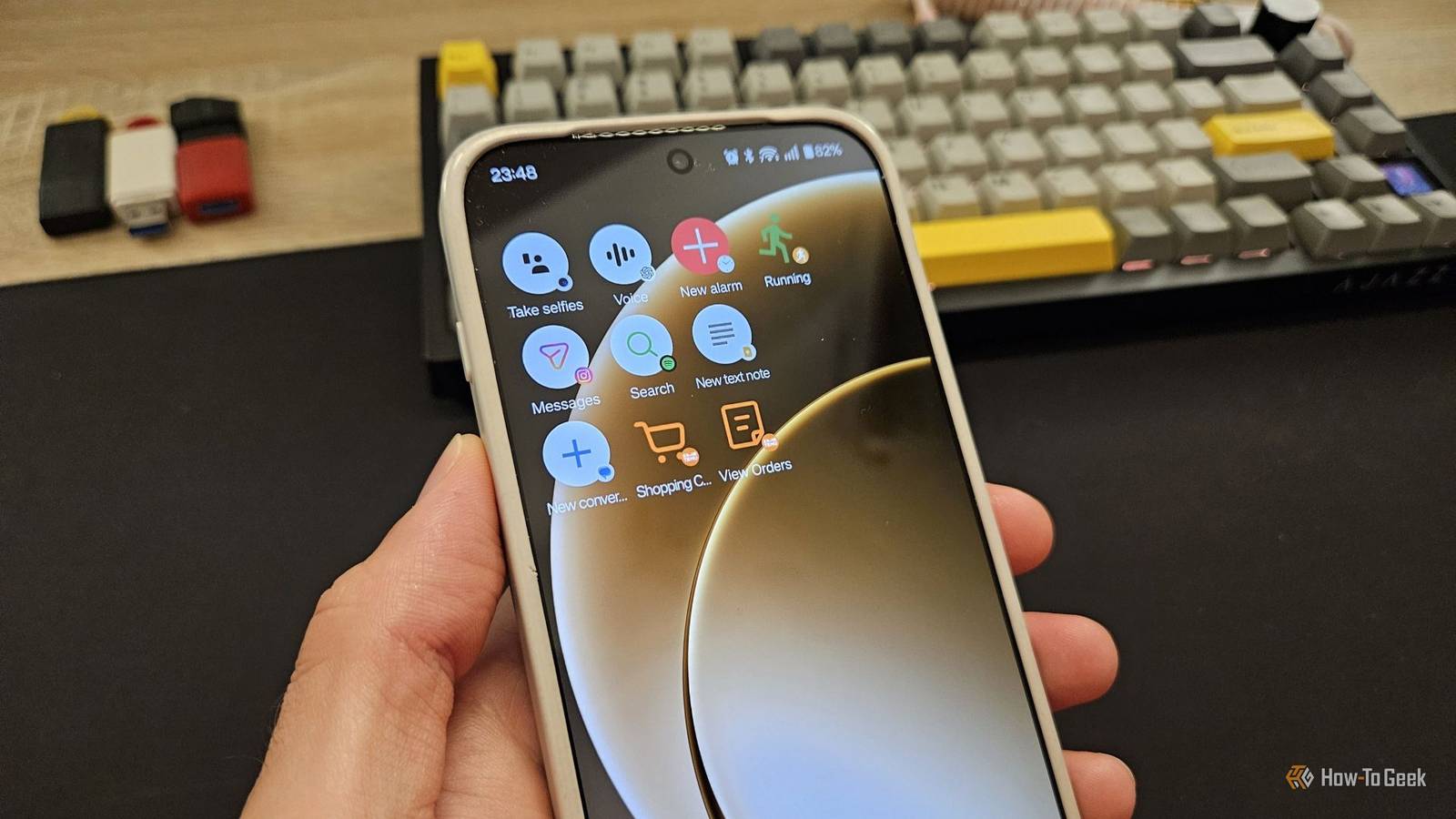
To unpin the app, you’ll usually be asked to unlock your phone.Close Pinned shortcuts take me exactly where I need to go without opening apps Jump directly to specific actions instead of navigating menus Sticking to the theme of pinning things, did you know that you can pin various actions in specific apps to your home screen? This is an incredibly convenient feature, especially if you always head to the same section of an app all the time.For instance, you can pin shortcuts to your Amazon orders or cart instead of just the main Amazon app shortcut.
Pinning a shortcut is very straightforward.Simply tap and hold the app you want to create a shortcut for, and when the app shortcuts menu appears, hold and drag the specific shortcut to an empty spot on your home screen.That’s it.
Close The best part is that there’s almost no limit to the kinds of actions and menus you can pin.For example, I’ve set up shortcuts for starting a running activity in my fitness tracker, opening chats with important contacts, launching ChatGPT voice mode, creating a new alarm in my alarm app, opening the selfie camera, searching on Spotify, and so on.The sky (or, more precisely, what the developer has enabled) is the limit! Close There's a good chance your favorite Android feature is one you haven't found yet I’ve only covered a small number of my favorite Android features here.
I’d bet there was at least one you didn’t know existed, and hopefully it’s something you’ll end up using every day now that you’ve come across it.There are plenty of other useful features on your Android phone just waiting to be discovered.So get exploring! Related Think You’re an Android Pro? These 9 Hidden Features Will Prove You Wrong Don’t be the last to discover these android features.
Posts 11 By Aman Kumar
Read More