Running AI locally sounds like it should be straightforward until you realize that the app making it feel easy is quietly eating the resources you actually need.I spent time with LM Studio before I started noticing that my hardware was working harder to keep the interface alive than to run the model itself.However, Llamma.cpp is much better and can even run on Raspberry Pi.
LM Studio has too much bloat I ditched the heavy wrappers for raw llama.cpp When I started running AI locally, I gravitated toward tools like LM Studio.It is pretty easy to see why, since it is very popular thanks to its model search, downloading, and chat interface.It doesn't feel much different than using any other app on your computer, and you don't even need a NAS.
All that convenience comes at a price, though, because the packaging just hides what is actually doing the work.LM Studio, Ollama, and GPT4All are all local AI running the same core engine underneath, which is llama.cpp.What is different is everything that is built around that engine.
Heavy GUI managers force your OS to burn memory and CPU cycles just to keep the interface alive.My hardware was spending its budget rendering visual elements and maintaining API translation layers instead of doing the actual AI work.I didn't spend long on LM Studio because it was clearly going overboard.
The main culprit is that most of these managers are built on Electron, which ships a full Chromium browser engine bundled with a Node.js runtime.That's expensive even when the AI isn't doing anything.In practice, LM Studio alone can sit at 1.40 GB of RAM and pull up to 1.2 GB of GPU VRAM just as background overhead.
On an 8 GB card, that's not a minor inconvenience; it directly determines which models you can even load.Every megabyte the wrapper takes is a megabyte the model doesn't get.Running llama.cpp as a native binary cuts all of that out.
While other AI may force your PC to waste memory just from the empty UI, llama.cpp keeps its background footprint down low.When it is running, it doesn’t have to be more than a regular browser.Wrappers also add latency.
You get prompt ingestion, which is just the wait time before you see the first token.There was a noticeable difference between running llama.cpp and using LM Studio.Bypassing the wrapper fixed that.
There's another upside, too, because llama.cpp moves fast, and GUI tools always lag behind its release cycle by weeks.Running it directly means new features like multi-modal audio inputs are available the moment they ship.Command-line tools are simpler than they seem You get real control for a smaller learning curve The learning curve of a command-line interface can feel intimidating coming from a GUI.
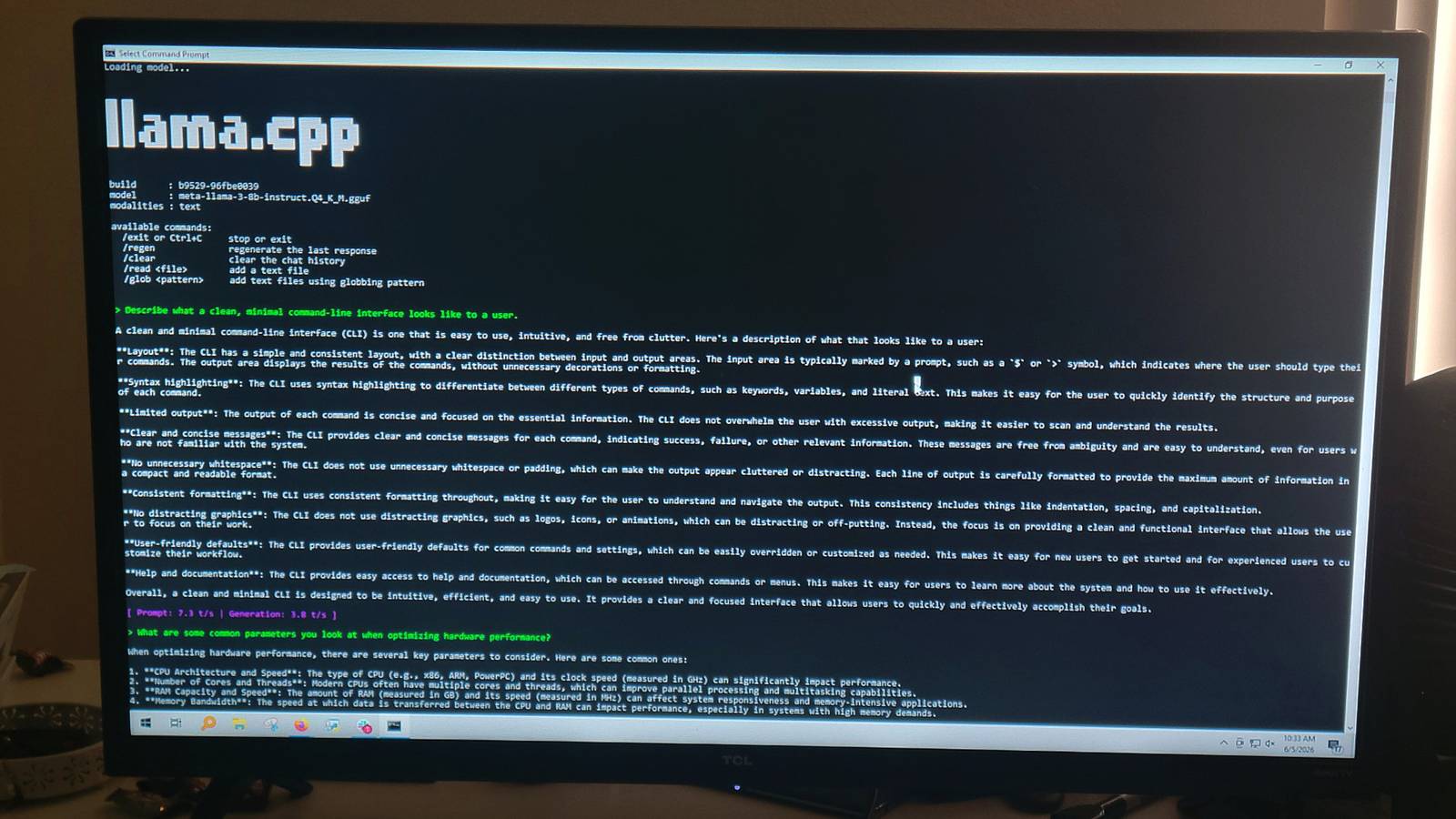
I remember that I had thought that any time I was using a command line, I was likely going to break something on the PC.However, if you switch to raw llama.cpp it's worth learning.To get llama.cpp running on your PC, you need files from two places, pull them both into the same local folder, and you're basically done.
Start at the llama.cpp GitHub repository.Go to the latest release and download the pre-compiled zip that matches your hardware.Create a folder somewhere convenient and unzip everything into it.
Then head to Hugging Face, grab whichever model you want in GGUF format, but a lighter one is smarter for testing, and drop that file into the same folder.To run it, type cd then the path from the folder.Then name the AI in a script with the first prompt, and you can start talking.
Make sure to use the launch string with the model filename before your first prompt.Here is what I used llama-cli -m meta-llama-3-8b-instruct.Q4_K_M.gguf -ngl 99 -p "Why is running AI via raw llama.cpp better than a heavy GUI wrapper?" The performance difference is hard to ignore once you see it.Idle VRAM usage drops from several gigabytes to a fraction of one.
Prompt processing speeds jump significantly enough that I noticed it on the first request.Stripping out the GUI and tuning things yourself sounds complicated, but you will definitely see the difference.The trade-off is worth it The performance gains make it hard to go background It's easy to see why someone would argue that a GUI is better for beginners.
Apps like LM Studio offer a comfortable, pick-up-and-play experience that hides the messy side of deployment.If you're really that into a GUI, I'd recommend GPT4All over LM Studio because it's not as restrictive or hard on your PC.You can make this look like a regular chatbot if you run the code with your model and then -ngl 99 and the URL is http://localhost:8080.
It just won't run as well.To most people, running a language model through a terminal looks like developer territory.Learning to go through directories and set execution parameters takes time, and that can put people off.
Convenience would be why you'd head to heavy wrappers.However, treating local AI like a casual desktop app means paying a real performance price for all that graphical overhead.I'm not willing to give up over a GB of VRAM just to keep an interface running.
It is a huge waste.Learning the llama.cpp interface removes all of that, and you only have to learn it once.After that, your machine can focus on the actual work.
Now that I am used to the speed and control, going back to a heavy interface feels like a genuine step backward.It feels like giving up performance just for a pretty interface.Since llama.cpp includes a built-in web server, it's not like you're stuck staring at a terminal either.
A little work learning a few commands gets you a much faster, cleaner setup.The terminal is the difference maker Switching to raw llama.cpp isn't for everyone.If you're not comfortable working from a terminal yet, the learning curve is real, even if it's shorter than it looks.
GPT4All is a more reasonable starting point than LM Studio if you want a GUI that doesn't punish your hardware for existing.That said, once you've run a model without the wrapper overhead even once, it's hard to unsee the difference.For a lot of setups, it's the difference between loading the model you actually want and settling for something smaller.
Surface Laptop 4 If you want a laptop with a touch screen that's not a 2-in-1, the Surface Laptop 4 is your best option.With all models having a touch screen and a long battery life, this is a solid choice.See at Amazon See at Microsoft Expand Collapse
Read More