Whether you've encountered an issue with Googlebook OS, you're planning to sell or return your Googlebook, or you just need a fresh start, a factory reset is something you'll need to know how to do.Fortunately, like with most things on Googlebook OS, a factory reset is simple to do, even if it's different than factory resetting a Chromebook.Here's everything you need to know about preparing your Googlebook for a reset, and then safely removing all of your user profiles, data, and apps.
Preparing to factory reset your Googlebook Don't rush into a factory reset—be sure you know what you need to know first Close Before you commit to wiping clean your Googlebook, there are some things you should consider to ensure the factory reset goes smoothly, and you don't inadvertently lose any important files or data.This is especially relevant if your intention with factory resetting your Googlebook is to move into a new Googlebook (or other computer).Only the primary Google Account is able to factory reset a Googlebook; that means the Google Account used to initially set up the Googlebook, and not any additional user profiles, as the primary Google Account holds exclusive device administrative privileges necessary for a factory reset.
If you're not the owner of that account, you'll need to seek help from the owner or be given access to the account.At least at time of writing, there's no way for other user profiles to be given administrative privileges without the use of a school or enterprise Google Workspace setup, which does not apply to normal users.If you have a device PIN set up for login, you'll need to know that to factory reset your Googlebook (biometric authentication, such as fingerprint or face recognition, will not work).
You should also be sure you know your Google Account's username and password, to ensure you still have access to it after you factory reset your Googlebook (especially if you plan to sign back into your Googlebook, which will also require internet access).It's recommended to keep your device plugged into a compatible charger while performing a factory reset, but you still want your Googlebook to be charged to at least 70% before starting.You can confirm device settings, contacts, calendars, app data, and even photos are properly backed up to your Google Account and can be migrated to other devices.
There are three ways to reach the same backup screen in the Settings app, but I'll just note the simplest.Open Settings through the app drawer, Quick Settings, or by pressing Google + I, then navigate to the Google services page located at the top of the left-hand navigation menu.In the Backup section, select Manage backup, which will allow you to review your backup settings.
Click Back up now to guarantee your backup is as fresh as possible.In the same section as above, you can also click Photos & videos to navigate directly to the relevant backup settings in Google Photos.From here, navigate to Default Backup under Backup options, and then select Device folders under Other options to choose which local folders should also be backed up to your Google Account, including screenshots, downloaded images, and movies.
Going back to the previous Backup section in Settings, you can also navigate to Other device data to choose which data is backed up to your Google Account, including individual apps that support it.Finally, you should peruse your local device folders in the Files app to ensure that any files you wish to keep have been safely transferred to another device (you can use Quick Share for this) or backed up to a cloud storage solution like your Google Drive or OneDrive.Related How to find your downloaded files in Googlebook OS Everything you need to know about finding all your files on your Googlebook.
Posts By Zachary Boddy Factory resetting your Googlebook Just a few steps to wipe clean your Googlebook Close Once you've completed your preparations, it's fairly straightforward to set your Googlebook back to square one with a factory reset.Just bear in mind that there's no way to halt or reverse a factory reset once you properly begin the process, and it can take up to an hour from start to finish.Open the Settings app through the app drawer, Quick Settings, or by pressing Google + I on your keyboard.
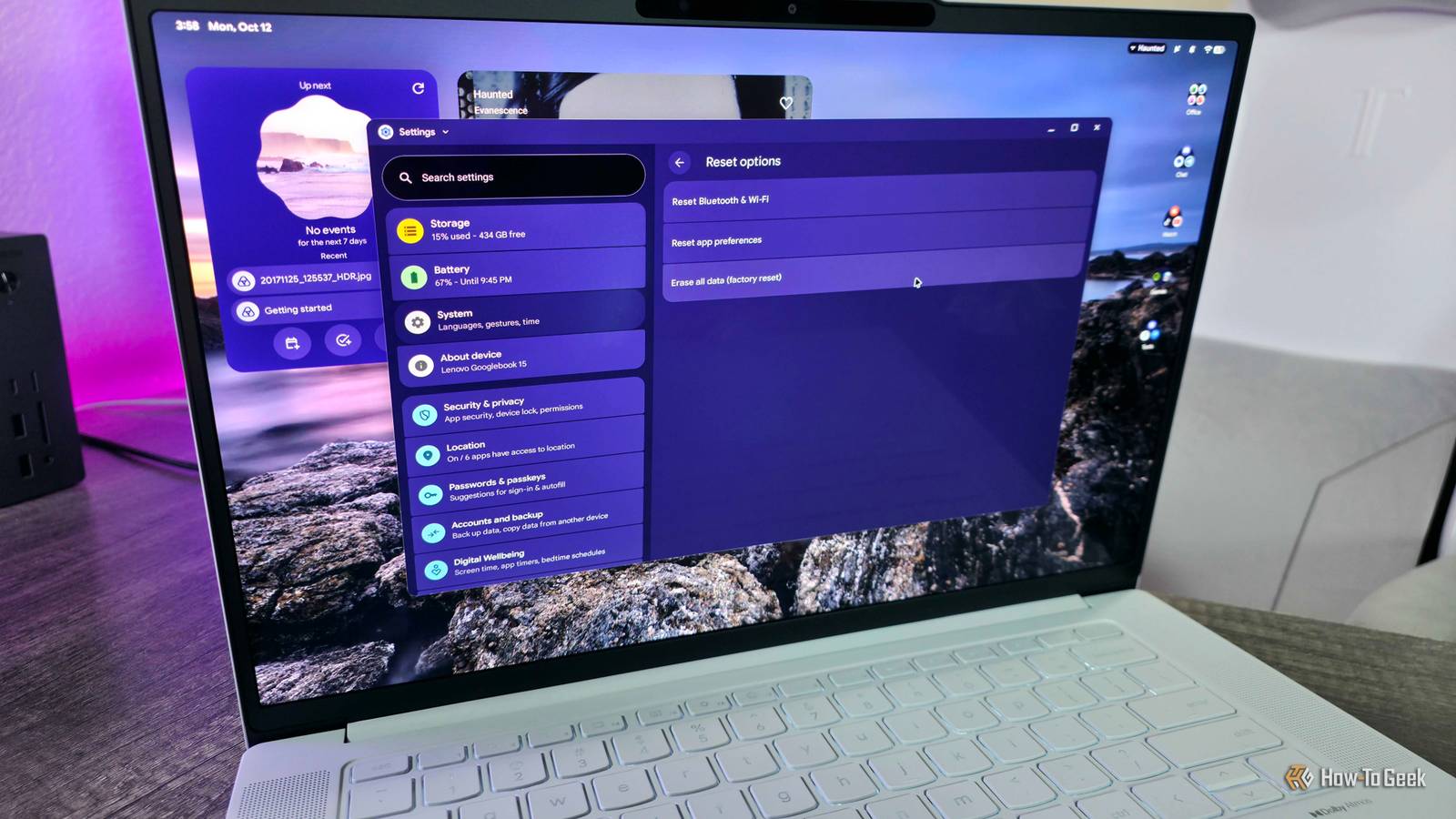
Navigate to the System page around halfway down the left-hand navigation menu.Click on Reset options under Manage data at the bottom of the System page.Click on Erase all data (factory reset) on the Reset options page.
You'll receive a notice of what data and accounts will be erased from your Googlebook.If you wish to continue, scroll down and click Erase all data to move on.Enter your device PIN (or your Google Account password, if you don't have a device PIN set up) and click Confirm.
Finally, click Erase all data to begin factory resetting your Googlebook.There is no undoing this action.Your Googlebook will restart, all your data will be deleted and all your accounts will be removed, and your Googlebook will revert to its initial out-of-box setup experience after completion.
Related How to connect a Googlebook to a printer Printed documents and web pages are just a few clicks away.Posts By Andrew Heinzman Your Googlebook just got a new lease on life Whatever your reason for factory resetting your Googlebook, following this guide will make the process as seamless as possible and help prevent any unfortunate data loss.A factory reset can help fix any Googlebook OS issues you're encountering, and it's a must if you plan to return, sell, or give away your Googlebook.
It's a lot simpler than a full Googlebook recovery, a last-ditch effort to fix critical errors (such as nonresponsiveness or boot looping) that completely reinstalls the entire Googlebook operating system, and requires far more effort, a second laptop, and a fair amount of tech savviness.
Read More