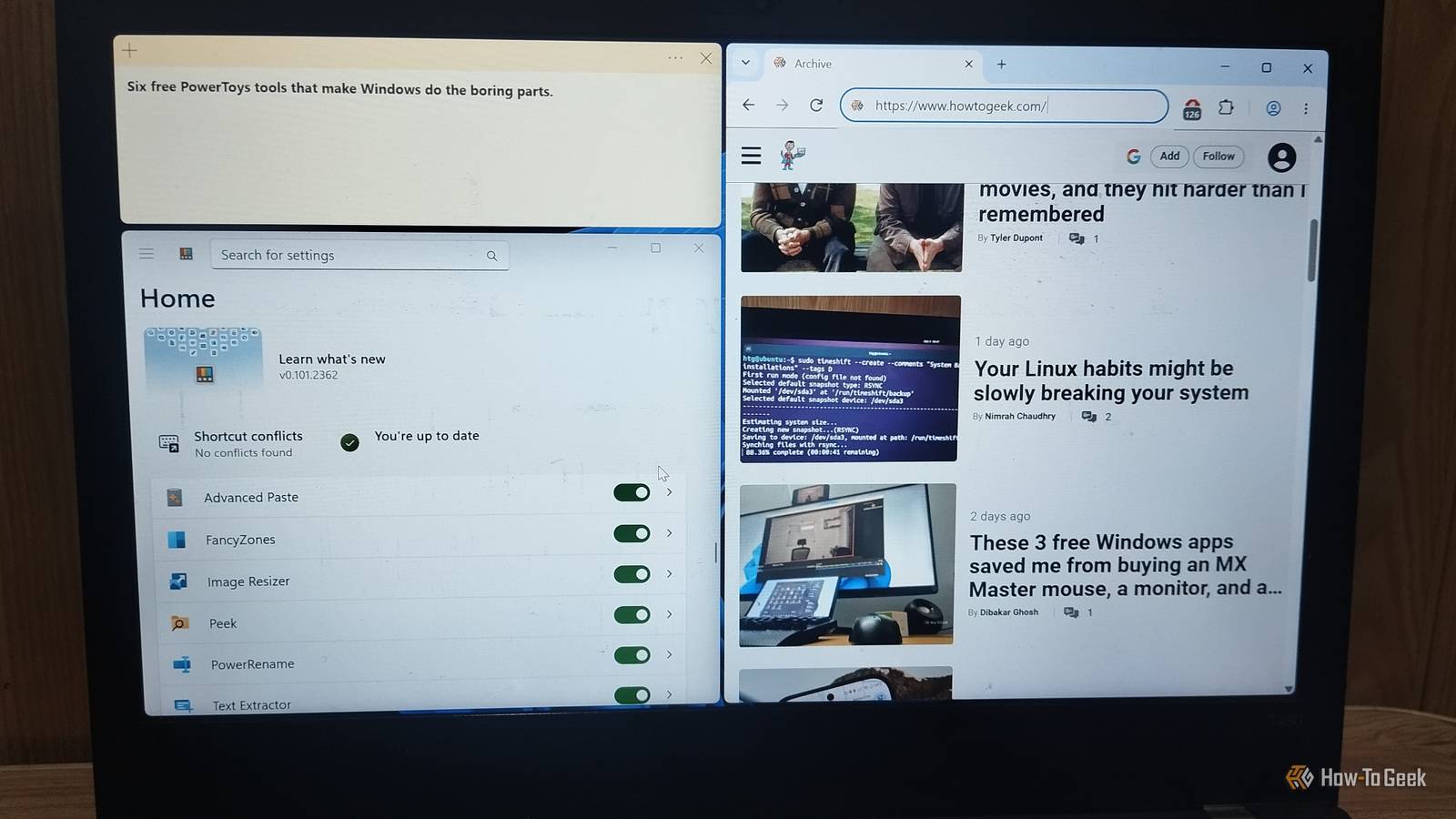
Windows has a habit of making you do things the slow way.How many times have you opened an image editor just to resize a picture, retyped text you couldn't copy, or opened several files just to find the right one? None of it is hard, but it all adds up.The fix has been sitting there for years, free from Microsoft, and it's called PowerToys.
It's a free collection of utilities (over 30) that quietly automates the boring parts of Windows with a few clicks or keyboard shortcuts.Add How-To Geek on Google Add as Preferred Source Follow on Google Discover You don't need every tool to benefit from PowerToys.Even a few might save you plenty of time, while others might not fit the way you already use Windows.
Luckily, most of its tools take seconds to learn.Here are six PowerToys features worth trying.In order to use them, install PowerToys from the Microsoft Store, open PowerToys Settings, and enable the features you want.
You can also find related settings and keyboard shortcuts for each tool there.FancyZones Snap windows into custom layouts FancyZones lets you create custom layouts for arranging application windows across your desktop.Instead of repeatedly dragging window edges to get the right size, you can define zones and snap apps into them.
It’s particularly built for ultra-wide and multi-monitor setups, where Windows’ default snapping feels limited.Related I let this Microsoft tool arrange my windows for me, and I barely resize them anymore FancyZones makes custom window layouts easy to create, save, reuse, and tweak, even if you use more than one monitor.Posts 1 By Tony Phillips To try it, go to PowerToys Settings > FancyZones > Open layout editor.
Choose a preset layout or create one that suits your screen.Once you've selected a layout, you can place windows into its zones by holding Shift while dragging them, assuming the default activation behavior is enabled.Personally, I don't use this often, as holding Shift and dragging windows feels like a chore in itself.
Even with my multi-monitor workflow, Windows' built-in Snap feature works well enough, so I'd stick with it for everyday window management.If you use a big monitor or love custom (repeatable) grids, give it a shot.Text Extractor Stop retyping text from images and videos Ever hopped onto a website to upload an image, a screenshot from a paused video, or a scanned page just to extract text? Or worse, retyped it yourself? What if I told you that you don't need to do either? PowerToys Text Extractor lets you pull text directly from your screen.
It uses OCR (optical character recognition) to recognize text displayed on your screen and copy it to the clipboard.Simply press Win + Shift + T, drag over the text you want to capture, and release the mouse button.PowerToys recognizes the selected text and copies it, so you can paste it wherever you need it.
Although OCR isn't perfect, unusual fonts, blurry images, and low-resolution text can trip it up, so give the result a quick proofread before using it.Still, it's a handy tool for anyone who needs to turn on-screen text into something they can edit, reuse, or share.Advanced Paste Paste content in the format you actually need Copying text is easy.
Getting it into the right format is another matter.Advanced Paste gives you more control over what happens when you paste.Copy something, press Win+Shift+V, and a small pop-up appears with your options.
You can paste as plain text, Markdown, or JSON, or convert content into files such as .txt, .html, and .png.You can also extract text from images using local OCR or reformat text instantly before pasting.There's even a Paste with AI option (disabled by default) that lets you transform content (even fixing grammar or spelling) before pasting it.
Advanced Paste is particularly useful if you write for the web or work with data.It saves you from the old trick of pasting text into Notepad first just to strip its formatting.PowerRename Stop renaming files one at a time Renaming files one at a time is a chore most people never ask for.
PowerRename turns it into a single step.Select your files in File Explorer, right-click, and choose PowerRename.Type what you want to find and what to replace it with, and a live preview shows the new names before anything changes.
It also supports regular expressions if you want advanced patterns, plus an option to number files in sequence.The live preview is the best part.You can see mistakes before they happen, which makes bulk renaming far less nerve-wracking.
If you regularly organize screenshots, downloads, or batches of photos, PowerRename is a must for you.Image Resizer Stop opening an editor just to resize images Opening each photo in an editor just to resize it is a slow way to spend an afternoon.PowerToys Image Resizer does it from File Explorer.
Select one image or a whole batch, right-click, and choose Resize with Image Resizer.Pick a preset or enter custom dimensions, then apply the changes.By default, Image Resizer creates resized copies and leaves your originals untouched, giving you a safety net.
You can even use Image Resizer CLI to work with multiple photos with ease.It’s perfect for email attachments, blog uploads, or sharing multiple photos without clogging someone’s inbox.You can also pair it with PowerRename: rename a batch of photos first, then resize them, all without leaving File Explorer.
Peek Stop opening files just to see what's inside File Explorer shows thumbnails and file details, but those aren't always enough to identify the file you're looking for, especially when several documents or images have similar names.Opening each one just to check is a waste of time.Peek lets you preview supported files directly from File Explorer.
Select a file and press the Spacebar to open its preview, then press it again to close it.You can inspect images, PDFs, documents, videos, text files, and other supported formats without interrupting your workflow.It’s great for scanning through a Downloads folder to find the right invoice, or for checking which photo is which.
Stop doing the little things the hard way PowerToys won't transform every part of Windows, and not every utility will suit your workflow.Pick one or two that address your daily annoyances and build the habit first.For me, Peek, Text Extractor, and Advanced Paste earned a permanent spot, while FancyZones didn't fit how I work.
Fortunately, you can remap shortcuts in PowerToys settings, so adjust them to feel natural.
Read More