
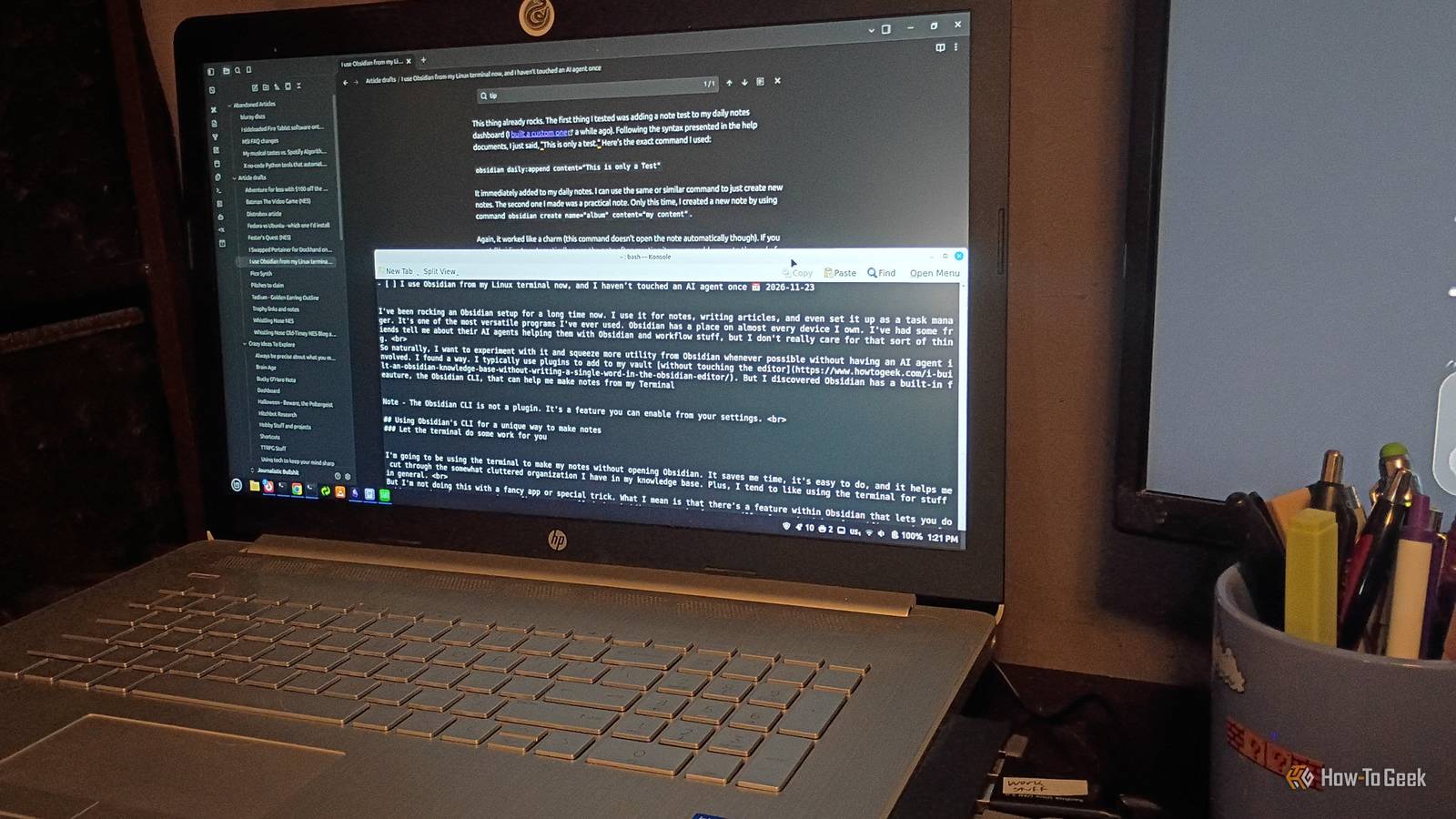
I've been rocking an Obsidian setup for a long time now.I use it for notes, writing articles, and even set it up as a task manager.It's one of the most versatile programs I've ever used.
Obsidian has a place on almost every device I own.Some friends have told me about their AI agents helping them with Obsidian and workflow stuff, but I don't really care for that sort of thing.Add How-To Geek on Google Add as Preferred Source Follow on Google Discover So naturally, I want to experiment with it and squeeze more utility from Obsidian whenever possible without having an AI agent involved.
I found a way.I typically use plugins to add to my vault without touching the editor.But I discovered Obsidian has a built-in feature, the Obsidian CLI, that can help me make notes from my Terminal.
The Obsidian CLI is not a plugin.It's a feature you can enable from your settings.Using Obsidian's CLI for a unique way to make notes Let the terminal do some work for you I'm going to be using the terminal to make my notes without using Obsidian's interface.
It saves me time, it's easy to do, and it helps me cut through the somewhat cluttered organization I have in my knowledge base.Plus, I tend to like using the terminal for stuff in general.It's worth noting, however, that the Obsidian CLI does not work independently of the Obsidian app.
It's just a way to use your Terminal for notes instead of using the app's interface.Obsidian be running for any Terminal/CLI commands to work with it.If it isn't, the first command you run will launch it.
But I'm not doing this with a fancy app or special trick.What I mean is that there's a feature within Obsidian that lets you do this.You just have to set it up first.
It's called the Obsidian CLI.The feature requires the Obsidian 1.12 installer, although Obsidian recommends 1.12.7 or newer.You can check your settings under Settings -> General to find your installer version.
The total time to set things up took about three minutes.To enable the CLI, you just need to go to Settings -> General and enable the Command Line Interface.After that, it'll ask you to register a path for it so it'll actually work.
This creates a copy of the binary.You must have ~/.local/bin in your path as well; otherwise, it won't work.Not every version of Linux does this by default, but my machine did.
With that out of the way, you should be ready to rock and roll.Taking Obsidian CLI out for a test run Making notes from my terminal is fantastic Close Using the Obsidian CLI from the start pretty much rocks.The first thing I tested was adding a note test to my daily notes dashboard (I built a custom one a while ago).
Following the syntax presented in the help documents, I just said, "This is only a test." Here's the exact command I used: obsidian daily:append content="This is only a Test" It was immediately added to my daily notes.I can use the same or similar command to just create new notes.The second one I made was a practical note.
Only this time, I created a new note by using command: obsidian create name="album" content="my content".Again, it worked like a charm (this command doesn't open the note automatically, though).If you want Obsidian to automatically open the note after creating it, you can add open to the end of the command.
You can also use overwrite after that to overwrite an existing note with the same name, but be very careful with that.Search and rescue, Obsidian-style Reading and finding my notes with the Terminal While I had a lot of fun creating notes, I eventually had to get back to work.I discovered I could also use the Obsidian CLI with my Terminal to read my notes as well as conduct context searches without opening the app.
If you want to read your note in the Terminal, you can use the command obsidian read and it'll show you whichever note is currently active.You can also add file=note-name to read a specific note.Another cool thing about the CLI is that you can actually target a particular vault by usingvault=orvault=before the command.
You can also set up tags, create bookmarks, and run devtools if you're a developer (I am not a developer, so I did not use these, but the option is there).Beyond creating and opening notes, I particularly like the search function.In the Terminal, I simply write: obsidian search:context query="search-term" limit=10 and it searches the entire Vault for my term while capping the number oto 10.
It returns matching lines with instead of matching just the file paths.It's pretty fast, easier to manage, and very handy, displaying results right in my Terminal.To me, that's worthwhile and, ultimately, much more manageable.
Related These 5 plugins turned my Obsidian notes into a daily dashboard 5 Plugins.Ultimate productivity.Posts By David J.
Buck Streamlining my workflow in style I am constantly amazed by the features Obsidian has available.I never thought in a million years that I'd be able to make notes in my favorite app through the terminal, but it works.And it .
It's not just some half-baked feature that exists for the sake of it.The Obsidian CLI did a lot to enhance my workflow, and I've been using it ever since.
Read More