A smart home means different things to different people.Many of us want a home that takes care of itself quietly in the background, while others look at the concept as one that leverages technology to feel more like a helping hand.Having fallen more into the latter category of late, I decided it was time to make my Home Assistant-powered smart home feel a little more proactive.
Sometimes prompts are helpful Especially if you’re bad at remembering things I’ll be honest and say that my own forgetfulness is the primary driver behind my desire for this.Our house is rarely unoccupied, but we do make infrequent nightly stopovers with family.Some sort of “vacation mode” feels overkill for such short trips and, as we’ve established, I’d probably forget to enable it anyway.
Automation is great, but it’s not always the right call.This is especially true if you don’t have (or want) reliable presence detection.Alternatively, you might have presence detection tied to your own personal device rather than family members or guests.
This can break a lot of functionality you’ve spent hours setting up in your well-oiled smart home.That’s where the idea of having my smart home ask more questions comes in.Yes, this depends on a smartphone, but it’s quite literally the one device I’m never without.
Using notifications, you can have your smartphone ask you if you want to turn something on, enable a scene, lock a door, or whatever else tickles your fancy.Using notifications can embed your responses in the very same prompt that appears on your smartphone.Adding conditions to the mix avoids seeing these notifications at all when simple criteria are met.
The only drawback here is the introduction of one more notification on your smartphone (but much of this can be mitigated with the right setup procedure).At the absolute worst, you can ignore a notification, and it should go away.Why bother doing this? Lights, climate, action How you incorporate these tricks depends heavily on what sort of smart home setup you have created, though there are two main triggers I’ve been leaning on.
The first are time-based actions, which you can trigger at a certain time every day, on days of your choosing, or on a specific date if you want to get very specific.The other are triggers based on sensor and other item states in your home, like temperature or humidity.The smartest setups will incorporate both.
Let’s say that you normally come home and turn your house lights on at 6 pm by triggering a scene manually.To give the illusion that your home is occupied, you might want your smart home to query you at 6 pm to turn the lights on, but under the condition that the lights aren’t already on and if your presence isn’t detected at home.This is a very specific example, and you might think it's simpler to just turn the lights on at 6 pm.
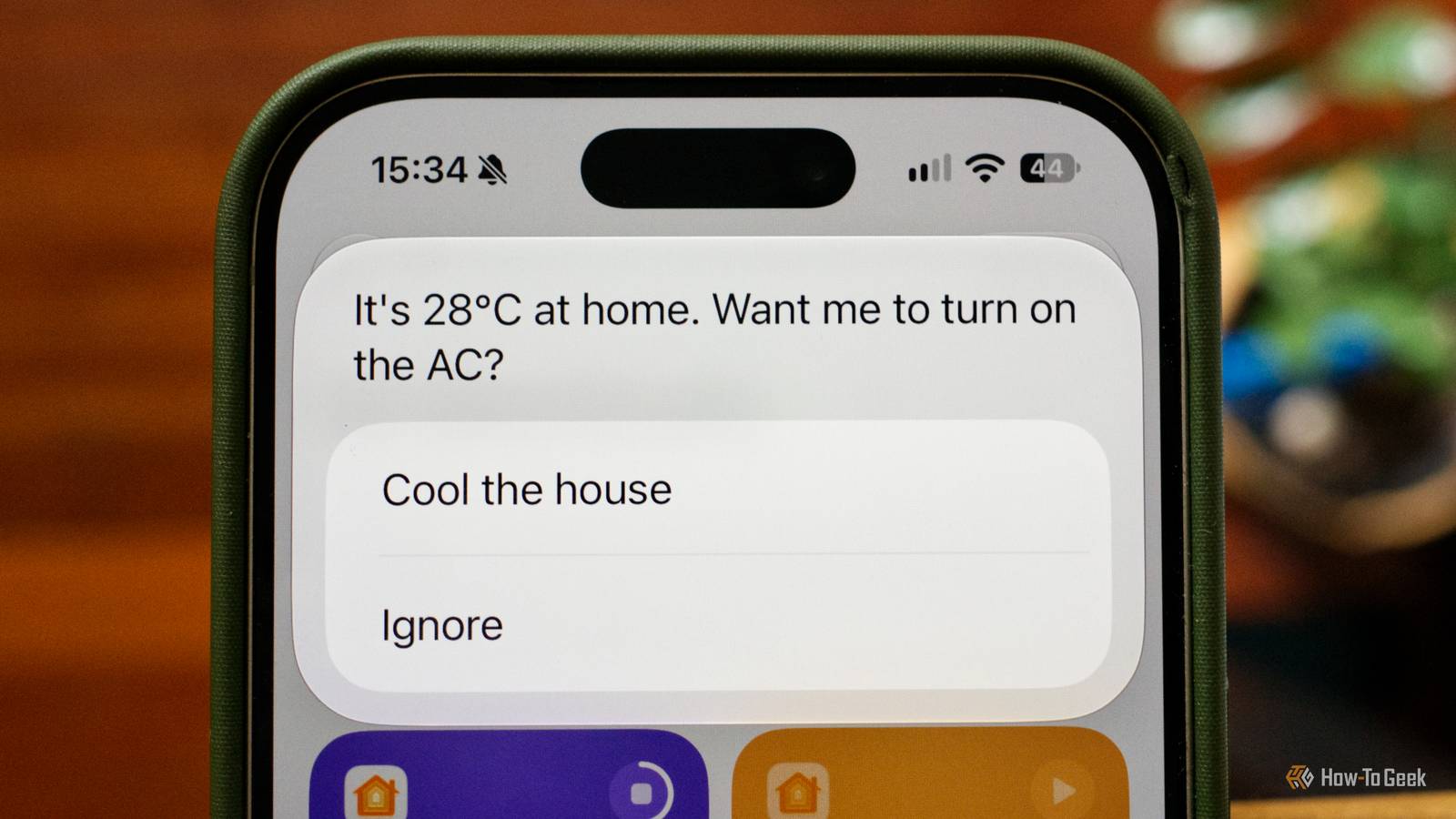
A more specific example concerns climate control.If you prefer to manage your heating and cooling system manually, this can prompt action without forcing it.Triggering a prompt when the humidity or temperature hits a specific value is a good example, with the ability to just hit a button within the notification to engage the HVAC.
Perhaps you have an EV that reports its charge level to your smart home and a rule set up to only pull charge when your solar panels are generating free energy.That’s a solid plan, but in the event that it’s cloudy all week and you might want the car for a weekend excursion, you might appreciate a prompt on Thursday to charge the car from the grid if the battery is low.Motion sensors, objects recognized on cameras and video doorbells, and DIY sensors under mattresses or pressure-pads in cat litter trays can all be used as triggers in this way.
You might even use the prospect of receiving alerts like these as a reason to invest in a few missing sensors to enable this sort of functionality.Works great with Home Assistant And, to a lesser extent, Apple Home Close If you haven’t given Home Assistant a shot yet, there’s never been a better time.This free and open-source smart home operating system runs on a dedicated server (like an old laptop, NAS drive, Raspberry Pi, virtual machine, or whatever else you might have lying around).
It connects to a vast number of devices, allowing you to mix and match brands and ecosystems without feeling locked to one system or a pricey cloud subscription.We’ve already covered the use of actionable notifications in Home Assistant before.You can do this with relatively simple YAML code; check out the official documentation for detailed guides on how this works with iOS and Android devices.
You can also do this relatively easily with Apple Home (which also works if you are running Apple Home on top of a Home Assistant setup with the use of HomeKit Bridge).I used the Shortcuts app to make a workflow that runs at a set time each day, uses a “Get status” action to find out whether a light is on, and then uses an “If” action to display a “Choose from menu” list of options.The biggest issue with Apple Home is that you can't use an accessory's state change (like hitting a certain temperature) to trigger your shortcut.
One way around this is to trigger the shortcut at a specific time of day, have it query the temperature, and then only offer actions if the temperature is above or below a certain threshold.In the summer, this might be 2pm when the day is warming up.You don’t need to use this feature a lot to get some use out of it, especially when it comes to vitally important alerts.
For example, if you go ahead and set up a local security camera system, then you can design actionable notifications that take you straight to your webcam view when something of note is detected.You can do the same with your 3D printer’s internal camera whenever a print failure status is triggered.
Read More