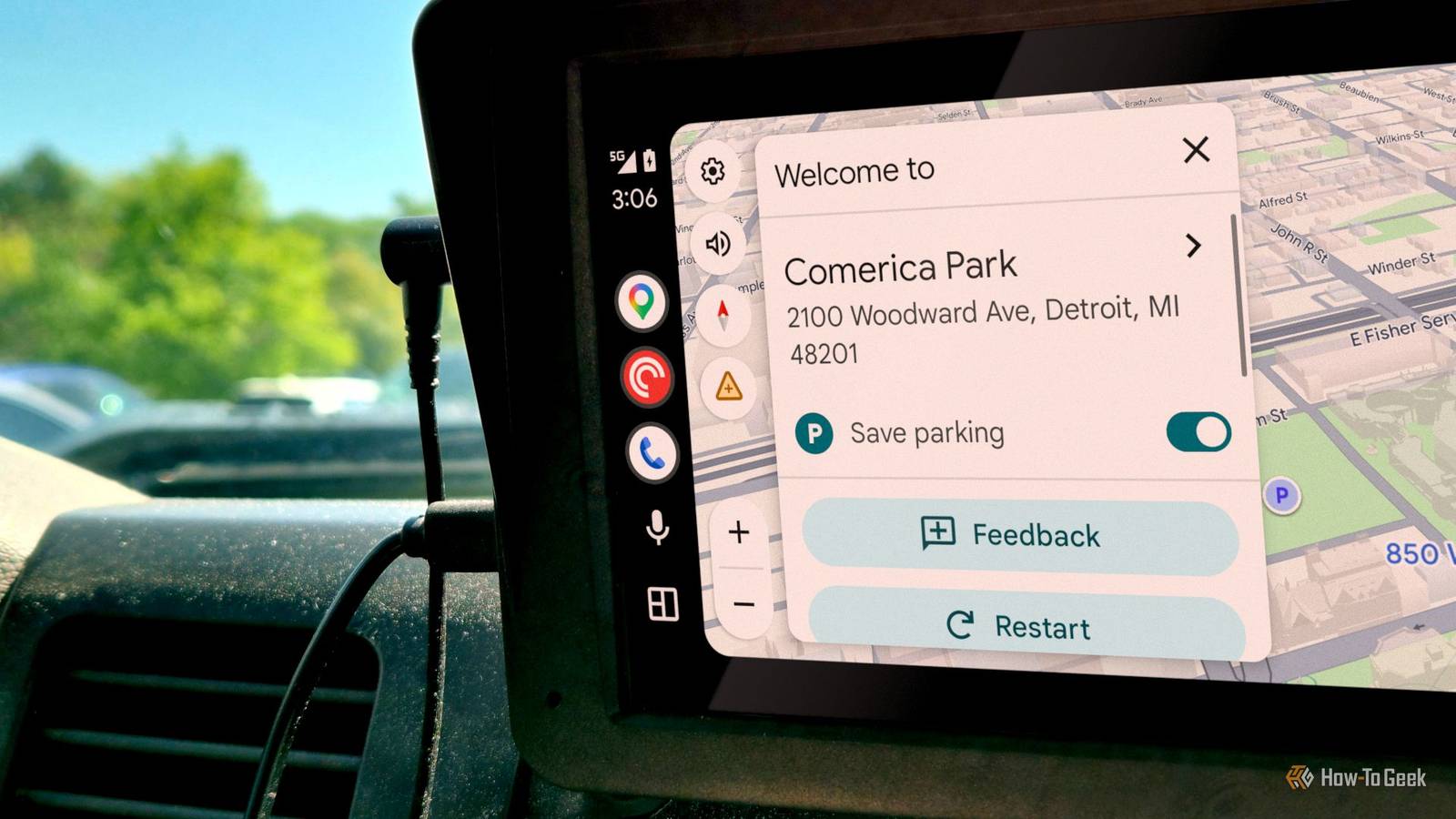
Most Android Auto users never look past the main settings screen because it feels like the app was built ready to go.Google and car manufacturers keep the interface locked down on purpose, and it's honestly great for daily driving.However, if you get into the developer menu by pressing the "Version and permission info" text about 10 times in the app's settings menu, you'll get way more tools to use.
It looks a little rough, but the developer settings hold plenty of cool features that can make things smoother.You can run apps from outside the Play Store Unknown Sources can run apps from outside the Play Store Close Normally, Android Auto checks with Google Play Services to confirm any app projecting to your car screen is properly signed and comes from the Play Store's approved automotive category.Turn on Unknown Sources, and it skips that check entirely.
That means Android Auto will show media and messaging apps you installed from outside the Play Store, like APK files or apps from third-party stores.This lets you run media and video apps Google hasn't approved for in-car use, like Fermata Auto or CarStream, which let you stream video or browse the web on your car's display.I don't recommend this because you really shouldn't be distracted while driving.
Another great use is to run custom diagnostic dashboards like the ones built on Torque Pro.You have to use developer settings to screenshot your car screen Taking a screenshot of your car screen takes an extra step You can't take a screenshot of your car's Android Auto screen the same way you would normally.When Android Auto is running, your phone is basically sending its interface to the car's display as a separate screen.
To actually grab what's on the head unit, you have to go through Android Auto's developer menu and tap "Share screenshot now." Once you do that, it pulls the image straight from what's displayed on the car screen and immediately pops up your phone's share menu.From there, you can save it to Downloads, send it to a messaging app, upload it to cloud storage, or whatever you'd normally do with a shared file.It saves as a PNG, so you don't lose any quality.
You can force your car screen to look better Your car screen might not be showing the best resolution When your Android phone connects to your car's infotainment system, the two have to agree on how to handle the video feed.By default, Android Auto just lets them sort it out between themselves.A lot of carmakers program their head units to report a low baseline resolution, like 480p, mostly so the hardware doesn't have to work too hard.
Your phone takes that number at face value, renders everything at 480p, and beams that low-quality feed to the car.If you dig into Android Auto's hidden developer settings, there's a Video Resolution option that lets you override the whole thing yourself.Force the phone to output 720p or 1080p, and it sends a sharper feed straight to your screen.
Application Mode changes how locked down your apps are Most people should leave Application Mode on Release Close Your phone runs all the apps and beams a driving-friendly version of the interface to your car's screen.Application Mode lets you change how that works by picking between several profiles.Release is the default, and it's what basically everyone should leave selected.
Everything is locked down the way Google and the car makers intended.Developer mode is for app developers and testers, not regular drivers.It loosens a lot of those restrictions.
Apps that haven't been certified by Google can still run, the interface limits get relaxed, so devs can test more complex screens, and the system starts dumping out detailed logs to help diagnose problems.There's also a retail mode, which is what people see in stores.It's just going to lock personal data down and not let any lasting changes happen.
X-Ray is for testing the app and phone for diagnostics, security, and things like that.Collecting GPS data logs everywhere you drivers This tool records your raw location while you drivers When your car's nav keeps missing exits, glitching through turns, or showing your car floating through a field, it's hard to figure out what's actually broken.Android Auto has a hidden developer tool called Collect GPS Data that helps with this.
While you're driving, it records the raw location signal flowing through the system before anything gets processed or filtered.Turning on Collect GPS Data taps into that stream and saves everything to a log file on your phone.That includes raw NMEA sentences, satellite signal strength, how many satellites are visible, and any dead-reckoning sensor data.
That log gives engineers, developers, and car owners who really want answers a timestamped record to look at when something keeps going wrong.This tool is useful, but you should think about your privacy before you turn it on.A normal location permission only gives an app your position while it's allowed to have it.
This tool logs your exact coordinates the whole time you drive and saves them to your phone without any encryption.That's enough for someone to figure out your daily routine, where you live, where you work, and anywhere else you drove.Audio logs will record your car sounds and your mic Recording your audio can help fix mic problems Save Audio grabs the audio streams Android Auto sends to your car's speakers, and a separate Save Microphone Input option grabs microphone input.
It's meant for diagnosing audio problems that happen while you're actually driving with Android Auto running.You should remember that Android Auto is handling your music, nav prompts, call audio, UI sounds, and a separate channel that pipes your car's mic audio back to the phone.Flip them on, and it dumps raw recordings of those streams to your phone's storage while you drive.
The mic capture side is mostly about figuring out why voice commands keep failing.You hit the talk button, ask for directions, and Google Assistant either doesn't hear you, cuts you off, or gets it wrong.The saved recording lets developers see what actually happened.
Saving video logs helps track down screen glitches You can record the raw video feed to find visual bugs Save Video is a diagnostic tool that constantly records the raw video stream going over your projection connection.It also grabs timing data, frame info, and delivery stats, and dumps it all to your phone's storage.Visual bugs in the car are a pain to catch, and this is a good way to pin them down.
This isn't for everyone Don't treat these like harmless little tweaks.Some of them make your phone work harder, and the logging ones can eat up a lot of storage.Android Auto's default settings work well on most phones for a reason.
So only change things temporarily, and make sure you know what a setting does before you turn it on.
Read More