You probably don't think much about privacy when you're sending someone an Excel file.After all, it's just a spreadsheet, and you can see what's on the sheets before you send it.The thing is, a workbook can actually contain more than the cells you can see.
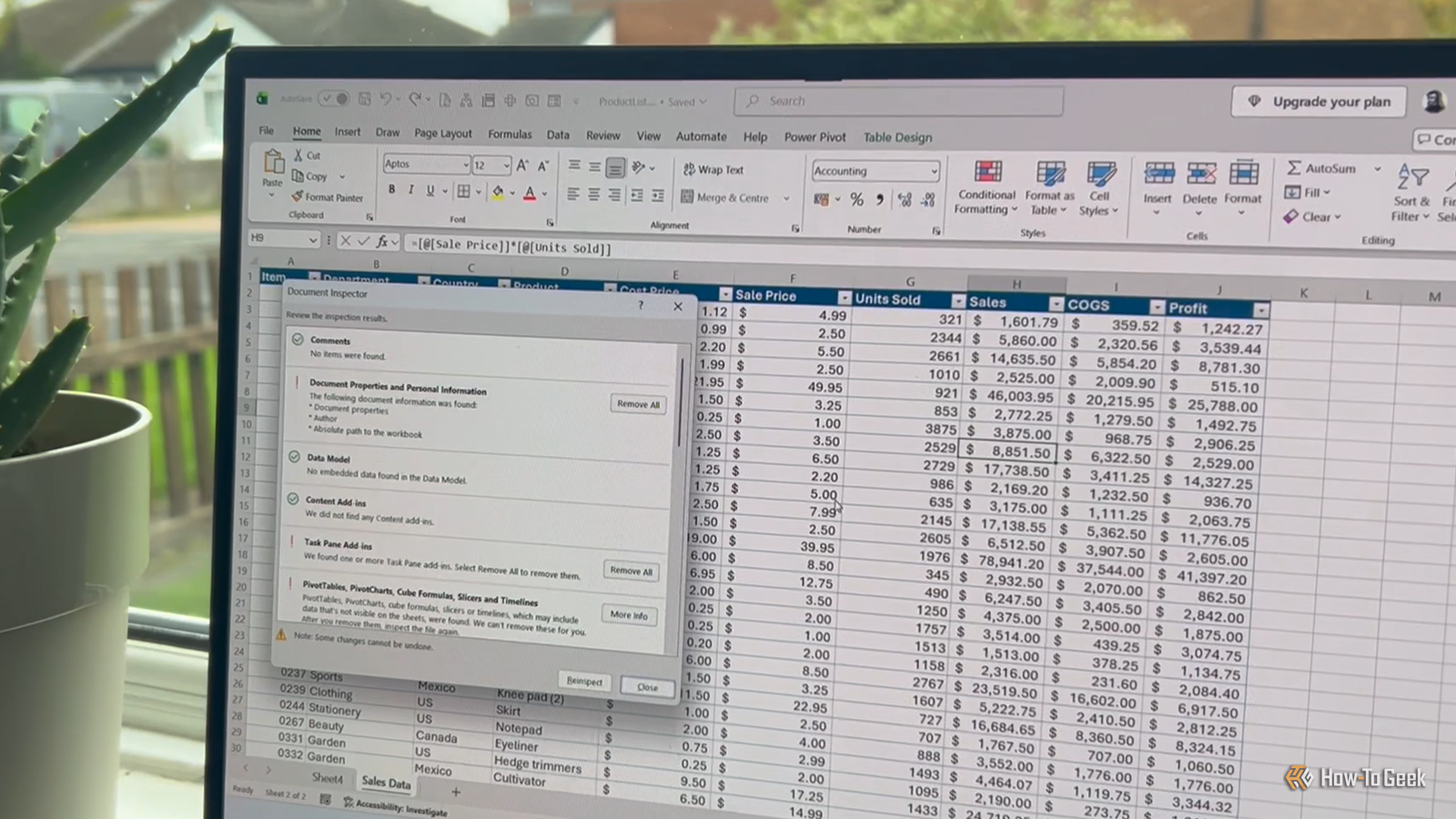
It might still have your name in its metadata, a hidden worksheet you forgot about, or a file path pointing to a folder on your computer.Excel has a built-in privacy check Document Inspector shows what's inside your workbook Close Excel for Windows has a built-in Document Inspector that checks your workbook for potentially hidden, personal, or otherwise non-obvious content.To find it, go to File > Info > Check for Issues > Inspect Document.
The categories Document Inspector checks vary between Excel versions.In my current version, they include comments, personal information, hidden worksheets and rows, external links, embedded documents, the Data Model, macros, and several less common features.You can run the inspection without changing anything in your workbook.
Excel simply reports what it finds.However, some categories come with a Remove All button, and that's where you need to be careful.Finding something doesn't automatically mean you should remove it.
Some items are harmless metadata, while others may be essential to how your workbook works.Think of Document Inspector as a way of reminding you what's inside your file before you share it.Before making any changes, save a copy that you can use as your working version.
Running Document Inspector itself won't alter your workbook, but some of its removal actions can't easily be undone.Make sure you're working in the copy before removing anything—it's easy to accidentally use the original.See what Excel stores about you Your workbook can remember who created it These are the first things I check when I'm preparing an Excel file to share.
When I publish a workbook alongside a HTG Excel tutorial, I don't want it to still contain my name or other personal information, so I use Document Inspector to find and remove it.Document Properties and Personal Information can include information such as the author's name, company, and other metadata.This is one of the clearest cases where I use Remove All.
I also check Comments, which can contain usernames and timestamps as well as the text of the comment.Custom Worksheet Properties, Headers and Footers, and Ink can also contain information you may not want to pass along.But you might actually want to keep some of these items.
A header might contain useful branding, for example, while a comment might contain instructions the recipient needs.Check everything you've hidden Hidden doesn't mean private Hidden Excel content can be easy to forget about, especially if you've tucked something away because you didn't want it cluttering up the worksheet.But hidden content remains part of the workbook, so it can still be relevant when you're sharing the file.
Document Inspector can find Hidden Worksheets, Hidden Rows and Columns, Hidden Names, Invisible Content, and Active Filters.A hidden calculation sheet is a good example.You might not want someone to see it, but using Remove All deletes the worksheet altogether, which could break formulas that depend on it.
Hidden rows or columns can contain helper calculations, too, and using Remove All can remove their contents.So when Document Inspector finds hidden content, take it as a reminder to look at what's there, rather than an instruction to delete it.Look beyond the visible worksheets Some Excel content lives outside the grid Close Some of the information in your workbook isn't visible on any worksheet.
The Data Model can contain imported data that you won't see by scrolling through your sheets.PivotTables, PivotCharts, Cube Formulas, Slicers and Timelines can also be associated with data that's not immediately visible.Then there's Embedded Documents, which can contain entire Word documents, PDFs, or other files with their own content and metadata.
These are good examples of why Document Inspector is mainly a reminder of what's inside your workbook.If your workbook relies on a Data Model, for example, knowing that it's there matters because removing it can break relationships, measures, PivotTables, and other functionality.Where a category has a More Info button, Excel is offering more detail rather than asking you to remove anything.
Check what your workbook connects to Your spreadsheet can point outside itself Document Inspector can find Links to Other Files, Real Time Data Functions, Long External References, and Custom XML Data.Links to Other Files are worth checking because a file path can reveal more than you expect, including folder names, usernames, or information about where the workbook was stored.If you decide you don't need a link, go to Data > Workbook Links (or Edit Links in older versions), where you can change its source or break the link.
Long External References are a specific type of external reference with a file path longer than 218 characters, while Real Time Data Functions can pull data from outside the workbook.These aren't automatically problems.If your workbook needs an external connection, removing it may be worse than leaving it in place.
Don't overlook the code and extras Some of these features keep your workbook working The remaining categories include Macros, Forms, and ActiveX Controls, along with Content Add-ins, Task Pane Add-ins, Defined Scenarios, and Excel Surveys.Some of these may be completely irrelevant to you.Others may be fundamental to a particular workbook.
For example, removing a VBA project because Document Inspector found a macro would also remove the code that makes that macro work.A scenario might contain modeling information you want to keep, too.Before removing anything here, make sure you know what role it plays in the workbook.
It's up to you to decide whether it belongs in the version you're sharing.Prepare the copy you're going to share Remove what you don't want to send After reviewing the Inspector results, make any necessary changes to the copy you created at the start.Keep the original somewhere safe, so if removing a hidden sheet, external link, embedded document, or other feature has an unexpected effect, you still have the untouched workbook to fall back on.
Then manually check the visible worksheets, too.Document Inspector won't necessarily find sensitive text formatted in white, objects covered by other objects, or personal information contained inside an image.Once you've finished, reopen the cleaned copy and make sure the formulas, PivotTables, charts, macros, links, and other features you need still work.
If everything looks good, that cleaned copy is the one you share.You don't need to repeat the changes on the original.Know what you're actually sharing That's the workflow I use before sharing an Excel file: I inspect a copy, review what Excel finds, remove anything I don't want to share, and then check the finished workbook myself.
The point is to understand what's actually inside the file before I send it.
Read More