When setting up your iPhone, you might think adding a passcode is the most secure step.That is reasonable, as it is the barrier keeping others out of your phone.Add How-To Geek on Google Add as Preferred Source Follow on Google Discover However, your passcode is more vulnerable than you may think, no matter how strong you make it.
This is why you should turn on one setting — and keep it on — to keep your device safe and under your control.Your phone is vulnerable How thieves can easily get access to your whole device When you first set up your iPhone, one of the steps you are asked to do is create a passcode.Now, you do have options: it can be numeric — more than four digits — or alphanumeric.
I recall choosing the numeric passcode when I got my iPhone 4S in 2011 because it was easier to remember — especially for my 11-year-old self.However, as I became more security-conscious, I switched to an alphanumeric passcode.iPhone 18 Pro Brand Apple SoC A20 Pro The latest iPhone 18 Pro has huge developments in terms of its cameras, offering variable aperture options and more.
$1199 at Apple Expand Collapse It’s not hard to see why most people choose a numeric passcode, since it’s faster to type than an alphanumeric one when Face ID or Touch ID is unavailable.However, as someone who has entered their alphanumeric passcode multiple times over the years, I can argue that I type it just as fast as a numeric one.But no matter which version of the passcode you go with, it becomes less secure if someone knows it.
It becomes even less secure if the person who knows it is someone you don’t know and they take it from you.There have been multiple stories of people having their phones stolen by strangers in public places.Yet, like many people, they think it is not that bad since they can log into iCloud and erase everything on their device remotely.
Unfortunately, it's not always that easy.In retrospect, your passcode carries a lot of weight — it's not just the shield when unlocking your device.Think about it: if someone knows your passcode, they can not only access your device, but also use Apple Pay, change your device passcode, and change your Apple ID password.
That is what hurts people the most: one passcode to unlock your device can control everything important, and at the center of all your information is iCloud.Thieves have taken note of this and are quick to change your password if they get hold of your device to lock you out of your account.Unfortunately, they have exploited this issue for many years until Apple took a major step to stop them with Stolen Device Protection in iOS 17.3.
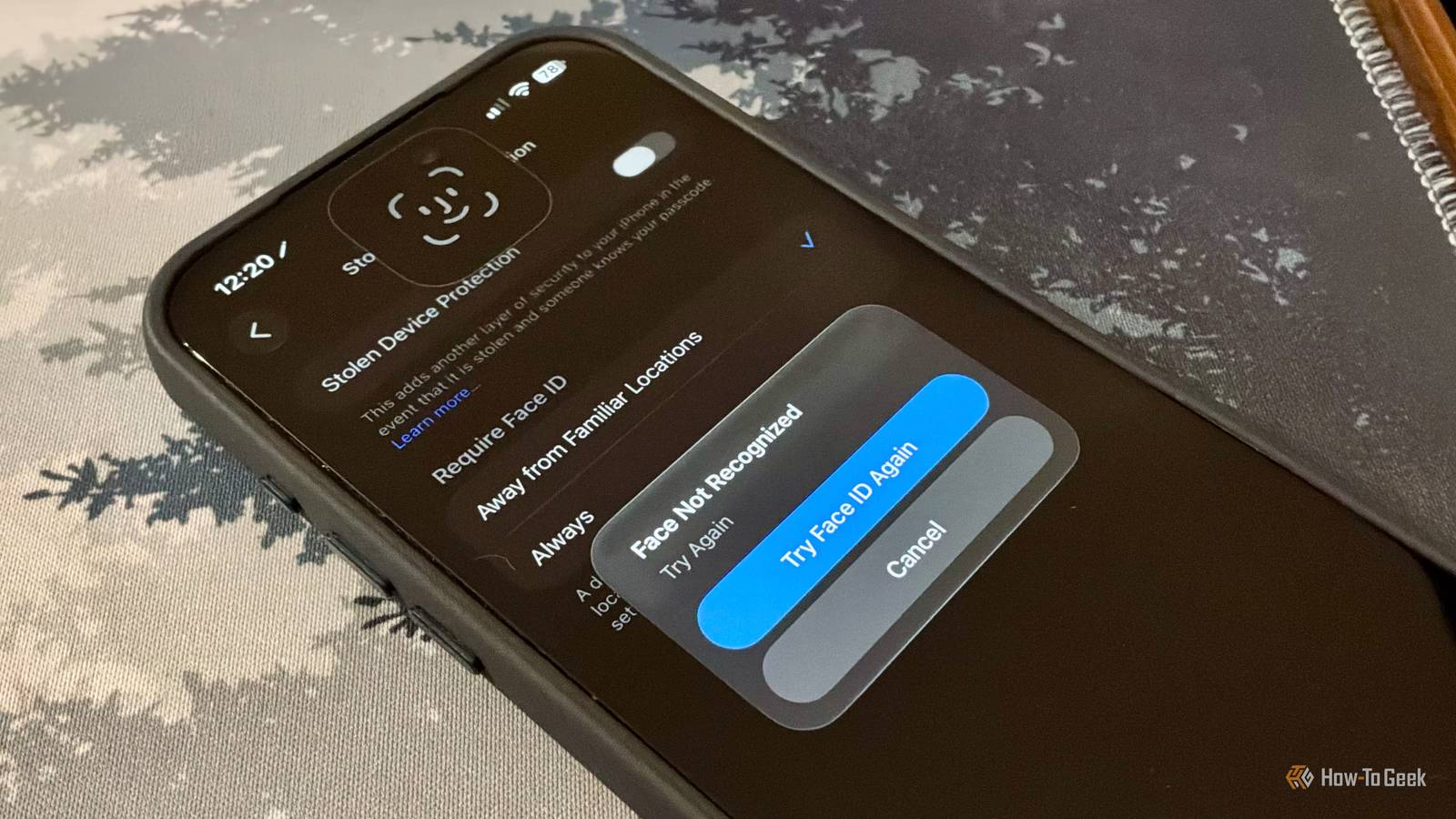
However, if your device isn't up to date or you don’t have everything enabled, the setting won't be on.Keep your device the most protected Turning on and keeping Stolen Device Protection enabled Stolen Device Protection adds another line of defense to your phone when enabled.This is most noticeable when you are away from familiar places, like home or work.
Ultimately, this feature requires biometric authentication — your fingerprint or face — if someone steals your device and tries to lock you out of your account by changing your Apple ID password.However, it doesn't stop there; they would also need to wait an hour and then rescan your biometrics to make the change.This applies not only to changing your Apple ID password, but also to adding another face or finger to unlock your device and turning off Find My iPhone.
Accessing information in the Passwords app would also still require your biometrics to open it.Checking and enabling Stolen Device Protection Stolen Device Protection is enabled by default on devices running iOS 26.4 or later.However, if you are not running it, or have an older device running iOS 17.3 or later, you can still turn it on or check that it is enabled.
To find the feature, go to the Settings app and scroll down to Face ID & Passcode.Tap it, enter your passcode or password, and swipe down until you see Stolen Device Protection.Close As previously mentioned, this should be on by default in newer versions of iOS.
If it isn't, tap it and switch the toggle on.You can also choose whether Face ID is required only when away from familiar locations or all the time — regardless of the current location.Turning off the feature is easy, too; you just toggle it off.
However, you need to scan your biometrics or enter your passcode to verify that you're the one turning it off.Small but mighty One small feature that makes one big difference On paper, Stolen Device Protection may seem like a tiny feature, but in reality, it makes a huge difference.By layering more protection onto your accounts and data, the feature gives your iPhone the protection it deserves, given the information it holds.
However, even with it turned on, it's still important to keep other information safe.Remember that even with the feature enabled, people can still access important information with your password or passcode, so it is crucial never to share it.While it's good that Apple enabled the feature by default in newer iOS versions, it should have been that way from the start.
As a tech nerd, I turned on Stolen Device Protection right away after updating to iOS 17.3, but others might not even know the feature exists—especially since it is buried in Settings.In reality, thieves aren't going to stop trying to take devices anytime soon, but you can put a stronger barrier in their way to accessing your data.So, if you haven't already, make sure Stolen Device Protection is turned on on your device, since it’s better to keep your phone safe now than to be sorry later if the worst happens.
Read More