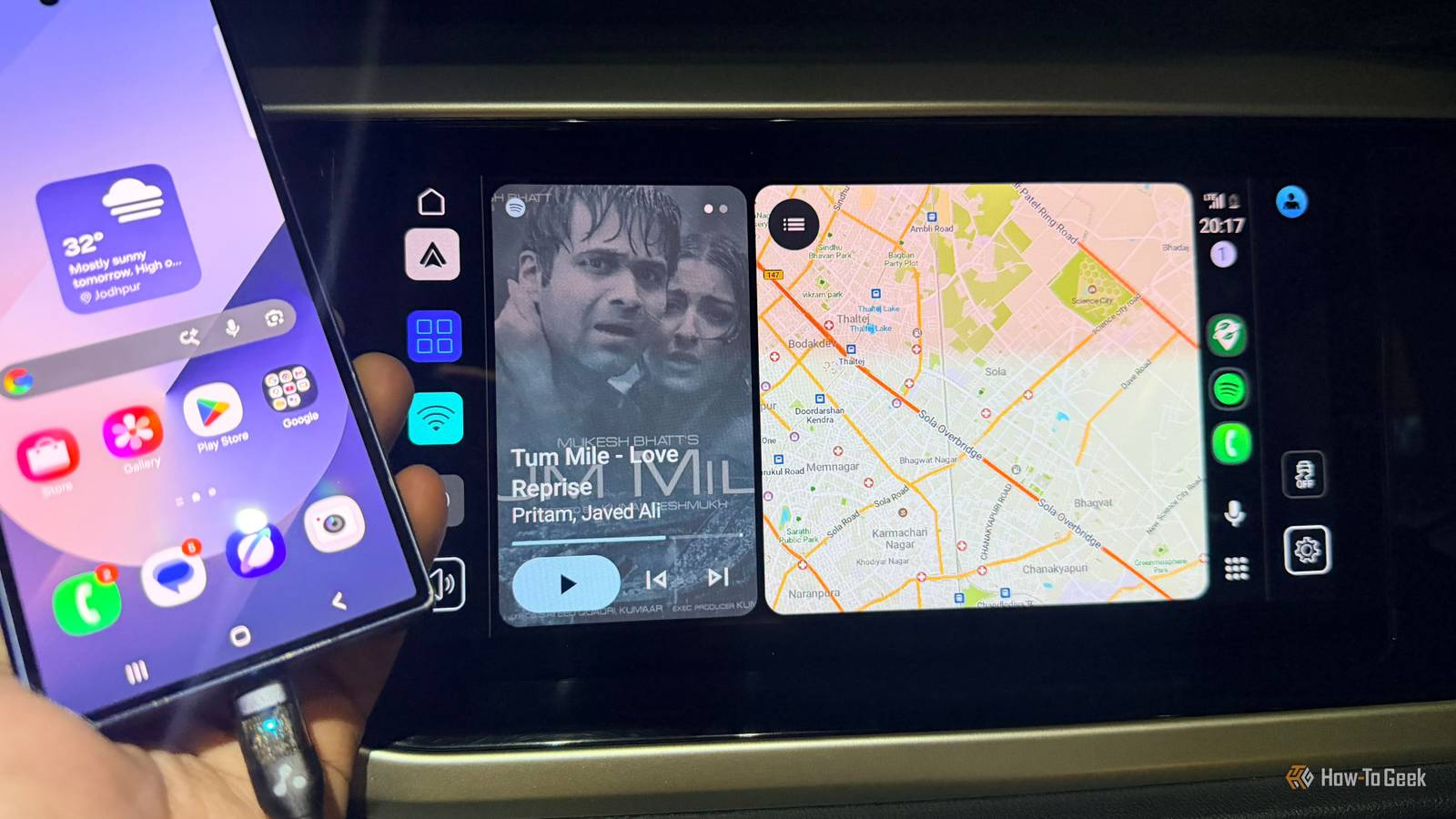
Google Maps is usually the first app I open when I connect my phone to Android Auto.I use it for school runs, grocery trips, and pretty much every drive where I need directions.But I wanted to see how other navigation apps work on the car’s display, so I tried a few alternatives.
Add How-To Geek on Google Add as Preferred Source Follow on Google Discover I tested HERE WeGo, Sygic, TomTom GO Expert, Waze, and Google Maps, paying attention to how their Android Auto interfaces look and feel.I also wanted to see which apps make it easy to find things like alternate routes, speed limits, and nearby stops without taking my attention away from the road.5 HERE WeGo A limited in-car interface holds it back Close HERE WeGo has offline maps, which I like, especially when I’m driving somewhere with a patchy internet connection.
But using it through Android Auto feels a little restrictive.The car display gives me basic navigation, destination search, and turn-by-turn directions, but I miss having more control over my route.I can’t add stops or change route preferences from the Android Auto screen once navigation has started.
For someone like me, who often squeezes grocery stops and other errands into the same drive, that’s inconvenient.I don’t mind using a simpler navigation app, but HERE WeGo makes me feel like I’m missing features available on my phone.I also don’t find its Android Auto experience as convenient for quickly exploring route options.
Offline maps are a genuine advantage, but they’re not enough to make up for the limited in-car experience.4 Sygic GPS Navigation Packed with features, but too much comes at a price Sygic feels like a proper navigation system when I open it on Android Auto.The map looks detailed, the lane guidance is useful, and I like having speed limit information right on the car’s display.
It’s the kind of information I want when I’m driving somewhere unfamiliar and don’t want to keep guessing which lane I should be in.The offline maps are another big plus.I can download maps beforehand and navigate without worrying about losing my internet connection halfway through a drive.
But there’s a catch.Sygic locks Android Auto connectivity and several of its best driving features behind its Premium+ subscription.There’s also a difference between the phone and car interfaces, with some settings and features unavailable on the Android Auto display.
I like what Sygic offers, but the subscription makes it harder to justify switching from my usual navigation app.3 TomTom GO Expert Useful lane guidance, but the interface has limits Close My brother uses TomTom GO Expert, so I was curious to see how it holds up on Android Auto.One thing I liked right away was the lane guidance.
It shows me which lane to take before an exit or a tricky junction, so I’m not scrambling to figure things out at the last minute.The traffic alerts and offline maps are useful additions, too.However, I found the Android Auto interface a little restrictive.
Search results, Favorites, and recent destinations are limited to six entries.I also can’t access all the settings and features available in the phone app from my car’s display.I can see why my brother likes TomTom, but I prefer having more control over my navigation while driving.
These limitations make it harder for me to choose it over other apps.2 Waze A serious Google Maps rival with its own loyal fan base Waze has a fan base of its own, and after using it on Android Auto, I understand why.I like how clearly it shows police alerts, accidents, road hazards, speed cameras, and traffic jams on the map.
Other drivers report these incidents, so I get useful updates while following my route.I also like that I can report a hazard or traffic problem directly from my car’s display.It’s particularly useful when I’m driving somewhere unfamiliar and want to know what’s happening ahead.
But I still find myself going back to Google Maps.Waze depends on an internet connection for live traffic and rerouting, and I miss Google Maps’ more useful place information, saved locations, and familiar search experience.I also prefer having nearby categories like gas stations and coffee shops readily available when I need an unplanned stop.
Waze is great at warning me about what’s happening on the road, but Google Maps feels more complete for the kind of everyday driving I do.1 Google Maps My no.1 choice I keep coming back to Google Maps, and using the alternatives hasn’t changed that.
I like having my recent searches, saved places, and nearby categories right on my Android Auto display.When I’m out running errands, I can look for a gas station, grocery store, or coffee shop without starting a separate search on my phone.I also rely on its live traffic updates and alternate routes.
If traffic builds up, I can quickly check another route instead of blindly following the original one.Google Maps fits the way I drive.I don’t feel the need to switch.
Related Bored with Google Maps and Spotify? Try these 4 Android Auto apps These are called GEMS.Posts 1 By Sanya Shah The best navigation app depends on how you drive The best navigation app really depends on what you need while driving.My brother is happy using TomTom GO Expert, while I keep going back to Google Maps.
If traffic alerts matter most, Waze is your choice.I’d suggest testing a few apps on Android Auto before settling on one.Related I switched to Waze in Android Auto for one reason—its hazard alerts actually reach me Reliable and accurate alerts.
Posts 3 By Cory Gunther
Read More