Most people know Canonical for Ubuntu, but the company has quietly built an entire ecosystem of open-source tools around it.As someone who runs a small homelab, I went down the rabbit hole of Canonical's project catalog, and found three tools stood out: Multipass, MAAS, and MicroCloud.They solve very different problems at very different scales, so let's start with the one you can actually use today.
Multipass A full Ubuntu VM in just two commands Close I test and try a lot of software, and for that I am constantly creating and deleting virtual machines.Now, if you find yourself in the same boat—maybe not for software testing, but maybe for software development, or some other workload—then you’re going to love Multipass.It’s basically a lightweight virtual machine manager: it downloads an official Ubuntu image, spins up a VM using your computer's built-in virtualization technology, and drops you into a working Linux environment with a single command.
You can think of it as a command-line-first alternative to VirtualBox or VMware.It creates a full Ubuntu installation with its own filesystem, packages, and kernel, making it ideal for testing software, experimenting with Linux commands, or spinning up temporary development environments.The whole pitch is ease of use.
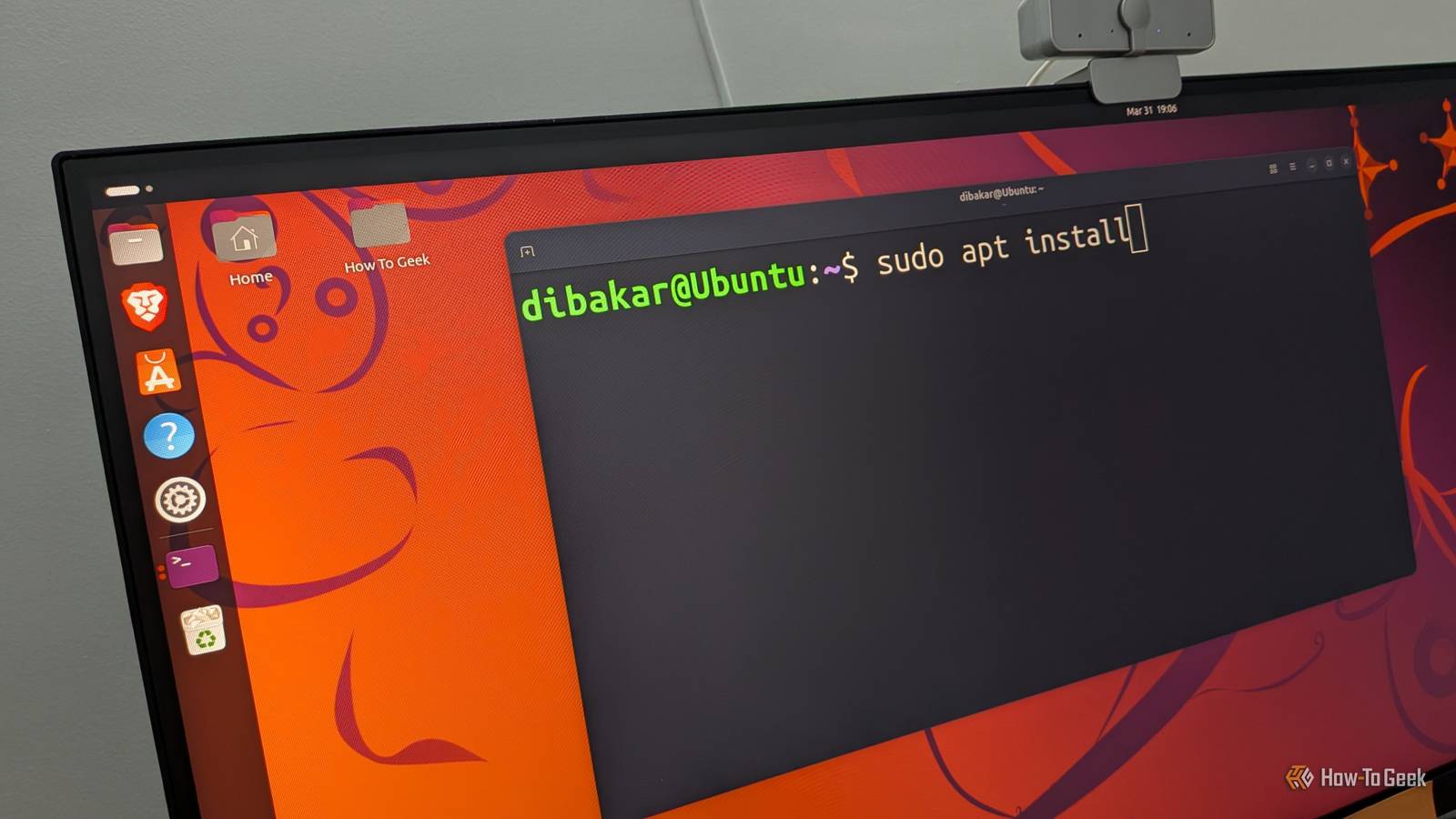
Simply install Multipass, open a terminal, and run: multipass launch --name random-vm-name #to create and start a new Ubuntu VM multipass shell random-vm-name #to open a shell inside the VM and start typing commands And that's it—literally, within a minute or two, you have a fully functional Ubuntu VM up and running.No need to deal with ISO downloads, partition wizards, or driver issues.When you're done, you can just delete the VM and your system is exactly as it was.
For most Windows, macOS, and Linux users, this is arguably Canonical's most useful tool outside Ubuntu itself.Here's the full Multipass documentation to get you started.Related 7 virtual machine mistakes I made so you don’t have to Don't forget to unmount that ISO after install.
Posts 2 By Patrick Campanale MAAS Install an OS on a machine without touching it Close MAAS—short for Metal as a Service—is the opposite end of the spectrum, and probably one of Canonical's most impressive engineering projects.It gives you a graphical web-based interface to manage physical computers the way cloud providers manage servers.Let's say you own multiple computers—a few rack servers, desktop PCs, or workstations.
Typically, maintaining them means physically going up to each one (or SSHing in), installing and updating the OS, setting up networking, and the works.With MAAS, you install it on one central host machine, connect your other systems to the same network with PXE boot enabled, and that's roughly where the manual work ends.When you power on a machine, MAAS auto-detects it, inventories its hardware, installs the operating system, configures its disk and networking, and hands it back ready for whatever workload you want to run.
Out of the box, MAAS only lets you install Ubuntu on your systems.However, you can build and upload images for other operating systems too, including Fedora, Debian, RHEL, and even Windows.If your homelab has grown past three or four machines, or you work in IT, DevOps, or infrastructure engineering, this is the sort of software that eliminates hours of repetitive manual work—and it's free to run at home, which is not something you can say about most enterprise provisioning tools.
Here's an excellent walk-through from Canonical on building your own bare metal cloud using MAAS.Related I built a 100TB homelab, then realized the cloud was better for these 3 things Why my homelab couldn't compete with the cloud (even with unlimited storage) Posts 3 By Patrick Campanale MicroCloud Turn your spare PCs into a private cloud Close MicroCloud sits between those two extremes in terms of scope and complexity.Rather than creating one VM like Multipass or provisioning racks of servers like MAAS, MicroCloud turns several computers into your own private cloud.
Say you have three computers at home.Individually, they're three separate machines you manage by hand.With MicroCloud, you cluster them into a single private cloud—spin up virtual machines and containers on any of them from one interface, and share storage across all three.
If one machine dies or goes offline, the cluster continues operating, and affected workloads can be recovered on another node.To be clear, you're not merging them into one giant computer (a single VM still runs on one physical node), but you are managing all three as one pool of computing capacity.Normally, building a private cloud means stitching together several complicated pieces of software and spending days configuring networking, storage, and clustering.
MicroCloud collapses that into a simple initialization wizard.It streamlines node discovery, builds the cluster, configures shared storage, and gives you a highly available cloud that hosts both virtual machines and containers.Under the hood, it bundles three Canonical technologies—LXD for VMs and Linux containers, MicroCeph for distributed storage, and MicroOVN for software-defined networking—with MicroCloud itself sitting on top as the orchestration layer.
Here's an excellent walkthrough from Canonical on deploying MicroCloud and navigating the web interface.Related Stop Using Docker and Try One of These 4 Alternatives Instead Don't put all your chips on Docker just yet.Posts 2 By Patrick Campanale Ubuntu is only one part of Canonical's story Ubuntu may be Canonical's flagship product, but it's far from the only interesting software the company develops.
When researching this article, I was genuinely surprised by how deep the catalog goes.If you want to keep digging, LXD—the virtualization engine at the heart of MicroCloud—is worth exploring on its own, since it works perfectly well on a single machine.But if you only try one thing from this list, make it Multipass.
It has quickly become my favorite way to create Ubuntu VMs.
Read More