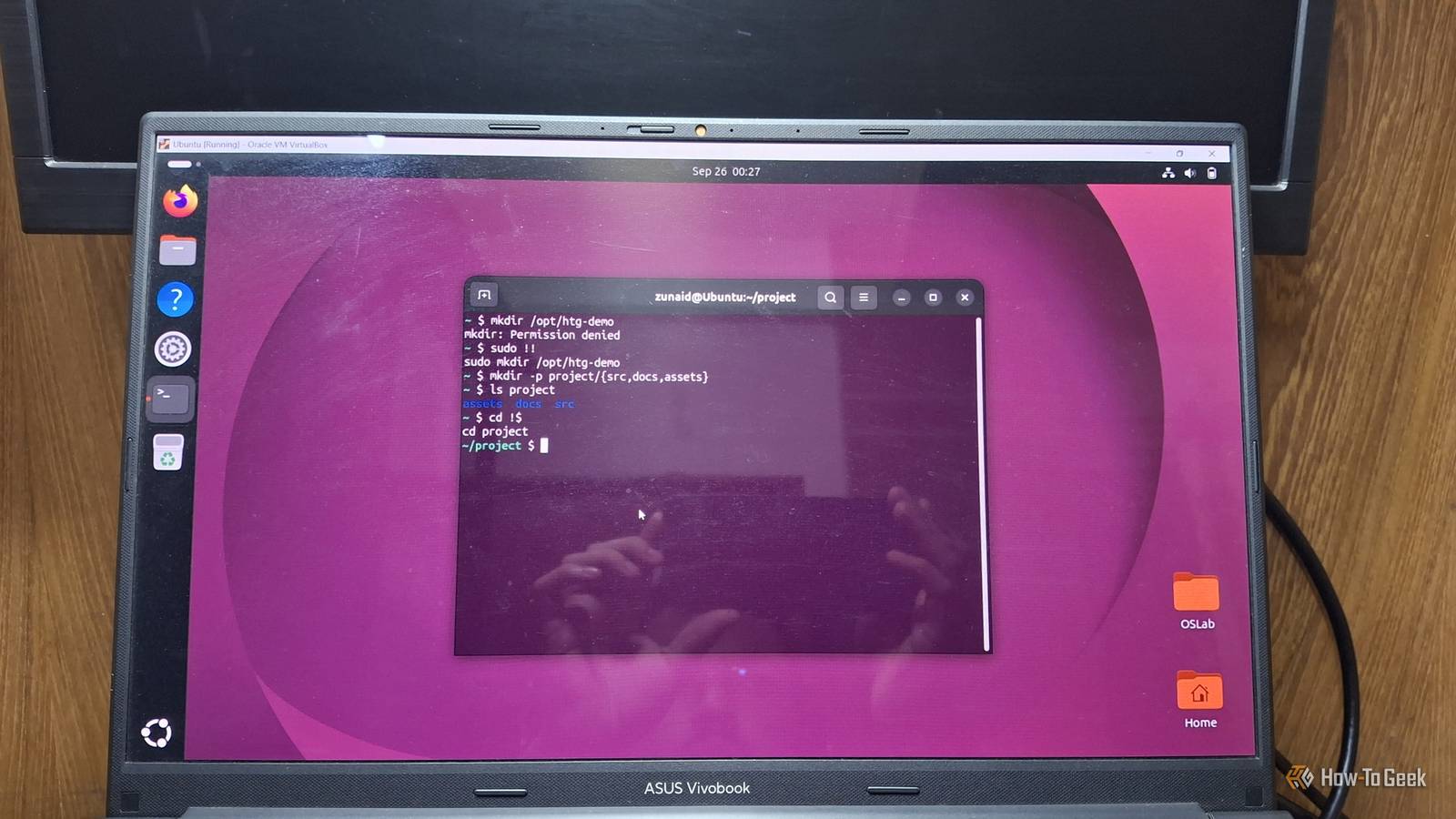
You do some tasks in the Linux terminal so often that you never even bother to look for easier ways to do them.While looking for Linux tricks for time-saving and productivity, I found some hidden gems that I'm sure you'll find useful every day in your terminal sessions.Fix your last command without retyping it Missed sudo? No big deal So you just finished typing the most irritating command and pressed Enter, only for the shell to tell you that you don't have the correct privileges.
You can retype the same command with sudo again, or you can just use the double exclamation (!!) trick, also known as history expansion.When you run !!, the shell instantly recalls and executes the exact last command you entered.It is a shortcut designed to save you from retyping long commands.
There are a few more shell tricks like this: !$ grabs the last argument of your previous command.Say, you create a folder with the mkdir project-notes command.Now, type cd !$ to jump right into it.
!^ grabs the first argument of your previous command.!* grabs all the arguments of the previous command.^old^new fixes a typo and reruns the command.
For example, if you typed 'pyhton' instead of 'python', fix it by running ^pyhton^python.Alt+Period(.) is the interactive version of the !$ shortcut.It pastes the last argument onto your prompt.
This way, you can check it before pressing Enter.If you want to grab a specific argument based on its position, you do it like this: !:number.For example, to grab the second argument, use !:2 in the terminal.
Note that positions start from the command itself, which holds the 0th position.Close These are some classic Bash tricks that change how you use the terminal.At first, it can be a little confusing which one does what.
Once you get used to it, you can save a lot of keystrokes.Find any old command in seconds with Ctrl + R You can stop mashing the Up arrow now There's a meme in the Linux community that Linux users keep pressing the Up arrow to find a previous command.While that's okay if your target command is 4–5 Up arrows away, beyond that, it can get infuriating.
Pressing Ctrl+R triggers the Reverse-i-search (Reverse Incremental Search) feature in your terminal.After that, type any part of that command.Bash searches your history backward as you type.
If the first match isn't the one you're looking for, you can press Ctrl+R again to jump to an older match.Once you find the exact command, hit Enter to run it.If you want to tweak the command before running it, press Esc.
This will bring the command to your shell prompt where you can edit it as usual.If you're a regular on the terminal, this is one shortcut you should learn on day one.Related 8 “hidden” terminal features that make Linux feel like a power-user OS No installs required: history search, redirection, job control, completions, and other built-in terminal features that exploit the power of Linux.
Posts 3 By Bobby Jack Build whole folder trees in one line with brace expansion A pair of curly braces is more powerful than you think Brace expansion is a powerful built-in feature in shells like Bash and Zsh.It generates lists of strings or sequences instantly.It's quite useful when you need to set up a project, and there are multiple folders, sometimes nested, that need to be created.
Brace expansion hands that work over to Bash.Before your command runs, Bash expands whatever sits inside the curly braces into every combination.Here are some examples so you understand how you can use it: mkdir -p project/{src,docs,assets}cp config.yaml{,.bak}touch notes_{01..12}.md The first command creates a project/ folder and creates three subfolders inside it.
The second one makes a config.yaml.bak backup file.The third one creates twelve numbered note files at once.Remember to keep spaces out of the braces, or the expansion will break.
Related How to Use Brace Expansion in Linux's Bash Shell Brace expansion is one of the Linux terminal's best-kept secrets.Posts By Dave McKay Turn any command into a live dashboard with watch -d Simple monitoring system for instant changes The watch command is helpful in situations where you have to keep an eye on another command's output at an interval.So, if you need to check your memory usage, for example, you can combine that command with the watch command.
watch -d free -m It repeats your command every two seconds and shows the fresh output full screen.If there is a change, it's highlighted in the terminal.There's a -g flag that will exit the command if a change is detected.
Interestingly, the watch command is not a shell built-in or part of the core Linux kernel.It is a standalone utility that comes from the procps-ng package, which is common in most distros.Related 6 alternative CLI tools I immediately install on Linux With a bonus script that puts any search tool to shame.
Posts 4 By Graeme Peacock The terminal already has the tricks to make your job fun It's not like any of the tasks I've mentioned are hard to do.However, you do them so many times that it gets super boring and annoying.The Linux terminal having such hacks up its sleeve surely makes you think about how little we know about it.
If you want to take it further, there are many other commands that make your Linux terminal look stunning.
Read More