After years of building spreadsheets, reports, and dashboards in Excel, I've developed my fair share of habits.Some are genuinely useful, while others stuck around simply because they were familiar.Trying these seven overlooked Excel features showed me better ways to work, and several now get daily use.
Custom lists I stopped typing the same lists over and over Close One of my biggest Excel frustrations is that it won't autofill the alphabet.If I need to label 26 columns or rows with letters, I have to type them out or copy them from somewhere else.I also used to repeatedly type lists I needed for different projects, such as soccer teams or monthly budget categories.
Custom Lists (File > Options > Advanced > Edit Custom Lists) have put an end to both problems.I can save my own sequences, then fill a range with them whenever I need to.I can even use Custom Lists to sort data in an order that makes sense for how I work, rather than being restricted to alphabetical or numerical sorting.
The Camera tool I stopped duplicating data in my dashboards Close When I'm building an Excel dashboard, I want to arrange information wherever it makes the most sense visually.Previously, I'd often reproduce cells from elsewhere in the workbook using formulas like =A1, or recreate charts to fit my layout.Excel's Camera tool creates a linked picture of a cell range.
Even better, I can capture a range of cells with a chart placed on top, then crop the resulting picture to remove unwanted cells around the edges.Although I can move, resize, and format the resulting picture like a normal image, it remains linked to its source data and updates whenever that data changes.The Camera tool isn't on the Excel ribbon by default.
To access it, you need to add it to the Quick Access Toolbar (QAT) by right-clicking the QAT, clicking Customize Quick Access Toolbar, and adding it via Commands Not in the Ribbon.The Navigation pane I stopped jumping between different navigation tools Close I spend a lot of time working in large Excel workbooks, and I used to rely on different tools depending on what I wanted to find.I'd use the Name Box to jump to a particular cell or range, for example, and Ctrl+F to search for content.
Both work, but Excel's Navigation pane (enabled via the View tab in Excel for Microsoft 365) brings more of these navigation options together in one place.I can browse worksheets, charts, tables, named ranges, and other objects, including pictures created with the Camera tool, then jump straight to the element I need.I can also right-click most of these items to rename them, making it easier to identify the right element when I'm working in a complex workbook.
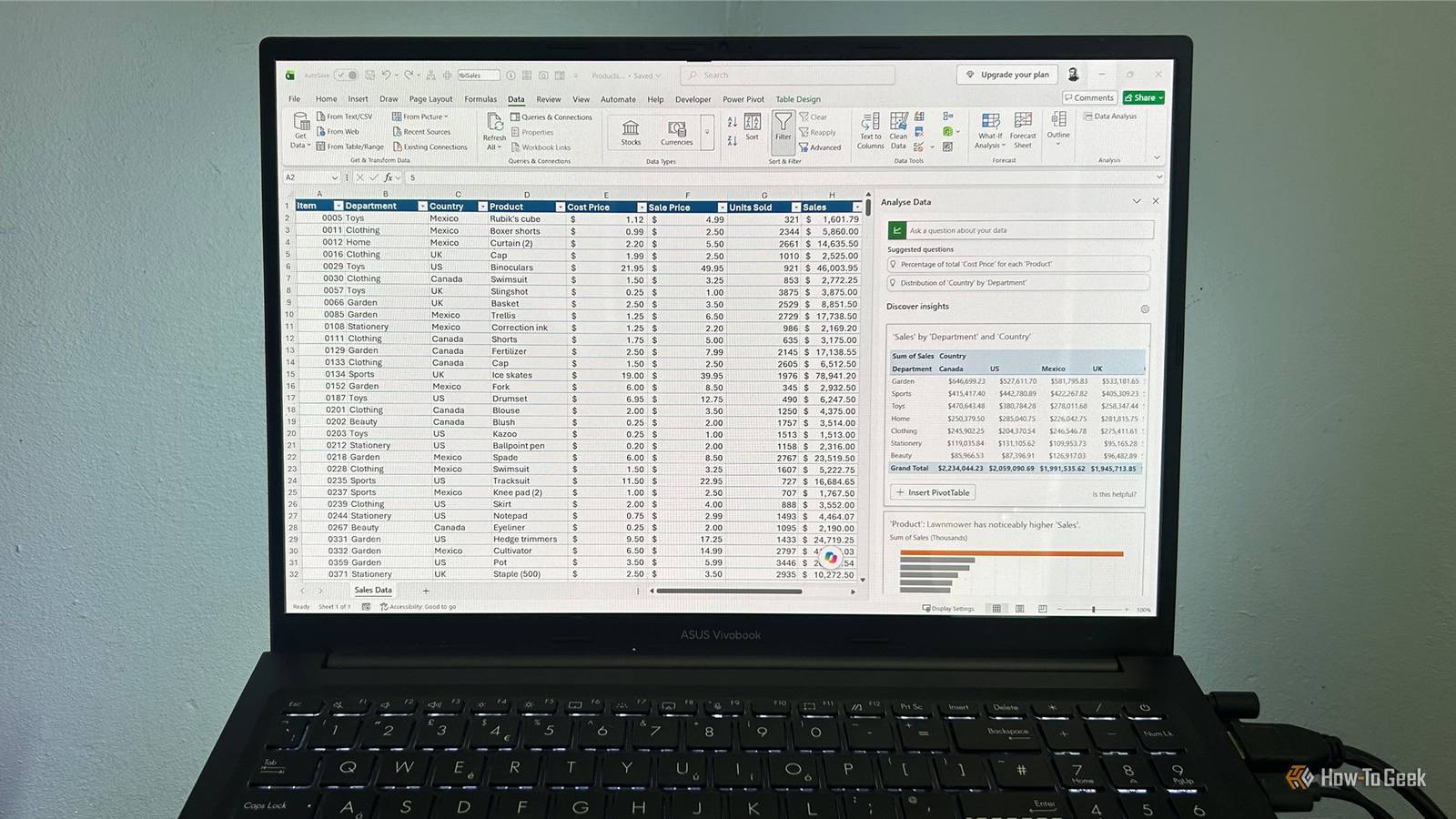
Analyze Data I stopped making every analysis a bigger project Sometimes, I want to explore a dataset without turning it into a full-blown Copilot interaction.That's where Excel's Analyze Data feature (available via either the Data or Home tab in Excel for Microsoft 365, depending on your version) comes in.I can open the pane and let Excel suggest charts, summaries, and patterns worth investigating.
I don't necessarily need to write a prompt first: Excel will often suggest analyses on its own.That said, I can enter a short, natural-language question if I want to steer it in a particular direction.When I tried it on my tblSales table, Excel suggested a PivotTable showing sales by department and country, along with a chart of sales by product.
I got two useful ways to explore the data without having to build either visualization myself.For the best results, use clean, structured tabular data with clear column headings.Go To Special I stopped selecting cells manually Close When I'm working with a large worksheet, manually selecting the cells I need can become a tedious job.
Excel's Go To Special command (Home > Find & Select > Go To Special) has saved me from much of that work.Instead of clicking individual cells, I can select them according to their properties, including blanks, formulas, constants, and visible cells only.This is particularly useful when I want to make the same change across a specific group of cells without affecting everything around them.
When I was working with a dataset containing lots of blank cells, I used Go To Special to select them all and apply a yellow fill.That made it easier to review the gaps one by one and work out what information belonged in each cell.Grouping I stopped hiding rows and columns Close I used to hide rows and columns whenever I wanted to tidy up a worksheet or make a report easier to read.
The problem is that hidden information is easy to overlook, and I could forget which sections I'd tucked away.Grouping (Data > Outline > Group) has become my preferred alternative.By grouping related rows or columns, I can collapse detailed information behind visible outline controls and expand it again whenever I need it.
This lets me switch between a high-level overview and the underlying detail without losing track of what's in the worksheet.I can also create multiple outline levels when I need to organize more complex reports.The Form feature I stopped scrolling sideways to enter data Close Excel's built-in Form feature feels like one I should have started using much earlier, especially since it's been around for decades.
When I'm entering lots of records into a wide table, I used to scroll horizontally to reach the rightmost columns, then move back and forth to find the next field.Besides being tedious, this made it easier to click the wrong cell and accidentally overwrite a formula or adjacent data.The Form feature presents one record at a time, with a separate field for each column (up to 32 columns), so I can enter and review information without navigating the worksheet itself.
I find this particularly helpful when I'm repeatedly adding similar records to a table with lots of fields.Like the Camera tool, the Form feature isn't on the Excel ribbon by default, so you need to customize the QAT and place it there.Don't overlook what's already in Excel When I want to improve my Excel workflow, it's tempting to focus on learning new functions or exploring the latest Microsoft 365 features.
But some of my biggest improvements have come from little-known clicks I'd never bothered to look into.A few of these features have been in Excel for decades, while others are recent Microsoft 365 additions, but once you know they're there, they make everyday tasks much quicker.
Read More