If your Linux system breaks after an update, refuses to show the login screen, or throws another error during startup, you don't have to reinstall your entire distro.Linux provides several boot options that can help you recover a broken installation, troubleshoot startup problems, and get back into your system.Add How-To Geek on Google Add as Preferred Source Follow on Google Discover Knowing these boot options can save you a lot of time when things go wrong.
Here are six Linux boot options that I think are worth knowing: Boot an older Linux kernel from GRUB Roll back a kernel update that broke your system Close A kernel update can occasionally introduce problems with hardware compatibility, graphics drivers, networking, or filesystem support.If you have been using Linux long enough, you probably have a few kernel update horror stories of your own.When that happens, one of the first things worth trying is booting an older kernel, especially if everything was working fine before the update.
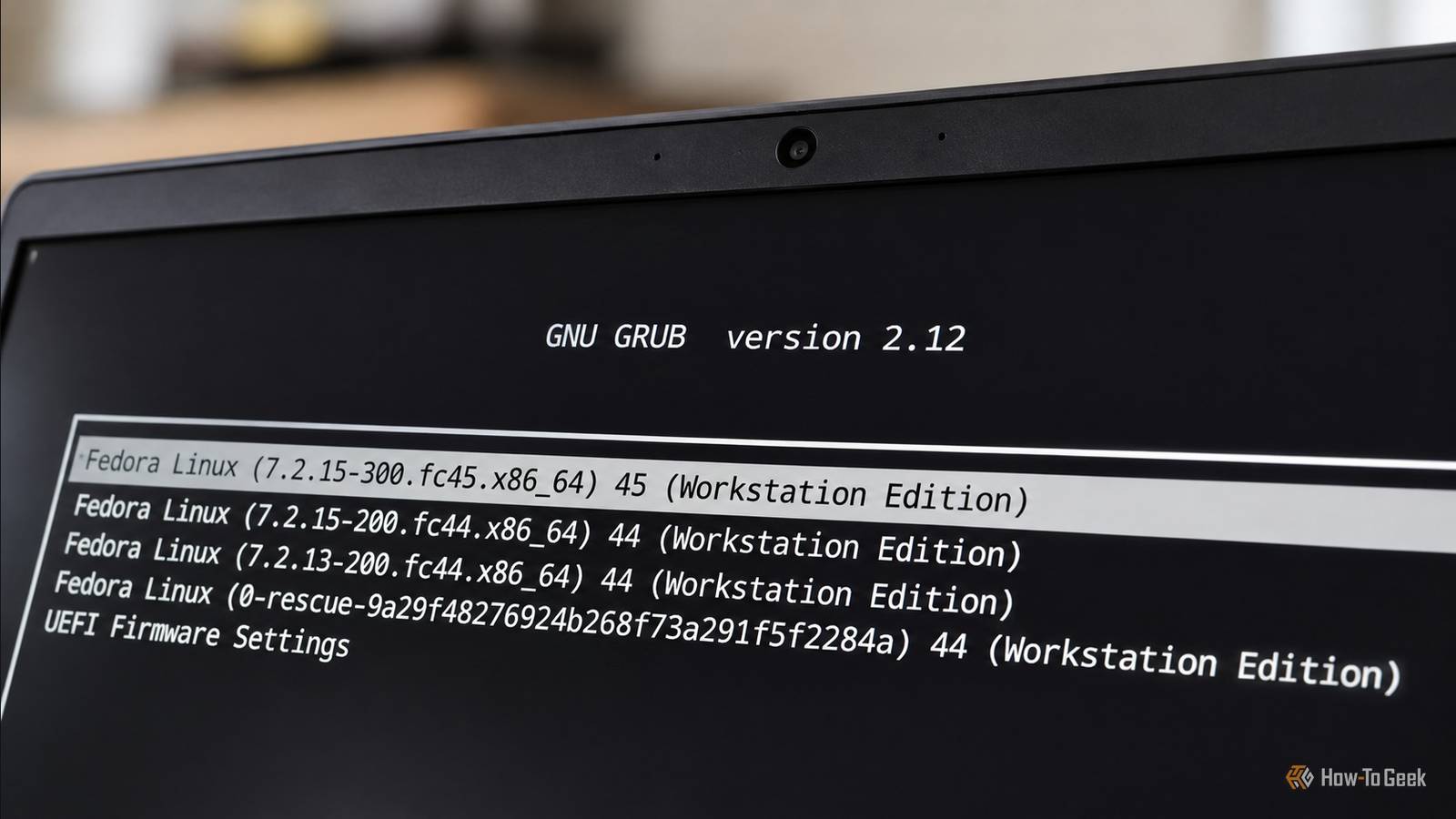
Most Linux distros keep older kernel versions installed when updating to a newer one.You can access them through the GRUB bootloader by selecting Advanced options from the startup menu.This opens a list of installed kernels.
Select an older version that worked before, then press Enter to boot it.If GRUB does not appear automatically, hold Shift during BIOS startup or repeatedly press Esc on UEFI systems.The exact key behavior depends on your bootloader configuration.
Once you reach your desktop, you can investigate the problematic update, check driver compatibility, or reinstall a working kernel.This is particularly useful when a kernel update leaves you with a system that cannot reach the login screen.Boot Linux into rescue mode Use systemd rescue mode to repair a broken Linux installation Rescue mode is useful when Linux can start its kernel but encounters problems during the normal boot process.
It starts a minimal environment with essential services and mounts the filesystem, giving you a shell where you can repair configuration files, remove problematic packages, and investigate startup failures.On a system using systemd, you can access rescue mode by editing the GRUB boot entry.Highlight your regular boot entry, press e, and find the line beginning with linux or linuxefi.
Append this parameter to the end of the line: systemd.unit=rescue.target Press Ctrl + X or F10 to continue booting.Depending on your configuration, you might be asked for the root password before reaching the recovery shell.From here, you can inspect system logs, uninstall a faulty package, or correct a configuration file that prevents normal startup.
You can also use commands such as journalctl -xb to investigate errors from the current boot.The older single parameter can also request single-user mode on many Linux systems, although systemd.unit=rescue.target is more explicit for systemd-based installations.Boot Linux into emergency mode Access an emergency root shell when rescue mode fails Sometimes even rescue mode cannot get your system into a usable state.
A broken filesystem mount, an incorrect /etc/fstab entry, or another early boot failure can prevent the recovery process from completing.This is where emergency mode comes in.It provides an even more minimal environment than rescue mode, starting very few services and giving you a root shell for troubleshooting.
To enter emergency mode, edit your GRUB boot entry as before and append: systemd.unit=emergency.target You can now inspect /etc/fstab, investigate failed mounts, and correct configuration problems.If the root filesystem is mounted read-only, you may need to remount it with write permissions before editing files: mount -o remount,rw / I would try this option when a normal recovery boot keeps failing because of filesystem or mount-related problems.It gives you a smaller environment to work with, which can be particularly helpful when startup dependencies are preventing Linux from reaching a usable recovery state.
Disable a problematic systemd service during boot Use the systemd.mask parameter to bypass a failing service A misbehaving systemd service can prevent Linux from reaching the login screen or leave you waiting indefinitely during startup.This can happen after changing network configuration, installing a new driver, or modifying a service that runs automatically.You can tell systemd to mask a particular service during the current boot by adding the systemd.mask= parameter to your GRUB entry.
For example, if NetworkManager is causing startup problems, append: systemd.mask=NetworkManager.service Replace NetworkManager.service with the name of the service you want to investigate.Systemd will prevent the specified unit from starting during that boot.This is particularly useful when you suspect a service is responsible for a failed startup but still need access to your system to investigate it.
Once you reach a shell, check its logs using journalctl and decide whether to disable, reconfigure, or reinstall the problematic service.Masking NetworkManager also disables its networking functionality, so you will need another way to connect to the internet if your troubleshooting requires it.Related 15 historic moments that shaped the Linux desktop we use today From wobbly windows to Windows running Linux, the Linux desktop has had one wild ride! Posts 5 By Umair Khurshid Boot Linux directly into a Bash root shell Bypass systemd with the init=/bin/bash parameter If systemd is preventing your installation from booting, you can bypass it entirely and start a shell directly.
This is one of the more drastic recovery options, but it can be extremely useful when ordinary recovery targets are unavailable.Edit your GRUB boot entry and append: init=/bin/bash This tells the Linux kernel to launch Bash as PID 1 instead of starting the usual init system.You will land directly in a root shell without the normal system services, login manager, or desktop environment.
One thing to remember is that your root filesystem will usually be mounted read-only.Before changing configuration files or repairing your installation, remount it with write permissions: mount -o remount,rw / You can now edit files, inspect system configuration, and fix problems that prevent systemd from starting.When you finish, flush pending changes and reboot: syncreboot -f Use this option for situations where rescue and emergency modes cannot get you into a usable environment.
Since you are bypassing systemd, several familiar commands and services will be unavailable, and normal shutdown procedures will not work.Fix Linux boot problems with nomodeset Disable early graphics mode setting to work around driver issues A graphics driver update can leave you staring at a black screen even though Linux is booting normally in the background.This is particularly frustrating because there is often very little information on the screen to help identify the cause.
The nomodeset kernel parameter tells the kernel to disable kernel mode setting (KMS) during early startup.This prevents the kernel from switching to the normal graphics mode during initialization and can help you reach a basic display or login environment.To try it, edit your GRUB boot entry and append: nomodeset If the problem is related to early graphics initialization, this may get you past the blank screen.
You can then investigate the graphics driver, roll back a recent update, or reinstall the appropriate driver packages.There is a trade-off, though.Your display may be limited to a lower resolution, and hardware graphics acceleration may be unavailable.
I would treat nomodeset as a temporary troubleshooting measure while investigating the actual driver problem.Related Memorizing these 7 Linux command line options will turn you into a pro It's basically a requirement to know these options Posts By Bobby Jack Create a snapshot before updating Linux If you regularly experiment with Linux updates, drivers, or system configuration, I would recommend setting up Timeshift.It lets you create system snapshots that you can restore if an update leaves your installation in a broken state.
You can schedule automatic snapshots or create one manually before installing major updates.If your filesystem supports snapshots natively, you can also look into tools such as Snapper, particularly on Btrfs-based installations.Just remember to configure your snapshots properly and keep them on storage that remains accessible if your system fails to boot.
A recent snapshot can save you hours of troubleshooting and potentially a full reinstallation.I would much rather spend a few minutes creating one before an update than wish I had one afterward.
Read More