I do my best to keep my files organized, give them sensible names, and place them in project-specific folders.Even so, sometimes I still mess things up.Somehow, when I want to work on a specific version of a design project, I can only find a flattened PNG.
All other iterations? Completely editable and ready to use, except the one I need.If you've ever been in this situation, you know how painful it is to search for editable files and then end up recreating the whole thing from scratch.But there are other ways around it.
Alongside online tools and plugins that you can try to fix this problem, Affinity now comes with a built-in Layer Decomposition tool.It's supposed to separate a flat image into separate, editable layers.I'll admit I was skeptical and expected messy outputs with little to no practical usability, but it turns out this might be a rare case where AI earns its place in a creative app.
Affinity's new Decompose Layer tool Splitting flat pixel-based images into editable layers Close Shaped by feedback from its user base, the new version of Adobe's main competitor packs in a range of features and improvements that address common complaints and requests.Launched in September, version 3.3 brings a mix of entirely new features and improvements to existing tools.Among them, there's the long-awaited (and warmly received) Blend Tool, in-app scripting, deeper RAW development, and the AI-supported ability to split flat images into editable layers with Decompose Layer.
Of all these, it's the last one I want to focus on today.Affinity introduces this Canva AI-powered tool under the promise that resulting layers will be "ready for individual editing, recompositing, or removal".If you ever misplaced your editable files, this will sound like a lifesaver.
Decompose Layer identifies and separates elements of the flattened image, accurately pinpointing their place and purpose in the composition.It uses generative AI to predict and fill in the parts hidden from view.It won't recover every element exactly, but it does a remarkable job.
I can see its potential both for graphic design and photo manipulation.But I'm skeptical when it comes to the "fully editable" claims.The tool decomposes rasters and breaks them down into pixel layers.
That'll have some limitations.Using Decompose Layer to pick apart visuals Two minutes to get a logical, high-quality result Decompose Layer isn't part of the core, free features in Affinity.You need a Canva Pro subscription to use it.
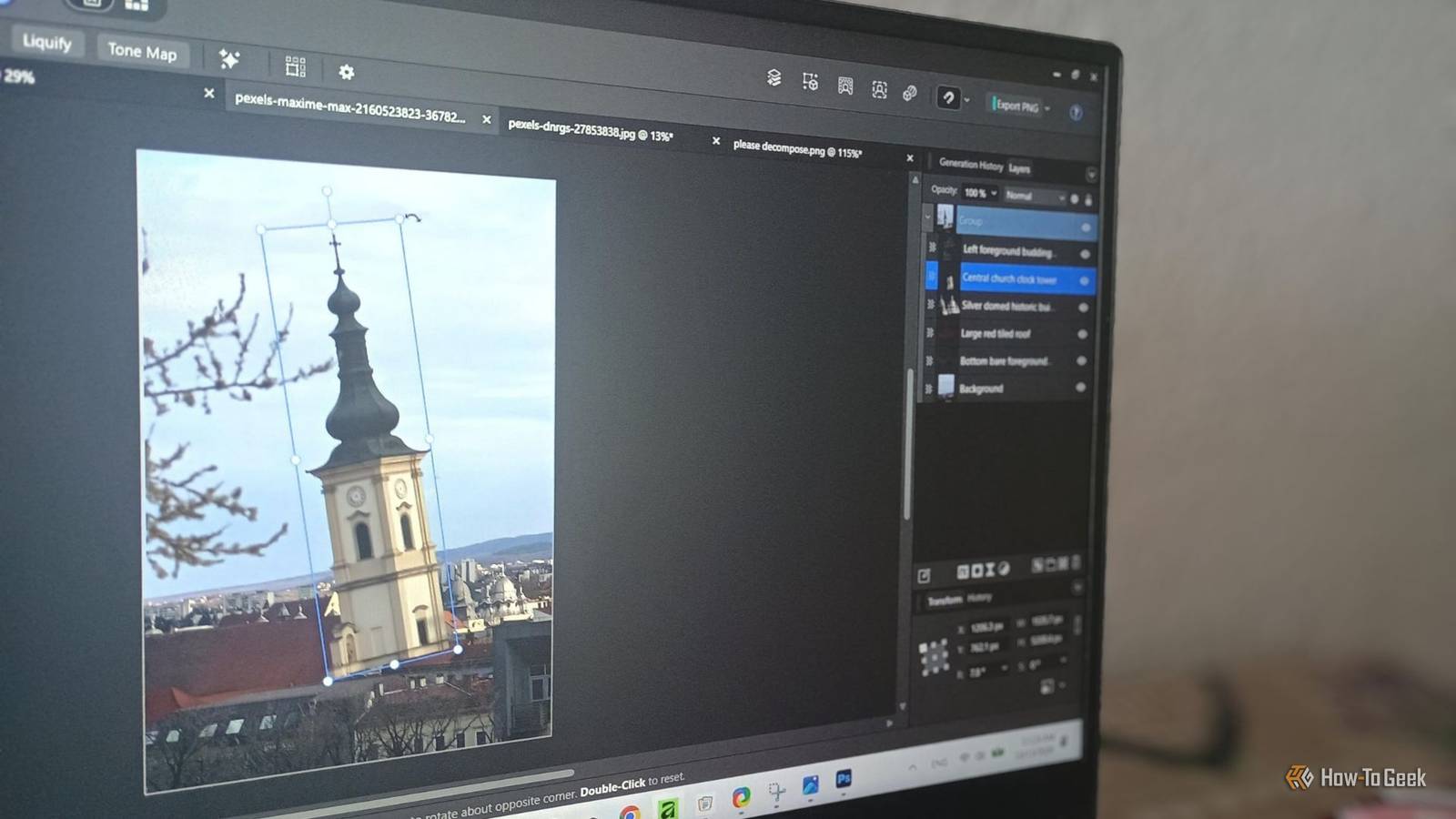
The process is as user-friendly as it gets.All you have to do is select the Canva AI mode from the Studio Switcher bar at the top, open the image you want to split into layers, and click the Decompose Layer icon in the upper-right panel.Decompose Layer currently runs on SeeDream, ByteDance's AI image-generation and editing model.
You have 2 image quality modes: SeeDream Layerise (Ultra) and SeeDream Layerise 4K (Ultra).Affinity notes that the available models may change over time.I tried it on a range of images, including graphics and photos, and regardless of the quality or complexity of the composition, it took around 2 minutes to process and break down each image.
Way quicker than digging through old hard drives for editables or separating everything by hand.Some layers came out better than others, but one thing was unexpectedly consistent: Decompose Layer understands composition.What I mean by that is that it doesn't chop the image into random shapes (as I cynically expected) or leave messy artifacts.
Instead, it separates the image into pixel layers that make sense: headings and text bits are in their own layers, objects are accurately identified, so is the background, and all of the elements are neatly organized using descriptive layer names.Picking apart clear photos and graphics looks effortless.For extremely intricate compositions, it tends to make some judgment calls and only pick out the most important elements in the foreground.
All fun and games until the content filter says no As with other Canva AI features, the content filter got in my way a few times, unwilling to pick apart original, fully compliant designs that I made myself.Canva acknowledges this problem exists, but all you can do for now is report the false positive and hope it'll do better next time.I didn't notice a clear pattern of what it chooses not to process yet, although it seems more likely to refuse portraits of people and generic/overused structures for designs.
Sometimes, if you try again, it'll go through.You get editable pixel layers It understands composition, not the objects behind it Okay, now let's focus on editability.As I said, Affinity breaks down your flat image into pixel layers.
And yes, they're editable, but only to the extent a pixel layer is.Don't expect to change fonts, rewrite text, or adjust vector elements.It deciphers composition, but it won't magically resurrect your long-lost editable file the exact way you made it.
We're not quite there yet.That said, you can still do a good deal of editing with the resulting layers.You can reposition, move, delete, and resize all elements.
Blend modes, alignment, grouping, and masking all give you control over how the elements look, overlap, and fit together in the composition.Layer effects also give you some options, such as letting you add shadows, bevels, make an object glow, or give it a color overlay.So while you can't edit text or vector paths, you can rearrange them and adjust them in terms of appearance.
Plus, identifying a font and replicating a vector shape isn't rocket science.And when you already have an outline to work from and can manipulate individual elements without messing others up, the whole process is easier.Related This newly-free Photoshop alternative convinced me to cancel Adobe Adobe has a serious challenger, and I'm never going back.
Posts 29 By Nick Lewis A useful fix when you've lost your layers Decompose Layers can be a great way to make a flat image workable in a short amount of time.Could be particularly useful if you want to repurpose old graphics for new projects and for quick photo manipulation.Despite editability being somewhat limited, you still get a lot to work with.
Whether it's worth paying for depends on what your projects tend to look like, but even though it's not free, it's still cheaper than Creative Cloud.There are also free online tools that offer similar functionality, so paying for it makes the most sense if you want something more convenient and use other tools in the app too.
Read More