When compared to the likes of Samsung and LG, the typical Google TV system can hardly be called "bloated," but there are still aspects of the default Google TV or Android TV experience that could do with a trim.Add How-To Geek on Google Add as Preferred Source Follow on Google Discover The good news is that people are taking the time to turn their TVs into the devices that they were meant to be, and it's easier than you think.Here's what they're up to.
Start by removing the apps you never asked for You paid for it, you should decide what apps get to run Close The first step in de-bloating is an obvious one.If there are apps on your Google TV that came preinstalled or that you installed yourself that you don't want, uninstall them.Generally, all you have to do is navigate to the app you don't want, press and hold the interaction button on your remote, view the app in the Play Store, and then choose to uninstall it.
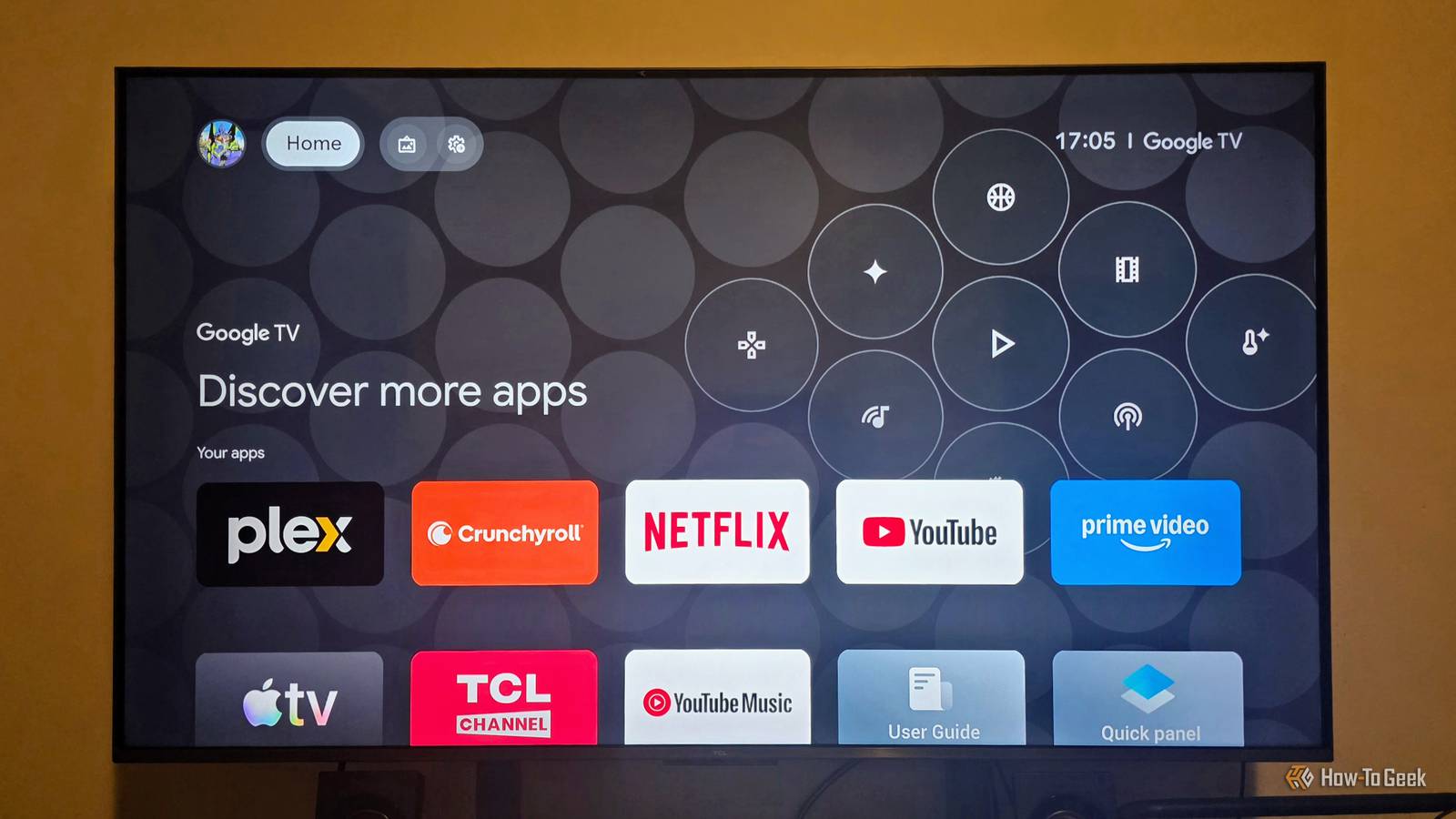
Some apps, like YouTube Music in the example up there, can't be completely removed like this.Instead, you're just uninstalling the updates, but the core app your Google TV device shipped with is still there.Use "Apps only" mode to cut the clutter It's not perfect, but it's perfectly safe Hidden away in the menus of your Google TV, there's an option called "Apps Only" mode.
All this does is alter the way your home screen looks.But, in my opinion, it's a big improvement over the default view that shows a clutter of recommendations and other internal data about the apps you use.This mode doesn't remove ads or recommendations; they're just not personalized now.
Also, voice and search don't work from the home screen in this mode.If you want to try it: Go to Settings.Select Accounts & Sign In or Accounts & Profiles.
Choose your profile.Scroll down to Apps Only Mode and activate it.I think for many people who mainly care about calming down that awful, busy home screen, this mode alone is already enough, but you can go much further.
Projectivy replaces the billboard with a home screen Throw it all out for something new Apps Only Mode is nice and all, but if you really want to take control of the way your Google TV looks get rid of all the ads, you're going to want an alternative launcher.There are several choices of launcher that you can try, but the one I think is worth highlighting here is Projectivy.This has a free version and a paid pro version that gives you more customization options, but even the basic version goes a long way to cleaning up the Google TV home screen and giving you an ad-free experience.
You can change the layout with a high degree of flexibility and even access your HDMI inputs from the home screen, rather than having to use the TV's separate menu system.You can do custom wallpapers and even use GIFs or videos and so much more.Though the last few items on that list are paywalled.
But the best part is that if you give the app the right accessibility permissions, it can autoload itself when your Google or Android TV boots.You should just see the stock launcher flash for a second, and then it opens Projectivy.There are also useful features like setting it to go to a specific HDMI input.
You might have noticed that smart TVs these days have been configured to drop you on the home screen where the ads are, rather than switching to your last-used input.This launcher lets you skip that and just go to your Apple TV or whatever device you might have connected.ADB tools reach the apps ordinary settings won’t remove With great power, and all that.
You can royally mess up your TV using ADB tools and do so completely at your own risk.Remember those apps that don't want to completely delete themselves? That's where tools like ADB TV: App Manager and Universal Android Debloater Next Generation come into the picture.The former lives on your TV and does not need an external device to work.
Once you've activated the Android Debug Bridge (ADB), the TV Manager can disable or uninstall pretty much any app on your TV.Just be careful, since it will allow you to remove apps that your TV needs to function! Universal Android Debloater Next Generation runs on your desktop computer and connects to your TV (or any Android device) using the ADB.Again, this is a powerful tool that will remove what you tell it to, even if it's not a good idea. AI tools are helping too! Most recently, people have been discovering that AI tools can do all the heavy lifting for you.
For example, as reported in Tom's Hardware, a developer was able to use Claude Code to debloat an Android smart TV without needing root access.The AI deactivated and removed unwanted apps, shortened animations, and generally made consumer-friendly choices.Afterward, the TV ran faster and did what its owner wanted, not what the manufacturer does.
It's still very early days for the AI-assisted debloating method, but knowing the speed with which AI tools are progressing, don't be surprised if everyone's doing it soon.
Read More