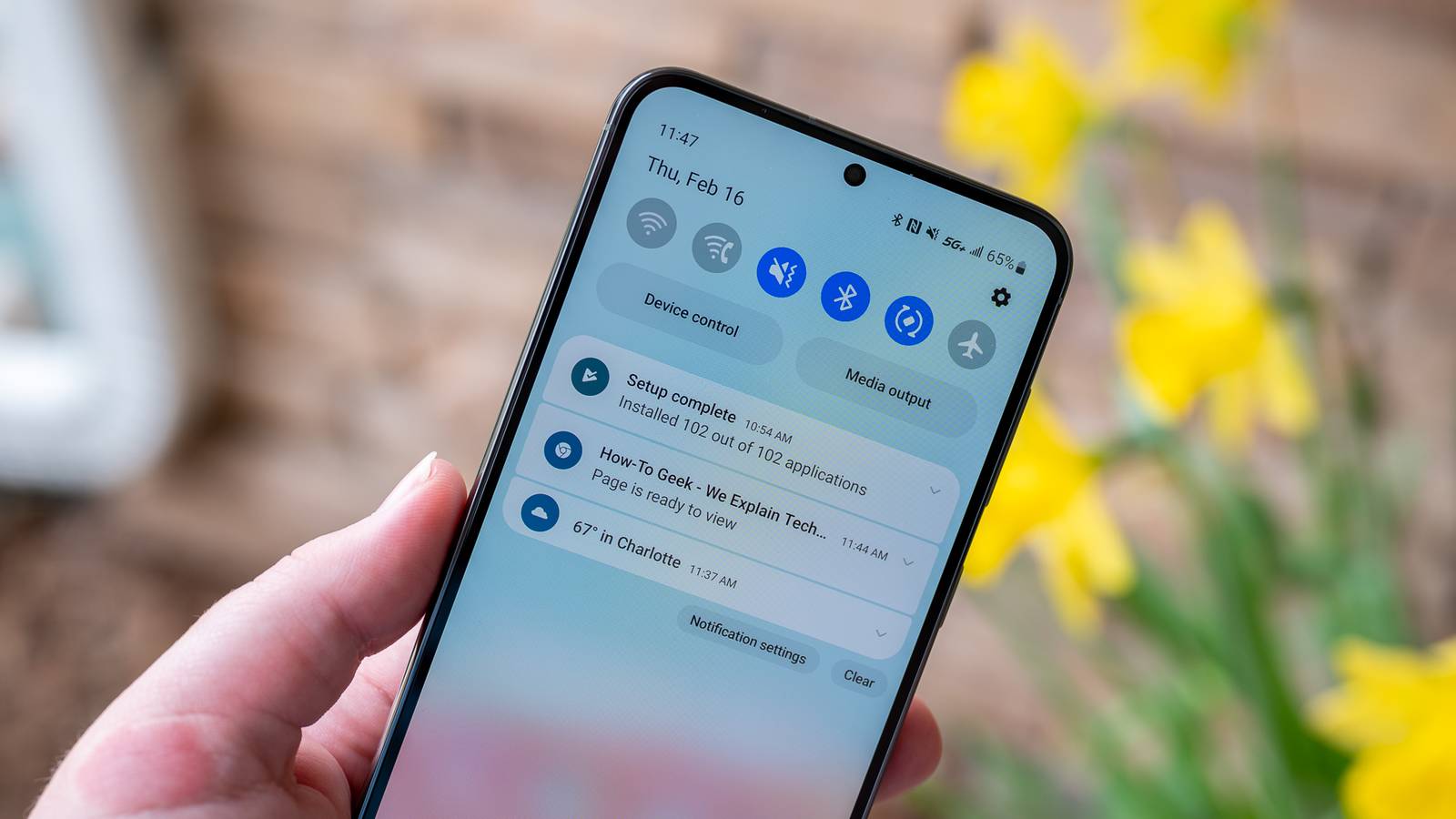
I've had problems with Android notifications arriving late for years.Usually, it's not a huge deal—if someone needs me urgently, they'll just call instead of texting me.But not all notifications are equal.
An Instagram Reel shared by my friend can wait an hour for a reaction, but an important work email about a meeting that's been canceled or moved up a few hours can't.Since I can't afford to miss notifications like those anymore, I finally decided to figure out what was causing the delays and fix the problem.Battery Saver is delaying your notifications Battery life comes at a cost Close Some people like to keep Battery Saver (aka Power Saving Mode on some devices) permanently enabled on their devices for a few good reasons.
Modern phones are plenty fast, so sacrificing a fraction of a second for apps to load to extend the battery life of your phone by up to a few hours is a worthwhile tradeoff.However, on top of throttling the CPU's maximum clock speed and disabling various other performance optimizations to reduce power draw, Battery Saver actually does a number of other things to your phone.The most important thing for us today is that it heavily restricts or outright stops background sync for non-essential apps.
Some apps might work just fine, but others might fail to sync for hours.Fortunately, the fix is super easy.Head over to Settings > Battery and disable Battery Saver or switch to Balanced mode, depending on what brand your phone is.
Close Battery optimization is stopping apps from syncing in the background Give specific apps more freedom Android has a pretty clever feature that optimizes battery use on a per-app basis.It allows your phone to throttle apps you don't use and prioritize background activity for your most-used ones.It's a pretty clever system for the most part, but it's also one of the most common sources of delayed notifications because apps are optimized by default.
This includes your email app of choice, Slack, Asana, and other important work-related apps that you might only use for a few minutes a day but can't afford to miss notifications from.At the same time, social media apps will probably get more priority if that's what you use the most on your phone.Fortunately, you can adjust this default behavior fairly easily.
Go to Settings > Apps > See all apps.Find an app on this list that's experiencing delayed notifications and tap on Battery usage, then switch it from Optimized to Unrestricted.Close The exact wording varies from brand to brand, but since it's built directly into Android, the setting is there—and it's most likely what's causing your delayed notifications.
Your app is being cut off from the internet in the background Let your important apps use data Data Saver is another core Android feature that optimizes cellular data usage.It's disabled by default, but if you enabled it at some point and forgot to turn it back off, you might not even be aware of it.Some phones display a persistent notification at the top, but not all (or the option to do so might be disabled by default).
In any case, it only takes a few seconds to check.Go to Settings > Network and Internet (or equivalent) > Data usage > Data Saver and disable the feature.Close If you must keep it on because you're on a limited plan, there's an option to leave data unrestricted for some apps, which is the perfect compromise.
Again, the wording differs between brands, so just poke around until you find it.Android is restricting an app you haven't opened lately Even unused apps deserve notification access Pause app activity if unused is another semi-problematic core Android feature that was introduced with Android 12.It's surprisingly aggressive at what it does: it puts an app into complete hibernation, kills notifications, revokes permissions, and wipes cache data if it hasn't been used in 3 months.
This can be problematic if the app in question is something you access very infrequently but still need to keep up with, like a specific smart home app, security alert app, travel app, or similar.Unfortunately, there's no global setting to switch off app hibernation, but what you can do is disable it on an app-by-app basis.Go to Settings > Apps > See all apps, find the app you suspect got disabled, and disable Pause app activity if unused.
On my phone, it's the Manage unused apps toggle that needs to be turned off.Close Like with the settings I discussed previously, the exact wording might differ between brands, but if your phone runs Android 12 or newer, it's there.A manufacturer-specific setting is restricting apps on its own Your phone might have a hidden battery saver Everything I've discussed so far has been general fixes that you can use on every Android phone.
However, some brands have their own additional battery management features and optimizations on top of those built into Android.Unfortunately, since there are so many brands and things are constantly changing with updates, going over all of them here could quickly turn into its own article.So, if you're still experiencing delayed notifications after trying all of the fixes above, I recommend doing a little research on your specific device to see if there's a hidden toggle or feature that you can change to force background sync for problematic apps.
Most notification delays have a simple explanation I'm sure that most Android owners can relate to the frustration of delayed notifications that happen here and there.The majority of the time, the cause is some data- or battery-saving feature that's built into Android, and luckily, the fix is often as simple as changing a single option.Related 7 Ways to Improve Notifications on Android Make sure you're using the best Android notifications features.
Posts By Joe Fedewa
Read More