Working with large datasets, training models, and testing algorithms puts a heavy load on a computer.Even a fast laptop slows down when databases, development environments, and compute jobs run at the same time.Weak hardware isn’t always the root cause.
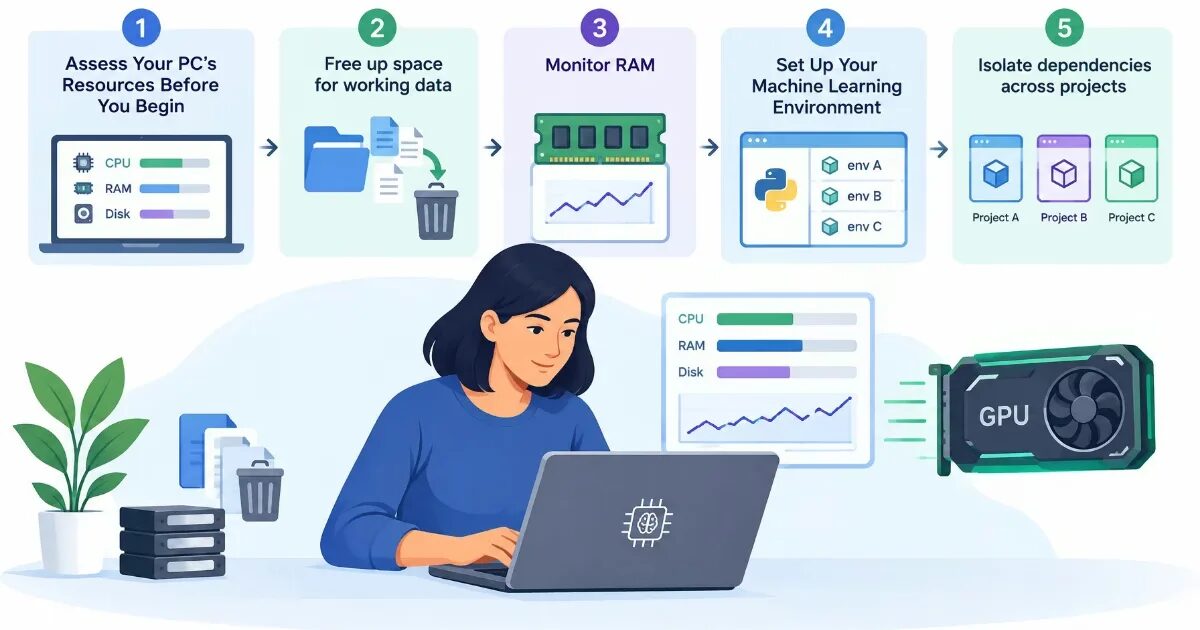
Poor memory allocation, a full drive, or a badly configured software stack will drag down performance too.Running AI and machine learning projects smoothly requires knowing which resources take the biggest hit and how to cut the extra load through practical ai ml device optimization.ContentsAssess Your PC’s Resources Before You BeginFree up space for working dataMonitor RAMSet Up Your Machine Learning EnvironmentIsolate dependencies across projectsCheck GPU capabilitiesOptimize a Daily Data WorkflowReduce unnecessary operationsMaintain device stabilityComparison Table: Key Optimization Areas ComparedKeeping Your Local ML Setup Running SmoothlyFrequently Asked QuestionsHow much RAM is required for local machine learning and AI development?How can I stop my computer from running out of RAM during machine learning tasks?Why should I use virtual environments like venv or Conda for AI projects?Why is Apache Parquet significantly faster than CSV in Pandas pipelines?What is the best file format for storing cleaned datasets in a local workflow?How do you verify if PyTorch is actively utilizing local GPU acceleration?How can data engineers prevent thermal throttling during long training runs on laptops?Data professionals optimize their devices for AI and ML projects by clearing unused local datasets and checkpoints, managing RAM through batch loading and column type tuning, isolating Python dependencies in virtual environments, and routing supported matrix operations to the local GPU.Before deleting anything, inspect the flagged files so you do not wipe out active datasets or test results.Give each project its own isolated environment using venv or Conda to prevent routine library updates from breaking code.For data analytics tasks, save cleaned datasets in the Parquet format to cut down disk reads.Assess Your PC’s Resources Before You BeginBefore changing system settings, data professionals need to pinpoint what’s holding the machine back.Run a typical workflow and check usage across these components:Central Processing Unit (CPU)Random Access Memory (RAM)StorageGraphics accelerator (GPU)Free up space for working dataML projects usually generate plenty of local files: Large datasetsIntermediate processing outputsModel checkpointsTemporary filesIn typical local workflows, old experiments and duplicate files sit unused while eating up gigabytes of storage space.
On a Mac, check disk usage under System Settings → General → Storage.If the built-in tools fall short, this overview of the best free Mac cleaner breaks down which apps spot large files, leftover app data, and redundant copies.Free tiers often cap certain features, so check the terms of use first.
Before deleting anything, inspect the flagged files so you don’t wipe out active datasets, virtual environments, or test results.Once storage is clean, turn to the resources that directly control compute speed.Monitor RAMWhen processing large tables, Pandas often creates extra copies of the data in memory.If free RAM runs out, the OS starts paging memory to the disk.
That swap slows execution to a crawl.Track memory usage through Activity Monitor on macOS or Task Manager on Windows.When handling large datasets, stick to three habits: Load data in batchesOptimize column data typesShut down idle background appsSet Up Your Machine Learning EnvironmentA clean software setup prevents package conflicts and broken dependencies.Optimizing an AI project goes beyond raw code speed.Reproducing experimental results reliably matters just as much.More Read 6 Top Data-Driven SEO Tools To Track Your Marketing Efforts The Basic Guide to Marketing Analytics and Data-Driven Marketing Big Data For Instagram: Using Data To Perfect Your Instagram Storyboard Data-Driven Marketers Must Avoid Data Duplication 7 Ways Robotic Technology is Shaping the Healthcare Industry Isolate dependencies across projectsPython libraries frequently demand different versions of the exact same packages.
Give each project its own isolated environment using venv or Conda.Pin exact dependency versions in your configuration files.Doing so makes moving projects between machines much simpler and prevents routine library updates from breaking your code.Avoid updating ML tools right before a major model deployment.Test new versions against your existing code first to confirm everything still runs.Check GPU capabilitiesA graphics processing unit speeds up neural network training by running matrix math in parallel.
How much speed you actually gain depends on three things:Model architectureLibrary supportAvailable video memory (VRAM)Machine learning engineers frequently evaluate model efficiency through metrics such as parameter count, floating-point operations, and computational complexity, but these measurements do not fully explain how a model will perform on the hardware used for training or inference.Santosh Rout, Author at InterviewNode, in Hardware-Aware Machine Learning, in Santosh Rout, Hardware-Aware Machine Learning: Designing Models Around the Compute …On Apple silicon Macs, PyTorch runs calculations through Apple’s Metal framework.This shifts supported operations from the CPU to the GPU.However, this mode doesn’t support every data type or operation yet.
Check the official PyTorch docs for full compatibility details.Before starting a training run, verify that your script actually routes work to the right compute device.Optimize a Daily Data WorkflowGood device performance also comes down to daily workflow habits.Reloading the same raw files and repeating finished calculations wastes compute cycles without improving output.Reduce unnecessary operationsFor data analytics tasks, save cleaned datasets in the Parquet format.
It compresses files and lets you read specific columns without loading the whole table, cutting down disk reads compared to parsing huge CSVs over and over.In Jupyter Notebook, restart the kernel whenever old variables and objects pile up in memory.During long training runs, save intermediate checkpoints so a sudden crash doesn’t force you to restart the whole job from the beginning.Maintain device stabilitySustained heavy loads heat up the processor and trigger thermal throttling, which drops clock speeds.
Keep your laptop well-ventilated during long compute jobs.Keep an eye on background processes, install vetted OS updates, and back up your core files regularly.Comparison Table: Key Optimization Areas ComparedKeeping Your Local ML Setup Running SmoothlyHardware specs alone don’t dictate how well a machine handles ML workloads.Four practical factors drive day-to-day data processing speed:Free disk spaceSmart RAM usageClean software library environmentsProper GPU setupChecking these pieces regularly cuts down compute times, prevents crashes, and keeps your local setup ready for heavier projects.When reviewing your workstation before a new run, focus on four practical habits across your setup.Clear out old checkpoints and cached datasets so the OS always has room for temporary files and swap space.
Load large tables in batches and downcast numeric columns to keep Pandas from exhausting RAM.Lock exact package versions inside isolated venv or Conda environments, and store cleaned tables as Parquet files while verifying your training scripts target the GPU.Frequently Asked QuestionsHow much RAM is required for local machine learning and AI development?For classical tabular machine learning workflows using Scikit-Learn or XGBoost, 16 GB to 32 GB of high-speed system memory is the practical operational baseline.
For deep learning training and running quantized local large language models (such as 7B or 8B parameter models quantized to 4-bit weights), 32 GB to 64 GB of system RAM or unified memory on Apple Silicon systems is strongly recommended to prevent operating system disk paging and swap thrashing.How can I stop my computer from running out of RAM during machine learning tasks?To prevent memory exhaustion and slow disk swapping when processing large tables, load your datasets in smaller batches, optimize column data types to use less memory, and close idle background applications.In Jupyter Notebook, you should also restart the kernel periodically to clear out old variables and objects that accumulate in RAM.Why should I use virtual environments like venv or Conda for AI projects?Python machine learning libraries often require conflicting versions of the exact same dependencies.Creating an isolated environment with venv or Conda for each project and pinning exact package versions prevents routine updates from breaking your code and makes it much easier to reproduce results across different machines.Why is Apache Parquet significantly faster than CSV in Pandas pipelines?CSV files store data in uncompressed plain text, requiring Pandas to parse every character sequentially and infer data types, which often consumes three to five times the original file size in active RAM.
In contrast, Apache Parquet uses a binary columnar format equipped with Snappy or Zstandard compression and embedded schema metadata.This architecture allows data analysis engines to read only the specific columns needed for a feature set without loading the entire dataset into memory.What is the best file format for storing cleaned datasets in a local workflow?Saving cleaned datasets in the Parquet format is ideal for local data workflows.
Parquet compresses files to save disk space and allows you to read specific columns without loading the entire table into memory, which significantly reduces disk read times and RAM usage.How do you verify if PyTorch is actively utilizing local GPU acceleration?You can verify hardware acceleration directly in Python by testing backend availability.For NVIDIA systems on Windows or Linux, execute torch.cuda.is_available() and check torch.cuda.get_device_name(0).On Apple Silicon Macs, verify Metal acceleration by running torch.backends.mps.is_available() and assigning tensors to device = torch.device("mps").
If both checks return False, PyTorch will default to CPU execution.How can data engineers prevent thermal throttling during long training runs on laptops?Sustained matrix multiplication pushes modern mobile processors to their thermal ceilings within minutes.To prevent aggressive CPU and GPU clock down-throttling, elevate your laptop on an open stand or active cooling pad to maximize fan intake airflow, switch operating system energy profiles to dedicated high-performance modes, and implement mixed-precision training (such as PyTorch AMP with FP16 or BF16) to cut computational thermal wattage by up to 40%.
Read More