Some people like ads tailored to their interests, but many don't want their app usage, browser activity, and location information recorded under a personal ID.That's when marketers, ISPs, and app developers can use or sell unidentifiable but profiled information about your activities to third parties for marketing and data-harvesting purposes.I especially don't like that my ISP can track what websites I visit and where I am when I do it — that benefits them at my expense, and apps can do the same.
Facebook is notorious for constant notifications, like "People you may know" bombardments, just because I went in and cleared a handful from my list.They see what I've been doing and throw more than enough related posts and notifications at me to keep me coming back.It can get out of control and annoying, even though I can control it with extra, frustrating steps.
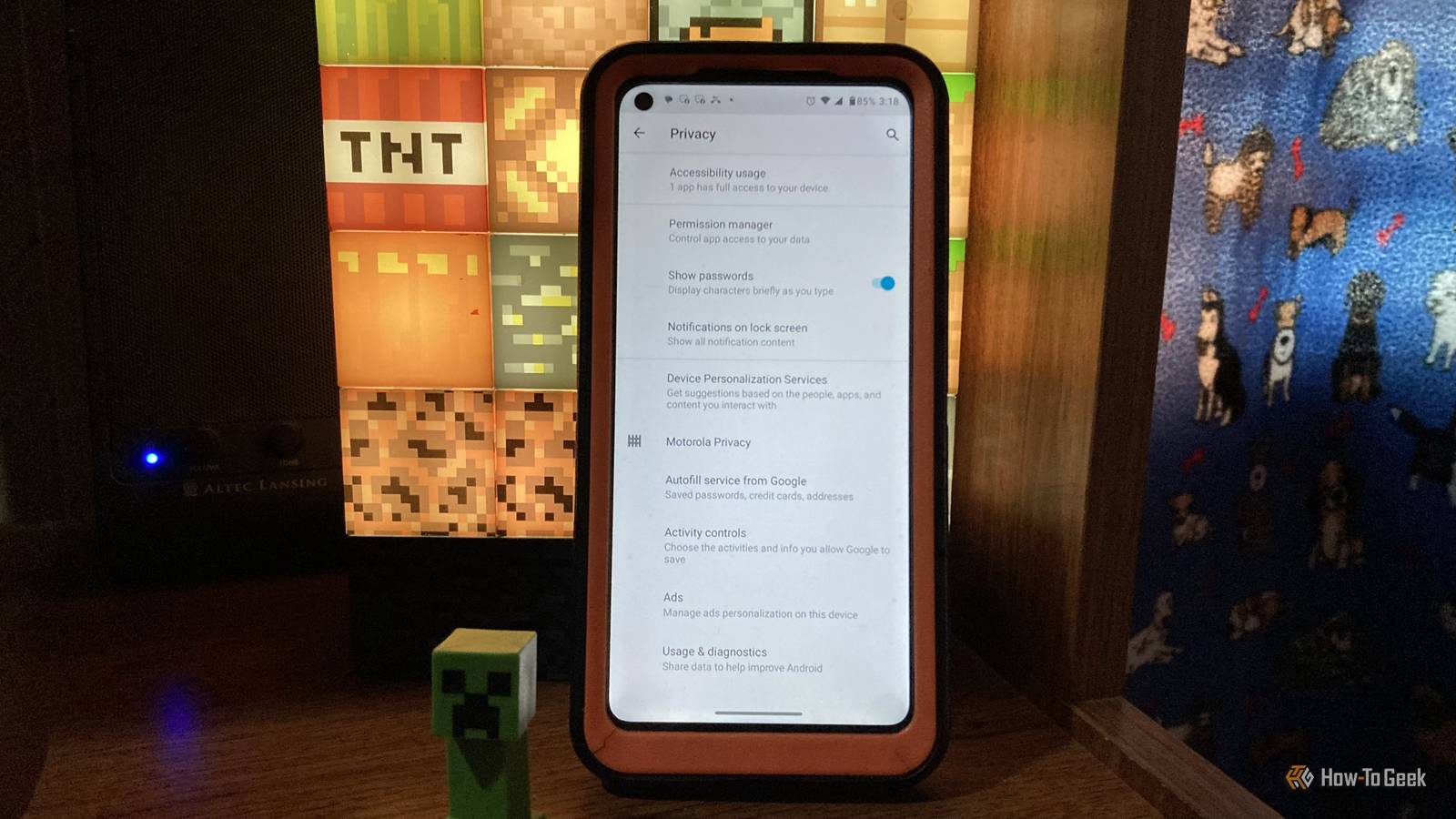
That's just one example.In Android settings, you can easily turn off location tracking for Google, selected apps, and your ISP, as well as web and app activity and personalized ad tracking.You can control all three with a few simple settings, no third-party app needed.
Don't let your ISP, apps, and Google harvest your location habits They don't need to know where you live, work, or the places you go Close The most effective way to stop location harvesting is to go to Settings -> Location and turn off "Use location," but that can break apps that require it, like The Weather Channel, Maps, and Netflix.It also affects Google to some extent.The second-best option is to restrict Android location usage on an app-by-app basis — you can manage that within one settings menu.
All you need to do is open Settings -> Location, browse the apps in the "Allowed All the Time" and "Allowed Only While in Use" sections, then tap an app to open its location options.Choose Don't Allow for apps that don't require it, or set them to Allow only while using the app or Ask every time to regulate their usage.The above process gives you granular control over which apps can and can't use your location, while ensuring certain apps have what they need when they truly need it.
If an app generally requires it, you'll get a notification when you launch it, so it is safe to turn it off when you question whether it needs it.Restrict cross-app data collection and profiling via the shared data setting Many apps access and utilize collected data about you through third parties Close Sure, apps like Facebook, Gmail, TikTok, Maps, and others may have unique data-collection methods, but they also share some tracking info through third-party services.It's not shared directly, but through advertising partners and companies that provide analytics information to various apps.
Google also obtains information from app usage and activity.The best way to restrict this type of access is to turn off "Personalize using shared data" or "Personalize using app data," depending on your Android device.The only problem is that this option is often hidden.
First, check if it's located in Settings -> Security and privacy -> More security and privacy, then tap Personalize using app data to turn it off on some Samsung phones and a few others.If it's not appearing, go to Settings -> Google, tap All services, then scroll down and select Personalize using shared data.If you see it here, you should be able to deselect items from the list.
To turn the options off, I had to use the second option to access it on my Motorola phone.Once in, it gave me several Google apps and other on-device sources I could turn off.Use Android's Private DNS setting to encrypt web browsing history HTTPS only protects and hides URL paths and browsing activity Close Android added the Private DNS settings in Android 9 (Pie) in 2018 and has included it in all newer releases since then.
It encrypts your DNS queries, so they don't expose them to your ISP, ad marketing agencies, apps, or hackers.This is the pre-check, domain URL query part of the website you type — the process used to handle domain name lookups (TLS handshake).I always activate the Private DNS setting on my Android devices to hide my URL history from tracking collectors.
It blocks third-party profiling and marketing services from accessing the domain names during the queries.But ISPs and anything in the line of your network can still grab the queried names, unless the website supports Encrypted Client Hello (ECH) to encrypt Server Name Indication (SNI) during the TLS handshake.SNI is where the desired domain is resolved and exposed in plain text whenever a website doesn't support ECH.
Cloudflare provides ECH support in its hosting packages, increasing the number of active participants in ECH encryption technology, and other CDNs may or may not do the same.Websites must support it, which many still don't because their servers or CDN cannot use it, or the website does not include it.ECH is mainstream, so many websites accept ECH encryption.
As it grows, more domain queries will be hidden from your ISP, Wi-Fi providers, and mobile carriers.At a bare minimum, ad profiling and data collection from domain queries are null and void because marketing firms generally don't have access, regardless of SNI or ECH use.Related Your phone number isn't private—here are 6 ways it's been leaked Identify the causes of exposure and take action to boost your privacy Posts 18 By Steve Larner My point is that this Private DNS setting in Android helps reduce exposure of the URLs you browse, and as more servers and websites support ECH lookups, fewer sites will use plain-text SNI for TLS handshakes.
Since marketing firms generally don't have access regardless of SNI or ECH use, adding a private DNS domain name to Android helps control ad profiling.To turn on Android's Private DNS setting, Google uses DNS over TLS (DoT) and requires a hostname, not an IP address.Just head over to Settings -> Network & Internet -> Advanced -> Private DNS.
Some phones may not include an "Advanced" section, and it may be slightly different depending on your phone.Once there, select Private DNS provide hostname and type in one.one.one.one for Cloudflare or dns.adguard.com for AdGuard.I recommend those two options, with Cloudflare at the top of my list, but several more are available.
Privacy is important, and Android helps if you know where to look Staying private takes effort, but Android's built-in settings help keep you secure, as long as you know where to go and what to change.Location settings let you control what apps can access, while you can turn off Google data and app-sharing settings to prevent cross-app data collection.Encryption is also essential, and Android's Private DNS settings let you restrict access to domain queries, making it harder for your ISP, Google, and network monitors to see your domain-name history.
To hide your actual browsing history, activity, and full URL paths, you'll need a VPN, which encrypts everything and hides your real IP.
Read More