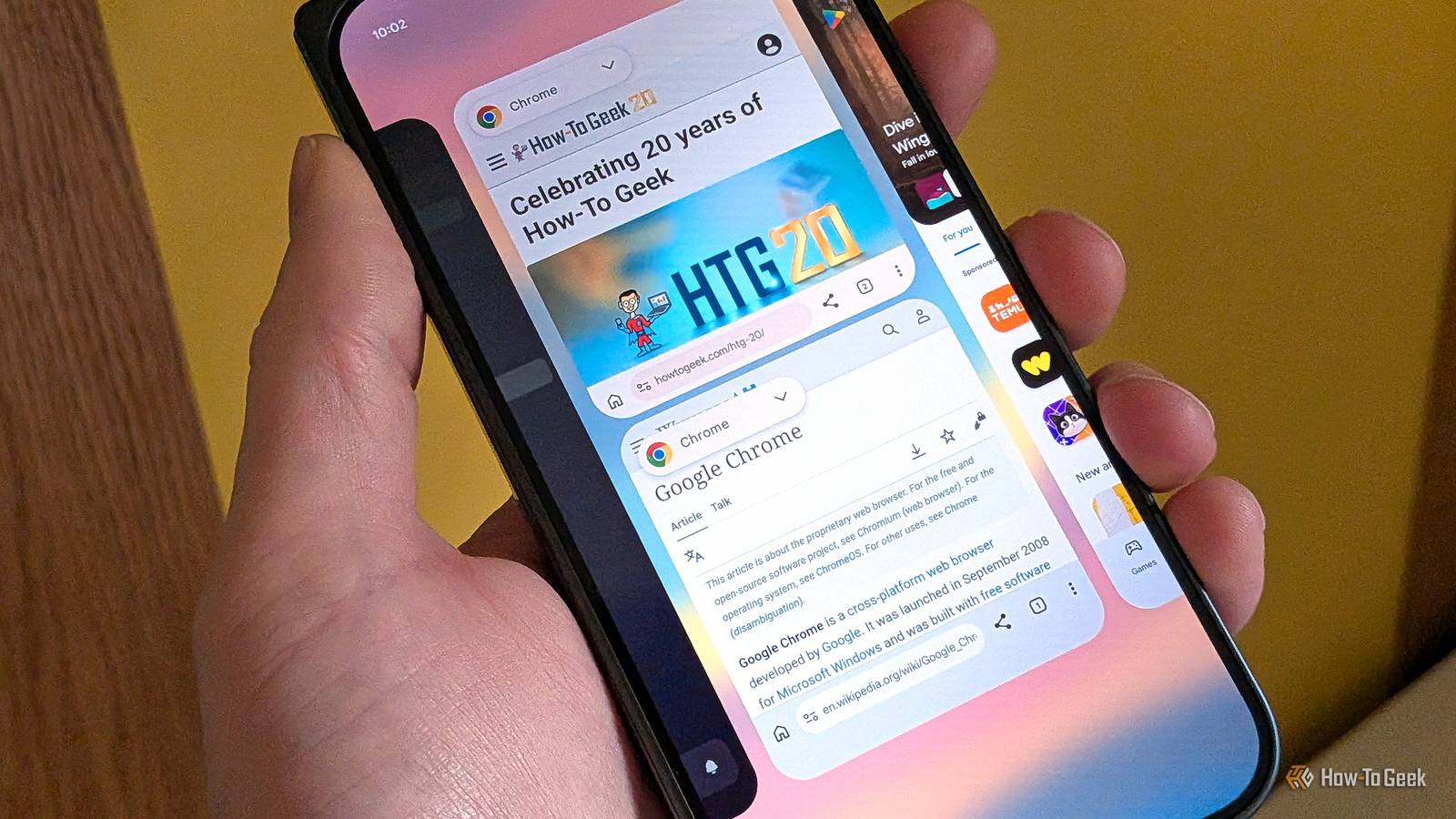
If you’re running out of storage on your Android, there's a good chance Chrome might be the silent culprit.While the app’s base size is roughly 150MB to 275MB, its storage footprint can grow significantly as your browser accumulates Progressive Web Apps (PWAs), offline media caches, and persistent web data over time.In my case, this was the reason for my browser having around 6GB of storage on my phone.
We can’t entirely blame Google for this; our browsing habits can also lead to an increase in bloat.For instance, I rarely close all tabs in Chrome.I simply open Chrome, search for something, browse websites, and swipe back to the home screen, leaving all those tabs open.
Over time, Chrome’s storage usage can add up.Clearing site data, cached images, and disabling background sync helped me get it back.Avoid the nuclear "Clear storage" trap Clear the system cache, but don't touch your app data Close When your phone throws a low-storage warning, or Chrome on Android seems sluggish, one of the first things you can do is check how much storage the browser is using.
You can quickly do this by long-pressing the Chrome icon and tapping the App Info (i) button.On Chrome's App Info screen, go to Storage & Cache to see how much storage the browser is using.Once you enter Storage & Cache, you'll see two options: Clear Storage and Clear Cache.
Be careful with the first one.Tapping Clear Cache is generally safe, and it should be your first move.In my experience across multiple Android devices, Chrome's cache can grow to several gigabytes.
Clearing it can instantly free up significant storage.The trap, however, lies in the other button.Clear Storage deletes Chrome's locally stored app data and resets it to its default state.
You may need to sign in again and reconfigure Chrome from scratch.Delete site-specific storage directly inside Chrome Target the heaviest web apps without touching your logins Close Chrome on Android lets you view and delete site-specific data, giving you more granular control over web apps that take a significant amount of storage.Tap the three-dot menu in the top-right corner, and select Settings.
Scroll down, tap Site Settings, then scroll to the bottom and tap the Data Stored menu.This menu is a goldmine: Chrome automatically lists every domain you have visited and its data storage usage in descending order, so you can quickly find the culprit.You will likely find social media web apps and news portals sitting at the top, consuming hundreds of megabytes each.
Tap an individual site to see storage usage details and site permissions.Tap the delete button under the Usage menu to clear the storage instantly.Doing so should reclaim the bulk of your storage while leaving your open tabs, search history, and synced Google account completely intact.
Clear your forgotten downloads and lingering cache Wipe orphaned offline files that survive basic cleanups Close Even after clearing site data, Chrome often holds onto orphaned files and intentional downloads you forgot about.Tap the three-dot menu in the top-right corner, and select Downloads.You might be surprised by what is sitting here.
Scroll through your downloads to find the older ones, then delete any you don't need.In my case, I had lots of APKs and video downloads, each weighing around 200–250 MB.Long-press any file you no longer need, tap the Trash icon, and empty the list.
After doing this, head to Settings for a broader cleanup.Scroll down to find Privacy and Security and tap Delete browsing data.Change Time Range to All Time and select Cached images and files.
Ensure Browsing history, Cookies and site data, Saved passwords, and Autofill form data are strictly unchecked.Tap Delete data to clear Chrome's cached web files and reclaim any additional storage.Stop Chrome from hoarding gigabytes in the background Two simple toggles to keep storage bloat under control Close Clearing up your storage is only half the battle; you need to stop Chrome from hoarding this data again next month.
Restricting background syncing plays a major role in the long run.Navigate to Settings, tap Site settings, and enter Background sync and select "Don't allow closed sites to finish sending or receiving data." This stops inactive web pages from chewing up disk space and battery after you exit them.However, you don't have to disable Background Sync for web apps you actually rely on.
Chrome lets you add exceptions for specific sites.Tap the option to Add site exception (or the plus icon), enter the domain under Site URL, and tap Add.Chrome will honor background tasks exclusively for those trusted domains.
Related The 5 apps I uninstall on every Samsung Galaxy phone Save space and clean up that app tray.Posts 16 By Cory Gunther Make internal auditing a regular habit Instead of waiting for Android to throw a critical system warning, I made auditing Chrome's internal storage a regular habit.In fact, I set a recurring reminder on my phone to audit Chrome's storage every two months.
Reminders like this nudge me to maintain digital hygiene without compromising on performance or storage.
Read More