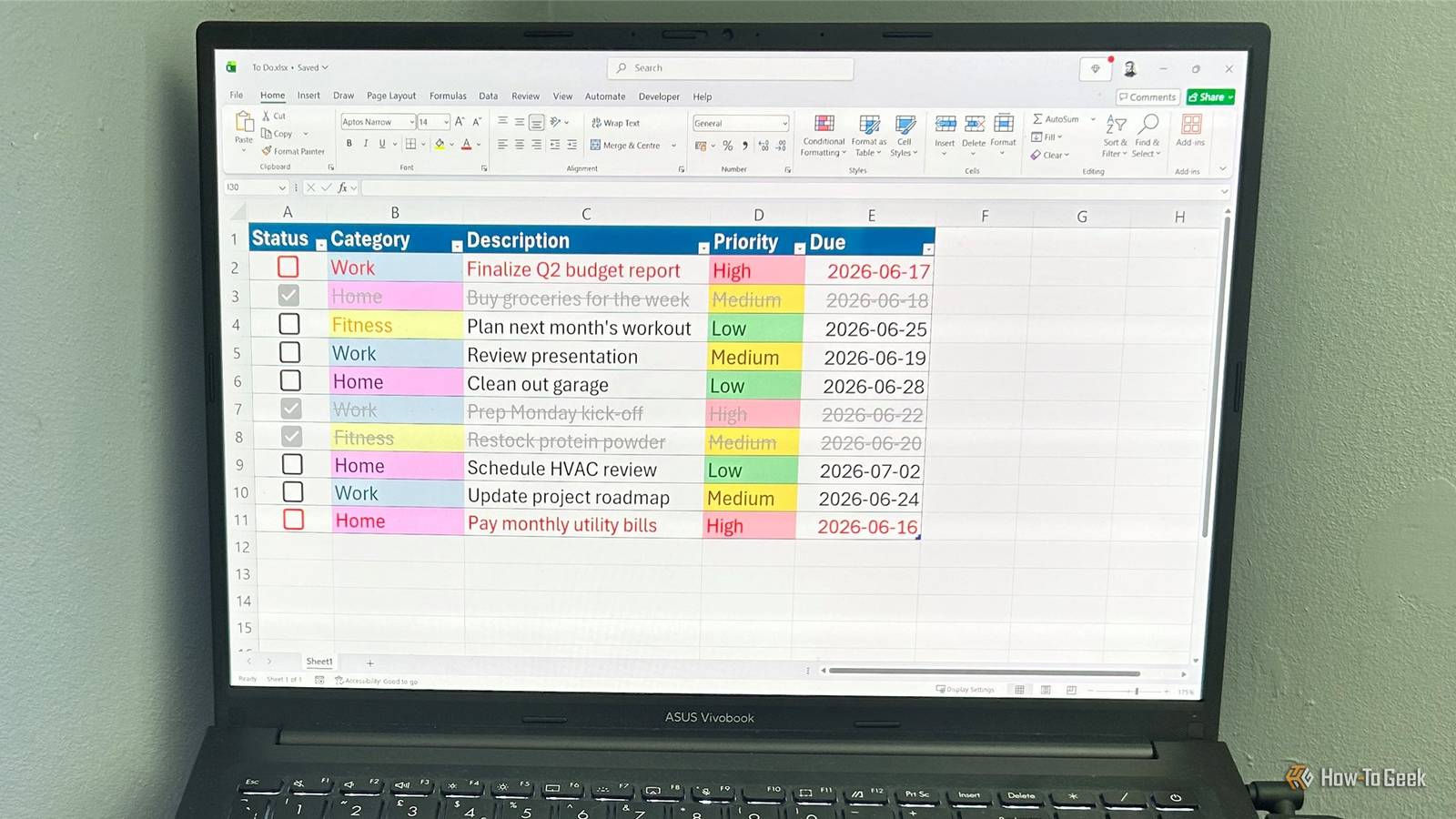
Giving up dedicated productivity apps sounds like chaos, but switching to Excel replaced my entire task management setup.I built a personalized to-do system that recreates the core features of premium task apps using Excel's built-in tools, with no extra subscriptions.To copy my setup, work through the following sections in order, since each feature builds on the last.
Replace cluttered task lists with a unified inbox and daily agenda A single table beats scattered worksheets I used to think separating different aspects of my life into distinct worksheet tabs was organized.However, shifting between multiple sheets meant some tasks often slipped through the cracks.That's why I collapsed everything into a single master table that acts as a unified list, replicating the inbox and "My Day" style views found in dedicated task managers like Todoist.
The trick is to turn your rows into an Excel table, which expands as you add tasks.This means every new task inherits your filters, formulas, and formatting without manual tweaking: Open a new workbook and type your tracking columns across row 1: Status, Category, Description, Priority, and Due.Select your headers and the empty row directly beneath them, then press Ctrl+T or click Insert > Table.
Check My table has headers, then click OK.Format the Due column as a Date in the Number group of the Home tab.As soon as you start typing in the next blank row, the table expands to include your new task.
At this point, leave the Status column blank—we'll come to this soon.In the Table Design tab, choose a table style without banded rows.A cleaner table design makes the visual cues you'll add later easier to see.
Once your master list is populated, use the built-in filters in your Due column.While many to-do apps restrict you to predefined views like "My Day" or "Upcoming," Excel's date filters give you more flexibility than these preset options: they let you instantly switch between tasks due today, tomorrow, next week, next month, between two dates, or even the year to date.Build the tagging system every to-do app relies on Consistent categories keep your list organized Dedicated task managers use categories and tags to organize different areas of your life.
My Excel setup imitates that system directly, using data validation and conditional formatting.Data validation ensures every future entry follows a consistent structure: Select the cells in the Category column.Open the Data tab.
Click Data Validation.In the Allow field, select List.In the Source field, type your categories separated by commas.
After clicking OK, all new tasks will be restricted to your defined categories via the drop-down menus.If you already have sample data, you can update existing entries for consistency.If your category list is likely to change often, create your drop-down menu from a named table column instead of typing values directly into the Source field.
This lets you add, remove, or rename categories without manually updating your data validation rules.Now, use conditional formatting to apply cell-fill colors to your category column, mimicking the color-coded tags found in to-do apps: Select the Category column.Open the Home tab.
Click Conditional Formatting > Highlight Cell Rules > Equal To.In the left-hand field, type your first category, and in the right-hand menu, choose a preset format or click Customized Format to set your own.Repeat this process for each category, and see your table update as you go.
Do the same with the Priority column: use data validation to create a drop-down list with Low, Medium, and High, then apply conditional formatting to fill the cells green, yellow, and red for instant priority scanning.Microsoft 365 Personal OS Windows, macOS, iPhone, iPad, Android Free trial 1 month Microsoft 365 includes access to Office apps like Word, Excel, and PowerPoint on up to five devices, 1 TB of OneDrive storage, and more.$100 at Microsoft Expand Collapse Track completed work with checkboxes and strikethrough Checking off tasks feels just as satisfying I refused to give up standalone productivity tools until I could replace the core task completion system found in paid to-do apps.
Fortunately, modern Excel includes native checkboxes that live directly inside the cells, allowing you to build the exact same reward mechanism: Select the empty cells in your Status column.Open the Insert tab.Click the Checkbox icon.
Behind the scenes, unchecked checkboxes are assigned the Boolean value FALSE, while checked ones are TRUE.You can see this by selecting a checkbox cell and looking in the formula bar.Checkboxes alone improve visibility, but they only do half the job.
You can also force the whole row of a completed task to adopt a gray strikethrough effect, so that incomplete tasks still stand out: Select all rows in your table (excluding headers).In the Home tab, click Conditional Formatting > New Rule.Select Use a formula to determine which cells to format.
Click Format, then under the Font tab, pick a gray font and check the Strikethrough box.Click OK.In the text field, type the following formula (assuming your checkboxes are in column A), then click OK: =$A2=TRUE This gives you a simple visual system that mirrors the completion views found in dedicated task apps, without needing any extra software.
Replace push notifications with custom date alerts Visual reminders prevent missed deadlines Admittedly, Excel can't natively send push notifications like dedicated to-do apps, but it replaces that urgency system with visual alerts that immediately stand out when I open my tracker each morning: Select all your table rows (excluding headers).Open the Conditional Formatting menu in the Home tab, and select New Rule.Click Use a formula to determine which cells to format.
Click Format, select a bold red text color, and click OK.In the text field, type the following (assuming column A holds your checkboxes and column E holds your due dates): =AND($A2=FALSE,$E2-TODAY()<=2) Deals Save on Computers & Work Setup: Deals for Better Productivity Score discounts on laptops, monitors, keyboards, mice, docking stations, and ergonomic chairs to build a focused workspace.Browse deals on software subscriptions and cloud storage offers too — upgrade your setup without breaking the budget.
Deals Explore Computers & Work Setup Deals Now, any dates that fall within two days of the current date (and all overdue tasks) adopt this red font formatting, while any completed tasks remain grayed out regardless of their due date.Sync lists across devices and collaborate with your team Access your lists anywhere with OneDrive syncing I always keep my task system within arm's reach by storing my Excel file in OneDrive, matching the cloud sync and cross-device continuity features found in dedicated to-do apps.This background connection keeps my data synced across my desktop computer, my web browser, and the Excel mobile app.
When I'm away from my desk, I switch to the mobile app's Cards View interface to interact with my rows as a stack of digital index cards.This makes it easy to share a quick snapshot of a task (see gallery below) or use cell comments and @mentions to tag coworkers on a project without needing separate software just to coordinate simple projects.From simple lists to complete control Managing my tasks in Excel keeps my priorities clear without adding another subscription to my monthly budget.
A simple table with checkboxes and smart formatting replaces the core features I used to rely on in premium to-do apps.Once you've set up your personal task tracker in Excel, you can scale this system into workplace project tracking by building a dynamic Gantt chart to coordinate more complex timelines.
Read More