Your PC isn't going to switch itself off one day.But the version of Windows sitting on it right now? It has a shelf life.And it's shorter than you'd think.
You've probably heard the headlines about Windows 10 riding off into the sunset.This is a bit different.Even if you're already on Windows 11, the specific build you're running, 23H2, 24H2, 25H2, whatever it is, has its own quiet countdown clock.
It depends on which edition you're using, too.Most people never check this until an update stops showing up, or worse, until something goes wrong, and they realize they haven't been protected for months.If you'd rather know now than find out the hard way, check whether your PC is even eligible for Windows 11 first.
It changes how urgent this is for you.Wait, Windows has an expiration date, you say? It's not meant to become useless, it's a servicing schedule This isn't Microsoft trying to force you into anything shady.It's just how they've structured updates for years now.
Every annual Windows 11 feature update gets a fixed window of support, and that window depends on your edition: Home and Pro editions typically get about 24 months of servicing per feature release.Enterprise and Education editions usually get around 36 months.So the same version number can have two completely different expiration dates depending on who's running it.
Windows 11, version 23H2, on the Home and Pro editions, has already reached end of service on November 11, 2025.Meanwhile, 24H2 on Home and Pro sticks around until October 13, 2026, and Enterprise/Education editions on that same build get to keep going until October 12, 2027.Same version, different countdown, depending entirely on your edition.
What actually happens after your version expires Your PC won't shut off, but it will get riskier to use Here's the part that trips people up.Nothing dramatic happens on the expiration date itself.Your apps still open.
Your files are still there.Windows doesn't lock you out or nag you into a corner.What actually stops is the monthly security patching.
The quiet background updates that close up newly discovered vulnerabilities.That's the real risk.Every month your PC goes without those patches, any new security holes found in Windows just sit there, unfixed, on your machine.
It's not an immediate disaster.It's more like leaving a door unlocked a little longer each month.This is strictly about security servicing.
It's not the same as your hardware failing or Microsoft disabling your device remotely.Your PC keeps running exactly as it did the day before.How to find your PC's exact expiration date Two ways to check: one on your PC, one on Microsoft's site Finding your version takes less than a minute.
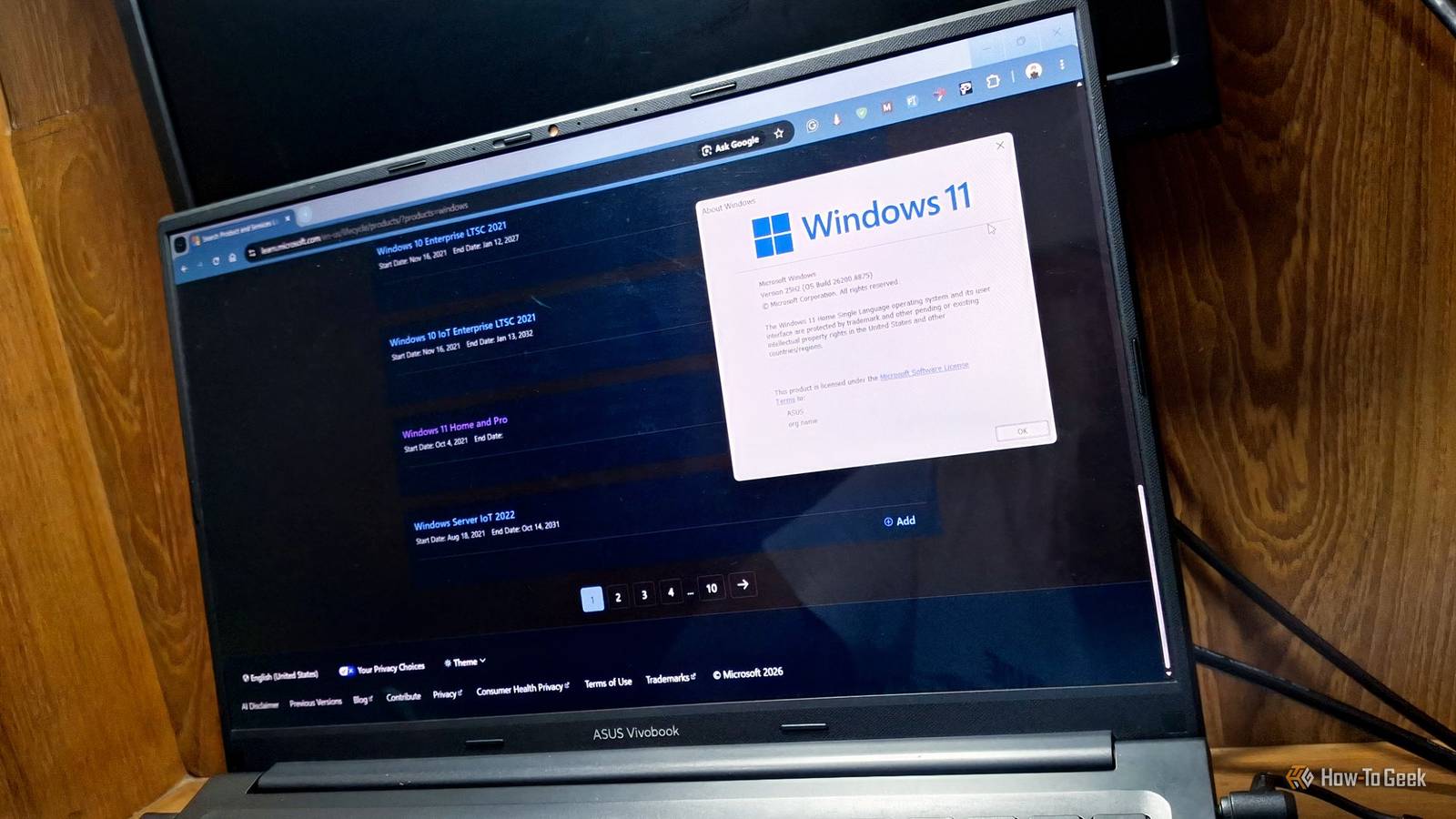
Here's how: Press Windows key + R to open Run, type winver, and hit Enter.A small window pops up showing your exact Windows version and build number.If you'd rather browse there, go to Settings > System > About.
Scroll down, and you'll find the same version and edition info listed under Windows info.Once you've got your version and edition, plug them into Microsoft's Lifecycle Policy search tool online.It'll tell you the exact end-of-servicing date for that specific combination.
For example, this page lists all the dates for Home and Pro versions.You can also browse by years.Close That third step matters more than people expect.
Two PCs running the same version number can have wildly different expiration dates if one's on Pro and the other's on Enterprise.Don't assume.Look it up yourself.
What to do once you know your expiration date Your next move depends on how close the date is Once you've got your date, here's roughly how to think about it.Still have a year or so? No action needed right now.Just keep it in the back of your mind.
Only a few months left? Head to Settings > Windows Update and hit Check for updates.Windows will usually offer you the next version automatically once you're eligible.However, if you're already past the date, then update immediately.
If you're still on Windows 10 and can't move to Windows 11 because of hardware limits, look into enrolling in Extended Security Updates to buy yourself more time while you figure out your next steps.There's another less popular action you can take.That is, switching to another operating system.
Here's a good rule of thumb.If your build is unsupported, and you're regularly connecting to public Wi-Fi, handling anything sensitive, or just don't want to think about it again for a while, don't wait around.Update now rather than later.
Now you're the one keeping track of the clock Every Windows PC out there is running on borrowed time.The good news is that checking your own expiration date takes about thirty seconds, and once you know it, staying ahead of it is mostly just remembering to hit "check for updates" every so often.If you want to make that even more hands-off, it's worth tweaking a few settings so Windows Update handles this for you automatically going forward.
Read More