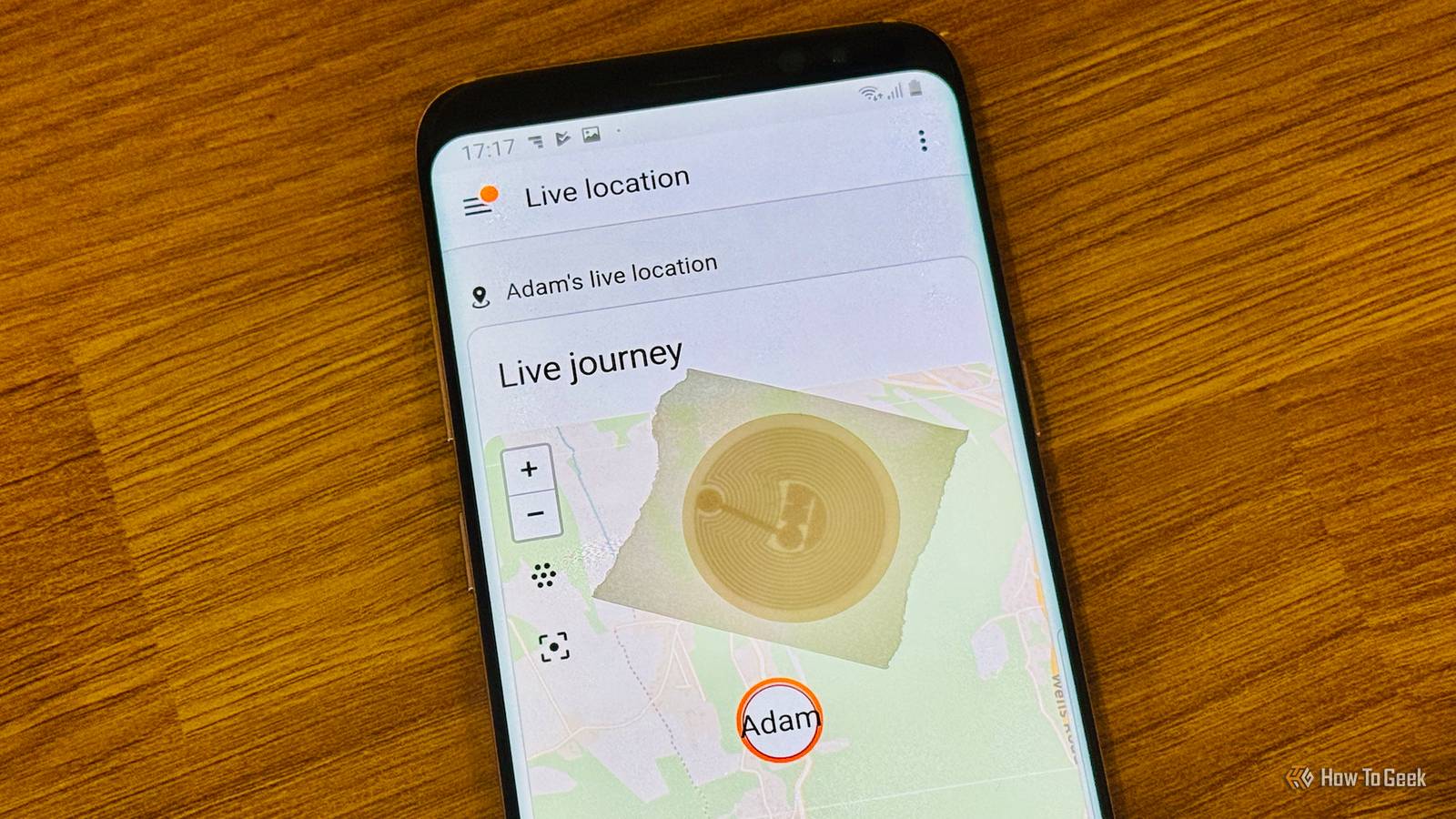
Apps such as Apple's Find My and Google's Find Hub make it easy for friends and family to track your real-time location.The problem is that if you use these apps, your location is exposed every second of the day.I decided to ditch always-on location sharing and use NFC tags to share my location when I wanted to.
How my NFC location sharing works Four NFC tags are the key There are a few main reasons why I might want to share my location.If I'm traveling to or from a specific location, such as work, I want my wife to be able to check where I am.If something happens, like my car breaking down, she can immediately see my exact location.
When I've reached my destination, I don't need to keep sharing my location.If I'm at work, for example, then location tracking doesn't need to happen until I leave again because it's just going to show me staying still for hours.While I want to track trips to and from regular locations, I also want to be able to share my location when I'm headed somewhere unusual and stop tracking again once I reach my destination.
I've managed to set up a system that does all of the above.All that's required is my phone, Home Assistant, and four NFC tags.NFC Tags Sticker with NTAG215 Blank Chips Weight 1g Colors White These affordable NFC tags use the NTAG215 chip that can hold up to 504 bytes of memory.
They're easy to stick onto any surface, providing you with a convenient way to trigger automations in your smart home.Connectivity NFC $5 at Amazon Expand Collapse Preparing the phones and Home Assistant My phone needs to share its location with Home Assistant My Home Assistant instance is reachable from outside my home through Home Assistant Cloud, so the automations can run no matter where I trigger them from.As long as my phone can reach my home server, the system will work, so options such as using a VPN tunnel or reverse proxy are also available.
The Home Assistant Companion app on my phone always has on-demand location access, so that it can track my location whenever I need it to.The only other thing I needed to do was ensure that the Home Assistant Companion app was installed and connected to my Home Assistant instance on my wife's phone, and that notifications were enabled.Related Tired of Killing Your Potted Plants? Here's How NFC Tags Can Help Use NFC tags to trigger an automation that logs when you've watered a plant.
Posts By Adam Davidson Enabling and disabling the live map My location is only visible when I want it to be I set up a new dashboard in Home Assistant using the built-in map card.I configured it to display the location of my phone and for the position on the map to automatically update as I moved.I set it to show one hour of location history as a visible trail.
The key part was to create a Home Assistant helper called Location Sharing Active.When this helper is on, the map is visible, but when it's off, the map is replaced with a message stating that location sharing is off.This way, even in Home Assistant, my location is only visible when I'm actively sharing it.
I then disabled location sharing in the Find Hub app on my phone.This means that my location is only displayed to my wife on the dedicated Home Assistant dashboard, and only when the Location Sharing Active toggle is on.Triggering the automation with NFC tags Each tag does a different job Close The four NFC tags are used to trigger the automations that power the whole setup.
When I scan the NFC tag by my front door, it sends a notification to my wife's phone saying, "I'm heading out" and shares a link to the live location dashboard.The Location Sharing Active toggle is turned on so that the live map is visible.When I get to my destination, I scan the NFC tag in my car.
This sends a notification saying that I've arrived, and turns off the Location Sharing Active toggle, so that the map is no longer displayed.If location sharing isn't already active, scanning the Car tag does something different.It sends a notification saying, "I'm heading home," and turns on the map so that my wife can track my journey home from wherever I am.
The Work NFC tag does two things.If it's before midday, it sends a message saying that I've arrived at work and turns off the Location Sharing Active toggle.If it's after midday, it sends a message saying that I'm heading home and turns on the toggle so that my journey can be tracked.
The final NFC tag is in my wallet.I can scan this tag at any time to start sharing my current location so that it's visible in the Home Assistant dashboard.Scanning the tag again turns location sharing off.
The experience is better on Android Using an iPhone involves more friction or more effort Since this setup uses the Home Assistant Companion app, it works in a similar way on both iPhones and Android phones, both of which can trigger Home Assistant automations by scanning NFC tags.The key difference is that on Android, the automation can run as soon as the NFC tag is scanned, without the need for any additional confirmation.On iOS, you have to tap a notification to confirm that you want the automation to run, which is an additional layer of friction.
It is possible to use the Shortcuts app on an iPhone to trigger a shortcut that runs without confirmation when an NFC tag is scanned.This shortcut can then trigger the relevant automation.It's not nearly as slick as the Android setup, however.
You don't need Home Assistant to set up something similar I used Home Assistant for this project because I already have it set up, and it was the easiest way to create the necessary automations.In theory, you could set up something similar using Tasker or the Shortcuts app, with a little effort.You can then turn off location tracking and only share your location when you want to.
Read More