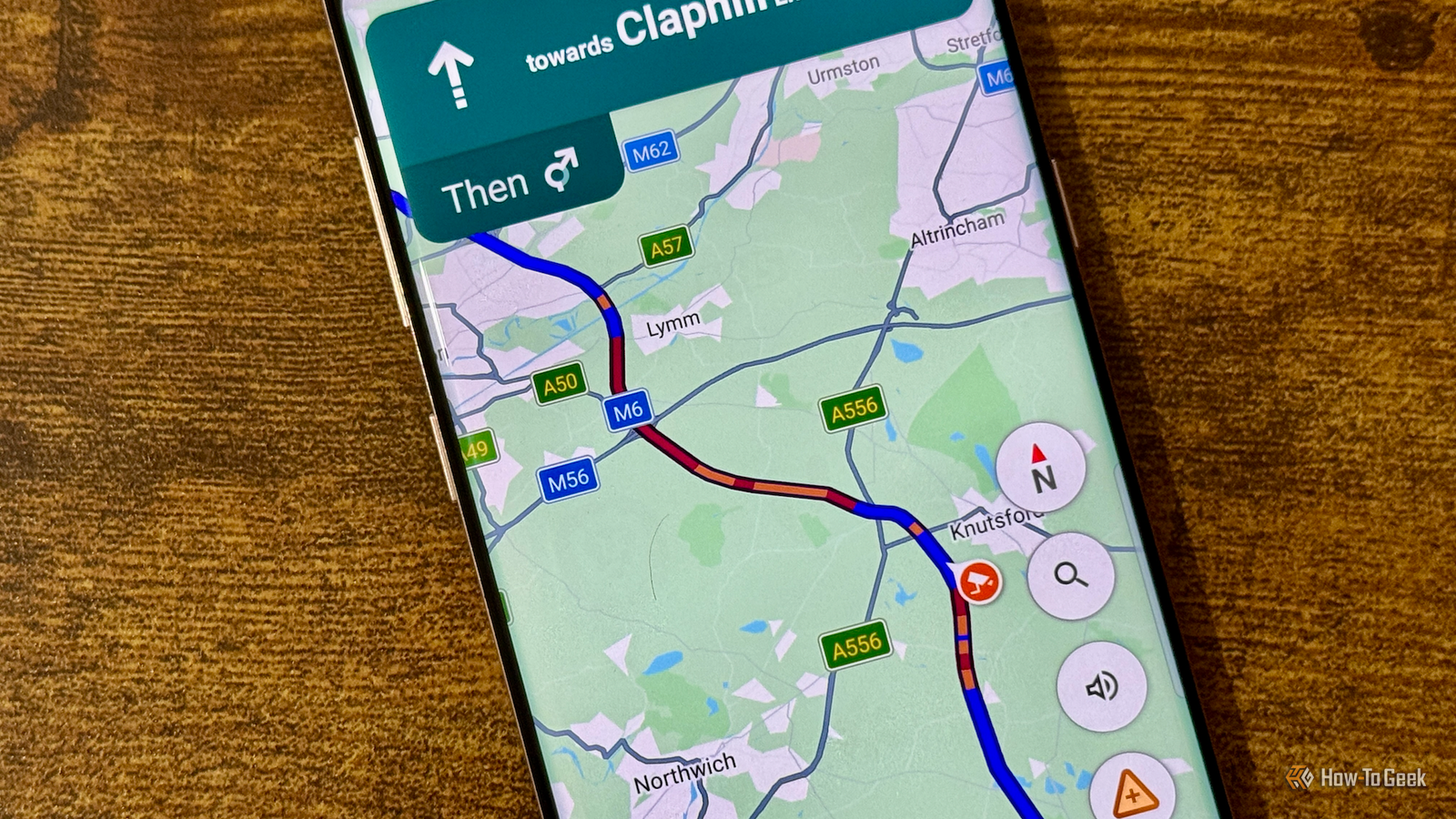
Google Maps is one of those apps I use so often that I just assume I know everything it can do.I was wrong.When I started digging, I found some features that solve surprisingly common problems and make everyday journeys easier.
Here are seven hidden gems worth knowing.I'm using Google Maps on iPhone for the screenshots in this article, but I also tested all seven features on Android, and they work there, too.The wording differs slightly in a few places, but the steps and menu paths are essentially the same.
Save your parking spot Never lose your car again Close There are few things more embarrassing than walking around a parking lot looking for your car.For years, I switched to Apple Maps when I needed help remembering where I'd parked because it automatically saved my location when I connected to Apple CarPlay.I didn't realize Google Maps could do something similar.
After you've parked, tap the blue location dot, select Save your parking (Android) or Save parking (iPhone), and Maps drops a marker at your location.Then, when you're on your way back, tap the search bar.If your car's location doesn't appear automatically as a suggestion, type Parking location or Saved parking, and Maps will help you avoid that embarrassment.
If you're an iPhone user and have connected your device to your car, go to Settings > Navigation > Parking options and enable Automatically save parking.Maps can then mark your parking spot automatically when it detects that you've stopped driving or your phone disconnects from your vehicle.Add a stop on your route No need for a massive detour Close You don't always know about every stop you'll need to make before setting off.
Maybe you suddenly need gas, want to grab a coffee, or remember something you need to pick up.The good news is that you don't need to re-plan your route from the start.While navigating, tap the magnifying glass and either type the place you want to visit or select one of the default options at the top of the screen.
Maps shows how much additional driving time the stop will add to your journey, if any, so you can decide whether the detour is worth it.Once you've chosen the best option for your route, tap Add stop.If you're driving, don't try to add a stop or change your route while the car is moving.
Pull over somewhere safe first, have a passenger do it for you, or use a voice command.Send a route from your PC to your phone Do the fiddly planning on a bigger screen Close I often find Google Maps easier to use on my PC when I'm planning a more involved journey.The bigger screen makes it easier to explore the area, add stops, compare routes, and generally figure out where I want to go before I leave.
Once you've planned the route, you don't need to recreate it on your phone.As long as you're signed in to the same Google account on your PC and phone, click Send directions to your phone.Google Maps will send a notification to your phone with the route ready to open.
You might be asked to enable notifications for this to work.Maps can recalculate the route when you open it on your phone, particularly if your route preferences differ between devices.If you want to keep a particular route, adding waypoints can help preserve it.
Tell Google Maps when you need to arrive Plan backwards Close For most journeys, we usually think about when we want to leave.But Google Maps can work backward from when we need to arrive.Enter your destination, tap Directions, then tap the three dots and choose Set depart or arrive time.
Select Arrive, enter the date and time, tap Done or Set, and Maps will estimate when you should leave.This is particularly handy for appointments, flights, dinners, or anything else where arriving late can cause problems.Maps does the arithmetic for you, factoring in typical traffic conditions for the time you're planning to travel, so you don't have to guess how early you'll need to leave.
Save your legs on a walking trip Avoid those steps Close If you're dragging luggage around, pushing a stroller, using a wheelchair, or simply don't fancy hauling yourself up several flights of stairs, Google Maps can adjust its walking route to account for this.Enter your destination, tap Directions, choose the walking option, then tap the Trip options icon.Turn on Wheelchair accessible to prioritize routes that avoid steps and favor elevators where possible.
Download a map before you lose signal Don't get caught out in remote areas Close Google Maps is usually reliable, but you can quickly find yourself in trouble if your internet connection disappears.Whether you're planning a road trip through rural areas, somewhere overseas where you don't want to rely on mobile data, or anywhere you know has patchy coverage, Maps can save an entire area to your phone so you can carry on navigating.Search for and select the area you want, then tap More > Download offline map.
If needed, adjust the area, then tap Download.Once downloaded, Maps can provide driving directions without an internet connection as long as your entire route falls within the saved area.You won't get live traffic information or alternative routes while offline, and walking, cycling, and public transit directions aren't available.
Share your trip progress Stop sending "five minutes away" texts Close If someone is waiting for you, you can let Google Maps tell them where you are and when you're expected to arrive.It's basically a way to turn yourself into an Uber for the occasion, minus the rating system.Start navigating to your destination, then swipe up on the info card and tap Share trip progress.
After choosing a contact or tapping More options to select an app to share the link, the person can see your current location, destination, and ETA while you're on the move.Once you arrive or stop navigating, the sharing ends automatically, so you don't have to remember to turn it off.Maps can do more than you might think I thought I knew Google Maps pretty well, but these features have already changed how I use it.
And these are only a handful of the tools hiding beyond basic navigation.Google Maps may be primarily about getting you from A to Z, but there are more hidden gems if you want to get more out of the app.
Read More