Back in the early days of Android (circa the early 2010s), I decluttered my phones of redundant files with third-party storage-cleaning apps.At one point, I even used one of those infamous RAM cleaner apps, but I quickly realized the error of my ways and banished memory cleaners from my phone for good.But I kept using storage cleaning apps for a few more years, until I switched to Windows Phone in 2014.
Two years later, I returned to Android with the legendary HTC One M8, at which point I started relying exclusively on built-in Android tools to keep my phone storage lean.More than a decade later, I haven't changed my ways.Files by Google is a great tool for freeing up space On Samsung Galaxy phones, you can use the built-in My Files app Close While I don't really use Files, the built-in file manager on my Pixel 10 Pro, I love its storage-cleaning feature, which allows you to get rid of unnecessary files in seconds.
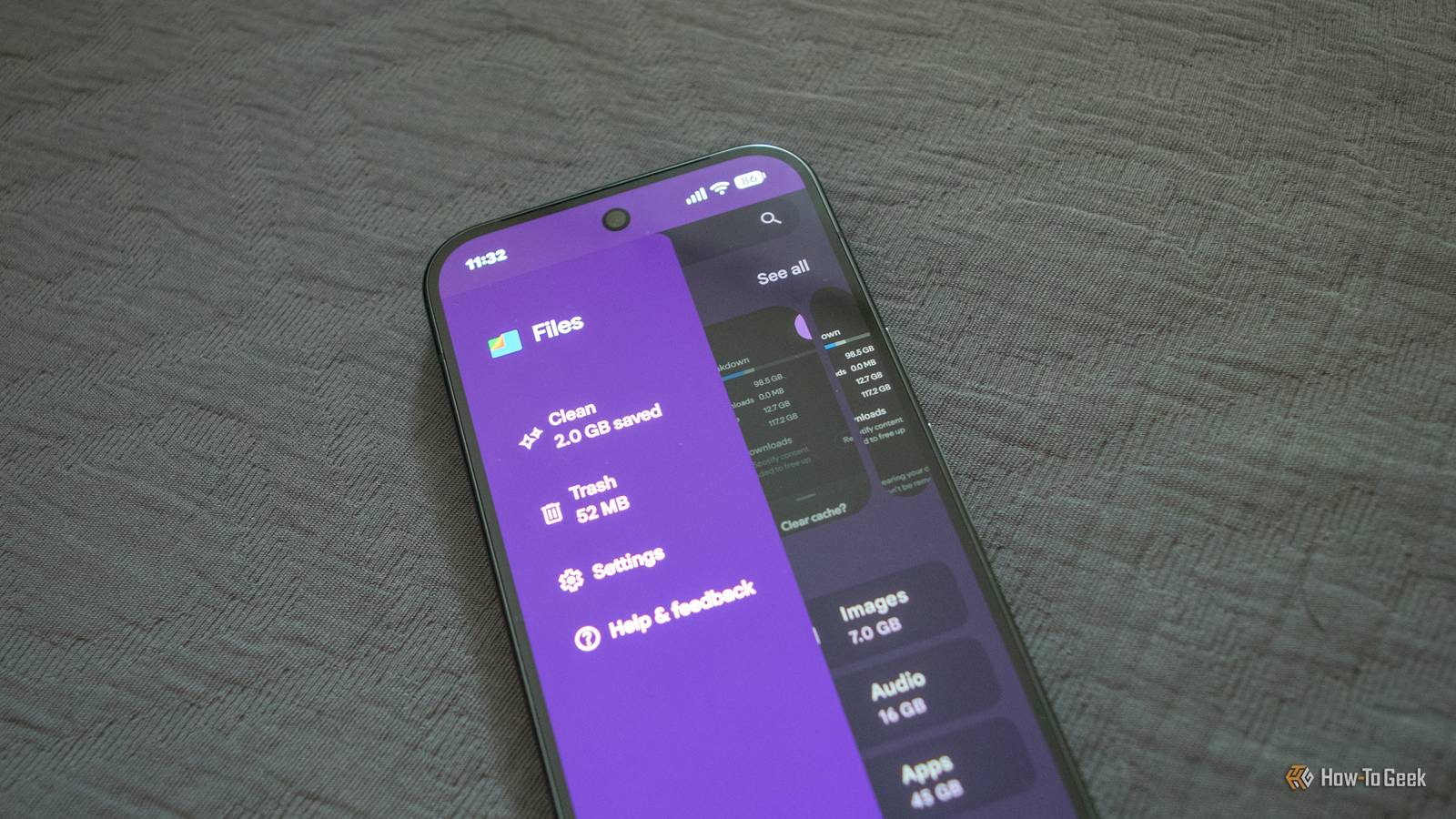
All you need to do is open Files, tap the hamburger menu, and then tap Clean.A new screen then opens up, greeting you with various ways to free up your phone's storage.You can delete duplicate files, get rid of blurry photos, audit and remove large files you don't need, as well as delete files in your Downloads folder and uninstall apps you haven't used in a while.
The app also serves you a few options that kind of miss the point.For instance, in my case, it suggested deleting my local music files, which is the last thing I would do to free up storage.But in general, it's pretty good at suggesting ways to free up storage quickly and efficiently.
I followed some of its suggestions and freed up about 2GB of storage, mostly by deleting apps I haven't used in months, which accounted for more than 1.8GB of that space.Not bad at all.If you own a Samsung Galaxy phone, the built-in file manager—My Files—offers a similar storage-decluttering feature called Manage storage, which you can find on the app's home screen and which works just as well as the one offered by Files.
Android keeps deleted files in the Trash folder, which you can empty to free up storage Here's how to access it on Google Pixel and Samsung Galaxy phones Close What built-in file managers such as Files on Pixel phones and My Files on Samsung Galaxy devices also allow you to access is the Trash folder, where the system keeps files you delete for 30 days before permanently getting rid of them.If you need a quick way to free up some storage, deleting files kept in Trash is a surefire way to get some free space.To access the Trash folder on Pixels, open Files, tap the hamburger menu, and then tap Trash.
Alternatively, you can go to Settings > Storage > Trash.Once there, freely select all the items stored there and delete them because, well, you already deleted them.In my case, I freed up ~1.9GB of storage by cleaning up my Trash folder.
On Samsung, open My Files and look for the Trash button on the home screen.After you open it, you can tap the three-dot menu and then tap Empty to remove all files at once, or tap Select to individually select the items you want to remove.Close You can free up storage space with Google Photos You can skip this if you don't want to delete locally stored photos and videos Close Another built-in tool for freeing up storage on Android phones can be found in Google Photos, which is preinstalled on many Android devices.
To access it, open Google Photos, tap your profile image, and then tap Free up space on this device.This will delete all locally stored photos and videos that have already been backed up to the cloud.You will still be able to view those files in Google Photos, but you won't be able to access them in other gallery apps because, well, they'll be deleted from your phone.
While I could free up almost 5.5GB of space by deleting locally stored photos and videos, I'd rather not because I like having local access to my photos and videos and because I have a bunch of free space on my phone.On the flip side, if you're someone who constantly fills up storage with tons of photos and videos, you might want to check just how much space you can save by removing backed-up files from your phone.The amount might surprise you.
Deleting app caches can free up gigabytes of storage Especially when it comes to streaming apps Close Another utility I'd been using a lot back in the day, but not so much nowadays, is deleting individual app caches.While not the most elegant way to free up storage, it can help in a pinch after you exhaust other options and still need more free space.Just don't forget that this is a temporary solution and that apps will rebuild their caches sooner or later.
That said, some apps, such as social networks, chat apps, browsers, and streaming apps, can have massive caches, sometimes measured in tens of gigabytes, so clearing the caches of such apps isn't actually such a bad way to reclaim storage.If you own a Pixel, you can list all your apps by size by going to Settings > Storage > Apps.All you have to do now is look for the worst offenders and clear their caches to free up space.
On Galaxy phones, open Settings > Apps, and all your apps will be listed there by default.You can then sort the apps by size and do the same.The 20 largest apps on my phone had a combined cache of about 6GB, which is a solid chunk of change.
The catch is that Spotify, the worst offender by far, lists its temporary cache as part of User data.If you want to clear the app's cache without deleting all the app's data, which includes stuff like your login credentials, you have to open Spotify, tap your profile image, open Settings and privacy, go to Data-saving and offline, and scroll down until you find the Clear cache button.Spotify's cache took almost 13GB of space on my phone, so I deleted it without a second thought.
All told, I freed about 19GB of space this way.Close I reclaimed almost 23GB of storage on my phone without even touching locally stored photos and videos I hadn't really used any storage-cleaning tools on my Pixel 10 Pro before writing this article because I had a bunch of free storage left.But for the purposes of this piece, I reclaimed almost 23GB of storage, and now I'm sitting at 140GB of free space on my phone.
That's without deleting locally stored photos and videos that have been backed up to Google Photos.If I had gotten rid of those too, the number would grow to ~28.5GB, which is a pretty solid result if you ask me.So, at the end of the day, you don't really need a third-party storage-cleaning app.
You can do it all with tools already available on your Android phone.They're simple to use and quite effective, especially if you're trigger-happy and constantly snap photos and record videos.That said, if you still want to use a third-party app, I've only heard good things about SD Maid.
Just make sure to download version 2/SE of the app, which is optimized for modern Android phones.
Read More