
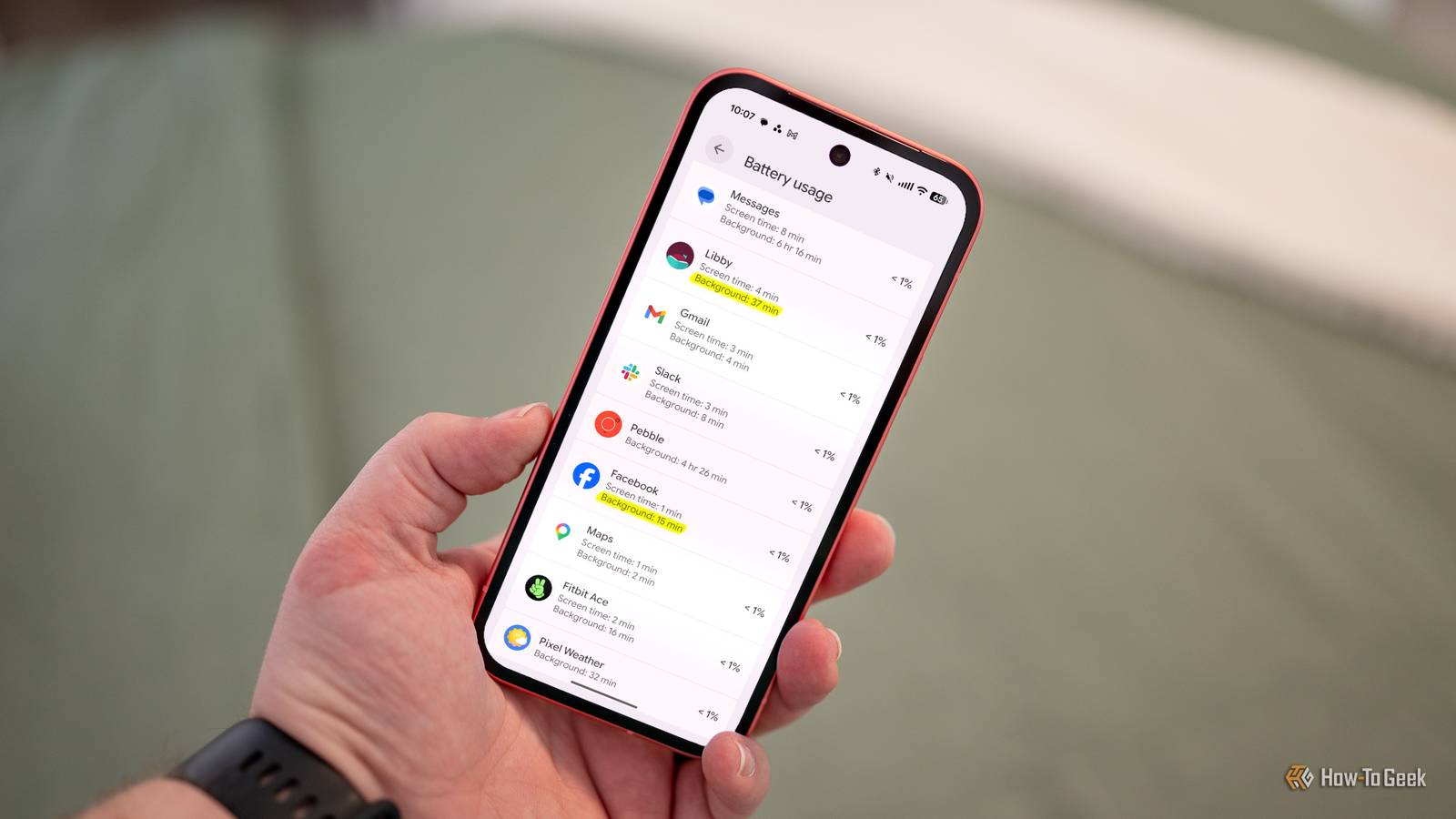
Recently, I’ve noticed the battery life on my Android phone is not as good as it used to be.So, I went digging around the battery settings to see what I could find.What I discovered was a few apps that have been sucking up battery despite rarely being opened.
It’s not unusual for Android apps to be running in the background.In fact, it’s intended.Android automatically keeps recent apps ready for you and closes older ones to free up resources.
However, some apps have a bad habit of sucking up battery even when they’re not open.Now, I know how to find them.Battery usage doesn’t end when you close an app Sometimes it’s necessary—sometimes it’s not Obviously, apps use the most battery when the screen is on and they’re actively being used.
But apps can still be “active” even when you’re not using them.Many apps have processes that run in the background to enable certain functionality and to be ready for the next time you open them.A simple example would be a weather app that has a widget on your home screen.
Even if you don’t open the app every hour, it will still work in the background to update the temperature on the widget.The same thing happens with a smartwatch companion app.You may rarely open it, but it’s always running in the background to communicate with your watch.
These are clearly intended behaviors that you wouldn’t want to stop.The problem that I discovered, however, was that apps that I did not want or need to be running in the background were using more battery than I’d like.What do battery usage numbers actually mean? It’s not as obvious as it seems One of Android’s more confusing places tucked away in the Settings is called “Battery Usage.” It sounds straightforward, but many people misunderstand what the numbers here mean.
Let’s clear this up before we dive into background stats.Apps are listed in order of how much battery life they’ve used, with a percentage listed next to them.It would be natural to assume that the percentage is how much out of the battery’s starting 100% that the app has consumed.
However, if you start doing the math, you’ll quickly realize it doesn’t add up.Here’s the deal: the percentage is how much of the consumed battery the app is responsible for.For example, in the screenshot above, Discord shows 13%—that doesn’t mean Discord used 13% of my total battery.
The phone is sitting at 37%, which means it’s dropped 63%—Discord used 13% of .How to see how often apps are running in the background Screen time vs background activity With that out of the way, let’s look at the other numbers on this screen.Each app has “Screen time” and “Background” listed underneath it.
“Screen time” is how many minutes the app has been actively used, and “Background” is how many minutes it’s been running in the background.The latter is the important bit.Now, as mentioned, the background usage for some apps makes sense.
I’m not worried about Oura or Pocket Casts using battery in the background.What I am concerned about is an app like Bluesky, which I only used for 3 minutes, but it kept using battery for 46 minutes in the background.Over a few days of monitoring, here are the biggest offenders I found on my phone.
Bluesky - Screen time: 3 min, Background: 46 min Instagram - Screen time: 24 min, Background: 47 min Libby - Screen time: 4 min, Background: 37 min Facebook - Screen time: 1 min, Background: 15 min Google - Screen time: 0 min, Background: 2 hr 26 min These are apps that I don’t need to be running in the background.When I leave Instagram, that’s it—I don’t even have notifications enabled.There’s no reason for it to be sipping battery when I’m not actively using the app.
Thankfully, I can fix that, and so can you.First, find the battery usage stats by going to Settings > Battery > Battery usage (Samsung Galaxy: Settings > Battery).Select an app from the list and disable “Allow background usage” or enable “Background usage limits.” That’s all there is to it.
From now on, when you leave the app, it won’t continue doing stuff in the background.It’s a simple fix, but do this for several apps, and it adds up.Related Charging your phone to 100% isn't the problem—this is If you want to take care of your phone's battery, setting a charging limit to prevent wear might seem like a good idea on the surface.
Batteries don’t like to be nearly full or nearly empty, and the feature that most new Androids and iPhones include gives you an easy way to manage them.Posts 26 By Ismar Hrnjicevic
Read More


