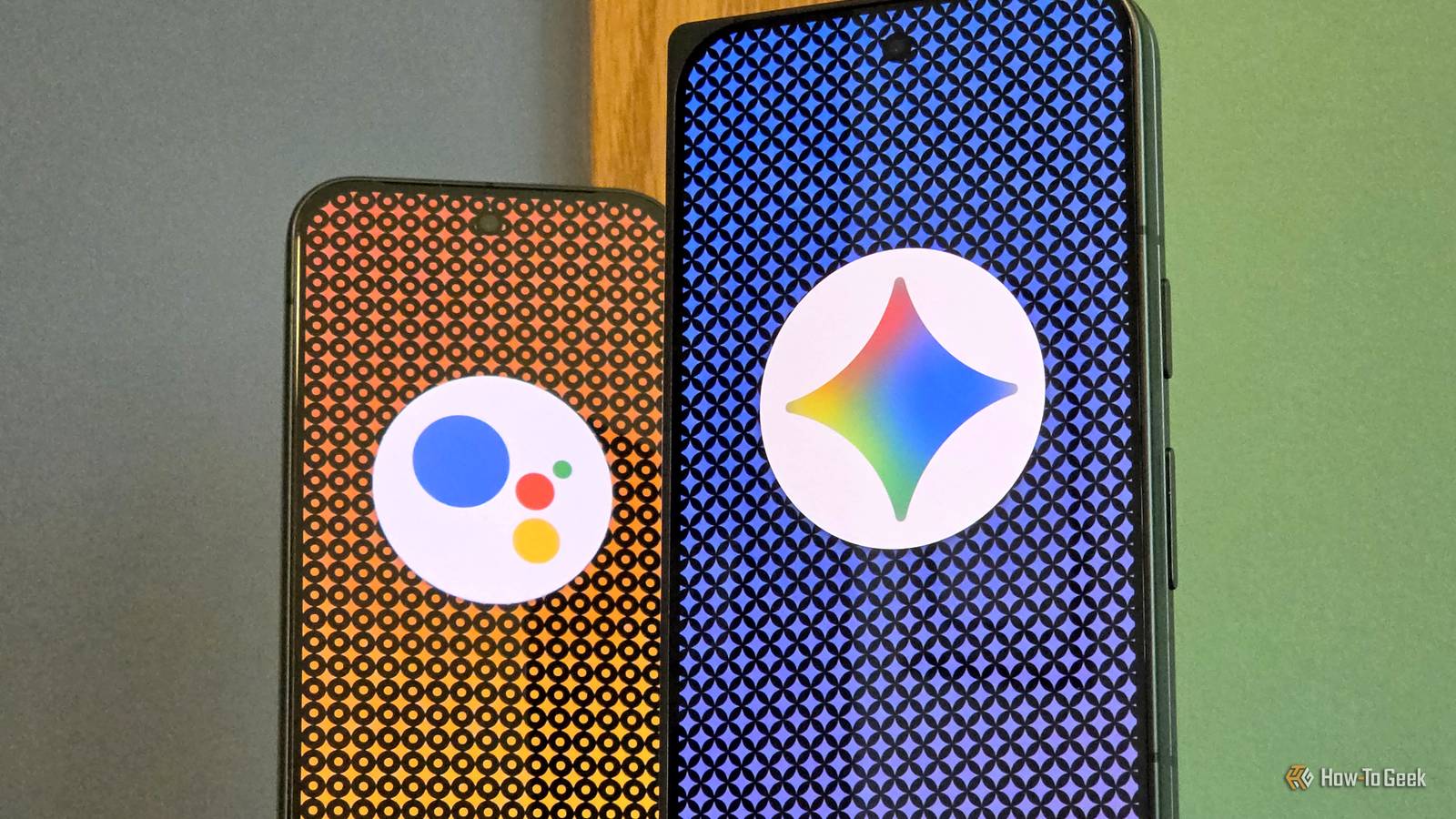
Google Assistant’s retirement was announced well over a year ago, but the official end date is now in sight.For better or worse, Gemini will be the company’s last digital assistant standing on September 4th.It’s had plenty of time to get up to speed with Assistant—here’s what’s still missing.
It’s been 17 months since Google first shared its timeline for replacing Assistant with Gemini.The original plan was for it to happen by the end of 2025, but in December, Google delayed it until sometime in 2026.That time was finally determined earlier this month, and the clock is ticking.
Now, Google says the shutdown will “take a few weeks,” but there’s no getting around the fact that Google Assistant’s days are numbered.If you’ve been holding out on switching to Gemini, things are about to change in a big way.Some of the features you’ve gotten familiar with will no longer work.
Personal connections Gemini doesn’t work well with contacts Gemini has the ability to look into your connected Google apps, but for some reason, it really struggles when contacts are involved.This shows up in two key areas.First, Google Assistant had a “Your people” feature—it allowed you to add “Household contacts” and assign relationships to them.
This meant you didn’t need to use full names to get Assistant to make calls or send messages on your behalf.I could simple say, “Call my wife,” and it would know who to call.Second, Gemini can’t seem to grab location addresses from contacts.
I’ve asked it to “navigate to [name]’s house” on multiple occasions, and it either tells me it can’t access my account (it can) or tries to find the address on the web.Google Assistant had no trouble accomplishing this task.Close Choosing “default” third-party apps and sources Google wants you to use Google services One of the best things about Google Assistant was the ability to plug and play different apps and services for various things.
Music and other audio apps were a big part of that.You could choose Spotify, iHeartRadio, YouTube Music, Deezer, Apple Music, and a couple of others as your preferred music player.Then, when you would ask Assistant to play music—whether it was a general “play music” command or specific artists and albums—it would default to your preferred service.
Gemini has a “Connected Apps” feature, but the selection is much smaller.For music, you can only connect to Spotify or YouTube Music, but to use Spotify, you have to specifically request it in your command.This is the case in other areas as well.
You can't choose a preferred news source, for example.This was a part of Google Assistant that simply did not carry over into Gemini.Close Quick Phrases Saying "Hey Google" feels repetitive A few years ago, Google Assistant gained a handy feature called “Quick Phrases.” When enabled, it allowed for certain commands that didn’t require the “Hey Google” wake-up.
For example, when a timer goes off, you could dismiss it by saying “Stop.” Google Home speakers got most of the phrases, but phones supported a few of them as well.Now, this is one that I'm not entirely sure about.Quick Phrases have continued to work on my Google Home smart speakers after switching to Gemini, but not on my phone.
I can no longer snooze my alarm by simply saying “Snooze,” for instance.So, it would appear Quick Phrases are dead on Android phones—at least for now.Close Interpreter Mode Gone but not forgotten Google Assistant had a futuristic feature called “Interpreter Mode.” It allowed for real-time translation between two people speaking in different languages.
Gemini can't do this, but Google actually removed it from Assistant recently, too.The good news is that the same functionality now lives in the Translate app—tap the "Conversation" button—which is a better place for it anyway.Close The potential workaround As I was putting together this article, I had Google Assistant and Gemini open next to each other.
One thing was blatantly clear: Assistant had tons of configuration options.Gemini’s settings are a ghost town in comparison.Close However, there's one Gemini feature that can potentially make up for its missing features.
Under the “Personal Intelligence” section in the Gemini settings, you’ll find “Instructions for Gemini.” This is essentially where you can give Gemini explicit instructions for how it should handle certain things.I mentioned needing to specifically call out Spotify by name in order to get Gemini to use it.You could work around this by creating an instruction that says something like, “When I give a music-related command, use @Spotify.” Another workaround would be an instruction that tells Gemini who you’re referring to when you say “my wife” or “my dad.” Close Personally, I’ve had hit-or-miss luck with these instructions.
I tried to tell Gemini to use Google Tasks when adding things to my to-do list, but it always wanted to use Google Keep.Simpler instructions, like telling it who my wife is, work more reliably.Of course, for many people, the issues with Gemini aren’t necessarily what it do, but how it handles the things it’s supposed to be able to do.
For better or worse, Google has hitched its future on Gemini.
Read More