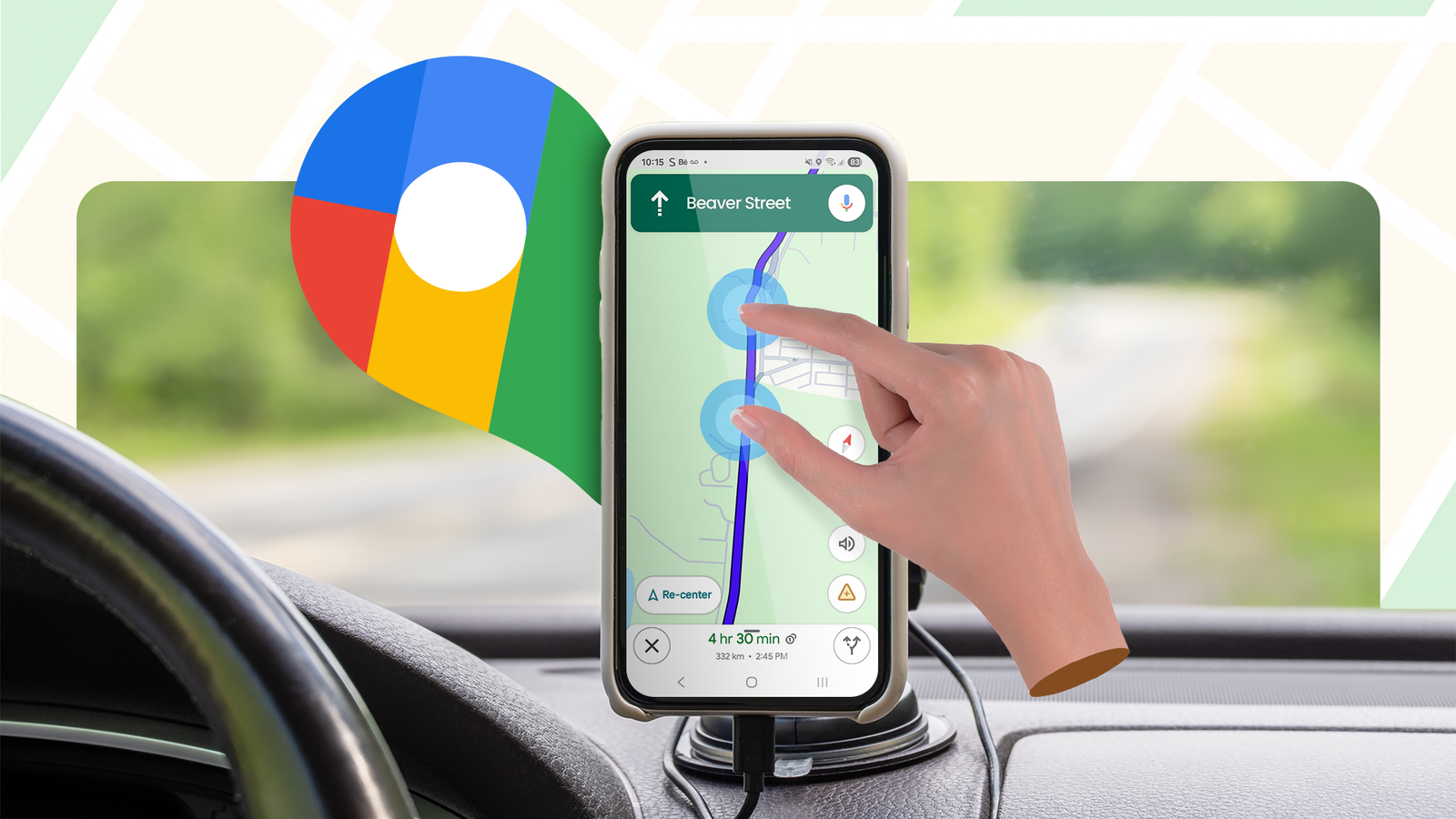
Android has terrible defaults for settings that directly concern your digital privacy.They're all built on an "opt-out" design, so you're expected to turn them off yourself if you don't want to give away all your personal information.Disable precise location Most apps don't need this Your phone can pinpoint your exact location within a meter or two.
This feature is called "precise location." Without precise location enabled, apps and websites can only get an approximate location within a couple of miles.I had assumed that the approximate location was the default on Android phones.I recently had a little bit of a rude awakening regarding that.
A mobile wallet app would not let me proceed with the setup until I enabled the precise location feature (I had turned it off for an unrelated experiment).As it turns out, the precise location feature is the default on Android, not an approximate location.So the mobile wallet app had access to my precise location this whole time.
I'm not sure why a random wallet app needs to track my position down to the meter, but I found it creepy.Since then, I have made it a point to keep precise location disabled on all my Android devices.Sometimes apps will explicitly ask you for that permission, giving you the option to choose between precise and approximate.
However, apps will often just give you three location permission options: "Allow all the time," "Allow while using the app" and "Deny." If you allow it, it can access your precise location, unless you explicitly go into settings and turn it off.To disable precise location, open your phone's permission manager.You can either search the settings app for it or go to Settings > Location > App location permissions.
Here you'll see a list of all the apps with access to your location.Tap each one to see if it has the "Use precise location" switch enabled.Turn it off for apps that don't need it.
Other than Maps, most apps can be used without it.Some phones have a Quick Settings toggle for turning location on and off, which you might find handy too.Samsung Galaxy S26 SoC Snapdragon 8 Elite Gen 5 Display 6.3-inch Dynamic AMOLED 2x RAM 12 GB Storage 256 or 512 GB $900 at Samsung Expand Collapse Hide lock screen notifications Keep sensitive notifications hidden This one is pretty straightforward.
By default, Android shows the content of your notifications on the lock screen.That means anyone who can look at the screen can also see your messages, emails, banking alerts, or even one-time passwords.To hide these notification previews, go to Settings > Notifications > Lock Screen.
Tap "Notifications to show" and select "Show notifications but hide content." You can also switch off lock screen notifications for certain apps.Turn off Gboard telemetry This app is a privacy nightmare I firmly believe that your keyboard is the one app that should never have any internet access.To me, Google's Gboard is a privacy nightmare because of that.
This default keyboard is installed on a billion devices today, and it gets full network access by default.And it uses that access to ping data back to Google.Google uses customer typing data to train Gboard's text prediction features.
That's why there is "Delete learned words & data" in Gboard's settings.It's logging and storing your typing history in the phone's local storage.This is the data that will be used to train Gboard's prediction algorithm.
However, your keystroke history isn't sent to Google's servers.At least not in the raw format.There is a background app on your phone called JobScheduler.
When your phone is connected to Wi-Fi and charging, JobScheduler downloads an AI model onto your device and Gboard's local machine learning kicks in.It runs a training session on the keystrokes that it logged during the day.It then transmits the mathematical weights (not the raw keystrokes) to Google.
This is called "federated training." Google says it uses federated learning, so the raw keyboard typing data never leaves the device, which supposedly makes it private.But it's not a perfect system.Researchers have accurately reconstructed the typed words by reverse engineering the training weights (or gradients, as they're called) that Gboard sends out to Google.
Beyond this "federated training" data, Gboard also phones home with metadata.The metadata in this context means when and where you typed with Gboard.It knows exactly which app you're currently typing in, along with how many words you typed into that app and for how long.
These logs are all timestamped.Worse than that, these logs aren't even anonymous.They're tied to the unique device and advertising ID that Google assigns to every Android.
Subscribe to the newsletter for essential Android privacy fixes Want deeper, actionable Android privacy guidance? Subscribe to the newsletter for clear, step-by-step settings walkthroughs, practical tweak suggestions, and privacy-minded recommendations that make it easy to lock down your device.Get Updates By subscribing, you agree to receive newsletter and marketing emails, and accept our Terms of Use and Privacy Policy.You can unsubscribe anytime.
Here is the full list of all the permissions this app has.Close All this tracking and logging is enabled by default.So you're opted in automatically, and you have to manually opt out.
Go to Gboard settings (the little gear icon on the Gboard menu bar) and navigate to Privacy > Improve Gboard & Voice typing.Switch off "Share usage statistics," "Personalize for you," and "Improve for everyone." You should also tap "Delete learned words and data" to clear the logs Gboard already has.Close Gboard is a privacy nightmare, which is why I use a fully offline keyboard instead.
It has all the features of Gboard and then some, including sophisticated gesture typing and next-word prediction.I've been using it as my default keyboard for almost a year, and it works just fine.If you care about your online privacy, these three settings are the first you should change whenever you're setting up an Android phone.
There are other settings you can change, too, but these are the easiest to turn off and actually make your phone a more private device.
Read More