Every fresh Ubuntu install feels a bit like moving into a rented, furnished apartment.Everything looks good and works fine, but nothing feels quite like yours yet.One of the nice things about Ubuntu is that you don't have to spend an afternoon tinkering with GNOME extensions to make the desktop your own.
Add How-To Geek on Google Add as Preferred Source Follow on Google Discover You can make a few tweaks in Settings and run a handful of commands to make your desktop look cleaner and feel more responsive in just a few minutes.Try these seven changes for a better-looking, smoother-feeling desktop.You don't need to apply every one of them.
Just pick the changes that suit your needs.Related These 3 settings make Linux Mint look cleaner and feel snappier I cut animations, trimmed startup apps, and hid desktop icons to make Linux Mint feel cleaner and more responsive.Posts 5 By Rich Hein Customize Ubuntu's appearance Give your desktop a cleaner look without installing a new theme Close Ubuntu's default desktop is recognizable, but you don't have to stick with its original appearance.
A few changes can make your system feel more personal without adding another customization app.Open Settings > Appearance to change your wallpaper, choose an accent color, and switch between the available light and dark styles.Pick a combination that suits your workspace and makes application windows comfortable to look at throughout the day.
You can also open Settings > Ubuntu Desktop to adjust desktop icon settings.Ubuntu 26.04’s Yaru theme sits closer to upstream GNOME, so a good accent color and wallpaper go a long way.Your system will eventually feel more intentional and comfortable to use.
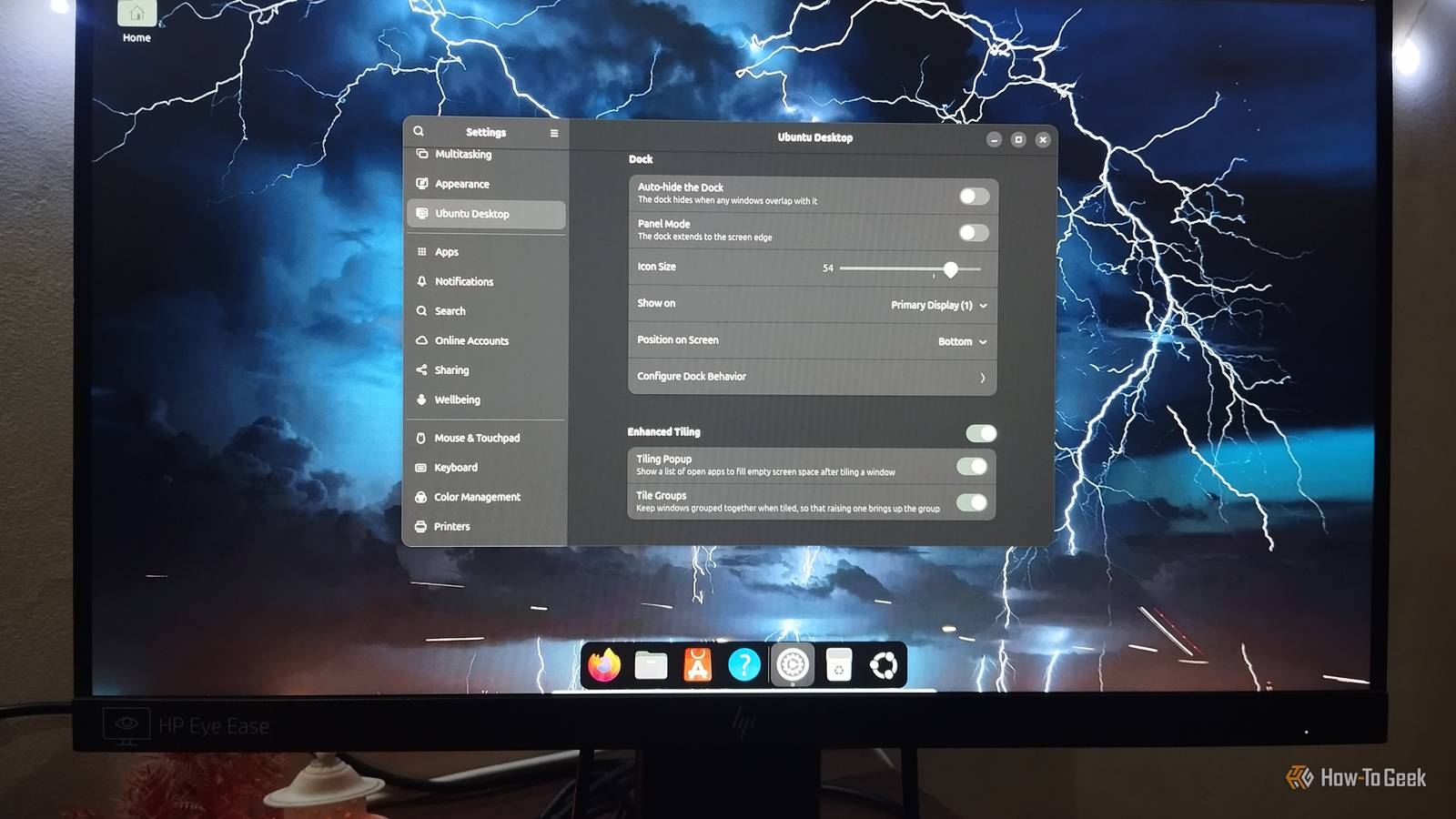
Tidy up the Dock Make the Dock tidier, smaller and less in the way Ubuntu's Dock is useful for launching apps and switching between open windows, but its default layout might not suit your workflow.You can adjust its behavior without replacing it with another dock or installing an extension.Go to Settings > Ubuntu Desktop > Dock.
Here, you can enable Auto-hide the Dock so it stays out of the way until you need it.You can also change its position on the screen and disable panel mode if you prefer a dock that doesn't stretch across the entire edge.The available behavior options also let you adjust what appears in the Dock.
For instance, you can hide the Trash icon if you rarely use it and would rather keep the dock focused on your favorite apps.Tidying up the Dock makes everyday interactions feel less cluttered.Fix Scaling, Resolution, and Refresh Rate Three display checks that make everything look sharper Display settings can make a noticeable difference to how comfortable Ubuntu feels, especially on a high-resolution monitor.
If text and interface elements are too small, or everything looks oversized, check your display configuration before installing a third-party scaling tool.Open Settings > Displays and check three things.First, make sure the resolution is your monitor’s native one.
Second, pick the highest refresh rate on offer, because many screens don’t run at their maximum by default and motion looks much smoother when they do.Third, choose a scale.Fractional scaling is enabled by default in 26.04, so you can pick values like 125% or 150% directly.
Higher scaling makes text bigger but leaves less usable screen space.Virtual machines may expose fewer display options than a physical computer, so your results might differ from what a laptop or desktop offers directly.Reduce Desktop Animations Make Ubuntu feel snappier with fewer transitions Desktop animations can make Ubuntu feel polished, but you might prefer fewer transitions when switching workspaces, opening windows, or moving around the interface.
Ubuntu includes an accessibility setting that can help.Go to Settings > Accessibility > Seeing and turn on Reduced Motion.Or, use the terminal: gsettings set org.gnome.desktop.interface enable-animations false Ubuntu reduces or disables supported interface animations, making some interactions feel more immediate.
I tried reducing animations and noticed that switching workspaces and navigating the desktop felt quicker.That doesn't necessarily mean applications are running faster or using significantly less CPU or memory.The interface spends less time animating transitions.
Stop unnecessary apps starting at login Take control of what runs in the background Some applications start automatically when you sign in to Ubuntu.That can be convenient for apps you use every day, but unnecessary startup apps may consume memory or run background processes before you even open them.In Ubuntu 26.04, the Startup Applications tool is gone.
GNOME 50 replaced it with a per-app toggle: open Settings > Apps, select an app that bothers you and turn off Autostart.You can inspect your user-level autostart entries in the Terminal with: ls ~/.config/autostart You can also list system-wide entries with: ls /etc/xdg/autostart That directory contains components that support your desktop session, so don't disable entries simply because you don't recognize their names.If you want to disable a system entry that doesn't appear in Settings, you can create a file in your folder with the same name as the system file.
mkdir -p ~/.config/autostart nano ~/.config/autostart/example.desktop Add these two lines, then log out and back in: [Desktop Entry] Hidden=true Remove the override file to restore the original behavior.Start with applications you recognize and genuinely don't need at login.That is a safer way to reduce unnecessary background activity.
Swap a Snap app for its DEB version Don't assume every Snap is your best option Close Snap packages are convenient but may add noticeable overhead on slower storage.If an app launches slowly, try its DEB version.Neither format is always faster, though.
I tested GIMP's Snap and DEB versions to see how they compared.The Snap download was approximately 147.73MB, while the DEB download was around 33.74MB.That's a substantial difference in download size, although a smaller download doesn't necessarily mean lower memory usage or faster performance.
The first launch was where I saw the biggest difference.GIMP took around 35.63 seconds to launch with Snap, compared with 20.71 seconds with DEB.After five uses, though, the results were much closer: 8.84 seconds for Snap and 9.54 seconds for DEB.
Memory and CPU usage were also relatively similar in my tests.The Snap version used approximately 690MB of resident memory and 9.7% CPU, compared with around 656MB and 7.8% for DEB.These results reflect my setup, and yours may vary by app, package version, and storage.
The takeaway isn't that you should replace every Snap.If a Snap app feels sluggish, trying its DEB version is worth a shot.Choose the right Power Mode Match the power mode to what you're doing Your power settings can affect how responsive your computer feels, so it's worth checking whether you're using the right mode for your workload.
Open Settings > Power and review the available options.Balanced mode is a sensible everyday choice, while Power Saver mode prioritizes energy efficiency on supported hardware.Choosing the right profile can help balance responsiveness and power use, although the difference depends on your hardware and workload.
Make Ubuntu work better for you You don't have to stick with Ubuntu's defaults.A few thoughtful tweaks can give your desktop a cleaner look, fewer distractions, and a snappier feel.None of these changes need extra software, and each one can be undone.
Start with the display and appearance settings, which give the most visible results, then work through the startup and snap changes if you want a lighter system.
Read More