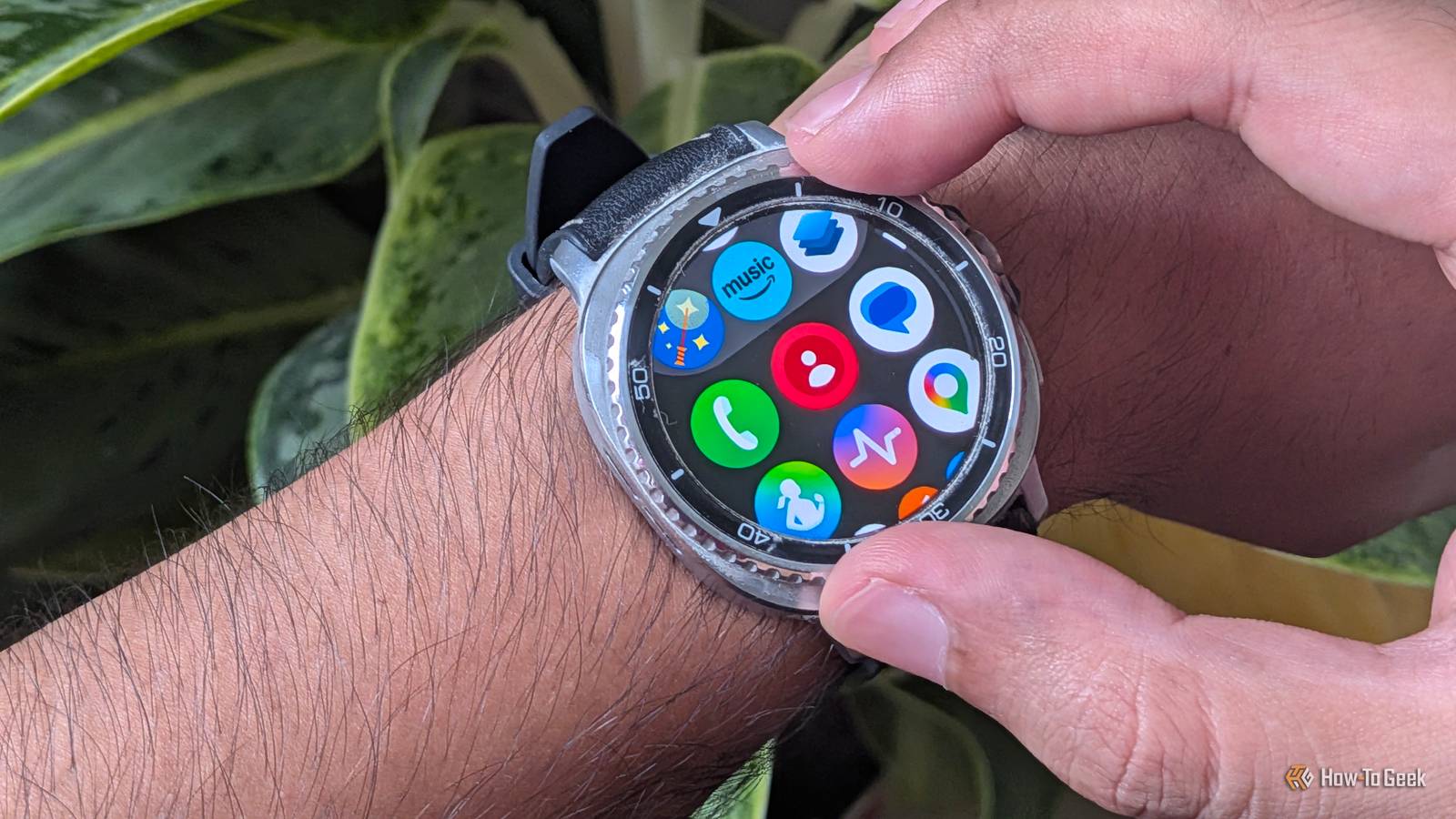
I bought a Galaxy Watch to track my health metrics and enjoy the convenience of having a mini smartphone on my wrist.Over time, however, I realized that my smartwatch should act as a filter, not another screen where I spend time mindlessly.Instead of focusing on health and fitness tracking, I found myself distracted by promotional app notifications, spam emails, and group chat memes.
To make the experience less distracting and more fulfilling, you don't need to leave your watch on your desk to find some peace.Instead, by digging into the Galaxy Wearable app and tweaking five specific settings, like setting focus routines and managing notifications, I eliminated random distractions from my Galaxy Watch while preserving the essential alerts and health tracking I actually need.Disable Raise Wrist to Wake on your watch Stop your Galaxy Watch from waking whenever you raise your wrist Typing at a desk, driving, or simply gesturing during conversations constantly triggers the Galaxy Watch display.
These accidental wake-ups can happen multiple times a day and not only drain battery power but also pull your eyes away from what you are doing.I turn this feature off and rely on deliberate actions.I keep the Touch screen to wake feature enabled, so a simple, intentional tap reveals my watch face only when I actually need to interact with it.
To disable the automatic wake feature, swipe down your watch face, tap the gear icon to open Settings, and head to the Display menu.Scroll down to the Screen wake-up section and disable the Raise wrist to wake feature.If you miss being able to check time at a glance, you can enable Always on Display (AOD) in the same Display menu.
This keeps a dimmed, simplified version of your watch face visible at all times, without flashing your eyes every time you raise your wrist.But AOD can consume more battery.Mute watch alerts while using your phone Eliminate annoying double-buzzes when your eyes are already on a screen Close Your watch has no reason to vibrate for a message you're already reading on your phone.
If you're facing a similar situation, it's likely because your Galaxy Watch's Always show on both notifications setting causes double buzzes when you use your phone and watch at the same time.You can force your watch to stay quiet whenever your phone screen is unlocked and active.This single change drastically cuts down on daily notification fatigue.
Open the Galaxy Wearable app on your phone, go to Watch settings, then tap Notifications.Select Smart Device Selection.This ensures notifications route to your watch only when your phone is locked or asleep, keeping your wrist silent while you scroll.
Disable unnecessary app notifications on your Galaxy Watch Keep Only Calls, Messages, and Essential Alerts on Your Wrist Close When your smartphone notification panel is already flooded with unwanted and promotional alerts, you don't want your watch also to mirror those.Food delivery updates from apps like DoorDash or Uber Eats, random shopping sales, and social media likes have no business vibrating on your wrist during a busy day.Restricting which apps appear on your Galaxy Watch is a powerful hack.
To review the current list of apps and stop them from sending unwanted alerts, open the Galaxy Wearable app on your phone, go to Watch Settings, tap Notifications, and open the App Notifications menu.Review the list and toggle off any app that doesn't require your immediate attention.I disable everything except phone calls, direct messaging apps, and calendar reminders.
Stop media controls from hijacking your watch face Keep playback widgets from taking over your screen every time your phone plays audio Close By default, your Galaxy Watch may have the Auto Launch Media Controls setting enabled.When your phone streams a podcast or plays a video, this feature automatically replaces your watch with a full-screen media controller.This can be annoying when you simply want to glance at your watch face to check the time.
You can stop this automatic takeover and keep media controls in the background.To do so, open Settings, go to Advanced features, and then Media Controls.Under that, disable Auto Launch Media Controls.
That's it; your watch face will now remain pinned, but you can still access playback controls by tapping the small audio icon at the bottom of the screen.Use Samsung Modes and Routines on Your Galaxy Watch Schedule notification restrictions and minimal watch faces Close Imagine sitting in a theater while your phone and Galaxy Watch keep buzzing throughout the film.Those interruptions can ruin the experience.
The same thing can happen when you're trying to concentrate on work.With Samsung's Modes and Routines, you can set dedicated profiles like Work, Relax, or Theater.This feature lets you automate compatible settings around your schedule, helping reduce unnecessary interruptions.
First, on your Galaxy Watch, open Settings, tap Modes and Routines, and turn on Sync modes withphone.Then open Settings on your Galaxy phone, head on to Modes and Routines, select a predefined profile (or create your own), scroll down to Change appearance, tap Watch face, choose a minimal dial like Simple Classic, and set operating hours under the Turn on automatically option.When your schedule kicks in, your watch drops its busy widgets and silences non-essential background notifications, reducing distraction at work.
Related Here's why using the Always-on Display on a Galaxy Watch actually saves battery Galaxy Watches have a battery trick everyone gets backwards.Posts 18 By Joe Fedewa Make your Galaxy Watch work for you, not against you These five settings have improved my experience and reduced distractions.Finally, I can wear my Galaxy Watch all day without it demanding my constant attention.
Read More