I remember a time when you'd have to be mad to use a wireless mouse, even if you were only working with spreadsheets or playing .Weak signals, low-res optical sensors, and a Wild West of driver and software support made my first wireless mouse experience very frustrating indeed.Add How-To Geek on Google Add as Preferred Source Follow on Google Discover These days, wireless mice are generally rock-solid, and even gamers seem to be happy with them, unless they're elite e-sports types.
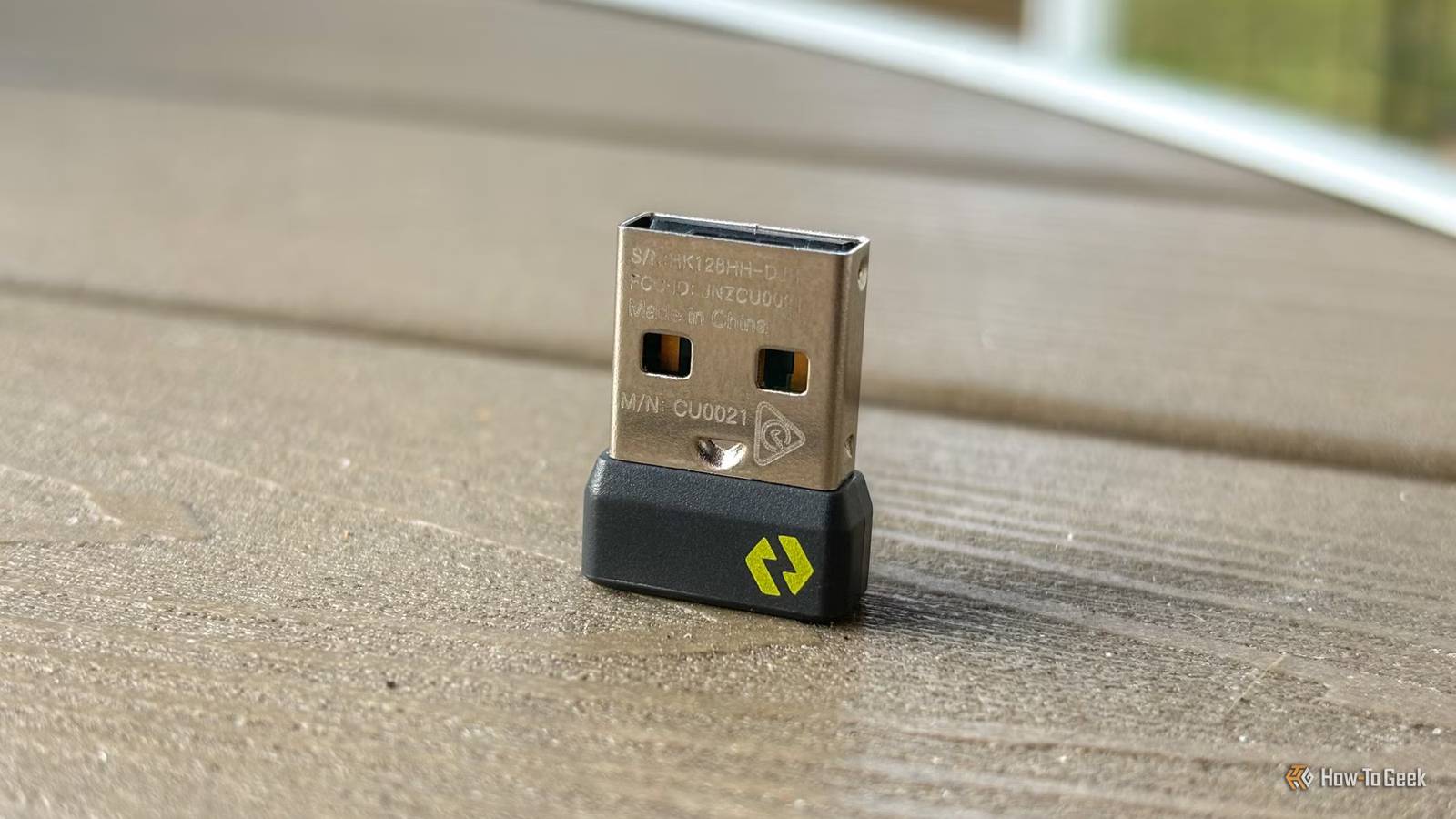
But that doesn't mean you'll never run into an issue with your tailless rodent! Your mouse might be fine, but the receiver is in a bad neighborhood Location, location, location Close To be clear, we're not talking about Bluetooth mice here, though I will touch on that later.No, the mice in question use a dedicated USB receiver like the Logi Bolt or Unifying receiver.These operate in the same 2.4GHz frequency band as Bluetooth, but use proprietary protocols and are dedicated just to the peripherals they are designed for.
In my experience, they work better than Bluetooth, so if your mouse offers the option to use its own proprietary dongle, go with that.But USB ports are not in infinite supply, and they aren't always in a convenient location, especially if you are docking a laptop to a desktop setup.So it's totally normal to use a USB hub, and why not plug your USB receiver in there? Well, it turns out that with USB 3.0 specifically, it might actually be a bad idea.
Related Why I still use the '90s most ridiculed desktop accessory in 2026 Another good idea from the '90s that just needed some modern polish.Posts 9 By Sydney Butler USB 3.0 can make noise your wireless mouse can hear They have crossed wires (except with no wires) USB 3.0 and its various incremental upgraded versions are pretty much the standard high-speed peripheral connection most people use these days.This makes it unfortunate that USB 3.0 signaling happens to create radio waves in the same 2.4GHz range that your mouse receiver uses.
That can make your mouse behave erratically or perform poorly, as signals can leak from active ports and even from the wires carrying USB 3.0 signals.This is a well-known problem, and you'll find it directly mentioned in manufacturer documentation, like this Anker troubleshooting guide.Test the hub before you blame it It might be a red herring But before you assume your mouse is acting up because you have the receiver plugged into a USB 3.0 hub, it's worth confirming that is the problem.
After all, you don't want to spend time and money fixing a problem you never had.First, remove all other devices connected to the same hub, then test the mouse to see if its performance improves.If that improves things, you can be confident the hub is the issue, or at least that one of the other devices you have plugged in with it is.
If that still doesn't help, move the receiver to a port that's built into your PC or laptop.In the case of desktop PCs, a front-panel port is best, since having a whole PC case between your mouse and receiver also won't do it any favors.If the problems persist even when you eliminate the hub from the equation, you may want to look elsewhere for issues like local interference from a router or mesh node.
Related I tried the most ridiculous Wi-Fi "life hacks" on the internet—these are the 5 that actually worked Who would've thought some of these things actually work? Posts 2 By Monica J.White Give the receiver some breathing room with an extension cable We all just need a little more space The answer in most cases is a simple USB 2.0 extension cable, which allows you to position your receivers far away from anything connected to your PC that might cause interference.I use one of these cables along with a USB splitter on the end so I can have my Logitech receiver and Bluetooth dongle on my desk, just a foot or two away from my keyboard and mouse.
USB 2.0 cables can be up to 16.4 feet long, which should be more than enough for most people.You don't have to use that length to get them close to your peripherals as I do either; just get them away from your computer, and maybe elevate them to get line-of-sight.Bluetooth isn’t an automatic escape route You might think that switching to Bluetooth might get you out of trouble here, but a Bluetooth dongle plugged into a USB 3.0 hub can run into exactly the same issues, because it operates in the same frequency range.
So the same extension cable advice would apply, which is exactly what I've done.You'd think Bluetooth and proprietary 2.4GHz dongles would avoid these pitfalls, but both operate on frequencies vulnerable to USB 3.0 emission noise.If you're using an internal Bluetooth radio, you aren't out of the woods yet either.
You may want to move your USB 3.0 hub farther away from your laptop or computer, or get a longer cable for said hub.Then you might see fewer stutters and dropouts from radio interference generated by USB flash drives or hard drives.
Read More